
Introduction
The Ezlo Atom (Gen 2) is a compact smart home hub designed to wirelessly connect your Z-Wave and Wi-Fi devices. It enables control of your smart home ecosystem through a mobile application and offers compatibility with voice assistants like Amazon Alexa and Google Home. This manual provides essential information for setting up, operating, maintaining, and troubleshooting your Ezlo Atom (Gen 2) hub.
Setup
1. Powering On the Ezlo Atom
Insert the Ezlo Atom (Gen 2) into a standard USB power adapter (not included) and then plug the adapter into a wall outlet. The device will power on automatically.
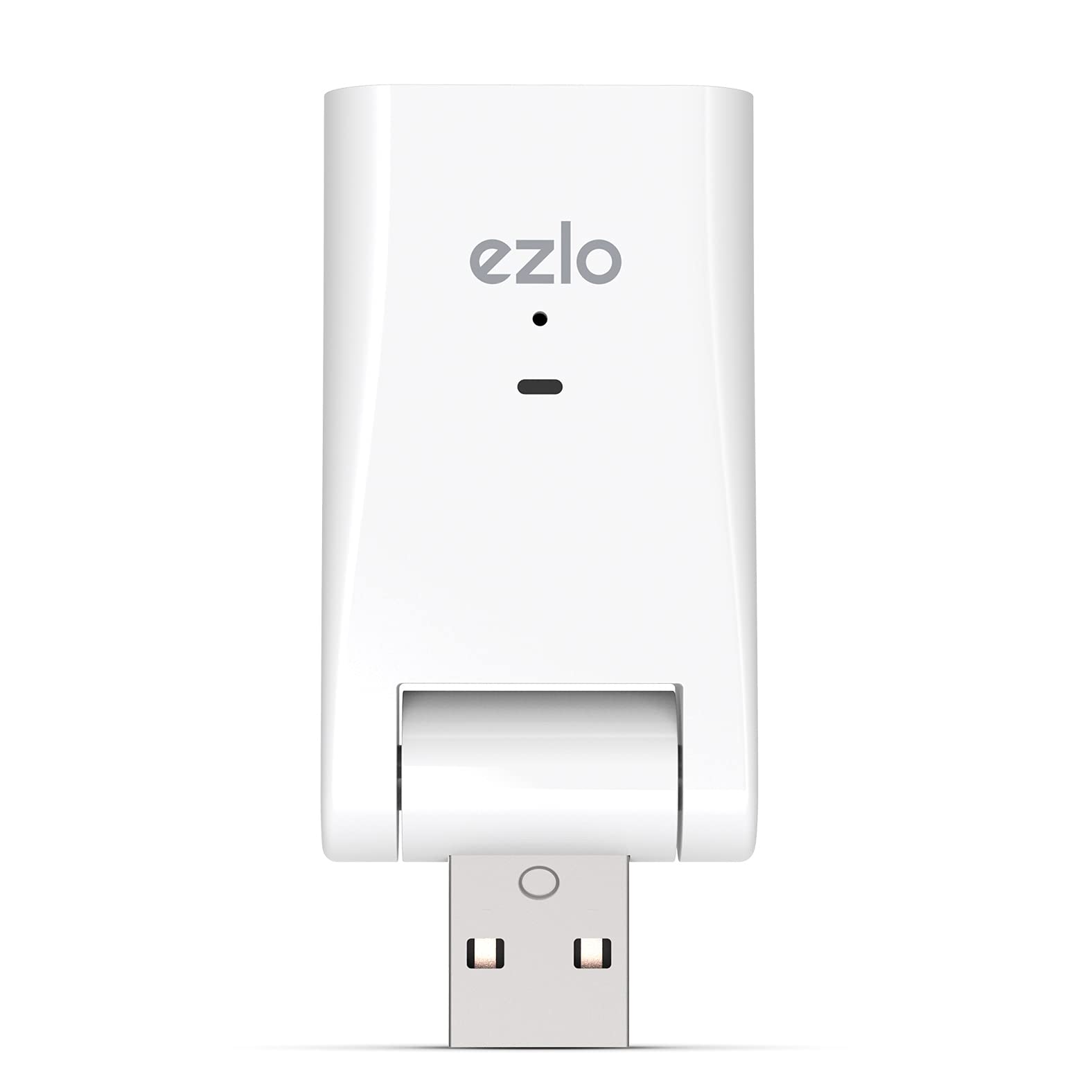
The Ezlo Atom (Gen 2) is a compact USB stick-like device that plugs into a standard USB power adapter for operation.
2. Downloading the Ezlo App
Download the Ezlo mobile application from your smartphone's app store (available for iOS and Android). Create an account or log in if you already have one.
3. Connecting to Wi-Fi
Follow the in-app instructions to connect your Ezlo Atom (Gen 2) to your home Wi-Fi network. Ensure your smartphone is connected to the same Wi-Fi network during the initial setup process.
4. Pairing Z-Wave Devices
To add Z-Wave devices:
- Open the Ezlo app and navigate to the device pairing section.
- Initiate the pairing process in the app.
- Bring the Ezlo Atom (Gen 2) close to the Z-Wave device you wish to pair.
- Follow the specific pairing instructions for your Z-Wave device (e.g., pressing a button on the device).
- Confirm successful pairing in the Ezlo app.
Operating Instructions
The Ezlo Atom (Gen 2) is primarily controlled and managed through the Ezlo mobile application. The app provides a comprehensive interface for your smart home.
App Features Overview
- Devices: View and manage all connected Z-Wave and Wi-Fi devices. You can check their status, control them individually, and access their settings.
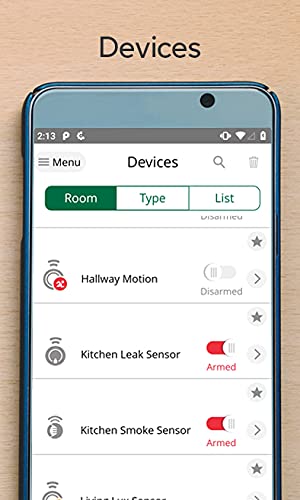
The Ezlo mobile application's 'Devices' screen, showing various connected sensors and their status.
- Scenes: Create automated routines that trigger actions based on specific conditions (e.g., time of day, sensor input) or schedules.
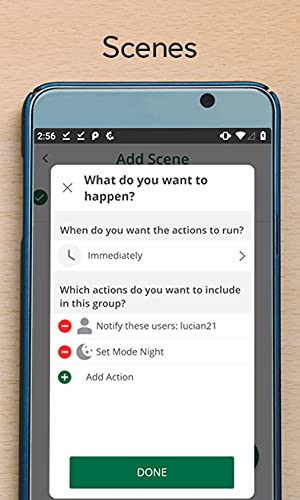
The Ezlo mobile application's 'Scenes' interface, allowing users to define automated actions and triggers.
- Modes: Set different states for your home, such as Home, Away, Night, or Vacation. Each mode can activate a predefined set of actions or device behaviors.
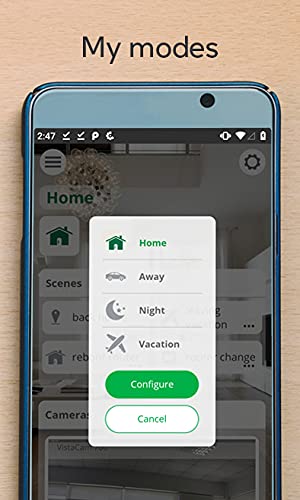
The Ezlo mobile application's 'My Modes' menu, offering options like Home, Away, Night, and Vacation.
- Users: Manage access for different household members, assigning roles and permissions as needed.
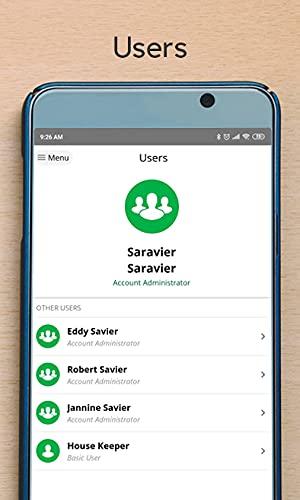
The Ezlo mobile application's 'Users' screen, where account administrators can manage access for other household members.
- Dashboard: Provides a quick overview of your smart home's status, including active scenes, device statuses, and camera feeds.
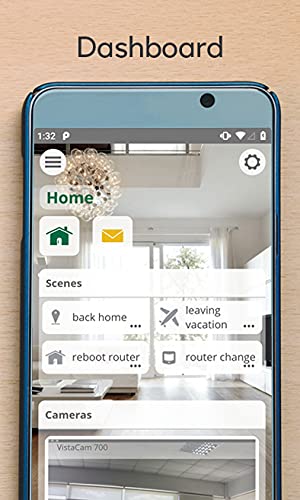
The Ezlo mobile application's main 'Dashboard', providing an overview of smart home status and quick access to scenes and cameras.
Voice Control Integration
The Ezlo Atom (Gen 2) is compatible with Amazon Alexa and Google Assistant. To enable voice control:
- Open the Alexa or Google Home app on your smartphone.
- Search for and enable the Ezlo skill (for Alexa) or Ezlo action (for Google Assistant).
- Link your Ezlo account when prompted.
- Discover devices through the voice assistant app to synchronize your smart home devices.
Maintenance
Firmware Updates
Regularly check the Ezlo app for available firmware updates for your Ezlo Atom (Gen 2). Keeping the firmware updated ensures optimal performance, security, and access to new features. Follow the in-app prompts to install any updates.
Reset Procedures
- Soft Reset: If you experience minor issues, unplug the Ezlo Atom (Gen 2) from its power source, wait 10 seconds, and then plug it back in. This can resolve temporary glitches.
- Factory Reset: A factory reset will erase all configurations and paired devices, returning the hub to its original factory settings. This should only be performed as a last resort for persistent issues. Consult the Ezlo app's help section or Ezlo support documentation for specific instructions on how to perform a factory reset.
Troubleshooting
Common Issues and Solutions
- Device not connecting to Wi-Fi:
- Ensure the Ezlo Atom is within range of your Wi-Fi router.
- Verify that you have entered the correct Wi-Fi network name (SSID) and password.
- Perform a soft reset of the Ezlo Atom.
- Restart your Wi-Fi router.
- Z-Wave device pairing issues:
- Ensure the Ezlo Atom is physically close to the Z-Wave device during the pairing process.
- If the device was previously paired to another hub, it might need to be excluded from that network first. Refer to the Z-Wave device's manual for exclusion instructions.
- Some Z-Wave devices have specific pairing sequences; consult the device's manual.
- Ezlo app connectivity problems:
- Ensure your smartphone has an active internet connection.
- Close and restart the Ezlo app.
- If issues persist, try reinstalling the app.
- Verify that your Ezlo Atom is connected to the internet.
- Alexa/Google Home integration not working:
- Double-check that the Ezlo skill/action is enabled in your Alexa/Google Home app and correctly linked to your Ezlo account.
- Try disabling and re-enabling the skill/action.
- Perform a device discovery in your Alexa/Google Home app.
- Note that some users have reported challenges with Alexa integration; consult Ezlo support for the latest compatibility information and troubleshooting steps.
Specifications
| Feature | Detail |
|---|---|
| Brand | Ezlo |
| Model | EzloAtom2-US |
| Item Dimensions (L x W x H) | 0.5 x 1.57 x 2.5 inches |
| Connectivity Protocol | Wi-Fi, Z-Wave |
| Controller Type | Amazon Alexa, Google Assistant |
| Control Method | Voice |
| Mounting Type | Wall Mount (via USB power adapter) |
| Operation Mode | ON-OFF-ON |
| Connector Type | Wireless |
| Unit Count | 1.0 Count |
| Manufacturer | Ezlo |
Warranty and Support
For detailed warranty information, technical assistance, or to contact customer support, please visit the official Ezlo website. You can typically find support resources, FAQs, and contact details in the support section of their website.


