1. Introduction
Thank you for choosing the ASUS ZenDrive U8M Ultraslim External DVD Drive & Writer. This device provides a convenient and portable solution for reading and writing CDs and DVDs, including M-DISC support for archival-quality data storage. This manual will guide you through the setup, operation, and maintenance of your new drive.

Figure 1: ASUS ZenDrive U8M Ultraslim External DVD Drive (Closed, Top View)
2. Package Contents
Please check the contents of your package. If any item is missing or damaged, contact your retailer.
- ASUS ZenDrive U8M Ultraslim External DVD Drive
- USB Type-C to USB Type-C Cable
- Quick Start Guide / User Manual (this document)
3. Setup
Follow these steps to set up your ASUS ZenDrive U8M.
3.1 System Requirements
- Operating System: Windows (Windows 7 or later recommended), Mac OS (macOS 10.8 or later recommended)
- Available USB Type-C port
- Minimum 2GB RAM
- Minimum 10GB free hard disk space for software installation and data storage
3.2 Connecting the Drive
- Locate an available USB Type-C port on your computer.
- Connect one end of the provided USB Type-C cable to the USB Type-C port on the ASUS ZenDrive U8M.
- Connect the other end of the USB Type-C cable to your computer's USB Type-C port.
- The drive is plug-and-play and should be automatically recognized by your operating system. No additional drivers are typically required.
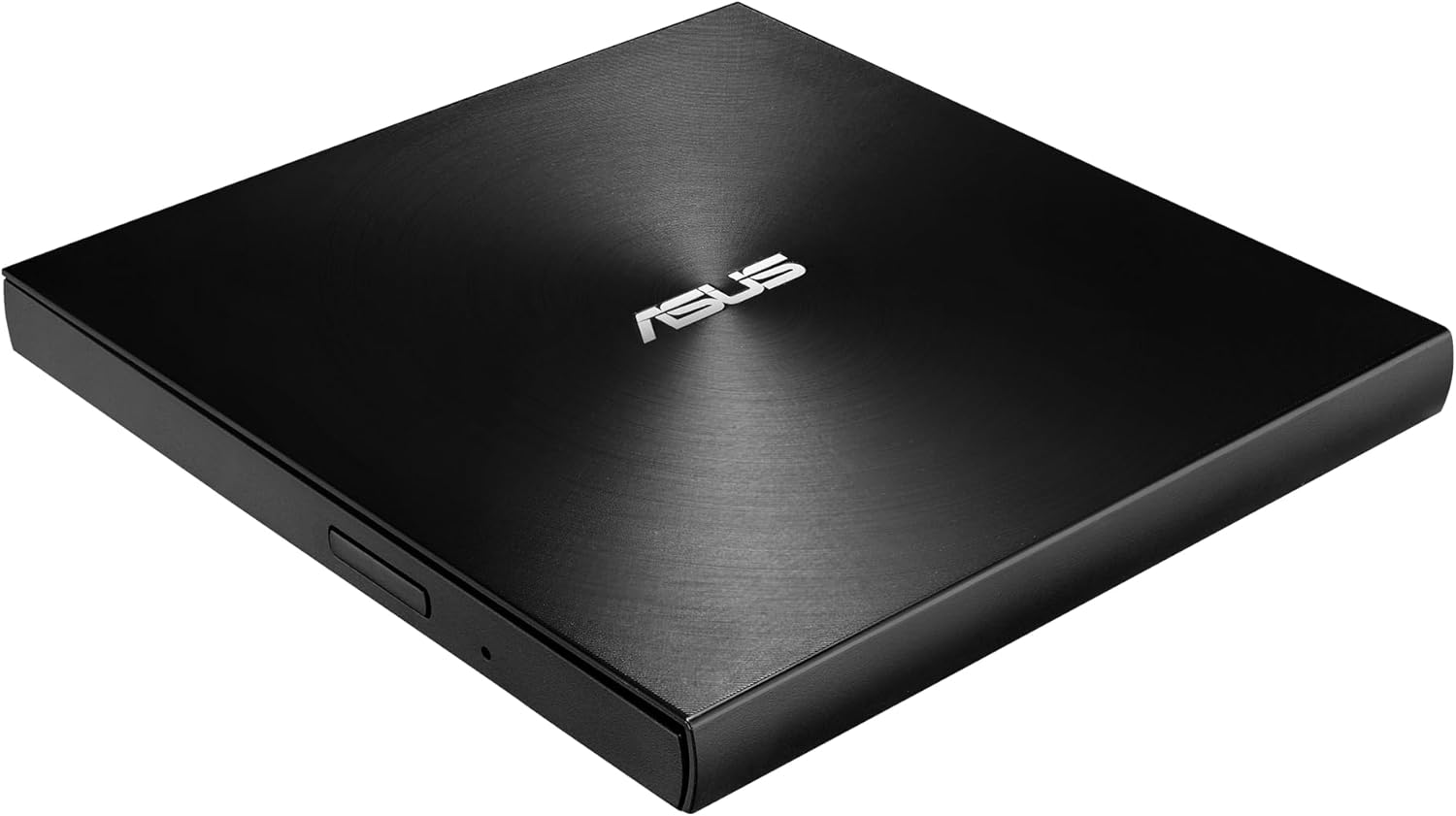
Figure 2: USB Type-C Port on the ZenDrive U8M
4. Operating Instructions
This section details how to use your external DVD drive for reading and writing discs.
4.1 Inserting and Ejecting Discs
- To open the disc tray, gently press the eject button located on the front of the drive. The tray will partially open.
- Carefully pull the tray out completely.
- Place the disc onto the tray with the label side facing up, ensuring it sits securely on the center spindle.
- Gently push the disc tray back into the drive until it clicks shut.
- To eject a disc, press the eject button again or use the software eject function from your operating system.

Figure 3: Inserting a Disc into the ZenDrive U8M
4.2 Reading Discs
Once a disc is inserted, your operating system should automatically detect it. You can then access the disc's contents through File Explorer (Windows) or Finder (Mac OS). For playing movies or music, dedicated media player software may be required.
4.3 Writing/Burning Discs
To write data to a blank CD or DVD, you will need disc burning software. Your operating system may have built-in burning capabilities, or you can use third-party software. The ASUS ZenDrive U8M supports various disc formats, including M-DISC for long-term data archiving.
- M-DISC Support: M-DISC (Millennial Disc) is an archival-grade disc technology designed to preserve your data for up to 1,000 years or more. When burning to M-DISC media, ensure your burning software supports this format.
5. Maintenance
Proper care will extend the life of your ASUS ZenDrive U8M.
- Cleaning the Drive: Use a soft, dry, lint-free cloth to wipe the exterior of the drive. Do not use liquid cleaners or abrasive materials. Avoid opening the drive casing.
- Handling Discs: Always hold discs by their edges. Avoid touching the shiny surface. Store discs in their cases when not in use to prevent scratches and dust accumulation.
- Storage: Store the drive in a cool, dry place away from direct sunlight and extreme temperatures. Disconnect the drive when not in use.
6. Troubleshooting
If you encounter issues with your ASUS ZenDrive U8M, refer to the following common problems and solutions.
| Problem | Possible Cause | Solution |
|---|---|---|
| Drive not recognized by computer. | Loose cable connection, insufficient power, faulty USB port. | Ensure the USB cable is securely connected to both the drive and the computer. Try a different USB port or a different USB cable. Restart your computer. |
| Disc not reading or playing. | Dirty or scratched disc, incorrect disc format, no media player software. | Clean the disc with a soft, lint-free cloth. Try a different disc. Ensure the disc format is supported. Install appropriate media player software. |
| Disc burning fails. | Faulty blank disc, insufficient disk space, incorrect burning speed, software issue. | Try a different blank disc. Ensure you have enough free space on your hard drive. Try a slower burning speed. Update or reinstall your burning software. |
| Drive makes unusual noises. | Unbalanced disc, drive placed on an uneven surface. | Ensure the disc is properly seated on the tray. Place the drive on a flat, stable surface. If the noise persists, contact support. |
7. Specifications
| Feature | Description |
|---|---|
| Model Number | 90DD0290-M29000 |
| Interface | USB Type-C |
| Dimensions (L x W x H) | 5.63 x 5.35 x 0.55 inches (143 x 136 x 14 mm) |
| Weight | 8.3 ounces (235 grams) |
| Supported Operating Systems | Windows, Mac OS |
| Optical Storage Write Speed | DVD+R, DVD-R, DVD+RW, DVD-RW, DVD+R(DL), DVD-R(DL): 8x DVD+R(SL, M-DISC): 4x CD-R, CD-RW: 24x |
| Special Features | M-DISC Support |
8. Warranty and Support
Your ASUS ZenDrive U8M comes with a limited warranty. For detailed warranty information, please refer to the warranty card included with your product or visit the official ASUS support website.
For technical support, driver downloads, and FAQs, please visit the ASUS support website:
Please have your product model number (90DD0290-M29000) and serial number ready when contacting support.


