Introduction
This manual provides detailed instructions for the setup, operation, maintenance, and troubleshooting of your Samsung LS27AM501NWXXL 27-inch FHD Smart Monitor. Please read this manual thoroughly before using your monitor to ensure proper and safe operation. This monitor combines OTT media services, mobile connectivity, and remote PC capabilities.
Important Safety Information
Always follow basic safety precautions when using this product to reduce the risk of fire, electric shock, and injury to persons. Keep this manual for future reference.
- Do not expose the monitor to rain or moisture.
- Do not open the monitor casing. Refer all servicing to qualified service personnel.
- Ensure proper ventilation. Do not block ventilation openings.
- Use only the power cord and adapter supplied with the monitor.
- Clean the monitor with a soft, dry cloth. Avoid liquid cleaners.
Package Contents
Verify that all items are present in your product box:
- 1 Unit Monitor
- 1 Power Cable
- 1 HDMI Cable
- 1 Remote Control
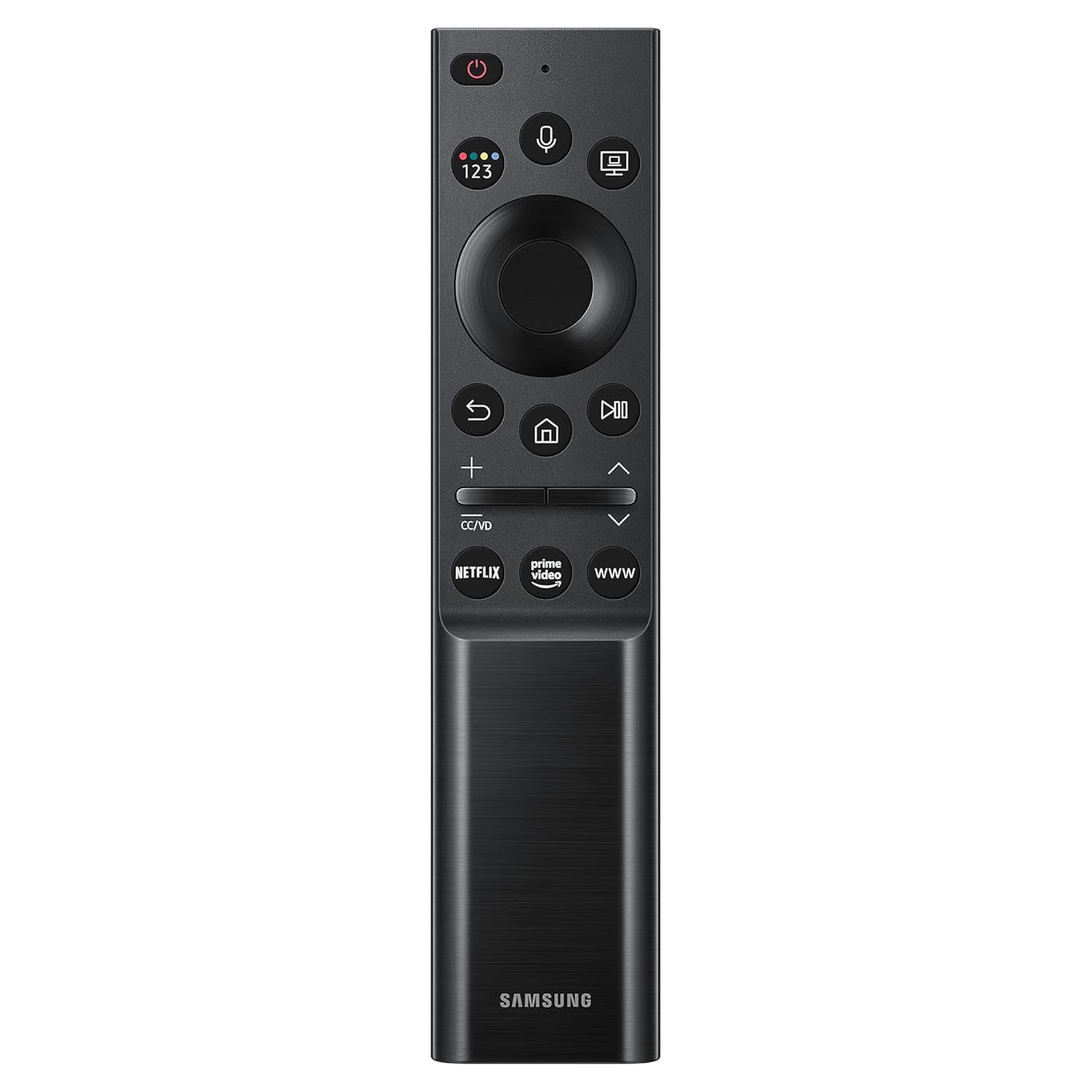
Image: The included remote control for the Samsung Smart Monitor, featuring dedicated buttons for streaming services and navigation.
Setup
1. Assembling the Stand
Carefully attach the stand base to the stand neck, then secure the assembled stand to the back of the monitor. Ensure all screws are tightened securely.

Image: The monitor's slim metal stand and 3-sided borderless design, illustrating its aesthetic and compact form factor.
2. Connecting Cables
Connect the power cable to the monitor and a wall outlet. Use the supplied HDMI cable to connect your computer or other devices to the monitor's HDMI ports.

Image: A detailed view of the monitor's rear panel, highlighting the HDMI IN 1 (ARC), HDMI IN 2, USB 1, and USB 2 ports for various connections.
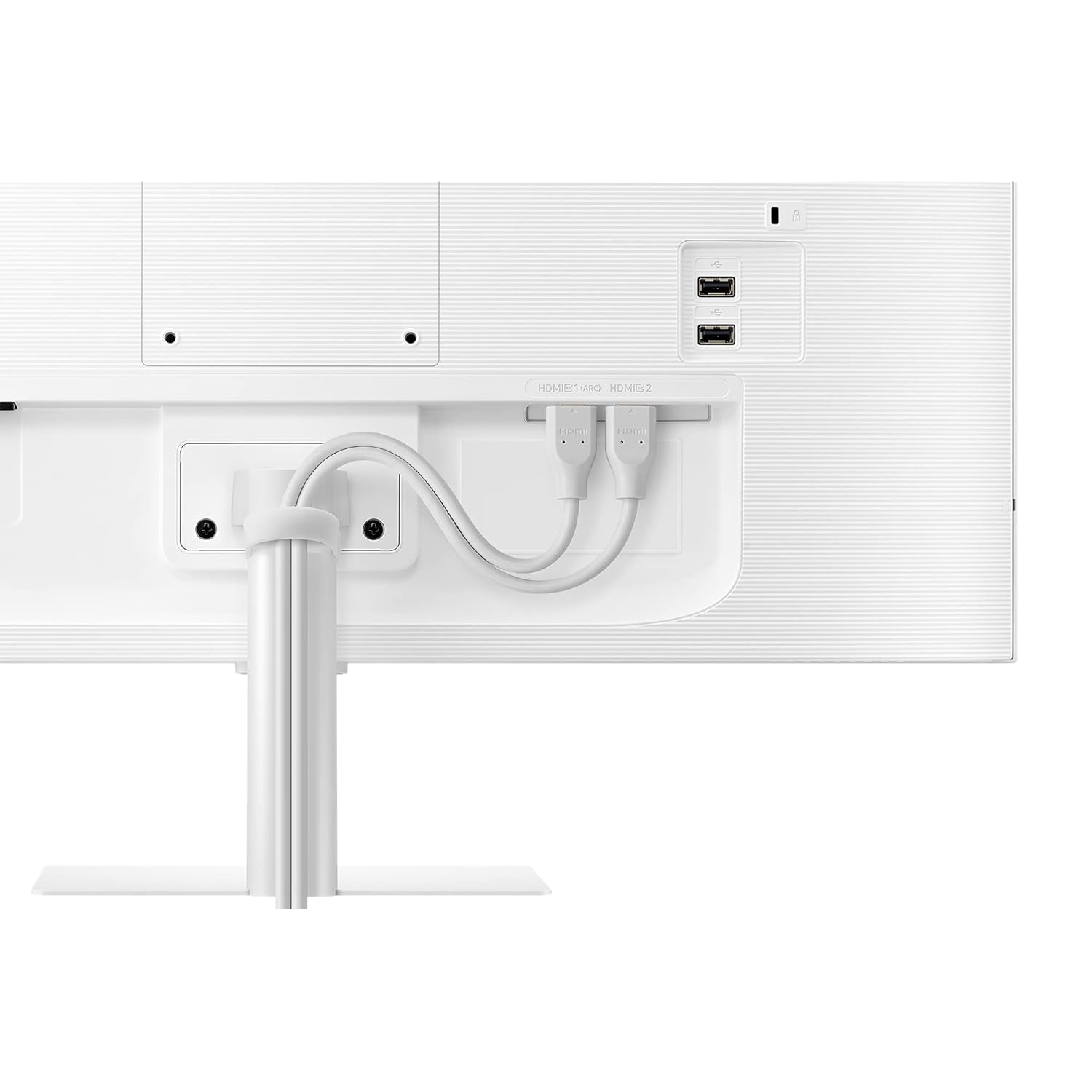
Image: The rear of the monitor with HDMI cables neatly routed through the stand, demonstrating proper cable management for a clean setup.
3. Initial Power On
Press the power button on the monitor or the remote control to turn on the monitor. Follow the on-screen instructions for initial setup, including network connection and smart features configuration.
Operating Instructions
Smart Hub Features
Your Samsung Smart Monitor integrates a Smart Hub, allowing direct access to various entertainment applications without needing a separate PC. Use the remote control to navigate the Smart Hub.
- Streaming Services: Access pre-installed apps like Netflix, YouTube, Prime Video, and Apple TV.
- Remote Access: Connect to your office PC remotely or access Microsoft 365 applications directly from the monitor.

Image: A hand holding the monitor's remote control, pointing towards the screen displaying various streaming application icons such as Netflix, Prime Video, and YouTube.

Image: The monitor screen showing Microsoft 365 applications, illustrating the "PC on Screen" and remote access capabilities for productivity.
Mobile Connectivity
The monitor supports wireless DeX, allowing you to use your compatible mobile device as a full PC experience. You can also mirror your mobile screen to the monitor.
- Wireless DeX: Connect your Samsung Galaxy phone wirelessly to the monitor to use mobile productivity apps in a desktop environment.
- Screen Mirroring: Cast content from your smartphone or tablet directly to the monitor.

Image: A user working at a desk with the Samsung Smart Monitor, demonstrating the Wireless DeX feature connecting a smartphone to the monitor for a desktop-like experience.
Adaptive Picture
The monitor features Adaptive Picture technology, which automatically adjusts screen brightness based on ambient light conditions for optimal viewing comfort.

Image: The monitor displaying a scenic image with an on-screen brightness adjustment bar, illustrating the Adaptive Picture feature that automatically optimizes display brightness.
Ultrawide Game View
For an enhanced gaming experience, activate Ultrawide Game View to adjust the screen aspect ratio to 21:9, revealing more of the game environment.

Image: The monitor displaying a football game in a 21:9 aspect ratio, demonstrating the Ultrawide Game View feature for an expanded field of vision.
Auto Source Switch
The monitor can automatically detect and switch to a newly connected device, eliminating the need for manual input selection.

Image: A diagram illustrating the Auto Source Switch feature, where the Samsung M5 monitor automatically detects and displays content from a connected laptop, unlike conventional monitors that show "No Signal."
Voice Assistant
Utilize built-in voice assistants like Bixby or SmartThings for hands-free control of your monitor and connected smart home devices.

Image: A woman speaking into the remote control, demonstrating the voice assistant feature (Bixby, SmartThings) for controlling the monitor.
Maintenance
- Cleaning the Screen: Gently wipe the screen with a soft, lint-free cloth. For stubborn marks, lightly dampen the cloth with water or a screen-specific cleaning solution. Do not spray liquid directly onto the screen.
- Cleaning the Casing: Use a soft, dry cloth to wipe the monitor casing. Avoid abrasive cleaners or solvents.
- Ventilation: Ensure the ventilation openings on the monitor are not blocked to prevent overheating.
- Power Management: Unplug the monitor from the power outlet during lightning storms or when it will be unused for extended periods.
Troubleshooting
No Power
- Check if the power cable is securely connected to the monitor and the power outlet.
- Verify that the power outlet is functioning by plugging in another device.
- Ensure the power button on the monitor or remote control has been pressed.
No Signal / Blank Screen
- Confirm that the HDMI cable is properly connected to both the monitor and the source device (PC, laptop, etc.).
- Select the correct input source using the monitor's remote control or OSD menu.
- Ensure the source device is powered on and outputting a signal.
Picture Issues (Distorted, Flickering, Incorrect Colors)
- Check the HDMI cable for damage or loose connections. Try a different cable if available.
- Adjust the display resolution and refresh rate on your source device to match the monitor's specifications.
- Perform a factory reset of the monitor settings through the OSD menu.
Remote Control Not Working
- Ensure there are no obstructions between the remote control and the monitor.
- Replace the batteries in the remote control.
Specifications
| Feature | Detail |
|---|---|
| Brand | Samsung |
| Model Number | LS27AM501NWXXL |
| Screen Size | 27 Inches (68.6 cm) |
| Resolution | 1920 x 1080 (FHD 1080p) |
| Aspect Ratio | 16:9 |
| Panel Type | VA |
| HDR Support | HDR 10 |
| Connectivity | 2 x HDMI, 2 x USB |
| Color | White |
| Dimensions (LxWxH) | 19.4 x 61.6 x 45.5 cm |
| Item Weight | 5 kg |
| Smart Features | Smart Hub (Netflix, YouTube, Prime Video, Apple TV), Wireless DeX, Remote Access, Adaptive Picture, Ultrawide Game View, Voice Assistant (Bixby, SmartThings), Auto Source Switch |

Image: The front view of the Samsung Smart Monitor, illustrating its physical dimensions: 615.5 mm width, 455.4 mm height, and 193.5 mm depth with the stand.
Warranty and Support
This product comes with a 3 Year Warranty from the manufacturer, Samsung.
For technical support, service, or warranty claims, please contact Samsung customer service:
- Samsung India Pvt Ltd: 180040 7267864, 1800 5 7267864
- Refer to the official Samsung website for the most up-to-date support information and contact details.