
1. Introduction
The PWAYTEK 12-in-1 USB-C Hub is a versatile docking station designed to expand the connectivity of your USB-C enabled laptop or tablet. It provides a comprehensive solution for connecting multiple peripherals, external displays, network, and power delivery through a single USB-C port.
This hub features:
- Dual HDMI ports and one VGA port for triple display output.
- Three USB 3.0 ports for high-speed data transfer.
- One USB-C data port and one USB-C Power Delivery (PD) charging port.
- An RJ45 Ethernet port for stable network connection.
- SD and TF card reader slots.
- A 3.5mm audio jack for headphones or speakers.

Image 1.1: Overview of the PWAYTEK 12-in-1 USB-C Hub with connected devices.
2. Setup Guide
2.1 Compatibility Check
Before connecting the hub, ensure your laptop's USB-C port supports the necessary functions for the desired features. Not all USB-C ports are identical. Your laptop's USB-C port must support DisplayPort Alternate Mode (Alt Mode) for video output and Power Delivery (PD) for charging through the hub.
- Thunderbolt 3/4: Fully compatible, supports data, video, and power.
- USB-C with Data + DisplayPort Alt Mode: Supports data and video.
- USB-C with Data + Power Delivery + DisplayPort Alt Mode: Fully compatible, supports data, video, and power.
- USB-C (Data Transfer Only): Only USB data ports will function. Video output and PD charging will not work.
- USB-C (Power Delivery Only): Only the PD charging port on the hub will function.

Image 2.1: USB-C port compatibility guide.
2.2 Connecting the Hub
- Connect the integrated USB-C cable from the PWAYTEK hub to a compatible USB-C port on your laptop or tablet.
- For optimal performance and to charge your laptop, connect your laptop's original power adapter to the USB-C PD (Power Delivery) port on the hub. The hub supports up to 87W power delivery.
- The hub can be placed underneath your laptop to elevate it slightly, which may aid in heat dissipation.
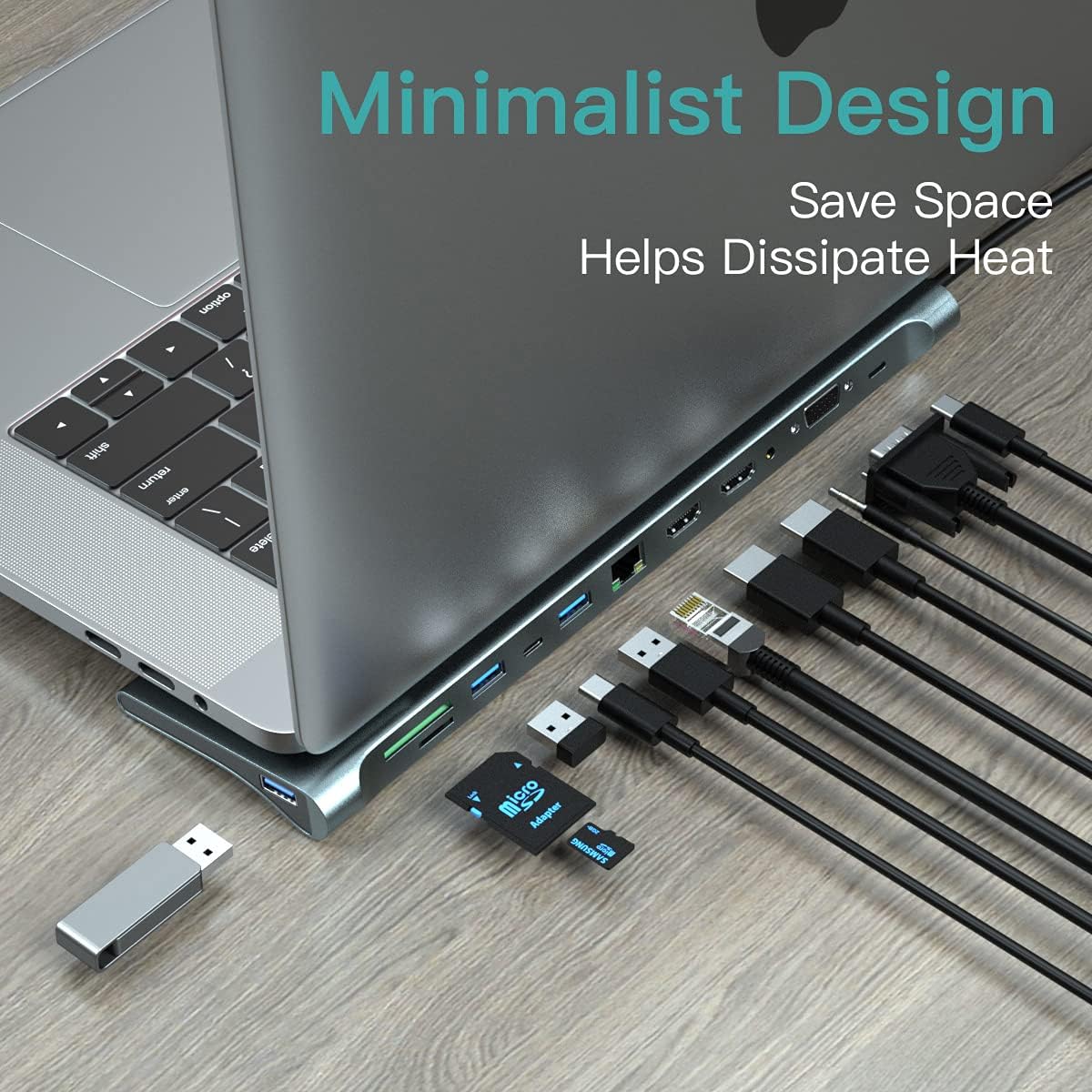
Image 2.2: Hub positioned under a laptop.
2.3 Connecting Peripherals
Once the hub is connected to your host device, you can connect your peripherals to the corresponding ports on the hub:
- Displays: Connect HDMI cables to the HDMI ports and a VGA cable to the VGA port.
- USB Devices: Plug USB flash drives, external hard drives, keyboards, or mice into the USB 3.0 ports or the USB-C data port.
- Network: Connect an Ethernet cable to the RJ45 port.
- Memory Cards: Insert SD or TF cards into their respective slots.
- Audio: Connect headphones or speakers to the 3.5mm audio jack.

Image 2.3: Detailed port layout and functions.
3. Operating Instructions
3.1 Display Modes (Triple Display)
The hub supports connecting up to three external displays simultaneously via its two HDMI ports and one VGA port. The maximum resolution for HDMI is 4K@30Hz, and for VGA is 1080P@60Hz.
3.1.1 Windows Operating System
Windows systems support both Extended Mode and Mirror Mode across multiple displays.
- Extended Mode: Allows you to display different content on each connected monitor, expanding your desktop workspace. To configure, right-click on the desktop, select 'Display settings', and arrange your displays.
- Mirror Mode: Duplicates your laptop's screen onto all connected external displays. To configure, right-click on the desktop, select 'Display settings', and choose 'Duplicate these displays'.

Image 3.1: Windows display configurations.
3.1.2 macOS Operating System
macOS systems support Extended Mode and Mirror Mode. However, due to macOS limitations, when multiple external displays are connected, they will typically mirror each other in Extended Mode, or all displays will mirror the primary display in Mirror Mode.
- Extended Mode: Your laptop screen can be extended to one external display, and other external displays will mirror that extended display. To configure, go to 'Apple menu > System Settings > Displays'.
- Mirror Mode: All connected displays (laptop and external) will show the same content. To configure, go to 'Apple menu > System Settings > Displays' and select 'Mirror Displays'.

Image 3.2: macOS display configurations.
3.2 Data Transfer
The hub provides multiple ports for data transfer:
- USB 3.0 Ports (x3): Support data transfer speeds up to 5Gbps. Ideal for connecting external storage, keyboards, mice, and other USB peripherals.
- USB-C Data Port (x1): Supports data transfer speeds up to 5Gbps.
- SD/TF Card Slots: Support reading and writing to SD and TF (Micro SD) cards up to 512GB with speeds up to 104MB/s.

Image 3.3: USB 3.0 and card reader functionality.
3.3 Power Delivery (PD)
The dedicated USB-C PD charging port allows you to power your laptop through the hub. Connect your laptop's original USB-C power adapter to this port. The hub supports up to 87W power delivery, ensuring your laptop remains charged while using other hub functions.

Image 3.4: Power Delivery function.
3.4 Ethernet Connection
The RJ45 Ethernet port provides a stable and reliable wired network connection, supporting speeds of 10/100Mbps. This is beneficial for environments where Wi-Fi is unstable or unavailable.

Image 3.5: Ethernet and Audio ports.
3.5 Audio Output
The 3.5mm audio jack allows you to connect headphones, earphones, or external speakers for audio output from your laptop or tablet.
4. Maintenance
- Keep the hub clean by wiping it with a soft, dry cloth. Avoid using liquid cleaners or solvents.
- Store the hub in a cool, dry place away from direct sunlight and extreme temperatures.
- Avoid dropping the device or subjecting it to strong impacts.
- Do not attempt to disassemble or repair the hub yourself, as this will void the warranty.
5. Troubleshooting
5.1 No Display Output
- Check USB-C Port Compatibility: Ensure your laptop's USB-C port supports DisplayPort Alt Mode. Refer to your laptop's manual or manufacturer's specifications.
- Cable Connection: Verify that all HDMI/VGA cables are securely connected to both the hub and the external displays.
- Display Settings: Adjust your laptop's display settings (e.g., 'Display settings' on Windows, 'System Settings > Displays' on macOS) to detect and configure the external monitors.
- Power Supply: Ensure the hub is receiving sufficient power. If using PD charging, connect your laptop's power adapter to the hub's PD port.
- Resolution: Try lowering the resolution of the external displays to see if it resolves the issue.
5.2 USB Devices Not Recognized
- Reconnect: Disconnect and reconnect the USB device to the hub.
- Power: Ensure the hub is adequately powered, especially for high-power USB devices.
- Direct Connection: Test the USB device by connecting it directly to your laptop to rule out device issues.
5.3 Slow Ethernet Speed
- Cable Check: Ensure the Ethernet cable is securely connected and undamaged.
- Driver: Most operating systems automatically install drivers for the Ethernet port. If issues persist, check for updated drivers for your system.
- Hub Specification: Note that the RJ45 port supports 10/100Mbps. If your network requires Gigabit Ethernet (1000Mbps), this hub will operate at its maximum supported speed of 100Mbps.
5.4 Laptop Not Charging via Hub
- PD Port: Ensure your laptop's power adapter is connected to the dedicated USB-C PD port on the hub, not the USB-C data port.
- Power Adapter: Use your laptop's original power adapter, as some third-party adapters may not be fully compatible or provide sufficient wattage.
- USB-C Port Compatibility: Confirm your laptop's USB-C port supports Power Delivery.
6. Specifications
| Feature | Detail |
|---|---|
| Model | B0998JDJYW |
| Brand | PWAYTEK |
| Ports | 2x HDMI, 1x VGA, 3x USB 3.0, 1x USB-C (Data), 1x USB-C (PD Charging), 1x RJ45 Ethernet, 1x SD Card Slot, 1x TF Card Slot, 1x 3.5mm Audio Jack |
| HDMI Resolution | Up to 4K (3840x2160) @ 30Hz |
| VGA Resolution | Up to 1080P (1920x1080) @ 60Hz |
| USB 3.0 Data Transfer Rate | Up to 5Gbps |
| USB-C Data Transfer Rate | Up to 5Gbps |
| Power Delivery | Up to 87W (via dedicated USB-C PD port) |
| Ethernet Speed | 10/100Mbps |
| Card Reader Support | SD/TF cards up to 512GB, speed up to 104MB/s |
| Compatible Operating Systems | Windows, macOS, Chrome OS, Android (Type-C devices) |
| Weight | 257 Grams |
| UPC | 770773532373 |
7. Warranty & Support
7.1 Warranty Information
PWAYTEK products are designed for reliability and performance. Specific warranty details may vary by region and retailer. Please refer to the warranty card included with your product or contact your point of purchase for detailed warranty terms and conditions.
7.2 Customer Support
If you encounter any issues or have questions regarding your PWAYTEK 12-in-1 USB-C Hub that are not covered in this manual, please contact PWAYTEK customer support. Contact information can typically be found on the product packaging, the official PWAYTEK website, or through your retailer.