
TELE System TS UP T2 A10
TELE System UP T2 4K Digital Terrestrial Android TV ULTRA HD Decoder User Manual
Model: TS UP T2 A10
Introduction
The TELE System UP T2 4K is an advanced digital terrestrial decoder that integrates Android TV functionality, transforming your television into a smart entertainment hub. This device supports DVB-T2 HEVC standards, offering high-quality 4K ULTRA HD resolution with HDR10+HLG support. It provides access to a vast array of streaming services via Google Play Store, including Prime Video, YouTube, Netflix, DAZN, Disney Plus, RaiPlay, Apple TV+, and Mediaset Infinity. Equipped with Google Assistant and Chromecast built-in, it offers intuitive voice control and seamless content casting from your smart devices. This manual provides essential information for setting up, operating, maintaining, and troubleshooting your UP T2 4K decoder.

Image: The TELE System UP T2 4K decoder positioned in front of a television displaying the Android TV home screen with various streaming app icons.
What's in the Box
Upon unboxing your TELE System UP T2 4K, please ensure all the following components are present:
- TELE System UP T2 4K Decoder
- Remote Control
- SCART Adapter
- 2 x AAA Batteries
- Instruction Manual
Setup Guide
Follow these steps for the initial setup of your TELE System UP T2 4K decoder.
1. Connecting the Decoder
- Power Connection: Connect the power adapter to the DC IN port on the back of the decoder and plug it into a power outlet.
- Video Connection:
- For modern TVs, connect an HDMI cable from the HDMI port on the decoder to an available HDMI input on your television.
- For older TVs, use the provided SCART adapter. Connect the adapter to the AV port on the decoder, then connect a SCART cable from the adapter to the SCART input on your television.
- Antenna Connection: Connect your terrestrial antenna cable to the RF IN port on the back of the decoder.
- Network Connection (Optional but Recommended):
- Wi-Fi: The decoder supports Wi-Fi for wireless internet access. You will configure this during the on-screen setup.
- Ethernet: For a more stable connection, connect an Ethernet cable from the Ethernet port on the decoder to your router.
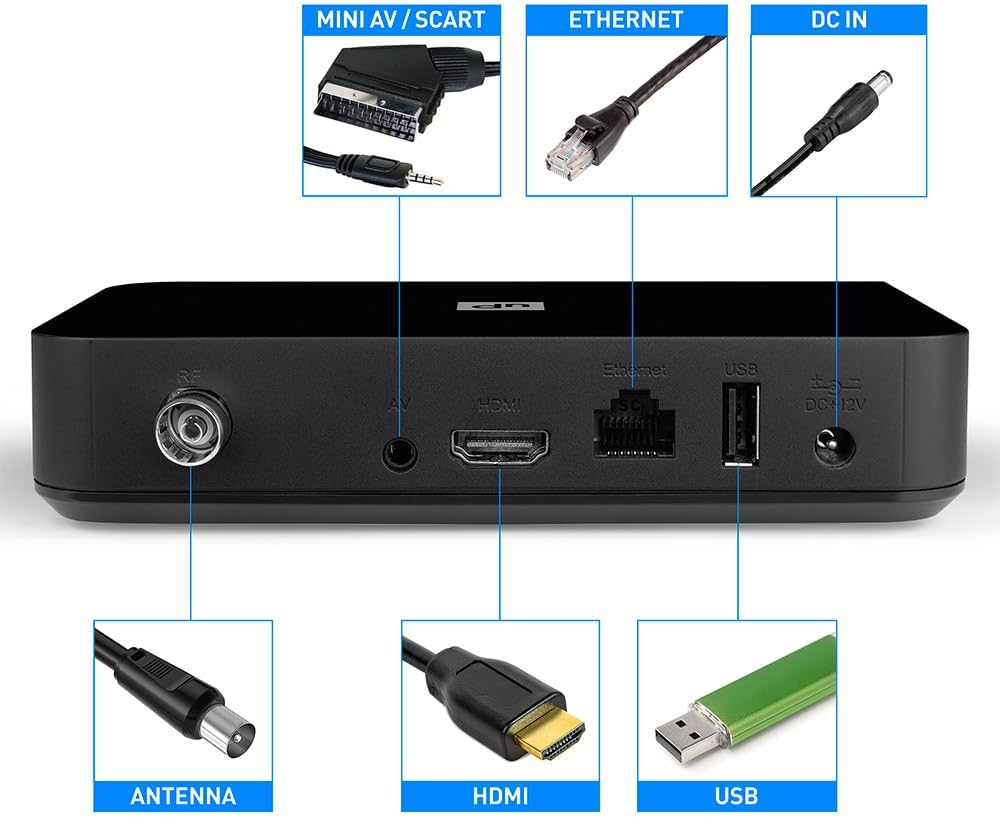
Image: Rear view of the TELE System UP T2 4K decoder, highlighting its various connection ports including RF IN (Antenna), AV (Mini AV/SCART), HDMI, Ethernet, USB, and DC IN.
2. Initial Power-On and On-Screen Setup
- Turn on your television and select the correct HDMI or SCART input source connected to the decoder.
- The decoder will power on automatically. Follow the on-screen instructions to complete the initial setup, which typically includes:
- Language selection.
- Network configuration (Wi-Fi or Ethernet).
- Google account sign-in (required for Android TV features and app downloads).
- Channel scanning for digital terrestrial TV.
- Remote Control Pairing: The remote control uses both Bluetooth and IR. For full functionality, especially voice commands, ensure it is paired via Bluetooth during the setup process.
- Software Updates: Ensure your decoder is running the latest software version. Updates for the decoder and Google Play Store apps are managed directly through Google's servers. A stable network connection is crucial for successful updates.
- TV Compatibility: Ensure your TV is HDCP compatible for proper image display. If you experience issues, try changing the HDMI/SCART cable or adjusting the "color-space" option to RGB in the decoder's settings. For image fluidity problems, change the resolution in AV SET > Screen > Screen Options > Resolution and select a 50Hz format.
Operating Instructions
This section covers the basic operation of your TELE System UP T2 4K decoder.
Remote Control Functions
The included remote control allows you to navigate the Android TV interface and control TV functions. It features both Bluetooth and infrared (IR) capabilities.

Image: A hand holding the TELE System remote control, with a focus on the Google Assistant button and direct access buttons for YouTube and Prime Video.
- Power Button: Turns the decoder on/off.
- Navigation Pad (OK button): Used to navigate menus and confirm selections.
- Back Button: Returns to the previous screen.
- Home Button: Returns to the Android TV home screen.
- Google Assistant Button: Press to activate voice commands.
- Volume +/-: Adjusts the volume.
- Channel +/- (DTV): Changes channels in Digital Terrestrial TV mode.
- Direct App Buttons: Quick access to YouTube and Prime Video.
- DTV Button: Switches between Android TV mode and Digital Terrestrial TV mode.
- TV Control Buttons: The remote can be programmed to control basic functions of your TV (e.g., power, volume). Refer to the remote control's specific instructions for programming.
Accessing Streaming Services
From the Android TV home screen, you can access various streaming applications:
- Navigate to the 'Apps' section or select an app icon directly from the home screen (e.g., Netflix, Prime Video, YouTube).
- If an app is not installed, you can download it from the Google Play Store.
- Sign in with your respective service accounts to access content.
Using Digital Terrestrial TV (DVB-T2)
To watch digital terrestrial channels:
- Press the DTV button on the remote control to switch to TV mode.
- Use the Channel +/- buttons to change channels.
- Access the Electronic Program Guide (EPG) for program information.
Google Assistant and Chromecast
- Google Assistant: Press the Google Assistant button on the remote and speak your commands. You can ask it to find content, control playback, check weather, and more.
- Chromecast built-in: Cast photos, videos, and music from your compatible smartphone, tablet, or computer directly to your TV via the decoder. Look for the Cast icon within supported apps on your smart device.
Energy Saving Function
The decoder has an automatic standby feature that turns off the device after 3 hours of inactivity. To disable this function, navigate to Settings > Device Preferences > Automatic Standby and set it to "NEVER".
Maintenance
To ensure the longevity and optimal performance of your TELE System UP T2 4K decoder, follow these simple maintenance guidelines:
- Cleaning: Use a soft, dry cloth to clean the exterior of the decoder. Do not use liquid cleaners, aerosols, or abrasive materials, as they may damage the surface or internal components.
- Ventilation: Ensure the decoder is placed in a well-ventilated area. Do not block any ventilation openings on the device. Overheating can affect performance and lifespan.
- Power Off When Not in Use: If you plan not to use the decoder for an extended period, it is advisable to unplug it from the power outlet.
- Avoid Liquids: Keep the decoder away from water and other liquids. Do not place objects filled with liquids (e.g., vases) on or near the device.
Troubleshooting
If you encounter issues with your TELE System UP T2 4K decoder, refer to the following common problems and their solutions:
| Problem | Possible Cause / Solution |
|---|---|
| Software Update Fails | An inadequate network connection can cause update failures. Ensure a stable internet connection. If the operation still fails, reset the decoder to factory settings. |
| No Image / Green Screen / Image Issues | Ensure your TV is HDCP compatible. Try changing the HDMI or SCART cable. Go to AV SET > Screen > Screen Options > Color Space and try setting it to "RGB 8 bit" to resolve color display issues, especially on older TVs. |
| Image Fluidity Problems | Change the resolution in AV SET > Screen > Screen Options > Resolution and select a 50Hz format. |
| Unstable Wi-Fi Connection | While the decoder has Wi-Fi, its sensitivity might vary. If you experience frequent disconnections, consider using a wired Ethernet connection or a Wi-Fi repeater to boost the signal in the decoder's vicinity. |
| Decoder Shuts Off Automatically | The energy-saving feature may be active. Disable it by going to Settings > Device Preferences > Automatic Standby and setting it to "NEVER". |
Specifications
Key technical specifications for the TELE System UP T2 4K decoder:
| Feature | Detail |
|---|---|
| Model Number | TS UP T2 A10 |
| Product Dimensions | 10 x 14.8 x 3.15 cm; 471 grams |
| Connectivity Technology | HDMI, USB, Wi-Fi, SCART |
| Controller Type | Android |
| Special Feature | Automatic Calibration |
| Compatible Devices | Smartphone, Television, PC |
| Total HDMI Ports | 1 |
| Video Codecs | MPEG2 L1-L2-L3, MPEG1 L2, H.264, H.265 / H.265 Main 10 Profile 5.1. HDR10, HLG |
| Audio Codecs | Dolby Digital, Dolby Digital Plus, AAC, LC-AAC, HE-AAC, MP3 |
| Audio Output Mode | Stereo |
| Surround Sound Channel Configuration | 5.1 |
| Batteries Required | 2 AAA |

Image: Product label indicating the model UP T2 4K, Smartbox DVB-T2, power rating (12V= 1.5A, Max 18W, Min <0.5W), CE mark, HDMI logo, and Dolby Audio licensing information.
Warranty and Support
For information regarding warranty, returns, or specific product support, please refer to the official TELE System website or contact their customer service. Standard warranty terms apply as per local consumer protection laws. If you received a defective or damaged product, please consult the retailer's return policy.

Image: EU Declaration of Conformity document for the TELE System Smartbox DVB-T2, model UP T2 4K, detailing compliance with various European standards for health, safety, EMC, and radio spectrum.
Related documentsTS UP T2 A10


Ask a question about this manual
Ask about setup, troubleshooting, compatibility, parts, safety, or missing instructions. Manuals+ will review the question and use this page’s manual context to help answer it.