
Introduction
This manual provides detailed instructions for setting up, operating, maintaining, and troubleshooting your ASUS TUF Gaming VG247Q1A 24-inch 1080P Monitor. Please read this manual thoroughly before using the monitor to ensure proper operation and to prevent damage.

Image: ASUS TUF Gaming VG247Q1A Monitor, front view.
Setup
Package Contents
Verify that all items are present in the package before proceeding with the setup.
- VG247Q1A Monitor
- Power cord
- Warranty card
- Quick Start Guide (QSG)
- HDMI cable
- DisplayPort cable

Image: Illustration of the items included in the monitor package, including the monitor, cables, and documentation.
Monitor Assembly
- Carefully remove the monitor and its components from the packaging.
- Attach the stand base to the stand neck, then secure it to the monitor panel. Refer to the Quick Start Guide for specific instructions and diagrams.
- Place the assembled monitor on a stable, flat surface.
Connecting the Monitor
Connect the monitor to your computer or other devices using the appropriate cables.
- Power Connection: Connect the power cord to the monitor's power input and then to a power outlet.
- Video Connection:
- For optimal performance, use the included DisplayPort cable to connect the monitor to your graphics card's DisplayPort output.
- Alternatively, use an HDMI cable to connect to an HDMI port on your device. The monitor has two HDMI (v1.4) ports.
- Audio Connection: If desired, connect headphones or external speakers to the 3.5mm earphone jack on the monitor.

Image: Rear view of the monitor highlighting the DisplayPort, HDMI (x2), and earphone jack connections.
The monitor also supports VESA mount (100x100mm) for alternative mounting solutions.
Operating Instructions
Powering On/Off
Press the power button located on the monitor to turn it on or off. The power indicator light will illuminate when the monitor is active.
On-Screen Display (OSD) Menu
Access the OSD menu using the joystick or buttons on the back/bottom of the monitor to adjust various settings.
- Navigation: Use the joystick to navigate through menu options.
- Selection: Press the joystick or corresponding button to select an option.
- Exit: Use the designated button or move the joystick to exit the menu.
Key Features and Settings
- Refresh Rate (165Hz): The monitor supports a high refresh rate of 165Hz for smoother motion. Ensure your graphics card settings are configured to utilize this refresh rate.
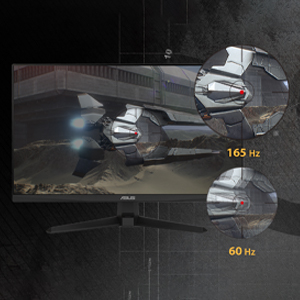
Image: Visual comparison demonstrating the smoothness of 165Hz refresh rate versus 60Hz.
- ASUS Extreme Low Motion Blur (ELMB): This technology provides a 1ms Moving Picture Response Time (MPRT) to reduce motion blur. Activate it through the OSD menu for clearer fast-paced visuals.
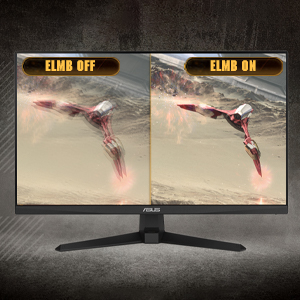
Image: Side-by-side comparison of ELMB off and ELMB on, showing reduced motion blur with ELMB active.
- AMD FreeSync™ Premium: This technology synchronizes the monitor's refresh rate with your AMD graphics card's frame rate to eliminate screen tearing and stuttering. Ensure it is enabled in both the monitor OSD and your graphics card software.
Image: Comparison of screen tearing with FreeSync Premium off versus smooth gameplay with FreeSync Premium on.
- Shadow Boost: Enhances image details in dark areas without over-exposing bright areas, providing better visibility in dimly lit game scenes.
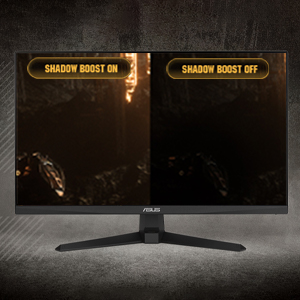
Image: Side-by-side comparison of a dark game scene with Shadow Boost off and Shadow Boost on, showing improved visibility in dark areas.
- Eye Care Features:
- Ultra-Low Blue Light: Reduces harmful blue light emissions to protect your eyes during long viewing sessions. Adjust the blue light filter level in the OSD menu.

Image: Graphic illustrating the effect of Ultra-Low Blue Light technology on screen output.
- Flicker-Free Technology: Eliminates screen flickering to minimize eye strain. This feature is always active.

Image: Side-by-side comparison of a screen with and without flicker-free technology, demonstrating reduced flickering.
- Ultra-Low Blue Light: Reduces harmful blue light emissions to protect your eyes during long viewing sessions. Adjust the blue light filter level in the OSD menu.
- GamePlus: Provides in-game enhancements such as crosshairs, timers, FPS counters, and display alignment tools. Access these features via the OSD menu.
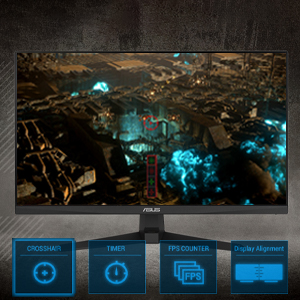
Image: Monitor screen displaying various GamePlus overlays like crosshair, timer, and FPS counter.
- GameVisual: Offers several preset display modes optimized for different content types (e.g., Scenery, Racing, Cinema, RTS/RPG, FPS, sRGB, MOBA). Select the appropriate mode for your current activity.

Image: Side-by-side comparison of a game scene with GameVisual off and GameVisual on, showing optimized visual settings.
Maintenance
Proper maintenance ensures the longevity and optimal performance of your monitor.
- Cleaning the Screen:
- Turn off the monitor and unplug the power cord.
- Use a soft, lint-free cloth lightly dampened with water or a non-abrasive screen cleaner.
- Wipe the screen gently. Avoid applying pressure or using harsh chemicals.
- Cleaning the Casing:
- Use a soft, dry cloth to wipe the monitor casing.
- Avoid using abrasive cleaners or solvents that may damage the finish.
- Storage:
- If storing the monitor for an extended period, unplug all cables and pack it in its original packaging if possible.
- Store in a cool, dry place away from direct sunlight and extreme temperatures.
Troubleshooting
If you encounter issues with your monitor, refer to the following common solutions.
| Problem | Possible Solution |
|---|---|
| No image on screen |
|
| Image is blurry or distorted |
|
| No sound from speakers/headphones |
|
| Screen tearing or stuttering during gaming |
|
If the problem persists after trying these solutions, please contact ASUS customer support.
Specifications
| Feature | Detail |
|---|---|
| Brand | ASUS |
| Model Number | VG247Q1A |
| Screen Size | 24 Inches |
| Resolution | FHD 1080p (1920 x 1080 Pixels) |
| Aspect Ratio | 16:9 |
| Refresh Rate | 165 Hz |
| Response Time | 1 Milliseconds (MPRT) |
| Display Type | LCD |
| Panel Type | VA (Note: Not explicitly stated, but common for these specifications) |
| Viewing Angle | 170 Degrees |
| Brightness | 350 Candela per Square Meter |
| Contrast Ratio | 1000:1 |
| Screen Finish | Glossy |
| Connectivity | 2x HDMI (v1.4), 1x DisplayPort (v1.2), 1x Earphone Jack |
| Adaptive Sync Technology | FreeSync Premium |
| Special Features | ASUS Extreme Low Motion Blur (ELMB), Shadow Boost, Blue Light Filter, Built-In Speakers, Flicker-Free, GamePlus, GameVisual |
| Item Dimensions (D x W x H) | 15.53"D x 21.3"W x 6.85"H |
| Item Weight | 7.3 Pounds |
| VESA Mounting | 100x100mm compatible (Mount not included) |
| Power Consumption | 14.52 Watts |
| Voltage | 240 Volts |
Warranty and Support
Your ASUS TUF Gaming VG247Q1A monitor comes with a manufacturer's warranty.
- Warranty Type: 3 Years Manufacturer Warranty
- Warranty Description: 3 Year Warranty with ARR (Advanced Replacement Service)
For technical support, warranty claims, or further assistance, please visit the official ASUS support website or contact their customer service. Refer to the warranty card included in your package for specific contact details and terms.