Introduction
This manual provides essential information for the installation, operation, and maintenance of your ASUS Prime A520M-A II/CSM microATX Commercial Motherboard. Designed for 3rd Gen AMD Ryzen processors, this motherboard offers a robust platform with enhanced features for stability and reliability.

Figure 1: ASUS Prime A520M-A II/CSM Motherboard and Retail Packaging.
Setup
1. Physical Installation
Before beginning installation, ensure your workspace is static-free. Refer to your PC case manual for specific mounting instructions.
- CPU Installation: Carefully align your AMD AM4 processor with the socket on the motherboard. Ensure the golden triangle on the CPU matches the triangle on the socket. Lower the CPU gently into the socket and secure it with the retention arm.
- RAM Installation: This motherboard supports DDR4 memory. Open the clips on the DIMM slots, align the memory modules with the notches, and press firmly until the clips snap into place. This motherboard features four DDR4 RAM slots.
- M.2 SSD Installation: Locate the M.2 slot. Insert your M.2 SSD at an angle and secure it with the provided screw. This motherboard includes one 32Gbps M.2 slot.
- Graphics Card (GPU) Installation: Insert your graphics card into the primary PCIe x16 slot. Ensure it is seated firmly and secure it with the case latch or screw.
- Power Supply Connection: Connect the 24-pin ATX power connector and the 8-pin CPU power connector from your power supply to the corresponding ports on the motherboard. Connect SATA power cables to storage devices as needed.
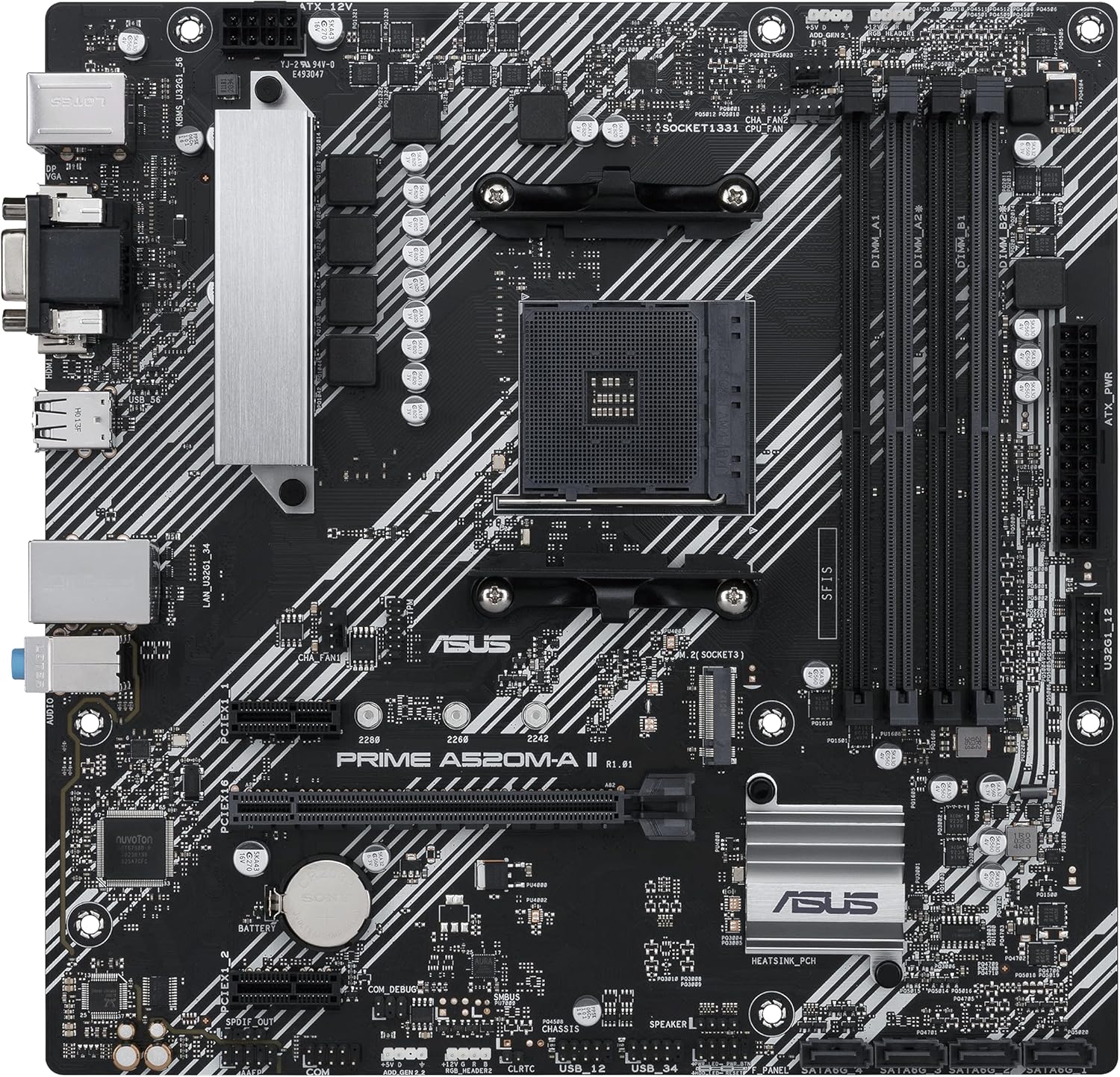
Figure 2: Top-down view highlighting CPU socket, RAM slots, and M.2 slot.
2. Initial Boot and BIOS Configuration
After all components are installed and connected, power on your system. Access the BIOS/UEFI setup by pressing the designated key (usually DEL or F2) during startup. Here you can:
- Verify detected components (CPU, RAM, storage).
- Configure boot order for your operating system installation media.
- Adjust memory profiles (XMP/DOCP) for optimal RAM performance.
Operating
1. Driver Installation
After installing your operating system, install the latest drivers for your motherboard's chipset, audio, LAN, and other integrated devices. These can typically be found on the ASUS support website for your specific model.
2. Software Utilities
- ASUS Control Center Express (ACCE): This utility simplifies IT endpoint management, offering comprehensive system protection and monitoring for commercial environments.
- Aura Sync: Utilize the onboard RGB headers and addressable Gen 2 headers to synchronize RGB LED strips and other Aura Sync-capable hardware for customized lighting effects.
3. Connectivity
The rear I/O panel provides various ports for external devices:
- Video Outputs: HDMI 2.1 (4K@60Hz), D-Sub, and DisplayPort for connecting monitors.
- USB Ports: Multiple USB 3.2 Gen 1 Type-A ports for high-speed peripherals.
- Ethernet: 1Gb Ethernet port for network connectivity.
- Audio Jacks: Standard audio jacks for speakers, headphones, and microphones.
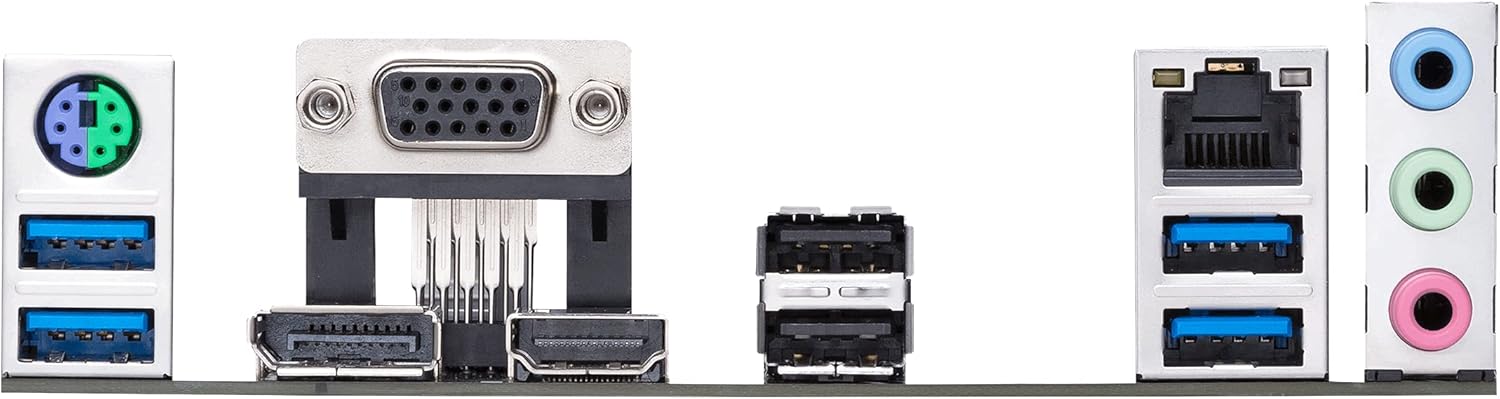
Figure 3: Detailed view of the motherboard's rear input/output panel.
Maintenance
- Cleaning: Regularly clean dust from the motherboard and components using compressed air. Ensure the system is powered off and unplugged before cleaning.
- BIOS Updates: Periodically check the ASUS support website for BIOS updates. Updates can improve compatibility, stability, and performance. Follow the provided instructions carefully when updating the BIOS.
- Component Checks: Ensure all cables are securely connected and components are properly seated. Inspect for any visible damage or loose connections.
Troubleshooting
- No Power/No POST:
- Verify all power connections (24-pin ATX, 8-pin CPU).
- Reseat RAM modules. Try booting with one RAM stick at a time.
- Ensure the CPU is correctly seated and the CPU cooler is properly installed.
- Check for any loose cables or short circuits within the case.
- Boot Failures:
- Check boot order in BIOS/UEFI.
- Ensure storage devices (SSD/HDD) are properly connected and detected.
- If using a new M.2 SSD, ensure it is initialized and formatted in Disk Management.
- Peripheral Detection Issues:
- Ensure drivers for the motherboard and peripherals are up to date.
- Test peripherals in different USB ports.
- Check BIOS settings for USB port enablement.
Specifications
| Feature | Detail |
|---|---|
| CPU Socket | AMD AM4 (3rd Gen Ryzen with Radeon Graphics Processors) |
| Chipset | AMD A520 |
| Memory | 4 x DDR4 DIMM slots, up to 4400 MHz (OC), ECC Memory Support |
| Storage | 1 x M.2 slot (32Gbps), 4 x SATA 6Gb/s ports |
| Expansion Slots | 1 x PCIe 3.0 x16, 2 x PCIe 3.0 x1 |
| Video Outputs | HDMI 2.1 (4K@60Hz), DisplayPort, D-Sub |
| USB Ports | USB 3.2 Gen 1 Type-A, USB 2.0 |
| LAN | 1Gb Ethernet |
| Audio | High Definition Audio CODEC |
| Form Factor | microATX (10.75 x 10.5 inches) |
| Special Features | ASUS Corporate Stable Model (CSM), ASUS Control Center Express (ACCE), 5X Protection III, Aura Sync RGB headers |
Warranty and Support
The ASUS Prime A520M-A II/CSM motherboard is part of the ASUS Corporate Stable Model (CSM) program, offering a guaranteed long product life cycle and reliable sourcing. This includes up to a 36-month supply, End-of-Life (EOL) notices, and Engineering Change Notice (ECN) control.
For detailed warranty information, technical support, and driver downloads, please visit the official ASUS support website: www.asus.com/support/


