
GIGABYTE AORUS 17G YD-73US345SH
Contents
GIGABYTE AORUS 17G YD Gaming Laptop User Manual
Model: AORUS 17G YD-73US345SH
1. Introduction
This user manual provides essential information for setting up, operating, maintaining, and troubleshooting your GIGABYTE AORUS 17G YD-73US345SH Gaming Laptop. Please read this manual thoroughly to ensure optimal performance and longevity of your device.
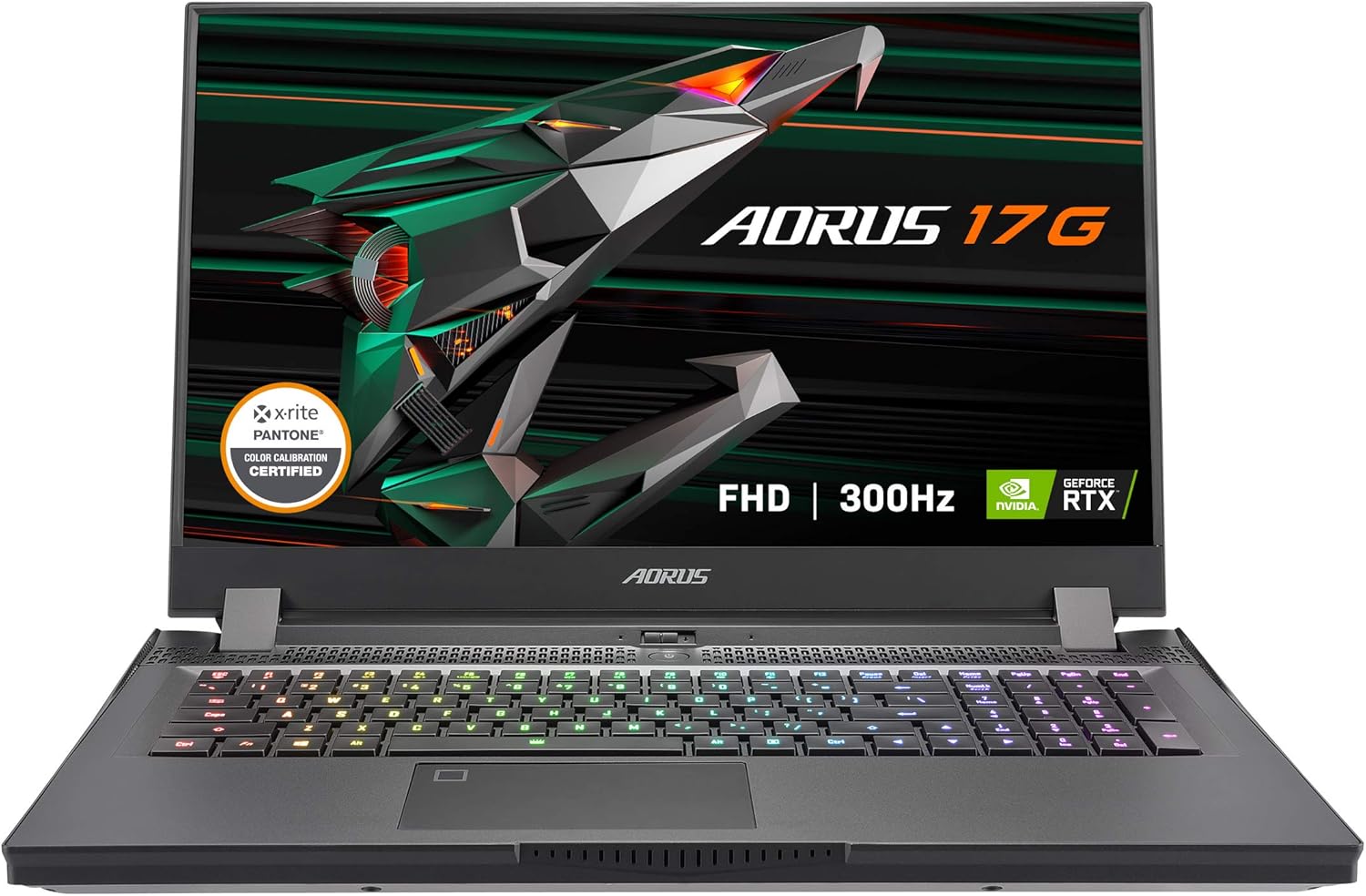
Figure 1.1: Front view of the GIGABYTE AORUS 17G YD Gaming Laptop.
2. Package Contents
Ensure all items are present in your product packaging:
- GIGABYTE AORUS 17G YD-73US345SH Gaming Laptop
- Battery
- Charger (AC Adapter and Power Cord)
3. Product Overview
3.1. Hardware Features
- Display: 17.3-inch Thin Bezel FHD (1920x1080) IPS Anti-glare Display LCD with 300Hz refresh rate. X-Rite Pantone Certified and factory calibrated for accurate colors.
- Processor: 11th Gen Intel Core i7-11800H (2.3GHz~4.6GHz) with 8 cores.
- Graphics: NVIDIA GeForce RTX 3080 Laptop GPU with 8GB GDDR6, featuring a Boost Clock of 1245 MHz and Max Graphics Power of 105W. Supports NVIDIA DLSS for AI rendering and Ray Tracing for realistic lighting.
- Memory: 32GB DDR4 RAM (expandable up to 64GB).
- Storage: 512GB Gen4 SSD for fast boot times and application loading.
- Cooling: Windforce Infinity Next-gen Cooling system designed for efficient heat dissipation.
- Keyboard: AORUS Fusion/Mechanical Keyboard with OMRON Gaming Switches, supporting N-Key Rollover for precise input.
- Battery: 99W Battery.
- Dimensions: Approximately 15.9(W) x 10.8(D) x 1.0(H) inches.
- Weight: Approximately 5.9 lbs.
3.2. Port Layout
Familiarize yourself with the various ports available on your laptop for connectivity.

Figure 3.1: Side view illustrating port locations.
- Left Side: DC Power, HDMI 2.1, Mini DisplayPort 1.4, Thunderbolt™ 3 (USB Type-C), USB 3.2 Gen1 (Type-A).
- Right Side: RJ-45 LAN Port, UHS-II SD Card Reader, Microphone Jack, Headphone Jack, USB 3.2 Gen1 (Type-A) x2.

Figure 3.2: NVIDIA GeForce RTX 30 Series Laptop GPU features.
4. Setup
4.1. Initial Power On
- Connect the AC adapter to the laptop's DC power port and then to a power outlet.
- Open the laptop lid.
- Press the power button located above the keyboard to turn on the laptop.
- Follow the on-screen instructions to complete the initial Windows 10 Home setup.
4.2. Connecting Peripherals
Utilize the available ports to connect external devices:
- External Monitor: Connect via HDMI 2.1 or Mini DisplayPort 1.4 for high-resolution external displays.
- USB Devices: Use the USB 3.2 Gen1 (Type-A) ports for mice, keyboards, and external storage. The Thunderbolt™ 3 (USB Type-C) port offers versatile high-speed connectivity.
- Network: Connect an Ethernet cable to the RJ-45 LAN Port for a wired internet connection, or use the built-in 802.11ax Wi-Fi.
- Audio: Plug in headphones or a microphone into the dedicated audio jacks.
5. Operating
5.1. Power Management
- Power On/Off: Press the power button to turn on. To shut down, go to Start > Power > Shut down in Windows.
- Sleep Mode: Close the lid or select Sleep from the Power menu to enter sleep mode. Press the power button or open the lid to wake the laptop.
5.2. Keyboard Functions
The AORUS Fusion/Mechanical Keyboard features OMRON Gaming Switches and N-Key Rollover for responsive and accurate input. Utilize the function keys (Fn + F1-F12) for quick access to system controls like volume, brightness, and keyboard backlighting.

Figure 5.1: Top-down view of the AORUS 17G YD keyboard.
5.3. Display Settings
The 17.3-inch FHD 300Hz IPS Anti-glare display provides a smooth visual experience. You can adjust display settings (resolution, refresh rate, brightness) through Windows Display Settings or the NVIDIA Control Panel for optimal gaming and viewing.
5.4. Cooling System Management
The Windforce Infinity cooling system automatically adjusts fan speeds based on system load and temperature. For demanding tasks like gaming, the fans may become audible, which is normal operation to maintain optimal component temperatures.
6. Maintenance
6.1. Cleaning
- Screen: Use a soft, lint-free cloth lightly dampened with water or a screen cleaner. Do not spray liquid directly onto the screen.
- Chassis: Wipe with a soft, dry cloth. Avoid abrasive cleaners.
- Vents: Periodically use compressed air to clear dust from the cooling vents to ensure proper airflow.
6.2. Software Updates
Regularly update your operating system (Windows 10 Home), graphics drivers (NVIDIA), and GIGABYTE utilities to ensure system stability, security, and performance. Check the GIGABYTE support website for the latest drivers specific to your model.
6.3. Battery Care
- Avoid completely discharging the battery frequently.
- If storing the laptop for an extended period, charge the battery to about 50-60% before turning it off.
- Operating the laptop primarily on AC power with the battery installed is generally safe, as modern laptops manage battery charging cycles.
7. Troubleshooting
This section addresses common issues you might encounter. For more complex problems, contact GIGABYTE support.
- Laptop does not power on: Ensure the AC adapter is securely connected to both the laptop and a working power outlet. Try a different outlet.
- No display on screen: Check if the laptop is powered on. If an external monitor is connected, try disconnecting it or pressing Fn + F3 (or similar function key) to cycle display outputs.
- Poor performance in games: Ensure your graphics drivers are up to date. Verify that the laptop is running in a high-performance power mode and that the cooling vents are not obstructed.
- Wi-Fi connection issues: Check if Wi-Fi is enabled (Fn + F2 or through Windows settings). Restart your router and the laptop. Update wireless drivers if necessary.
- Keyboard or touchpad not responding: Restart the laptop. Check for any physical obstructions or debris. Ensure drivers are updated.
8. Specifications
| Feature | Specification |
|---|---|
| Brand | GIGABYTE |
| Model Name | AORUS 17G YD-73US345SH |
| Screen Size | 17.3 Inches |
| Screen Resolution | 1920 x 1080 pixels |
| Max Screen Resolution | 1920 x 1080 |
| Processor | 4.6 GHz Intel_Mobile_CPU (11th Gen Intel Core i7-11800H) |
| RAM | 32 GB DDR4 (64GB Max) |
| Memory Speed | 4.6 GHz |
| Hard Drive | 512 GB SSD (Gen4) |
| Graphics Coprocessor | NVIDIA GeForce RTX 3080 Laptop GPU (8 GB GDDR6) |
| Graphics Card Ram Size | 8 GB |
| Wireless Type | 802.11ax |
| Number of USB 3.0 Ports | 3 |
| Operating System | Windows 10 Home |
| Item Weight | 6 pounds |
| Product Dimensions | 10.8 x 15.9 x 1 inches |
| Color | Black |
| Power Source | Battery Powered |
| Batteries | 1 Lithium Polymer batteries required (included) |
| Date First Available | July 9, 2021 |
9. Warranty and Support
Your GIGABYTE AORUS 17G YD-73US345SH Gaming Laptop comes with a standard manufacturer's warranty. For detailed warranty terms and conditions, please refer to the warranty card included in your product packaging or visit the official GIGABYTE website. For technical support, driver downloads, and service inquiries, please visit the GIGABYTE support portal or contact their customer service directly.
GIGABYTE Official Website: www.gigabyte.com
Ask a question about this manual
Ask about setup, troubleshooting, compatibility, parts, safety, or missing instructions. Manuals+ will review the question and use this page’s manual context to help answer it.