1. Setup Guide
1.1. Unboxing and Package Contents
Upon opening your Megadream Mobile Gaming Controller package, you will find the following items:
- Megadream Mobile Gaming Controller
- User Manual (this document)
- Charging Cable

Official Megadream video demonstrating the unboxing and initial overview of the controller.
1.2. Charging the Controller
The Megadream Mobile Gaming Controller is equipped with a 400 mAh rechargeable battery, providing over 18 hours of gameplay on a full charge. To charge the controller, connect the provided charging cable to the controller's charging port and a compatible USB power source.

1.3. Connecting to Devices via Bluetooth
The controller supports direct play with iOS 13.4+, Android 10.0+, and Windows 7-11 devices via Bluetooth connection. No additional simulators or jailbreaking are required.
1.3.1. iOS Connection (iOS 13.4+):
- Press and hold the 'Home' key on the controller for 2 seconds until the blue lights flash quickly.
- On your iOS device, go to Bluetooth settings.
- Select "Wireless Controller" from the available devices to connect. The blue lights will flash slowly upon successful connection.
1.3.2. Android Connection (Android 10.0+):
The controller offers two boot modes for Android, depending on the game:
- Mode 1 (General Games): Press and hold 'Y' + 'Home' keys for 2 seconds. Bluetooth name: "MOCUTE-HIDF13-060-Y".
- Mode 2 (Call of Duty Mobile, Apex Legends, etc.): Press and hold 'LB' + 'Home' keys for 2 seconds. Bluetooth name: "Xox Wireless Controller".
After selecting the appropriate boot mode, go to your Android device's Bluetooth settings and select the corresponding Bluetooth name to connect.
1.3.3. PC Connection (Windows 7-11):
The controller supports both wireless and wired connections for PC:
- Wireless: Press and hold 'A' + 'Home' keys to boot the controller. Bluetooth name: "Wireless Controller".
- Wired: Press 'A' key and insert the USB cable. Device will be recognized as "Xbox 360 Controller for Windows".
1.4. Phone Holder Compatibility
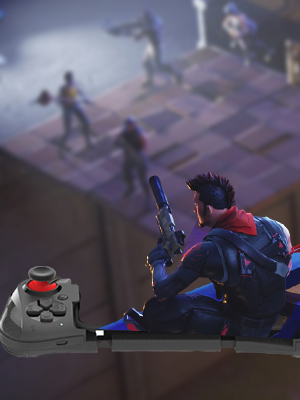
The integrated phone holder is designed to securely hold various smartphone models. It can extend to support phones between 4.52 inches and 6.5 inches in length, with a maximum thickness of 0.51 inches (13mm). Please note that the controller is not designed to hold iPads or larger tablets directly, but can be used with them by placing the tablet on a separate stand.


2. Operating Instructions
2.1. Key Functions and Ergonomics
The Megadream controller features a familiar and ergonomic layout for comfortable and precise gameplay. It includes standard X, Y, B, A buttons, Select, Start, L1, L2, R1, R2 triggers, and clickable L3/R3 analog joysticks. The separated D-pad key prevents accidental presses during intense gaming sessions.


2.2. Gaming Experience
The Megadream controller is designed to enhance your mobile and PC gaming experience, offering high accuracy and tactile feedback. It supports a wide range of controller-compatible games available on the App Store, Steam, and cloud gaming platforms.


3. Maintenance
To ensure the longevity and optimal performance of your Megadream Mobile Gaming Controller, follow these maintenance guidelines:
- Cleaning: Use a soft, dry cloth to wipe down the controller regularly. For stubborn dirt, a slightly damp cloth can be used, but ensure no moisture enters the ports or internal components. Avoid harsh chemicals or abrasive cleaners.
- Storage: Store the controller in a cool, dry place away from direct sunlight and extreme temperatures. When not in use for extended periods, ensure the battery is partially charged (around 50%) to preserve its lifespan.
- Battery Care: Avoid fully discharging the battery frequently. Recharge the controller when the battery indicator shows low power to maintain battery health.
- Handling: Handle the controller with care. Avoid dropping it or subjecting it to strong impacts, which can damage internal components or external casing.
4. Troubleshooting
If you encounter any issues with your Megadream Mobile Gaming Controller, please refer to the common problems and solutions below:
- Q: Why does the controller still not work after the Bluetooth connection is successful?
- A: Ensure the controller is in the correct boot mode for your device (iOS, Android, PC) and that the game you are playing supports controller input. Some games may require specific in-game settings to enable controller functionality.
- Q: Why can't I find the 'Wireless Controller' Bluetooth device?
- A: Make sure the controller is in pairing mode. For iOS, press 'Home' key for 2 seconds. For Android, press 'Y+Home' or 'LB+Home' for 2 seconds, depending on the desired mode. Check your device's Bluetooth settings and refresh the list of available devices.
- Q: Why can I not play the game after connection?
- A: Verify that the game you are trying to play has native controller support. Some games, like Call of Duty Mobile on Android, require a specific boot mode ('LB+Home') for the controller to function correctly. Consult the game's settings or support for controller compatibility.
- Q: Why can I not connect this controller to iOS or Android?
- A: Ensure the controller is fully charged. Try resetting the controller by holding the power button for a few seconds, then turning it back on. Also, try forgetting the device in your phone's Bluetooth settings and re-pairing. Confirm your device's operating system version meets the minimum requirements (iOS 13.4+, Android 10.0+).
- Q: What should I do if a button does not work normally?
- A: Check for any physical obstructions or debris around the button. Ensure the controller is properly connected and charged. If the issue persists, try resetting the controller. If the problem continues, please contact Megadream customer support.
- Q: How can I know the power status of the gamepad?
- A: Refer to the LED indicators on the controller. Typically, flashing lights indicate low battery or pairing mode, while solid lights indicate a stable connection or full charge. Consult the quick start guide for specific LED behavior.
- Q: What is the size of the phone holder?
- A: The phone holder supports devices from 4.52 inches to 6.5 inches in length, with a maximum thickness of 0.51 inches (13mm).
- Q: Can the Left/Right rocker be clicked as L3/R3?
- A: Yes, the L3 and R3 joysticks are clickable analog joysticks, providing additional input functionality for compatible games.
5. Product Specifications
| Feature | Detail |
|---|---|
| Brand | Megadream |
| Model Number | B098WZ62W1 |
| Connectivity | Wireless (Bluetooth), Wired (USB) |
| Compatible OS | iOS 13.4+, Android 10.0+, Windows 7-11 |
| Battery Capacity | 400 mAh (Up to 18+ hours playtime) |
| Phone Holder Range | 4.52 - 6.5 inches (length), Max 0.51 inches / 13mm (thickness) |
| Product Dimensions | 9.76 x 4.57 x 2.24 inches |
| Item Weight | 8.82 ounces |
| Manufacturer | Megadream |
| First Available Date | July 8, 2021 |
6. Warranty Information
For information regarding product warranty, please refer to the warranty card included with your purchase or visit the official Megadream website. Extended protection plans may also be available for purchase through authorized retailers.
7. Customer Support
If you require further assistance or have questions not covered in this manual, please contact Megadream customer support through their official channels. You can find more information and contact details on the Megadream Store on Amazon.