
Introduction
Thank you for choosing the AULA F2066-II USB Wired Keyboard. This manual provides essential information for setting up, operating, and maintaining your keyboard. Please read it carefully to ensure optimal performance and longevity of your device.
Setup Instructions
- Unpack the Keyboard: Carefully remove the AULA F2066-II keyboard from its packaging. Ensure all components are present.
- Connect to Computer: Locate an available USB port on your computer or laptop. Insert the USB connector of the keyboard firmly into the USB port.
- Driver Installation: The keyboard is plug-and-play. Your operating system (Windows, macOS, Linux) should automatically detect and install the necessary drivers. No additional software installation is typically required.
- Test Functionality: Open a text editor or any application that accepts text input and test typing to ensure all keys are functioning correctly.

Image: The AULA F2066-II USB Wired Keyboard, showcasing its full layout and RGB backlighting. This image illustrates the keyboard's design and key arrangement.
Operating Instructions
The AULA F2066-II keyboard features a standard layout with additional multimedia functions. It supports both English and Arabic languages.
Basic Usage:
- Typing: Use the alphanumeric keys for standard text input.
- Function Keys (F1-F12): These keys perform their standard functions.
- Numeric Keypad: The dedicated numeric keypad on the right provides quick entry for numbers and calculations.
Multimedia Key Combinations:
This keyboard includes various multimedia functions accessible via the FN key combined with other keys. Refer to the table below for specific combinations.
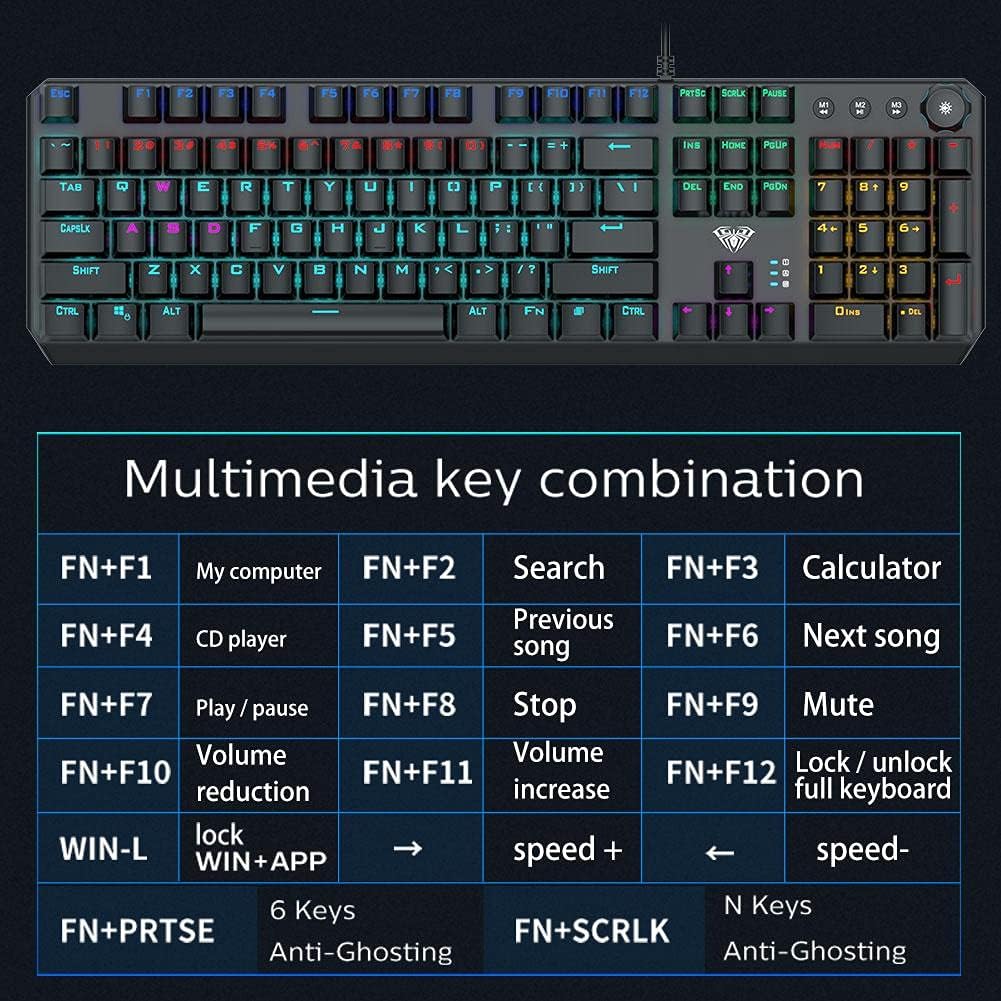
Image: A detailed table illustrating the multimedia key combinations available on the AULA F2066-II keyboard. This includes functions like volume control, media playback, and application shortcuts activated by pressing the FN key with specific function keys.
| Combination | Function |
|---|---|
| FN + F1 | My Computer |
| FN + F2 | Search |
| FN + F3 | Calculator |
| FN + F4 | CD Player |
| FN + F5 | Previous Song |
| FN + F6 | Next Song |
| FN + F7 | Play / Pause |
| FN + F8 | Stop |
| FN + F9 | Mute |
| FN + F10 | Volume Reduction |
| FN + F11 | Volume Increase |
| FN + F12 | Lock / Unlock Full Keyboard |
| WIN + L | Lock WIN + APP |
| FN + PRT SC | 6 Keys Anti-Ghosting |
| FN + SCRLK | N Keys Anti-Ghosting |
Maintenance
Proper maintenance ensures the longevity and optimal performance of your AULA F2066-II keyboard.
- Cleaning: Regularly clean the keyboard with a soft, dry cloth. For deeper cleaning, use compressed air to remove dust and debris from between the keys. Avoid using harsh chemicals or abrasive materials.
- Spills: In case of liquid spills, immediately disconnect the keyboard from your computer. Turn it upside down to drain any liquid and allow it to dry completely before reconnecting. Do not attempt to use the keyboard while it is wet.
- Storage: When not in use for extended periods, store the keyboard in a clean, dry environment away from direct sunlight and extreme temperatures.
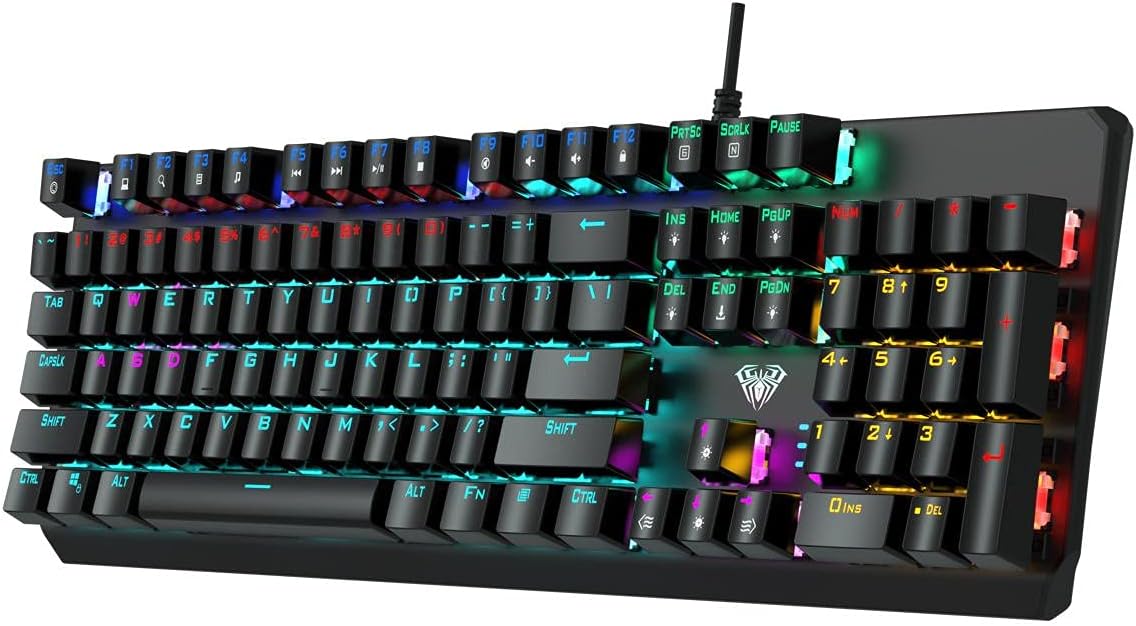
Image: A top-down view of the AULA F2066-II keyboard, highlighting the keycaps and their spacing. This perspective is useful for understanding how to clean between the keys.
Troubleshooting
If you encounter issues with your AULA F2066-II keyboard, refer to the following common solutions:
| Problem | Solution |
|---|---|
| Keyboard not responding. |
|
| Certain keys are not working. |
|
| Backlighting is not working. |
|
Specifications
| Feature | Detail |
|---|---|
| Brand | AULA |
| Model Number | F2066-II-Black-Panel |
| Connectivity Technology | USB Wired |
| Keyboard Language | English & Arabic |
| Compatible Devices | PC, Laptop |
| Color | Black |
| Backlight Color | Single Color (RGB effects are typically pre-set patterns, not customizable per key color) |
| Material | Plastic |
| Dimensions (L x W x H) | 49.7 x 40.7 x 5.3 cm |
| Weight | 960 grams |
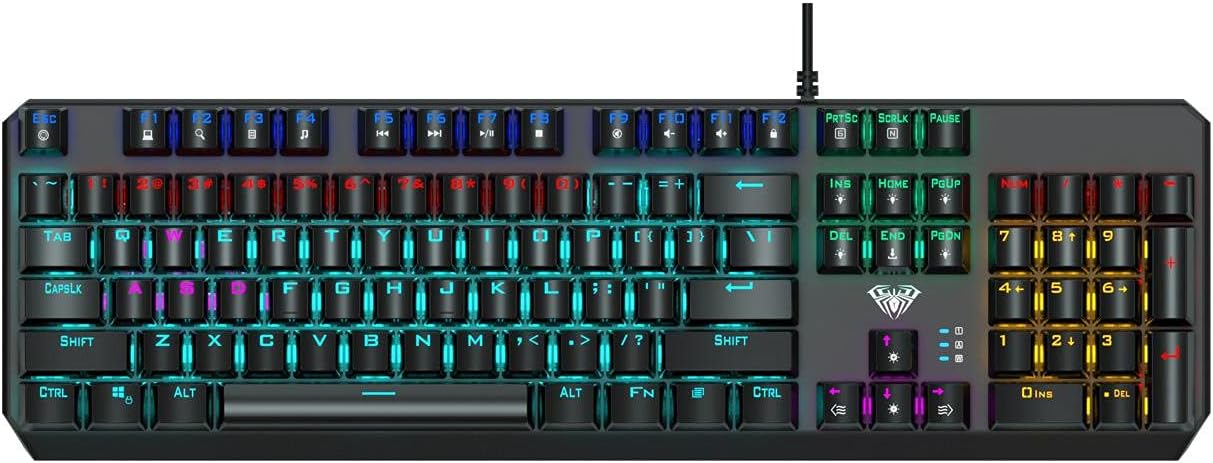
Image: The AULA F2066-II keyboard displayed alongside its retail packaging. This image provides a visual reference for the product and its box.
Warranty and Support
For warranty information and technical support, please refer to the documentation included with your purchase or visit the official AULA website. Keep your proof of purchase for warranty claims.
Online Resources:
- AULA Official Website: www.aulagaming.com (Note: This is a generic placeholder URL as no specific support link was provided in the product data. Please verify the correct URL.)
- Product Support Page: Check the AULA website for a dedicated support page for model F2066-II.


