
D-Link DSL-224
D-Link N300 VDSL2 Router DSL-224 User Manual
Model: DSL-224
1. Introduction
This manual provides detailed instructions for the installation, configuration, and operation of your D-Link N300 VDSL2 Router, model DSL-224. This device combines a VDSL2/ADSL2+ modem and a high-speed wireless router, offering a complete solution for internet connectivity in your home or small office.
Please read this manual thoroughly before attempting to install or use the device to ensure proper setup and optimal performance.
2. Package Contents
Verify that your package contains the following items:
- D-Link N300 VDSL2 Router (DSL-224)
- Power Adapter
- Ethernet Cable (RJ-45)
- Phone Cable (RJ-11)
- Quick Installation Guide
If any items are missing or damaged, please contact your local D-Link reseller for assistance.
3. Physical Overview
3.1 Front Panel
The front panel of the DSL-224 router features LED indicators that provide real-time status information about the device's operation.

Image 3.1: Front view of the D-Link DSL-224 Router, showing the status indicator lights. From left to right, these typically include Power, DSL, Internet, Wi-Fi, and LAN activity indicators.
- Power LED: Indicates if the router is powered on.
- DSL LED: Indicates the status of the VDSL/ADSL connection. A solid light means a stable connection.
- Internet LED: Indicates internet connectivity. A solid light means the router has an active internet connection.
- WLAN LED: Indicates wireless network activity. Blinks when data is being transmitted wirelessly.
- LAN LEDs (1-4): Indicate activity on the corresponding Ethernet ports.
3.2 Rear Panel
The rear panel contains all the physical connection ports for power, DSL line, and Ethernet devices.
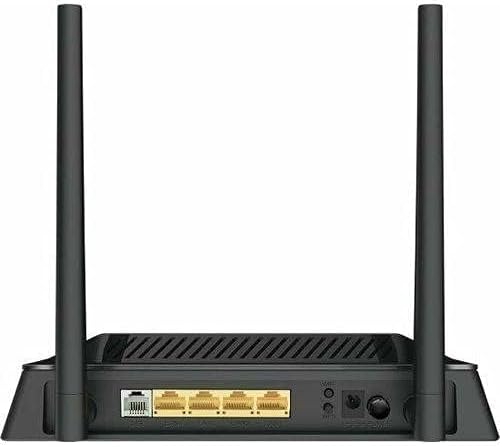
Image 3.2: Rear view of the D-Link DSL-224 Router, displaying the various ports. These include the DSL port, four LAN Ethernet ports, the power input, and a reset button.
- DSL Port (RJ-11): Connects to your VDSL/ADSL line from the wall jack.
- LAN Ports (1-4, RJ-45): Connects to wired devices such as computers, gaming consoles, or network printers.
- Power Port: Connects to the included power adapter.
- Reset Button: Used to restore the router to factory default settings. Press and hold for 5-10 seconds while the device is powered on.
- WPS Button: For easy and secure wireless connection setup.
- Power On/Off Button: To power the device on or off.
4. Setup
4.1 Hardware Installation
- Position the Router: Place the router in a central location to maximize wireless coverage. Avoid placing it near obstructions or devices that emit radio frequency interference.
- Connect the DSL Line: Connect one end of the phone cable (RJ-11) to the DSL port on the router and the other end to your wall's VDSL/ADSL jack. If you have a splitter, connect it to the splitter's modem port.
- Connect to a Computer (Optional): For initial setup, you may connect a computer directly to one of the LAN ports on the router using an Ethernet cable (RJ-45).
- Connect Power: Connect the power adapter to the router's power port and then plug the adapter into a power outlet. Press the Power On/Off button if available.
- Verify LEDs: Wait for the Power, DSL, and Internet LEDs to become solid green. The DSL LED may blink for a few minutes before becoming solid.
4.2 Initial Configuration (Web Interface)
- Access the Web Interface: Open a web browser on a connected computer (wired or wireless). In the address bar, type the router's default IP address (commonly http://192.168.1.1 or http://192.168.0.1) and press Enter.
- Login: Enter the default username and password. These are usually printed on a sticker on the bottom of the router (e.g., Username: admin, Password: admin or blank).
- Run Setup Wizard: Follow the on-screen setup wizard to configure your internet connection (VDSL/ADSL settings provided by your Internet Service Provider) and wireless network (SSID and password).
- Change Default Password: For security, it is highly recommended to change the default administrator password for the router's web interface.
5. Operating the Router
5.1 Connecting Devices Wirelessly
- Find Network: On your wireless device (laptop, smartphone, tablet), search for available Wi-Fi networks.
- Select SSID: Select the Wi-Fi network name (SSID) you configured during setup.
- Enter Password: Enter the Wi-Fi password (WPA/WPA2 key) you set.
- Connect using WPS: Alternatively, press the WPS button on the router and then activate WPS on your wireless device within two minutes to establish a connection without entering a password.
5.2 Connecting Devices via Ethernet
Connect an Ethernet cable from the LAN port of your computer or other wired device to any of the available LAN ports (1-4) on the rear of the DSL-224 router.
6. Maintenance
6.1 Firmware Updates
Periodically check the D-Link support website for firmware updates for your DSL-224 router. Firmware updates can improve performance, add new features, and fix security vulnerabilities. Follow the instructions provided with the firmware update carefully.
6.2 Factory Reset
If you encounter persistent issues or forget your login credentials, you can perform a factory reset:
- With the router powered on, use a paperclip or a thin object to press and hold the Reset button on the rear panel for 5-10 seconds.
- Release the button when the Power LED blinks or all LEDs briefly turn off and then on.
- The router will restart with factory default settings. You will need to reconfigure your internet and wireless settings.
7. Troubleshooting
This section addresses common issues you might encounter with your D-Link DSL-224 router.
7.1 No Internet Connection
- Check Cables: Ensure all cables (DSL, Ethernet) are securely connected.
- Check LEDs: Verify that the Power, DSL, and Internet LEDs are solid green. If the DSL LED is blinking, there might be an issue with your phone line or ISP connection. If the Internet LED is off, check your ISP settings in the router's web interface.
- Restart Router: Power off the router, wait 30 seconds, then power it back on.
- ISP Settings: Confirm that your VDSL/ADSL settings (VPI/VCI, connection type, username, password) are correctly entered in the router's configuration. Contact your ISP if unsure.
7.2 Cannot Connect to Wi-Fi
- Check WLAN LED: Ensure the WLAN LED on the front panel is lit or blinking.
- Correct Password: Double-check that you are entering the correct Wi-Fi password (WPA/WPA2 key).
- Signal Strength: Move closer to the router to improve signal strength.
- Restart Device: Restart your wireless device and try connecting again.
- Router Restart: Restart the router as described above.
7.3 Slow Internet Speed
- Wired vs. Wireless: Test speed with a wired connection to determine if the issue is with the wireless network or the internet connection itself.
- Interference: Reduce interference by moving the router away from other electronic devices (cordless phones, microwaves).
- Channel Optimization: In the router's web interface, try changing the wireless channel to a less congested one.
- ISP Bandwidth: Contact your ISP to verify your subscribed speed and check for any network issues on their end.
8. Specifications
Below are the technical specifications for the D-Link N300 VDSL2 Router DSL-224:
| Feature | Description |
|---|---|
| Brand | D-Link |
| Model Name | DSL-224 |
| Connectivity Technology | Wireless |
| Wireless Type | 802.11n |
| Wireless Communication Standard | 802.11n |
| Frequency Band Class | Dual-Band |
| Number of Ports | 4 (LAN) |
| Antenna Type | Fixed |
| Included Components | Router |
| Compatible Devices | Personal Computer |
| Item Weight | 510 g |
| Package Dimensions | 22.2 x 17.4 x 7.8 cm |
9. Warranty and Support
For warranty information and technical support, please refer to the warranty card included with your product or visit the official D-Link support website. You can typically find drivers, firmware updates, and additional support resources there.
D-Link Support Website: www.dlink.com/support (Please note: This is a generic example URL. Refer to your product's specific documentation for the correct regional support link.)
Related documentsDSL-224


Ask a question about this manual
Ask about setup, troubleshooting, compatibility, parts, safety, or missing instructions. Manuals+ will review the question and use this page’s manual context to help answer it.