
GIGABYTE GV-N3080GAMING OC-10GD-V2
Contents
GIGABYTE GeForce RTX 3080 Gaming OC 10G Graphics Card User Manual
Model: GV-N3080GAMING OC-10GD-V2
1. Introduction
This manual provides comprehensive instructions for the installation, operation, maintenance, and troubleshooting of your GIGABYTE GeForce RTX 3080 Gaming OC 10G Graphics Card. Please read this manual thoroughly before installation to ensure proper usage and optimal performance.
The GIGABYTE GeForce RTX 3080 Gaming OC 10G (REV2.0) is a high-performance graphics card designed for demanding gaming and creative applications. It features NVIDIA Ampere Streaming Multiprocessors, 2nd Generation RT Cores, and 3rd Generation Tensor Cores, integrated with 10GB GDDR6X 320-bit memory. The WINDFORCE 3X Cooling System ensures efficient heat dissipation, while RGB Fusion 2.0 allows for customizable lighting effects. A protective metal back plate enhances durability.

Figure 1.1: GIGABYTE GeForce RTX 3080 Gaming OC 10G Graphics Card and Packaging.
This image displays the GIGABYTE GeForce RTX 3080 Gaming OC 10G graphics card alongside its retail packaging. The card features a triple-fan design and a sleek black and grey aesthetic, highlighting its robust cooling solution.
2. Package Contents
Please verify that all items are present in the package before proceeding with installation:
- GIGABYTE GeForce RTX 3080 Gaming OC 10G Graphics Card
- User Manual (this document)
3. Setup and Installation
3.1 System Requirements
- PCI Express-compliant motherboard with one dual-width x16 graphics slot.
- Minimum 750W power supply unit (PSU) with appropriate PCIe power connectors.
- Minimum 10GB of available hard-disk space.
- 8GB system memory (16GB recommended).
- Microsoft Windows 10 64-bit (or newer) or Linux 64-bit operating system.
- Internet connection for driver installation and updates.
3.2 Physical Installation
- Prepare Your System: Power off your computer and disconnect all cables. Open the computer case.
- Locate PCIe Slot: Identify an available PCI Express x16 slot on your motherboard. This card is a 2.5-slot design, so ensure sufficient clearance.
- Remove Slot Covers: Remove the necessary expansion slot covers from the back of your computer case.
- Install Graphics Card: Carefully align the graphics card with the PCIe slot and press down firmly until it is securely seated. Ensure the retention clip on the motherboard clicks into place.
- Secure the Card: Fasten the graphics card to the computer case using the screws from the removed slot covers.
- Connect Power Cables: Connect the required PCIe power cables from your power supply to the graphics card. The RTX 3080 typically requires two 8-pin PCIe power connectors. Ensure all connections are firm.
- Close Case and Reconnect: Close your computer case, reconnect all cables, and power on your system.

Figure 3.1: Angled view of the GIGABYTE GeForce RTX 3080 Gaming OC 10G Graphics Card.
This image provides an angled view of the graphics card, showcasing its triple-fan cooling system and the robust build quality. Note the multiple display outputs on the bracket.

Figure 3.2: Display Output Ports.
This image highlights the various display output ports available on the graphics card, including DisplayPort and HDMI connectors, essential for connecting to monitors.
3.3 Driver Installation
After physical installation, you must install the latest drivers for optimal performance and stability:
- Download Drivers: Visit the official GIGABYTE website or NVIDIA's official driver download page (www.nvidia.com/drivers).
- Select Product: Choose "GeForce RTX 30 Series" and "RTX 3080" from the product selection menus.
- Download and Run: Download the latest stable driver package and run the executable file.
- Follow On-Screen Instructions: Follow the prompts to complete the driver installation. A system restart may be required.
4. Operating the Graphics Card
4.1 Key Features
- WINDFORCE 3X Cooling System: Features three unique blade fans with alternate spinning, composite copper heat pipes, a large copper plate direct touch GPU, and 3D active fans, which together provide high-efficiency heat dissipation.
- RGB Fusion 2.0: Customize lighting effects and synchronize with other AORUS devices through the GIGABYTE RGB Fusion software.
- Protective Metal Back Plate: Provides structural rigidity and protection for the PCB components.
- NVIDIA Ampere Architecture: Experience enhanced Ray Tracing Cores and Tensor Cores for realistic graphics and AI acceleration.
- DLSS (Deep Learning Super Sampling): AI rendering technology that boosts frame rates while generating beautiful, sharp images.

Figure 4.1: Front View of the Graphics Card.
This image shows the front of the GIGABYTE GeForce RTX 3080, highlighting its three cooling fans and the GIGABYTE branding on each fan hub.

Figure 4.2: Protective Metal Back Plate.
This image displays the metal back plate of the graphics card, which provides structural support and helps dissipate heat from the components on the rear of the PCB.
4.2 Software Utilities
GIGABYTE provides several software utilities to enhance your experience:
- AORUS ENGINE: For overclocking, monitoring, and fan control.
- RGB FUSION 2.0: For customizing the RGB lighting effects on your graphics card.
These utilities can be downloaded from the official GIGABYTE website under the support section for your specific model.
5. Maintenance
Proper maintenance ensures the longevity and performance of your graphics card:
- Dust Removal: Regularly clean dust from the fans and heatsink using compressed air. Ensure the system is powered off and unplugged before cleaning.
- Airflow: Ensure your PC case has adequate airflow to prevent overheating. Keep the area around your PC clear of obstructions.
- Driver Updates: Keep your graphics drivers updated to the latest stable version from NVIDIA's official website.
- Temperature Monitoring: Use monitoring software (e.g., AORUS ENGINE, MSI Afterburner) to keep an eye on GPU temperatures, especially during heavy loads. Optimal operating temperatures are crucial for performance and lifespan.
6. Troubleshooting
This section addresses common issues you might encounter:
| Problem | Possible Cause | Solution |
|---|---|---|
| No display or black screen after installation. | Incorrect seating of the card, insufficient power, or missing/corrupt drivers. |
|
| Screen flickering or intermittent black screens. | Loose display cable, outdated drivers, or power delivery issues. |
|
| Fans not spinning under light load. | Normal operation for 3D Active Fan feature. | This is normal. The fans are designed to remain off when the GPU is under a set temperature threshold to provide silent operation. They will activate automatically under load. |
| High temperatures during gaming. | Poor case airflow, dust buildup, or aggressive overclocking. |
|
7. Specifications
Detailed technical specifications for the GIGABYTE GeForce RTX 3080 Gaming OC 10G Graphics Card:
| Feature | Detail |
|---|---|
| Model Name | GV-N3080GAMING OC-10GD-V2 |
| Graphics Processing Unit | NVIDIA GeForce RTX 3080 |
| Core Clock | 1800 MHz (Reference Card: 1710 MHz) |
| CUDA Cores | 8704 |
| Memory Size | 10 GB |
| Memory Type | GDDR6X |
| Memory Bus | 320-bit |
| Memory Speed | 19000 MHz |
| Digital Max Resolution | 7680x4320 |
| Multi-view | 4 |
| Card Dimensions (L x W x H) | 12.6 x 5.08 x 2.17 inches (320 x 129 x 55 mm) |
| Item Weight | 4.07 pounds (1.85 kg) |
| Recommended PSU | 750W |
| Power Connectors | 2x 8-pin |
| Output | 3x DisplayPort 1.4a, 2x HDMI 2.1 |
| Bus Interface | PCI Express 4.0 x16 |
| LHR Version | Yes |
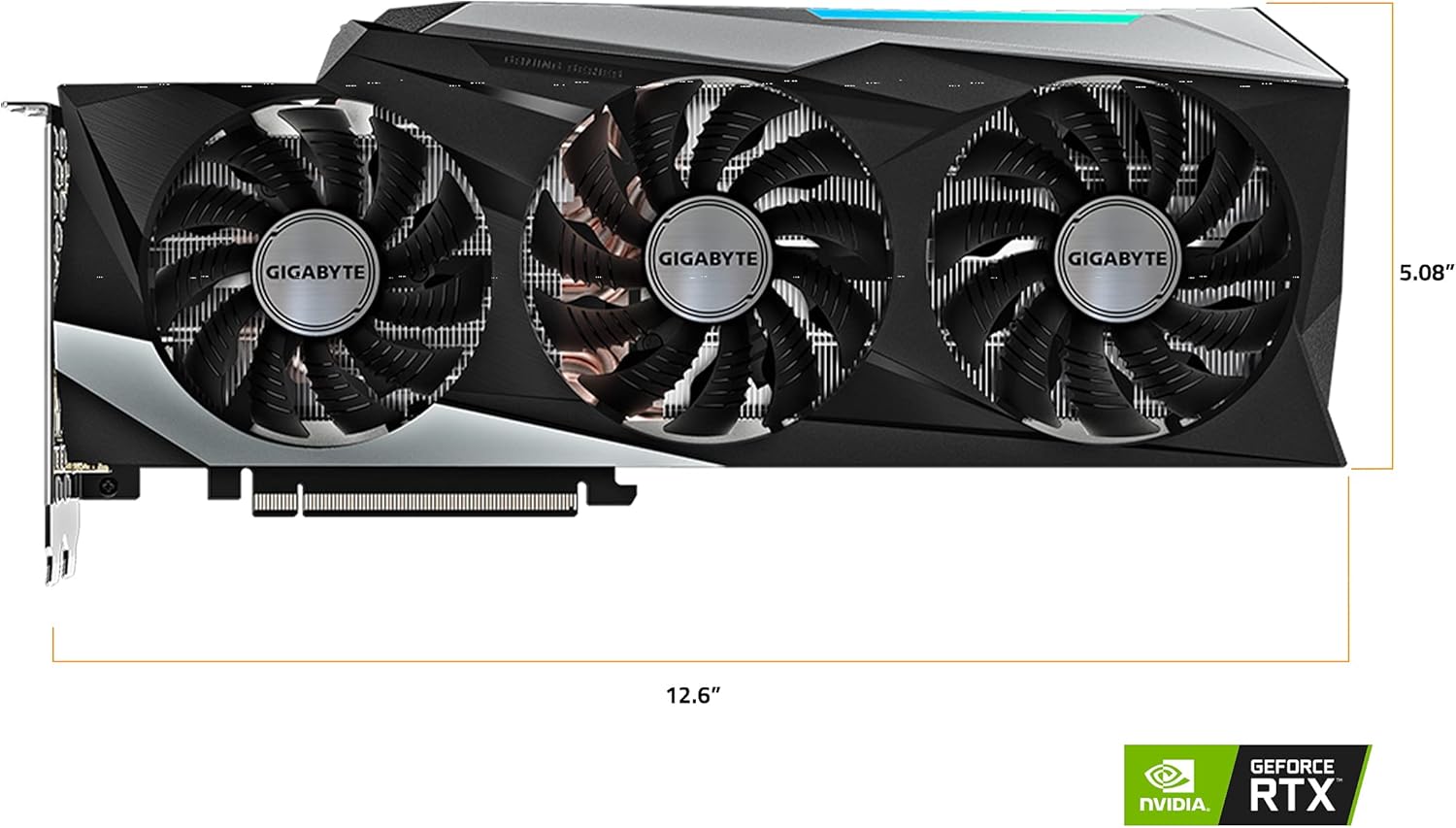
Figure 7.1: Graphics Card Length Measurement.
This image illustrates the length of the GIGABYTE GeForce RTX 3080 graphics card, which is approximately 12.6 inches (320mm). This measurement is critical for PC case compatibility.

Figure 7.2: Graphics Card Thickness and Port Layout.
This image shows the thickness of the graphics card (2.17 inches or 55mm) and provides a clear view of the display output configuration, including DisplayPort and HDMI connections.
8. Warranty and Support
Your GIGABYTE GeForce RTX 3080 Gaming OC 10G Graphics Card comes with a 4-Year Warranty. Online registration is required to activate and validate your warranty. Please register your product on the official GIGABYTE AORUS website to ensure full warranty coverage.
For technical support, driver downloads, and further information, please visit the official GIGABYTE support website:
For any service or repair inquiries, please contact GIGABYTE customer service or your local dealer.
Ask a question about this manual
Ask about setup, troubleshooting, compatibility, parts, safety, or missing instructions. Manuals+ will review the question and use this page’s manual context to help answer it.