
D-Link DWR-M960
D-LINK 4G AC1200 LTE Router DWR-M960
User Manual
1. Introduction
The D-Link DWR-M960 4G AC1200 LTE Router provides high-speed mobile broadband access, allowing users to connect to 3G/4G networks from virtually anywhere. This device enables sharing of your mobile internet connection through a secure wireless network or via its four Gigabit Ethernet ports. It is designed for fast, responsive internet access, suitable for web browsing, streaming media, and online activities.

Figure 1.1: D-Link DWR-M960 4G AC1200 LTE Router. This image displays the router's front view, highlighting its four external antennas and the row of LED indicators for power, internet, Wi-Fi, and signal strength.
2. Package Contents
Please verify that all items listed below are present in your package. If any item is missing or damaged, please contact your retailer.
- D-Link DWR-M960 4G AC1200 LTE Router
- Power Adapter
- Ethernet Cable
- Quick Installation Guide

Figure 2.1: Package Contents. This image shows the DWR-M960 router, its power adapter, and the quick installation guide, all laid out next to the product box.
3. Product Features
The DWR-M960 router is equipped with advanced features to provide a robust and reliable internet connection:
- Fast Mobile Internet: Supports 3G/4G mobile connections with downlink speeds up to 150 Mbps and uplink speeds up to 50 Mbps.
- AC1200 Wi-Fi: Dual-band wireless connectivity (802.11ac) for high-speed Wi-Fi performance.
- Secure Connections: Features dual-active firewalls (SPI and NAT) and WPA/WPA2 wireless encryption to protect your network.
- Multiple Gigabit Ports: Includes four Gigabit Ethernet LAN ports for high-speed wired connections.
- Easy Setup: Can be configured quickly through a web browser without special software.
- SIM Card Slot: Allows direct insertion of a 3G/4G SIM/UICC card to share your mobile broadband.
4. Setup Guide
4.1 Physical Installation
- Insert SIM Card: Locate the SIM card slot on the router. Gently insert your 3G/4G SIM/UICC card into the slot until it clicks into place. Ensure the card is oriented correctly as indicated by the diagram near the slot.
- Connect Antennas: The DWR-M960 features internal antennas. No external antenna connection is required.
- Connect Power: Plug the provided power adapter into the router's power port and then into a wall outlet. The Power LED on the router should illuminate.
- Connect Devices (Optional):
- Wired Connection: Connect one end of the Ethernet cable to any of the LAN ports (1-4) on the router and the other end to your computer's Ethernet port.
- Wireless Connection: Note the Wi-Fi Network Name (SSID) and Wi-Fi Password (Key) printed on the label at the bottom of the router.
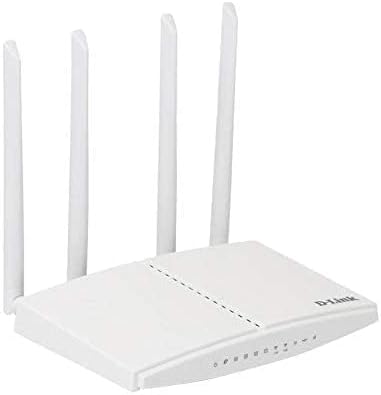
Figure 4.1: Router Ports and SIM Slot. This image provides a side view of the DWR-M960, illustrating the location of the SIM card slot and the various Ethernet ports for wired connections.
4.2 Initial Configuration (Web Interface)
To configure your router, you will need to access its web-based management interface:
- Ensure your computer is connected to the router either via Ethernet or Wi-Fi.
- Open a web browser (e.g., Chrome, Firefox, Edge).
- In the address bar, type the default IP address of the router, usually
192.168.0.1or192.168.1.1, and press Enter. This information is typically found on the router's bottom label. - When prompted, enter the default username and password. For D-Link routers, the default username is often
adminand the password field may be left blank or alsoadmin. Refer to the label on your router for exact credentials. - Follow the on-screen setup wizard to configure your internet connection settings (APN, PIN for SIM if required) and customize your Wi-Fi network name (SSID) and password. It is highly recommended to change the default Wi-Fi password and the router's login password for security.
5. Operating Instructions
5.1 LED Indicators
The LEDs on the front panel of the DWR-M960 provide information about the router's status:
- Power LED:
- Solid Green: Router is powered on.
- Off: Router is powered off.
- Internet LED:
- Solid Green: Connected to the internet.
- Blinking Green: Data activity.
- Red: No internet connection or SIM card error.
- Wi-Fi LED:
- Solid Green: Wi-Fi is enabled.
- Blinking Green: Wi-Fi data activity.
- Off: Wi-Fi is disabled.
- Signal Strength LEDs (3-4 bars):
- Indicates the strength of the 3G/4G mobile signal. More bars mean a stronger signal.
5.2 Connecting Devices
- Wireless Devices: On your smartphone, tablet, or laptop, search for available Wi-Fi networks. Select the SSID you configured (or the default one) and enter the Wi-Fi password.
- Wired Devices: Connect an Ethernet cable from the LAN port of your device (e.g., PC, game console) to any of the available LAN ports on the router.
6. Maintenance
- Firmware Updates: Periodically check the D-Link support website for firmware updates for your DWR-M960. Firmware updates can improve performance, add new features, and fix security vulnerabilities. Follow the instructions provided by D-Link for safe firmware upgrades.
- Regular Reboot: Rebooting your router every few weeks can help clear its memory and resolve minor network issues, improving overall performance and stability. Simply unplug the power adapter, wait 10-15 seconds, and plug it back in.
- Cleaning: Keep the router in a clean, dust-free environment. Use a soft, dry cloth to gently wipe the exterior of the device. Do not use liquid cleaners or aerosols.
- Placement: Place the router in a central location, away from obstructions and other electronic devices that may cause interference, to ensure optimal Wi-Fi coverage.
7. Troubleshooting
7.1 No Internet Connection
- Check SIM Card: Ensure the SIM card is correctly inserted and active with your mobile carrier.
- Check Internet LED: If the Internet LED is red, there might be an issue with the SIM card or mobile network. Verify your APN settings in the router's web interface.
- Reboot Router: Power cycle the router by unplugging it for 10 seconds and plugging it back in.
- Check Signal Strength: Ensure you have adequate 3G/4G signal strength (check Signal Strength LEDs). If the signal is weak, try relocating the router.
- Contact Carrier: Verify with your mobile carrier if there are any network outages or issues with your SIM plan.
7.2 Slow Internet Speed
- Signal Strength: A weak 3G/4G signal will result in slower speeds. Try to improve router placement.
- Network Congestion: Mobile networks can experience congestion during peak hours.
- Wi-Fi Interference: Other wireless devices or networks can interfere with your Wi-Fi signal. Try changing your Wi-Fi channel in the router settings.
- Too Many Devices: Too many devices connected simultaneously can reduce speeds for all users.
7.3 Cannot Access Router Web Interface
- IP Address: Ensure you are using the correct IP address (e.g.,
192.168.0.1). - Wired Connection: Try connecting your computer directly to the router via an Ethernet cable.
- Firewall/Antivirus: Temporarily disable any firewall or antivirus software on your computer that might be blocking access.
- Reset Router: As a last resort, perform a factory reset. Locate the reset button (usually a small pinhole) on the router. With the router powered on, use a paperclip to press and hold the reset button for 5-10 seconds until the LEDs flash. Warning: This will erase all your custom settings, and you will need to reconfigure the router from scratch.
8. Specifications
| Feature | Description |
|---|---|
| Brand Name | D-Link |
| Model Name | DWR-M960 |
| Item Model Number | DWR-M960 |
| Wireless Communication Standard | 802.11ac |
| Frequency Band Class | Dual-Band |
| Connectivity Technology | Wireless |
| Antenna Type | Internal |
| Security Protocol | WPA2 |
| Compatible Devices | Personal Computer |
| Included Components | router |
| Manufacturer | D-Link Systems, Inc. |
| Package Dimensions | 33.6 x 22 x 5.8 cm |
| Item Weight | 724 g |
| Date First Available | 7 July 2021 |
9. Warranty and Support
The D-Link DWR-M960 LTE Router is manufactured by D-Link Systems, Inc. For specific warranty information, please refer to the warranty card included with your product or visit the official D-Link support website for your region. Typically, D-Link products come with a limited warranty covering manufacturing defects from the date of purchase.
For technical support, driver downloads, firmware updates, and additional product information, please visit the D-Link support portal:
When contacting support, please have your product model number (DWR-M960) and serial number ready.
Related documentsDWR-M960


Ask a question about this manual
Ask about setup, troubleshooting, compatibility, parts, safety, or missing instructions. Manuals+ will review the question and use this page’s manual context to help answer it.