
Introduction
Thank you for choosing the CORN HB001 Bluetooth Wireless Headphones. This manual provides essential information for setting up, operating, and maintaining your headphones. Please read it carefully before use to ensure optimal performance and longevity of your device. Keep this manual for future reference.
Product Overview
The CORN HB001 headphones offer a comfortable on-ear design with wireless Bluetooth connectivity, allowing you to enjoy high-quality audio without the constraints of cables. They also feature a 3.5mm audio jack for wired connection when wireless is not preferred or battery is low.
Headphone Components
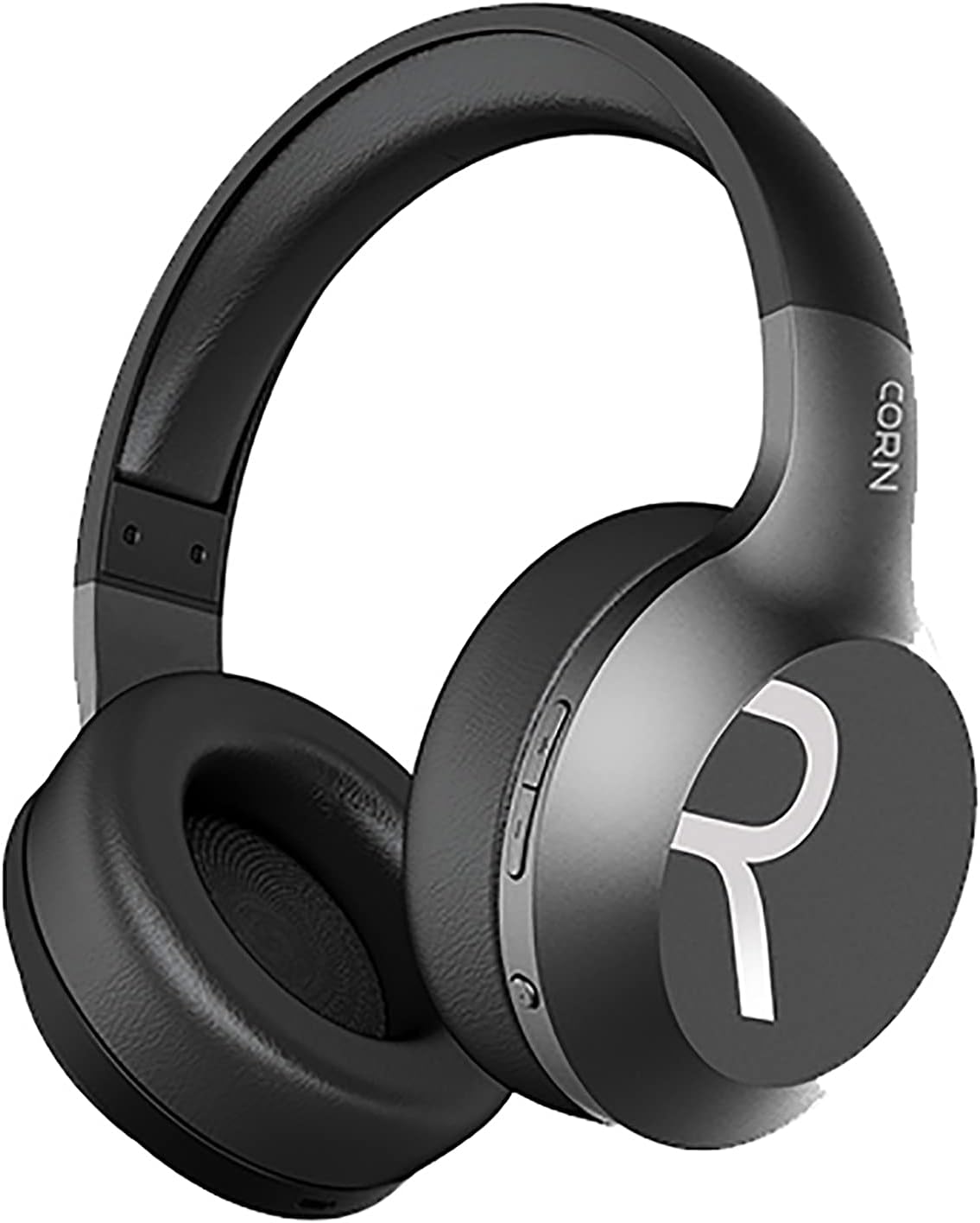
Image 1: Overall view of the CORN HB001 Bluetooth Wireless Headphones. The image displays the black on-ear headphones with adjustable headband and earcups, featuring the 'CORN' brand logo on the side.
Controls Layout

Image 2: Close-up of the control buttons located on the right earcup. These typically include volume up/down and a multi-function button for power, play/pause, and call management.
Familiarize yourself with the buttons and ports on your headphones. Typically, you will find a power/multi-function button, volume controls, a charging port (e.g., USB-C), and a 3.5mm audio jack.
Setup
1. Charging the Headphones
Before first use, fully charge your headphones. Connect the charging cable (usually USB) to the charging port on the headphones and the other end to a USB power source (e.g., computer, wall adapter). The LED indicator will typically show red during charging and turn off or blue when fully charged.
- Charging Time: Approximately 2 hours.
- Battery Capacity: 300 mAh.
2. Bluetooth Pairing
To connect your headphones wirelessly to a device:
- Ensure the headphones are charged and turned off.
- Press and hold the Power/Multi-function button for approximately 5-7 seconds until the LED indicator flashes blue and red alternately, indicating pairing mode.
- On your device (smartphone, tablet, computer), enable Bluetooth and search for new devices.
- Select "CORN HB001" from the list of available devices.
- Once connected, the LED indicator will usually flash blue slowly or turn solid blue.
- The headphones will automatically attempt to reconnect to the last paired device when powered on.
Operating Instructions
Power On/Off
- Power On: Press and hold the Power/Multi-function button for about 3 seconds until the LED indicator lights up blue.
- Power Off: Press and hold the Power/Multi-function button for about 3-5 seconds until the LED indicator turns red and then off.
Music Playback
- Play/Pause: Press the Power/Multi-function button once.
- Volume Up: Press the '+' button.
- Volume Down: Press the '-' button.
- Next Track: Press and hold the '+' button.
- Previous Track: Press and hold the '-' button.
Call Management
- Answer/End Call: Press the Power/Multi-function button once.
- Reject Call: Press and hold the Power/Multi-function button for about 2 seconds.
- Redial Last Number: Double-press the Power/Multi-function button.
Wired Mode (3.5mm Audio Jack)
You can use the headphones in wired mode even if the battery is depleted. Simply connect one end of a 3.5mm audio cable (not always included) to the headphone's 3.5mm jack and the other end to your audio source. In wired mode, Bluetooth functions are disabled, and controls on the headphones may not function.
Maintenance
Proper maintenance ensures the longevity of your headphones.
- Cleaning: Use a soft, dry cloth to wipe the headphones. Do not use abrasive cleaners or solvents. For ear cushions, gently wipe with a damp cloth and allow to air dry completely.
- Storage: Store the headphones in a cool, dry place away from direct sunlight and extreme temperatures. If your headphones are foldable, fold them carefully to prevent damage.
- Water Exposure: These headphones are not waterproof. Avoid exposure to water, moisture, or rain.
Troubleshooting
If you encounter issues, try the following solutions:
| Problem | Solution |
|---|---|
| Headphones won't turn on | Ensure the headphones are fully charged. Press and hold the Power button for a few seconds. |
| Cannot pair with device | Ensure headphones are in pairing mode (flashing blue/red). Turn off and on Bluetooth on your device. Forget previous pairings and try again. Ensure headphones are within 10m range. |
| No sound | Check volume levels on both headphones and your device. Ensure headphones are properly paired. Try wired connection if available. |
| Poor sound quality | Move closer to your device to reduce interference. Ensure no physical obstructions between headphones and device. |
Specifications
| Feature | Detail |
|---|---|
| Model Name | HB001 |
| Brand Name | CORN |
| Connectivity Technology | Wireless, Bluetooth |
| Wireless Version | V5.0 |
| Operating Distance | 10 meters |
| Speaker Driver Size | Φ40mm |
| Speaker Impedance | 32Ω |
| Speaker Power | 15mW |
| Battery Capacity | 300 mAh |
| Charging Time | Approximately 2 hours |
| Working Time | Approximately 8 hours |
| Headphone Form Factor | On-Ear |
| Headphone Jack | 3.5mm Jack (for wired use) |
| Included Components | Ear Cushions |
| Age Range Description | Adult |
| Material | Plastic |
| Color | Black |
Warranty and Support
For warranty information or technical support, please refer to the documentation included with your purchase or contact the manufacturer directly through their official website or customer service channels. Keep your proof of purchase for warranty claims.