
1. Introduction
The AULA S603 is a wired gaming headset designed for an immersive audio experience. It features a lightweight and comfortable design, noise isolation, a highly sensitive microphone, and vibrant RGB lighting. This manual provides essential information for setting up, operating, maintaining, and troubleshooting your headset.
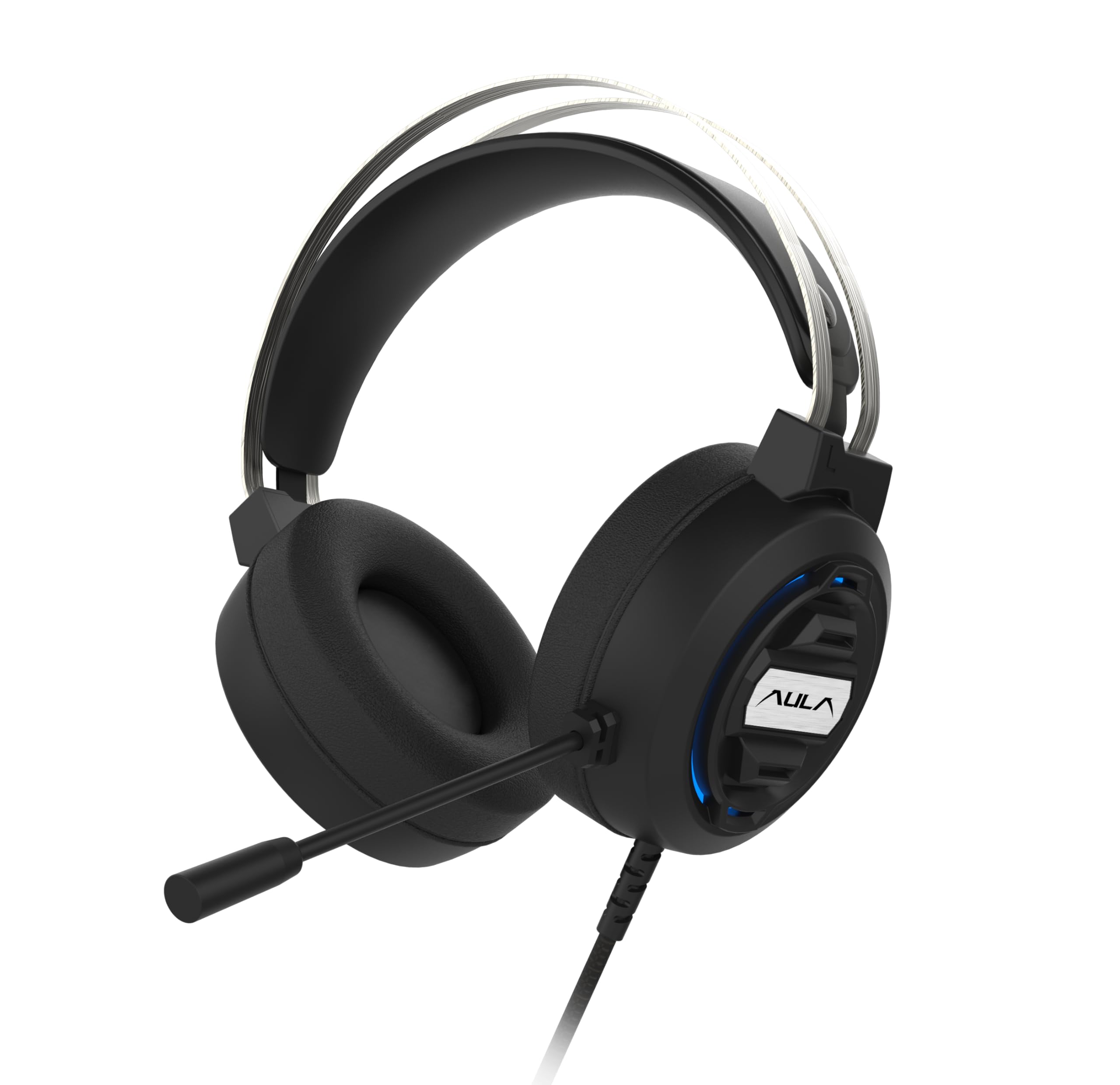
Image 1: AULA S603 Wired Gaming Headset with microphone extended.
Key Features:
- Ergonomic Design: Features a soft adaptive suspension headband and breathable, skin-friendly earmuffs for comfortable wear during extended use.
- Ultra-lightweight: Designed for comfort during long gaming sessions, offering high-quality sound and an adjustable headband for a custom fit.
- HD Noise Cancelling: Built-in technology ensures clear voice pickup and reduces background noise, facilitating clear communication.
- RGB Lighting: Integrated RGB LED provides a dynamic backlight effect, cycling through various colors for an enhanced aesthetic.
- High-sensitivity Microphone: Captures your voice effectively while filtering out ambient noise, ideal for gaming and video calls.
- Multi-Platform Compatible: Connects to various consoles and PCs without hassle, including a converter jack for device versatility.
2. Setup Instructions
Follow these steps to set up your AULA S603 Gaming Headset:
- Connect Audio Jack: Plug the 3.5mm audio jack into the corresponding port on your computer, console controller, or smartphone.
- Connect USB (for RGB Lighting): Insert the USB connector into an available USB port on your device. This powers the RGB lighting feature.
- Adjust Headband: Place the headset on your head and adjust the adaptive suspension headband for a comfortable and secure fit.
- Position Microphone: Adjust the flexible microphone boom to position the microphone near your mouth for optimal voice capture.
- Verify Connection: Ensure both the 3.5mm jack and USB are fully inserted. Your device should recognize the headset automatically.
Video 1: This video demonstrates the features of the AULA S603 headset, including its lightweight design, adaptive headband, skin-friendly earmuffs, anti-wrap wires, noise reduction capabilities, and ergonomic design. It also shows the headset in use during a gaming session.
3. Operating Instructions
Using your AULA S603 headset is straightforward:
- Volume Control: Use the inline volume control wheel located on the headset cable to adjust the audio output level. Rotate it up to increase volume and down to decrease.
- Microphone Usage: The microphone is automatically active when connected. Ensure it is positioned correctly for clear voice transmission.
- RGB Lighting: The 7-color breathing light will activate automatically when the USB is connected. There is no manual control for changing colors or turning off the light directly on the headset.
- Multi-Platform Use: For devices requiring separate audio and microphone inputs, use the included converter jack.
Video 2: This video highlights the ultra-lightweight design, HD noise-cancelling microphone, RGB lighting effects, high-sensitivity microphone, and multi-platform compatibility of the AULA S603 headset.
4. Maintenance
To ensure the longevity and optimal performance of your AULA S603 headset, follow these maintenance guidelines:
- Cleaning: Use a soft, dry cloth to clean the headset. Avoid using harsh chemicals or abrasive materials. For earmuffs, gently wipe with a damp cloth if necessary, and allow to air dry completely.
- Storage: Store the headset in a cool, dry place away from direct sunlight and extreme temperatures. Avoid tangling the cable; use the tangle-free feature to keep it neat.
- Cable Care: Do not pull on the cable to disconnect the headset. Always grasp the plug firmly. Avoid bending or twisting the cable excessively.
- Microphone Care: Handle the microphone boom gently. Avoid excessive force when adjusting its position.
5. Troubleshooting
If you encounter issues with your AULA S603 headset, refer to the following common solutions:
| Problem | Possible Cause | Solution |
|---|---|---|
| No sound from headset |
|
|
| Microphone not working |
|
|
| RGB lighting not working |
|
|
| Sound quality is poor |
|
|
6. Specifications
Detailed technical specifications for the AULA S603 Gaming Headset:
- Model Name: S603
- Brand: AULA
- Connectivity Technology: Wired
- Headphones Jack: 3.5 mm Jack
- Compatible Devices: Laptops, Personal Computer, Smartphone
- Control Type: Volume Control
- Cable Feature: Tangle Free
- Item Weight: 270 Grams
- Material: Plastic
- Style: Over Ear
- Earpiece Shape: Over-ear
- Audio Driver Type: Dynamic Driver
- Noise Control: Sound Isolation
- Product Dimensions (LxWxH): 19.1 x 20.7 x 10.3 Centimeters
7. Warranty and Support
For warranty information and customer support, please refer to the documentation included with your purchase or contact the retailer. Keep your proof of purchase for any warranty claims.
If you require further assistance or have questions not covered in this manual, please reach out to AULA customer support through their official channels or the point of purchase.


