
1. Introduction
This manual provides essential information for the installation, operation, and maintenance of your PNY NVIDIA Quadro RTX A5000 24GB GDDR6 Graphics Card. Please read this manual thoroughly before installation to ensure proper setup and optimal performance. The NVIDIA Quadro RTX A5000 is designed for professional workflows, offering advanced graphics and compute capabilities for tasks such as rendering, AI, and data science.

Figure 1: PNY NVIDIA Quadro RTX A5000 Graphics Card with included accessories.
2. Features
The PNY NVIDIA Quadro RTX A5000 graphics card offers the following key features:
- 24GB GDDR6 Memory: Equipped with error-correction code (ECC) for enhanced data integrity and reliability in professional applications.
- Display Outputs: Features 4x DisplayPort 1.4* for versatile multi-display configurations.
- Power Consumption: Rated at 230 W.
- Form Factor: Measures 4.4” (H) x 10.5” (L) and occupies a dual slot.
- NVLink Support: Supports 2-way low profile (2-slot and 3-slot bridges) for scaling performance across multiple GPUs.
3. What's in the Box
Your package should contain the following items:
- PNY NVIDIA Quadro RTX A5000 Graphics Card
- Bulk Packaging (as supplied)

Figure 2: Graphics card shown with typical power cables and a DisplayPort to DVI adapter, which may be included depending on the specific package.
4. Setup
4.1. Pre-installation Checklist
- Ensure your system's power supply unit (PSU) meets the recommended wattage (230W for the card, plus other system components).
- Verify your motherboard has an available PCI Express x16 slot.
- Download the latest NVIDIA Quadro drivers from the official NVIDIA website before installation.
- Gather necessary tools: Phillips head screwdriver, anti-static wrist strap (recommended).
4.2. Physical Installation
- Power Off System: Completely shut down your computer and disconnect the power cable from the wall outlet.
- Open PC Case: Remove the side panel of your computer case to access the motherboard.
- Locate PCIe Slot: Identify an available PCI Express x16 slot on your motherboard. Remove any expansion slot covers that block the slot.
- Insert Graphics Card: Carefully align the graphics card with the PCIe slot and press down firmly until it is securely seated. The retention clip on the slot should click into place.
- Secure Card: Use screws to secure the graphics card to the PC case's expansion slot bracket.
- Connect Power: Connect the required 8-pin PCIe power connectors from your power supply to the graphics card. Ensure all connections are firm.
- Close PC Case: Replace the side panel of your computer case.
- Connect Display: Connect your display monitor(s) to the DisplayPort outputs on the graphics card.
4.3. Driver Installation
- Power On System: Reconnect the power cable and turn on your computer.
- Install Drivers: Run the NVIDIA Quadro driver installer you downloaded earlier. Follow the on-screen instructions to complete the installation.
- Restart System: Restart your computer after the driver installation is complete.
5. Operating the Graphics Card
Once installed and drivers are updated, your PNY NVIDIA Quadro RTX A5000 is ready for use. This card excels in professional applications.
5.1. Professional Applications
- The Quadro RTX A5000 is optimized for applications requiring high-performance computing, such as CAD/CAM, DCC (Digital Content Creation), scientific visualization, and deep learning.
- Utilize NVIDIA's professional software drivers for stability and performance in certified applications.
5.2. Multi-Monitor Setup
The card supports up to four displays via its DisplayPort 1.4 outputs. Use the NVIDIA Control Panel to configure your display settings, including resolution, refresh rate, and display arrangement (extended, mirrored, or Surround).
5.3. Performance Monitoring
Use NVIDIA's software tools or third-party utilities to monitor the card's temperature, clock speeds, and memory usage during intensive workloads. This helps ensure stable operation and identify potential issues.
6. Maintenance
Regular maintenance helps prolong the life and performance of your graphics card.
- Dust Cleaning: Periodically clean dust from the card's heatsink and fan using compressed air. Ensure the system is powered off and unplugged before cleaning.
- Driver Updates: Keep your graphics drivers updated to the latest version from the NVIDIA website. Driver updates often include performance improvements and bug fixes.
- Temperature Monitoring: Monitor the GPU temperature, especially during heavy loads. Ensure adequate airflow within your PC case to prevent overheating.
7. Troubleshooting
If you encounter issues with your graphics card, refer to the following common troubleshooting steps:
- No Display:
- Ensure the monitor cables are securely connected to both the graphics card and the display.
- Verify the graphics card is fully seated in the PCIe slot and all power connectors are attached.
- Test with a different display cable or monitor if possible.
- Driver Issues:
- Perform a clean installation of the latest drivers. Uninstall existing drivers using Display Driver Uninstaller (DDU) in Safe Mode before installing new ones.
- Ensure you are downloading the correct drivers for your specific operating system and graphics card model.
- Overheating:
- Check for proper airflow in your PC case. Ensure case fans are working and not obstructed.
- Clean dust from the graphics card's heatsink and fans.
- Monitor temperatures using software. If temperatures remain high, consider improving case ventilation.
- Performance Problems:
- Ensure your system meets the minimum requirements for the applications you are running.
- Verify that the graphics card is running at its expected clock speeds (not throttling due to heat or power limits).
- Close unnecessary background applications.
8. Specifications
Detailed technical specifications for the PNY NVIDIA Quadro RTX A5000 graphics card:
| Specification | Value |
|---|---|
| Graphics Coprocessor | NVIDIA RTX A5000 |
| Graphics RAM Size | 24 GB GDDR6 (with ECC) |
| Video Output Interface | DisplayPort (4x DisplayPort 1.4*) |
| Item Model Number | A5000 RTX |
| Manufacturer | PNY |
| Product Dimensions | 10.5 x 4.4 x 0.04 inches |
| Item Weight | 2.88 pounds |
| Power Consumption | 230 W |
| Form Factor | Dual Slot |
| NVLink Support | 2-way low profile (2-slot and 3-slot bridges) |
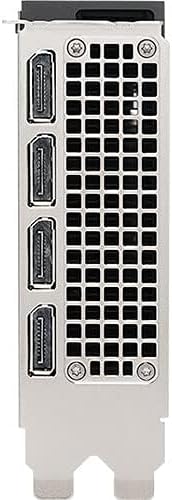
Figure 3: Rear view of the graphics card showing the four DisplayPort outputs.
9. Warranty and Support
For warranty information and technical support, please refer to the official PNY or NVIDIA websites. Product registration may be required to activate your warranty. Support resources typically include FAQs, driver downloads, and contact information for technical assistance.
For the most up-to-date information, drivers, and support, visit:


