
Introduction
This manual provides instructions for the OMAIC RC802V replacement remote control, designed for use with TCL Android Smart TVs. This remote features standard button controls and integrated voice control functionality.

Figure 1: The OMAIC RC802V remote control shown alongside various other TCL remote models, highlighting its design.

Figure 2: Detailed close-up views of the OMAIC RC802V remote control, showcasing button textures and overall finish.
Compatibility
The OMAIC RC802V remote control is compatible with various TCL Android TV models. Please refer to your TV's documentation or the product listing for a comprehensive list of supported models.

Figure 3: The OMAIC RC802V remote control displayed next to a list of compatible TCL Android TV series and models, including 43P30FS, 32P30FS, 49P30FS, 32S6500A, 65P8, 65P8S, 55P8, 55P8S, 55EP680, 50P8, 50P8S, 49S6800FS, 49S6800, 49S6510FS, 32S6500, 32S6500S, 32S6800S, 32S6510S, 32A323, 32A325, 32S6800, 40S6500, 40S6500FS, 40S6800FS, 40S6510FS, 40S6800, 40S6500FS, 40S6510FS, 40S6800, 43S6500FS, 43S6800FS, 43S6500, 43S6500FS, 40A325, and 40A323.
Setup
1. Battery Installation
The remote control requires two AAA batteries (not included).
- Locate the battery compartment cover on the back of the remote control.
- Slide the cover downwards in the direction of the arrow to open it.
- Insert two AAA batteries, ensuring the positive (+) and negative (-) terminals align correctly with the markings inside the compartment.
- Slide the battery compartment cover back into place until it clicks securely.

Figure 4: Step-by-step guide for battery installation, showing how to open the compartment, insert batteries with correct polarity, and close the cover.
2. Pairing the Remote Control
For full functionality, including voice control, the remote must be paired with your TCL Android TV.
- Ensure your TV is powered on.
- Point the remote control towards the TV.
- Simultaneously press and hold the OK button and the Home button (the button with the house icon) for approximately 3 to 10 seconds.
- Release the buttons when a pairing confirmation message appears on your TV screen.
- Follow any on-screen prompts to complete the pairing process.

Figure 5: Visual guide indicating the "OK" and "Home" buttons to be pressed simultaneously for pairing the remote control with the TV.
Note: If the remote does not pair, ensure the batteries are fresh and correctly inserted, and try the pairing process again. Some TVs may require you to navigate to the TV's settings menu (e.g., "Remotes & Accessories" or "Bluetooth") to initiate pairing.
Operating Instructions
The OMAIC RC802V remote control provides intuitive access to your TCL Android TV's functions. Below is a guide to the main buttons and their uses.

Figure 6: Detailed diagram illustrating each button on the remote control and its corresponding function.
- Power Button: Turns the TV on or off.
- Settings Button: Displays the TV settings menu.
- Home Button: Returns to the TV's home screen.
- Options Button: Opens the options menu for the current content or application.
- Back Button: Returns to the previous screen or menu.
- Source Button: Opens the input source shortcut menu.
- Google Assistant Button: Activates Google Assistant for voice commands. This function requires an active internet connection and successful remote pairing.
- Channel Buttons: CH+ changes to the next channel, CH- changes to the previous channel.
- Volume Buttons: Volume Up (+) increases volume, Volume Down (-) decreases volume. Press and hold the Volume Down (-) button for approximately 3 seconds to mute the sound.
- Virtual Keyboard Button: Opens the virtual keyboard on the screen for text input.
- Netflix Button: Direct access to the Netflix application.
- YouTube Button: Direct access to the YouTube application.
Voice Control Functionality
The remote supports voice commands through Google Assistant. After successful pairing and with an active internet connection, press the Google Assistant button and speak your command into the remote. Examples include "Show me comedies" or "Please play Spider-Man."
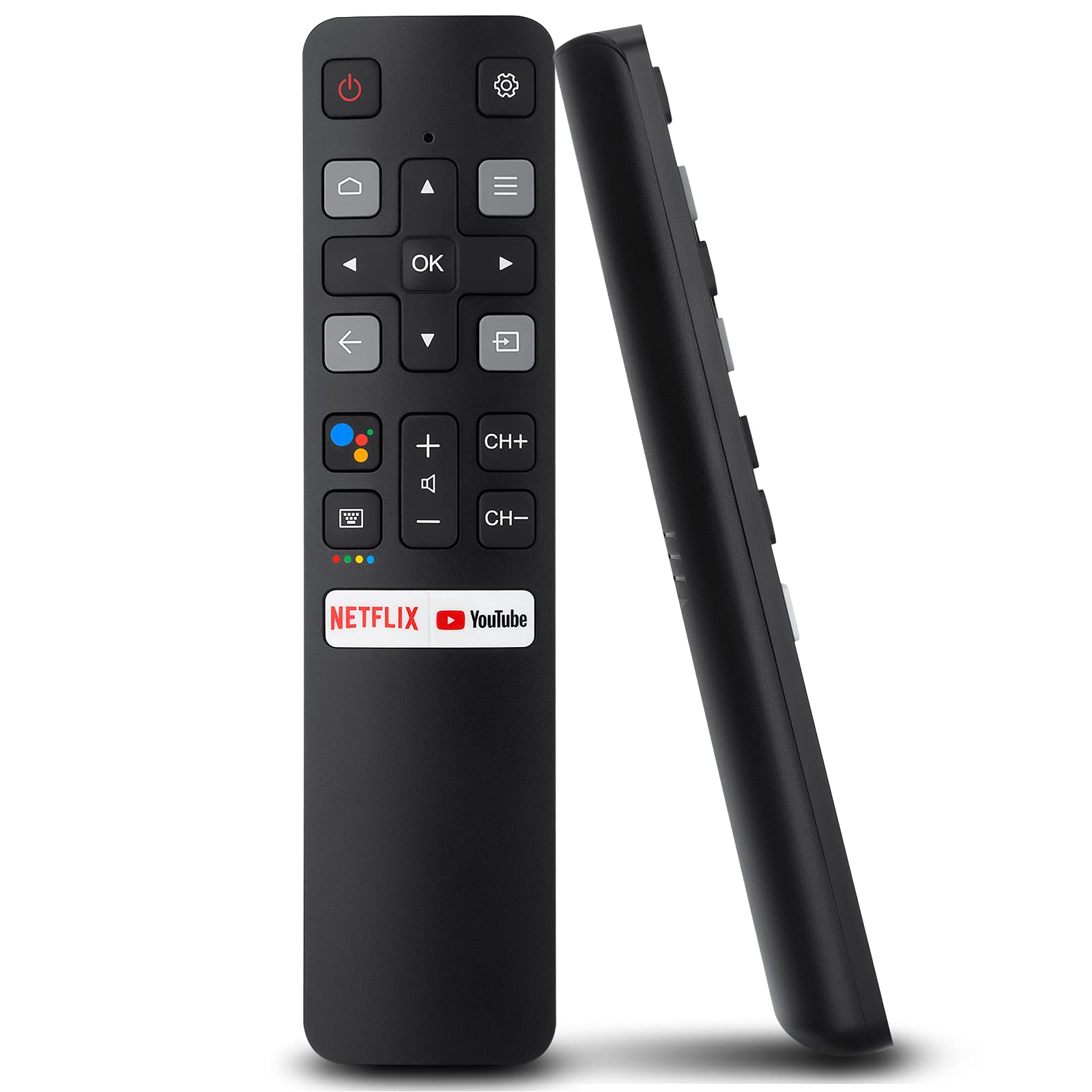
Figure 7: The remote control highlighting the Google Assistant button and illustrating the voice control feature in action with a "Hey, Google" prompt.

Figure 8: An illustration of the voice remote control interacting with a TCL Android TV, featuring the Google Assistant logo.
Figure 9: Depiction of users utilizing the voice control feature from a typical viewing distance of 5-8 meters, demonstrating effective range and quick response.
Figure 10: A user demonstrating the intelligent voice control feature, with example commands displayed on screen.

Figure 11: The remote control being held and used, with a TCL Android TV displaying content in the background.
Maintenance
- Cleaning: Use a soft, dry cloth to clean the remote control. Do not use liquid cleaners or abrasive materials.
- Battery Replacement: Replace batteries when the remote's response becomes sluggish or stops working. Always replace both batteries at the same time with new ones of the same type (AAA).
- Storage: If the remote control will not be used for an extended period, remove the batteries to prevent leakage and potential damage.
- Avoid Extreme Conditions: Do not expose the remote control to direct sunlight, high temperatures, humidity, or water.
Troubleshooting
| Problem | Possible Cause | Solution |
|---|---|---|
| Remote not responding. | Dead or incorrectly inserted batteries. | Replace batteries with new AAA batteries, ensuring correct polarity. |
| Remote not controlling TV. | Remote is not paired with the TV. | Follow the "Pairing the Remote Control" instructions in the Setup section. |
| Voice control not working. | Remote not paired, no internet connection, or TV settings. | Ensure remote is paired. Verify TV has an active internet connection. Check TV's voice control settings. |
| Short operating range. | Low batteries or interference. | Replace batteries. Ensure no obstructions between remote and TV. Reduce potential interference from other electronic devices. |
Specifications
- Model: RC802V
- Brand: OMAIC
- Compatible Devices: TCL Android Smart TVs
- Special Features: Ergonomic design, Voice Search (Google Assistant)
- Controller Type: Button Control
- Power Source: 2 x AAA batteries (not included)
- Color: Black
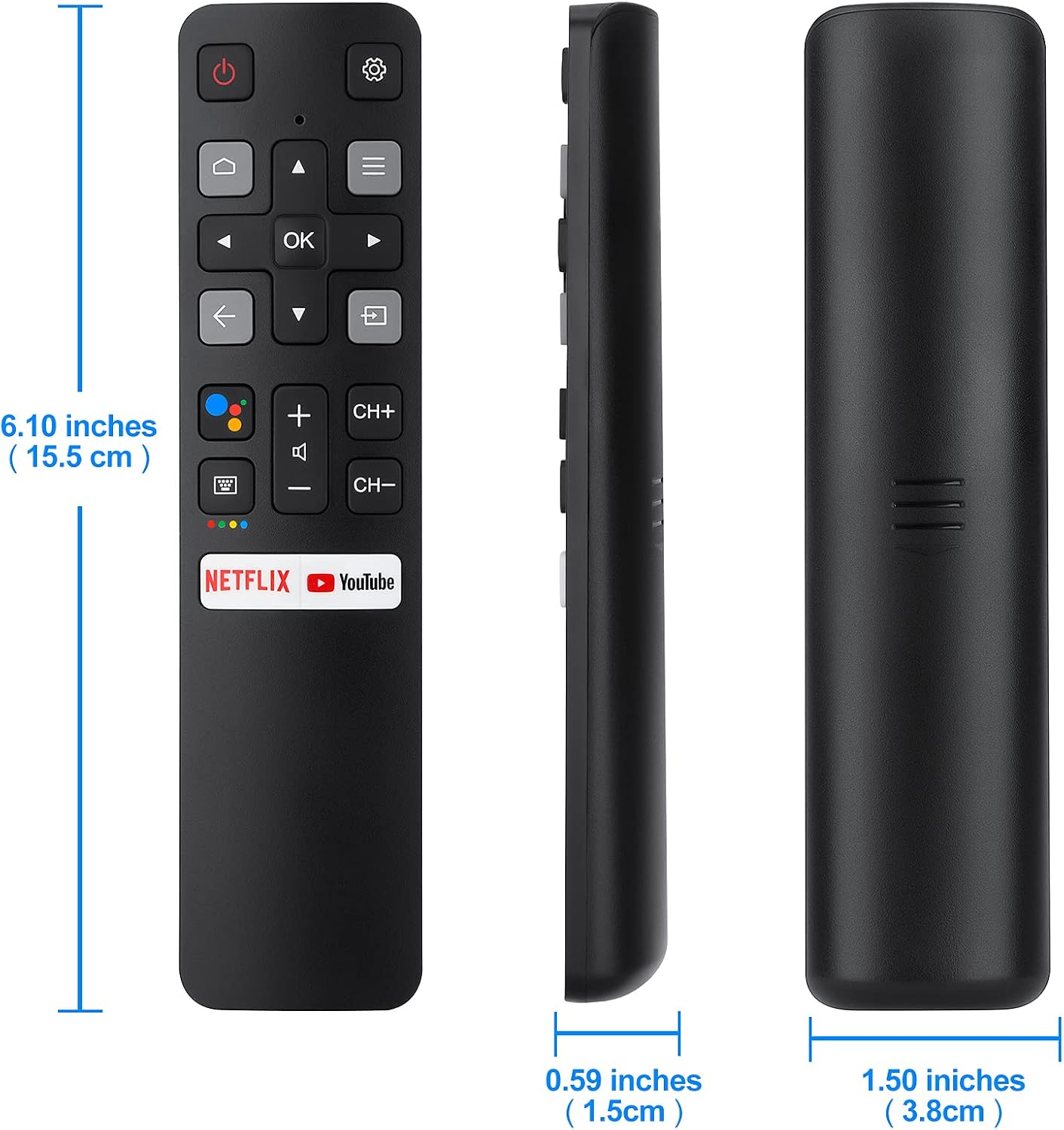
Figure 12: Front, side, and back views of the remote control with dimensions: 6.10 inches (15.5 cm) length, 0.59 inches (1.5 cm) thickness, and 1.50 inches (3.8 cm) width.
Warranty and Support
For warranty information or technical support, please refer to the documentation provided with your purchase or contact OMAIC customer service directly. Contact details can typically be found on the manufacturer's official website or through your retailer.
Online Resources: For additional assistance, you may find helpful resources and FAQs on the OMAIC brand store page on Amazon: OMAIC Store.