
Introduction
This manual provides essential information for the installation, operation, maintenance, and troubleshooting of your EVGA GeForce RTX 3080 FTW3 ULTRA GAMING graphics card. Please read this manual thoroughly before installation to ensure proper setup and optimal performance.

Image: The EVGA GeForce RTX 3080 FTW3 ULTRA GAMING graphics card, showcasing its triple-fan design and sleek black aesthetic.
Setup and Installation
Proper installation is crucial for the stability and performance of your graphics card. Ensure your system meets the minimum requirements before proceeding.
System Requirements:
- PCI-Express x16 slot on motherboard.
- Minimum 750W power supply unit (PSU) with three available 8-pin PCIe power connectors.
- Compatible desktop computer operating system (e.g., Windows 10/11).
- Sufficient case clearance for card dimensions (30 x 6.2 x 13.92 cm).
Installation Steps:
- Prepare Your System: Power off your computer and unplug all cables. Open your computer case.
- Locate PCIe Slot: Identify an available PCI-Express x16 slot on your motherboard.
- Remove Slot Covers: Remove the necessary expansion slot covers from your case.
- Insert Graphics Card: Carefully align the graphics card with the PCIe slot and press down firmly until it is securely seated. Ensure the retention clip locks into place.
- Secure the Card: Use screws to secure the graphics card to the case's expansion slot bracket.
- Connect Power: Connect three 8-pin PCIe power cables from your power supply to the corresponding power connectors on the graphics card.
- Install Support Bracket (Optional but Recommended): If included, install the metal support bracket to prevent GPU sag. Refer to the bracket's specific instructions for attachment.
- Close Case and Reconnect: Close your computer case, reconnect all cables, and power on your system.
- Install Drivers: Once your operating system loads, download and install the latest NVIDIA GeForce drivers from the official NVIDIA website (nvidia.com/drivers) or the EVGA website (evga.com/drivers).
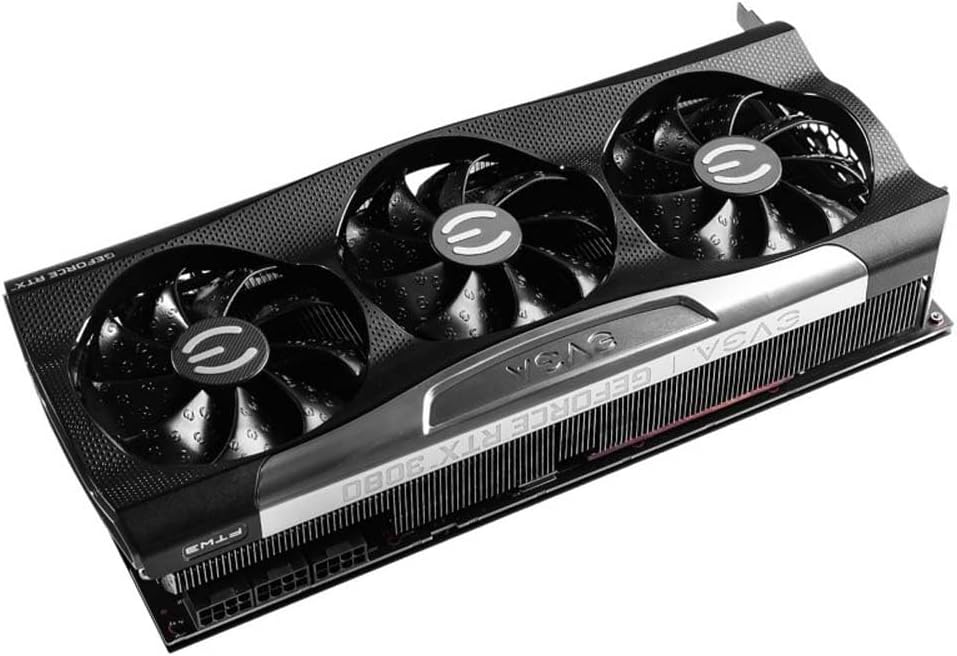
Image: Side view of the EVGA GeForce RTX 3080 FTW3 ULTRA GAMING graphics card, highlighting the three 8-pin power connectors required for operation.

Image: The metal support bracket and screws, designed to provide additional stability for the graphics card within the PC case.
Operating Your Graphics Card
Your EVGA GeForce RTX 3080 FTW3 ULTRA GAMING graphics card is designed for high-performance gaming and demanding graphical tasks.
Key Features:
- NVIDIA GeForce RTX 3080 GPU: Powered by NVIDIA's Ampere architecture for advanced ray tracing and AI capabilities.
- 10GB GDDR6X Memory: High-speed memory for demanding applications and games.
- iCX3 Technology: Advanced cooling solution with multiple sensors and asynchronous fans for optimized thermal performance.
- ARGB LED: Customizable RGB lighting for aesthetic personalization.
- Metal Backplate: Provides structural rigidity and aids in heat dissipation.
- Video Output: Multiple HDMI and DisplayPort outputs for connecting to various displays.

Image: The EVGA GeForce RTX 3080 FTW3 ULTRA GAMING graphics card illuminated with its customizable ARGB LED lighting.

Image: The robust metal backplate of the EVGA GeForce RTX 3080 FTW3 ULTRA GAMING graphics card, enhancing durability and cooling.
For ARGB LED customization and advanced monitoring, download the EVGA Precision X1 software from the official EVGA website.
Maintenance
Regular maintenance helps ensure the longevity and optimal performance of your graphics card.
- Keep Drivers Updated: Periodically check for and install the latest graphics drivers from NVIDIA or EVGA. Driver updates often include performance improvements and bug fixes.
- Clean Dust: Every few months, gently clean dust from the fans and heatsink using compressed air. Ensure the system is powered off and unplugged before cleaning. Avoid touching the fan blades directly.
- Monitor Temperatures: Use monitoring software (e.g., EVGA Precision X1) to keep an eye on GPU temperatures, especially during heavy loads. Excessive temperatures can indicate poor airflow or a need for cleaning.
- Ensure Proper Airflow: Make sure your computer case has adequate airflow to prevent heat buildup.
Troubleshooting
If you encounter issues with your graphics card, refer to the following common troubleshooting steps:
- No Display Output:
- Ensure all power cables (three 8-pin PCIe) are securely connected to the graphics card.
- Verify the monitor cable is connected to the graphics card's output, not the motherboard's integrated graphics port.
- Reseat the graphics card in its PCIe slot.
- Test with a different monitor cable or monitor if possible.
- Performance Issues (Low FPS, Stuttering):
- Ensure you have the latest graphics drivers installed.
- Check GPU temperatures. Overheating can lead to performance throttling.
- Verify your power supply unit (PSU) meets the recommended 750W and is providing stable power.
- Close unnecessary background applications.
- System Crashes or Freezes:
- Update graphics drivers.
- Check for system stability issues (e.g., RAM, CPU).
- Monitor GPU temperatures.
- Ensure your PSU is sufficient and stable.
- ARGB LED Not Working:
- Ensure EVGA Precision X1 software is installed and running.
- Check software settings for LED control.
If problems persist, contact EVGA technical support for further assistance.
Specifications
Detailed technical specifications for the EVGA GeForce RTX 3080 FTW3 ULTRA GAMING graphics card:
| Feature | Detail |
|---|---|
| Model Number | 10G-P5-3897-KL |
| Graphics Coprocessor | NVIDIA GeForce RTX 3080 |
| Graphics RAM Size | 10 GB GDDR6X |
| Video Output Interface | HDMI, DisplayPort |
| Graphics Card Interface | PCI-Express x16 |
| Recommended PSU | 750W (minimum) |
| Power Connectors | 3x 8-pin PCIe |
| Dimensions (L x W x H) | 30 x 6.2 x 13.92 cm |
| Weight | 1.61 kg |
| Recommended Use | Video Gaming |
| Compatible Devices | Desktop Computer |
Warranty and Support
EVGA products are backed by a manufacturer's warranty. For specific warranty terms and conditions, please visit the official EVGA website. Keep your proof of purchase for warranty claims.
For technical support, driver downloads, and product registration, please visit the EVGA support page:
You can also find FAQs and community forums on the EVGA website for additional assistance.