
GRIFEMA GD1002-2
GRIFEMA GD1002-2 Star Projector User Manual
Model: GD1002-2
1. Introduction
Thank you for purchasing the GRIFEMA GD1002-2 Star Projector. This device is designed to create a captivating starry sky projection while also functioning as a Bluetooth speaker. It is ideal for creating a relaxing atmosphere, enhancing parties, or serving as a night light for children. Please read this manual carefully before use to ensure proper operation and to maximize your enjoyment of the product.

Figure 1: Front view of the GRIFEMA GD1002-2 Star Projector, showcasing its colorful light dome and compact design.
2. Package Contents
Please check the package contents upon unboxing. If any items are missing or damaged, please contact customer support.
- 1 x GRIFEMA GD1002-2 Star Projector
- 1 x Remote Control
- 1 x USB Charging Cable
- 1 x User Manual (this document)

Figure 2: Included accessories: the projector, remote control, and USB charging cable.
3. Product Overview
Familiarize yourself with the various parts and controls of your star projector.

Figure 3: Detailed diagram of the projector's control panel and the remote control. Key components include the 5V power supply interface, previous song/volume down button, play/pause button, next song/volume up button, power switch, and USB interface.
Control Panel Functions:
- 5V Power Supply Interface: For connecting the USB charging cable.
- Previous Song / Volume Down: Short press for previous song, long press to decrease volume.
- Play / Pause: Press to play or pause music.
- Next Song / Volume Up: Short press for next song, long press to increase volume.
- Power Switch: Long press to turn the device on or off.
- USB Interface: For playing music from a USB drive.
4. Setup
4.1 Charging the Device
Before first use, ensure the projector is fully charged.
- Connect the small end of the included USB charging cable to the 5V Power Supply Interface (1) on the projector.
- Connect the standard USB end of the cable to a compatible USB power adapter (not included) or a computer USB port.
- The charging indicator light (if present) will illuminate during charging and turn off when fully charged.
4.2 Powering On/Off
To turn the projector on or off:
- To Power On: Long press the Power Switch (5) on the control panel or press the ON button on the remote control.
- To Power Off: Long press the Power Switch (5) on the control panel or press the OFF button on the remote control.
5. Operating Instructions
5.1 Light Projection Modes
The projector offers various light modes to create different atmospheres. These can be controlled via the remote control.
- Color Selection: Use the R (Red), G (Green), B (Blue), W (White) buttons on the remote to select individual colors or combinations.
- Brightness Adjustment: Use the brightness up/down buttons on the remote to adjust the intensity of the projection.
- Rotation: The projector features 360° rotation for dynamic starry sky effects. This can typically be toggled on/off via the remote.
- Pattern Selection: The remote control allows you to cycle through different projection patterns (stars, dots, etc.).
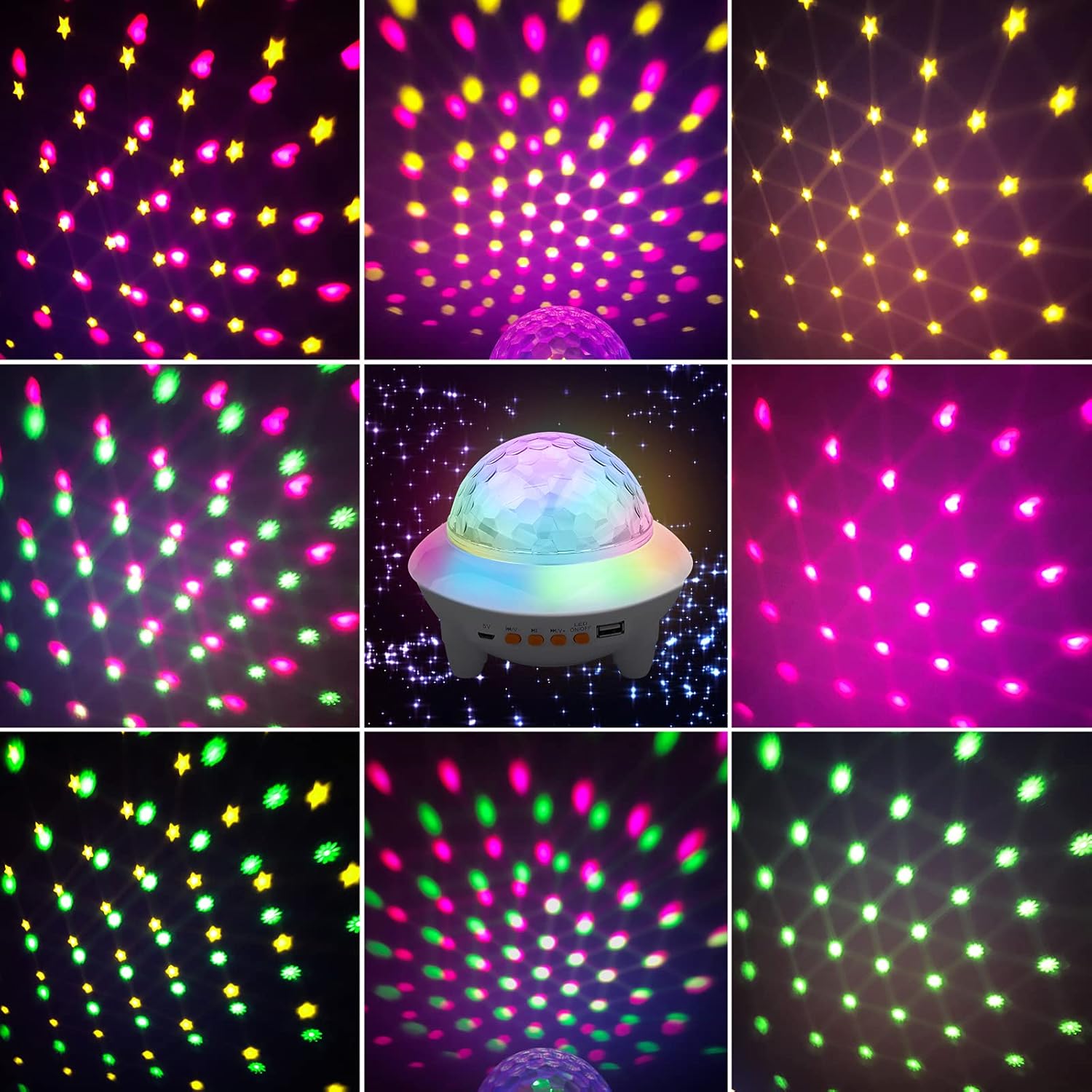
Figure 4: Examples of various projection patterns and color combinations available.
5.2 Bluetooth Speaker Function
The projector can connect to your mobile device via Bluetooth to play music.
- Ensure the projector is powered on.
- On your mobile device, enable Bluetooth and search for available devices.
- Select "GD1002-2" (or similar name) from the list of devices to pair.
- Once paired, you can play music from your device, and the audio will output through the projector's speaker.
- Use the control panel buttons (2, 3, 4) or the remote control to adjust volume, play/pause, and skip tracks.

Figure 5: The projector's integrated speaker provides audio playback via Bluetooth connection.
5.3 USB Music Playback
You can also play music directly from a USB flash drive.
- Insert a USB flash drive containing MP3 audio files into the USB Interface (6) on the projector.
- The projector should automatically detect the USB drive and begin playing music.
- Use the control panel buttons (2, 3, 4) or the remote control to adjust volume, play/pause, and skip tracks.
5.4 Remote Control Usage
The included remote control provides full functionality for the projector. Ensure the remote has a working battery (1 Lithium-ion battery included). Point the remote directly at the projector for optimal response.
- ON/OFF: Power the unit on or off.
- Color Buttons (R, G, B, W): Select individual or mixed colors.
- Brightness +/-: Adjust light intensity.
- Music Controls: Play/Pause, Previous/Next Track, Volume Up/Down, Mute.
- EQ: Equalizer settings (if applicable).
- Light Mode Buttons: Cycle through various projection effects and patterns.
6. Maintenance
6.1 Cleaning
- Always disconnect the power cable before cleaning.
- Wipe the surface of the projector with a soft, dry cloth.
- Do not use abrasive cleaners, solvents, or strong chemicals, as these may damage the finish.
- Keep the projection lens clean to ensure clear and vibrant projections.
6.2 Storage
- Store the projector in a cool, dry place away from direct sunlight and extreme temperatures.
- If storing for an extended period, ensure the battery is partially charged (around 50%) to prolong its lifespan.
7. Troubleshooting
If you encounter any issues with your GRIFEMA GD1002-2 Star Projector, please refer to the following common problems and solutions.
| Problem | Possible Cause | Solution |
|---|---|---|
| Projector does not turn on. | Low battery or no power connection. | Ensure the USB cable is securely connected and the projector is charged. Long press the power button. |
| No light projection. | Light mode off or brightness too low. | Check light mode settings and increase brightness using the remote or control panel. |
| Bluetooth not connecting. | Projector not in pairing mode or device too far. | Ensure Bluetooth is enabled on your device and the projector. Move closer to the projector. Restart both devices. |
| No sound from speaker. | Volume too low or device not properly connected. | Increase volume on both the projector and your connected device. Ensure Bluetooth or USB connection is stable. |
| Remote control not working. | Battery depleted or obstruction. | Replace the remote control battery. Ensure there are no obstructions between the remote and the projector. |
8. Specifications
Technical specifications for the GRIFEMA GD1002-2 Star Projector.
| Model Number | GD1002-2 |
| Manufacturer | Ibergrif Griferias SL |
| Dimensions (L x W x H) | 15 x 15 x 12 cm |
| Weight | 465 grams |
| Power Input | 5 Volts DC |
| Power Consumption | 5 Watts |
| Light Source | LED |
| Battery Type | 1 x Lithium-ion (included) |
| Material | Plastic |
| Color | White |
| Special Features | 360° Rotation, Bluetooth Speaker, USB Playback, Remote Control |
9. Warranty and Support
9.1 Warranty Information
GRIFEMA products are manufactured to high-quality standards. For specific warranty terms and conditions, please refer to the warranty card included with your purchase or visit the official GRIFEMA website. Keep your purchase receipt as proof of purchase for warranty claims.
9.2 Customer Support
If you have any questions, require technical assistance, or need to report an issue that is not covered in the troubleshooting section, please contact GRIFEMA customer support.
- Online Support: Visit the official GRIFEMA website for FAQs and contact forms.
- Email Support: Refer to your product packaging or the official website for customer service email addresses.
When contacting support, please have your product model number (GD1002-2) and purchase details ready.
Ask a question about this manual
Ask about setup, troubleshooting, compatibility, parts, safety, or missing instructions. Manuals+ will review the question and use this page’s manual context to help answer it.