
PALOVUE SoundFlow
Contents
PALOVUE SoundFlow USB Type C Headphones User Manual
Model: SoundFlow (PV1CB)
Introduction
Thank you for choosing PALOVUE SoundFlow USB Type C Headphones. These in-ear earphones are designed to provide a clear audio experience with convenient controls and broad compatibility. This manual will guide you through the setup, operation, and maintenance of your new headphones.

Image: PALOVUE SoundFlow USB Type C Headphones in black, showcasing the sleek design.
The SoundFlow headphones feature a 10-millimeter dynamic driver for crisp mids and deep bass, along with an in-ear design for effective noise isolation. They are built with reinforced TPE coating for durability and oxygen-free copper wire for optimal data transmission, protected by a stainless steel frame for the Type C connector.
Setup
1. Connecting Your Headphones (Plug and Play)
The PALOVUE SoundFlow headphones are designed for immediate use. Simply plug the USB Type C connector into your compatible device's USB-C port. No additional drivers or apps are required.

Image: The USB-C headphones connected to a mobile device, illustrating the simple plug-and-play functionality.
2. Choosing the Right Ear Tips for a Customizable Fit
For optimal sound quality and comfort, select the ear tips that best fit your ears. The SoundFlow headphones come with three different sizes (Small, Medium, Large) of soft ear tips. A proper fit helps minimize ambient noise and enhances the audio experience.
- Gently pull off the pre-installed ear tips.
- Select a size (S, M, or L) that feels comfortable and creates a good seal in your ear canal.
- Press the new ear tips firmly onto the earbud nozzles until they are securely attached.
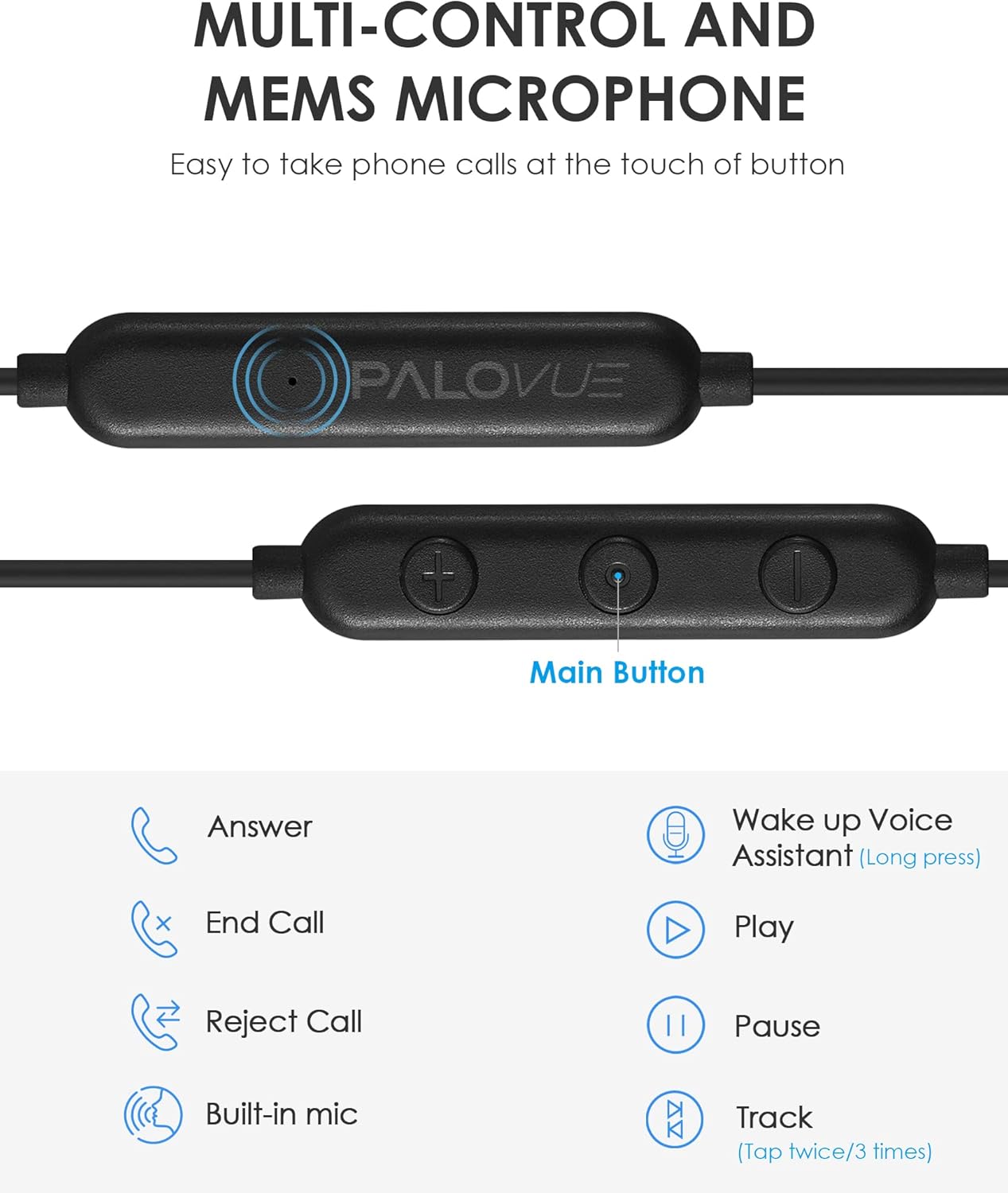
Image: A visual guide demonstrating how to select and fit the correct ear tip size for comfort and noise isolation.
Operating Instructions
Using the In-line Remote Control
The SoundFlow headphones feature a 3-button in-line remote control and a built-in MEMS microphone for easy management of audio playback and calls.

Image: Detailed view of the in-line remote control, highlighting the main button and volume controls.
Call Management:
- Answer Call: Press the Main Button once.
- End Call: Press the Main Button once during a call.
- Reject Call: Press and hold the Main Button for approximately 2 seconds.
Music Playback:
- Play/Pause: Press the Main Button once.
- Next Track: Press the Main Button twice quickly.
- Previous Track: Press the Main Button three times quickly.
- Fast Forward: Press the Main Button twice quickly and hold on the second press.
- Rewind: Press the Main Button three times quickly and hold on the third press.
Volume Control:
- Increase Volume: Press the '+' button.
- Decrease Volume: Press the '-' button.
Voice Assistant:
- Activate Voice Assistant: Press and hold the Main Button for approximately 3 seconds (functionality may vary by device).
Video: A demonstration of the PALOVUE USB Type C Headphones' multi-control and MEMS microphone features, including call and music management.
Maintenance
- Cleaning: Gently wipe the earbuds and cable with a soft, dry cloth. Do not use harsh chemicals or abrasive materials.
- Ear Tips: Remove ear tips periodically and clean them with mild soap and water. Ensure they are completely dry before reattaching.
- Storage: When not in use, store your headphones in a clean, dry place, preferably in a small pouch to prevent tangling and damage to the cable.
- Avoid Moisture: These headphones are not water-resistant. Avoid exposure to liquids, high humidity, or extreme temperatures.
- Cable Care: Do not pull on the cable to disconnect the headphones. Always grasp the USB-C connector firmly. Avoid sharp bends or excessive tension on the cable.
Troubleshooting
Common Issues and Solutions:
- No Sound:
- Ensure the USB-C connector is fully inserted into your device.
- Check your device's volume settings.
- Verify that your device supports audio output via its USB-C port. Some devices may require specific settings or adapters.
- Test the headphones with another compatible device to rule out a device-specific issue.
- Microphone Not Working:
- Ensure the microphone is not obstructed.
- Check your device's privacy settings to ensure microphone access is granted to the relevant applications.
- Confirm that the headphones are fully connected.
- Remote Control Not Responding:
- Ensure the headphones are securely connected to your device.
- Some functions may not be supported by all devices or operating systems.
- Poor Sound Quality / Static:
- Ensure the ear tips provide a good seal in your ears.
- Check for any damage to the cable or connector.
- Try cleaning the USB-C port on your device and the headphone connector.
If you continue to experience issues, please refer to the Warranty & Support section for assistance.
Specifications
| Feature | Detail |
|---|---|
| Brand | PALOVUE |
| Model Name | SoundFlow |
| Model Number | PV1CB |
| Color | Black |
| Ear Placement | In Ear |
| Form Factor | In Ear |
| Impedance | 32 ohm |
| Connectivity Technology | Wired (USB Type C) |
| Control Type | Volume Control, 3-button in-line controller |
| Noise Control | Sound Isolation |
| Audio Driver Size | 10 millimeters |
| Material | Copper, Stainless Steel, TPE |
| Item Weight | 0.04 kg |
| Compatible Devices | Samsung Galaxy S23/S22/S22+/S22 Ultra/S21/S21+/S21 Ultra/S20/A54/A53; Google Pixel 3/2/3XL/2XL; Oneplus 7/8; Xiaomi mi 8/8 se/mix 2/mix2s; iPad Pro 2018; Macbook/Macbook Pro/Air; HTC U12/U11/U Ultra/10; Huawei P20 pro /P30 pro/Mate 10/Pro |
Warranty & Support
PALOVUE products are designed for reliability and performance. For warranty information or technical support, please contact PALOVUE customer service through the retailer where you purchased the product or visit the official PALOVUE website.
For further assistance, you may also refer to the PALOVUE brand store on Amazon: PALOVUE Amazon Store
Ask a question about this manual
Ask about setup, troubleshooting, compatibility, parts, safety, or missing instructions. Manuals+ will review the question and use this page’s manual context to help answer it.