
1. Introduction
The Innex C470 is a 4K AI-powered webcam designed for enhanced video conferencing, live streaming, and distance learning. It features auto-framing, auto-tracking, a 120° wide-angle lens, and built-in dual noise-cancelling microphones to deliver clear audio and video. This manual provides instructions for setting up, operating, and maintaining your Innex C470 webcam.
2. Package Contents
- Innex C470 Webcam
- USB Cable
3. Product Overview
Familiarize yourself with the components of your Innex C470 webcam.

Image 3.1: Front view of the Innex C470 webcam with its integrated mounting clip.
4. Setup and Installation
4.1 Mounting the Webcam
- Unfold the integrated mounting clip at the base of the webcam.
- Place the webcam securely on top of your laptop screen, desktop monitor, or a compatible tripod. The clip is designed to fit various display thicknesses.
- Adjust the webcam's angle using the 360-degree swivel mount to achieve your desired view.
4.2 Connecting to Your Computer
- Connect the provided USB cable to the USB port on the Innex C470 webcam.
- Plug the other end of the USB cable into an available USB port on your computer (desktop PC or laptop).
- The webcam is a plug-and-play device and should be automatically recognized by your operating system. No additional drivers are typically required.
4.3 System Requirements
- Operating Systems: Windows 10/8/7, macOS 10.12 or above, Android 6.0 or above, Chrome OS.
- Compatible Devices: Laptop, Personal Computer.
5. Key Features and Operation
5.1 AI-Powered Auto-Framing
The C470 automatically adjusts its field of view to keep all participants in the frame. When people join or leave the meeting, the camera intelligently narrows or widens the view to ensure optimal framing.

Image 5.1: Illustration of the AI-Powered Auto-Framing feature, adjusting to include all attendees.
5.2 Smart Auto-Tracking
This feature allows the webcam to follow a single speaker or presenter, keeping them centered in the frame as they move. This ensures the focus remains on the active participant.

Image 5.2: Example of Smart Auto-Tracking, where the camera follows a person's movement.
5.3 Ultra HD 4K with 120° Wide View Angle
Experience superior video quality with 4K resolution and capture a broader perspective with the 120-degree wide-angle lens, ideal for group meetings or showcasing a larger area.

Image 5.3: Visual comparison demonstrating the expansive 120° wide view angle.
5.4 Built-in Dual Microphones with Noise Cancellation
The integrated omnidirectional microphones capture clear audio from all directions while actively reducing ambient noise, enhancing sound quality during your meetings and streams.
5.5 Software Compatibility
The Innex C470 is compatible with a wide range of video communication and streaming applications, including:
- Zoom
- Microsoft Teams
- Skype, Skype for Business
- Google Meet, Hangouts
- Webex
- YouTube
- OBS (Open Broadcaster Software)
- Twitch
- GoToMeeting
- Bluejeans
- RingCentral

Image 5.4: Overview of key features and compatible software platforms.
5.6 Customizing Image Settings
For advanced image adjustments, you can use the VAP Studio software (if available for your operating system) to fine-tune settings such as brightness, sharpness, contrast, and saturation.
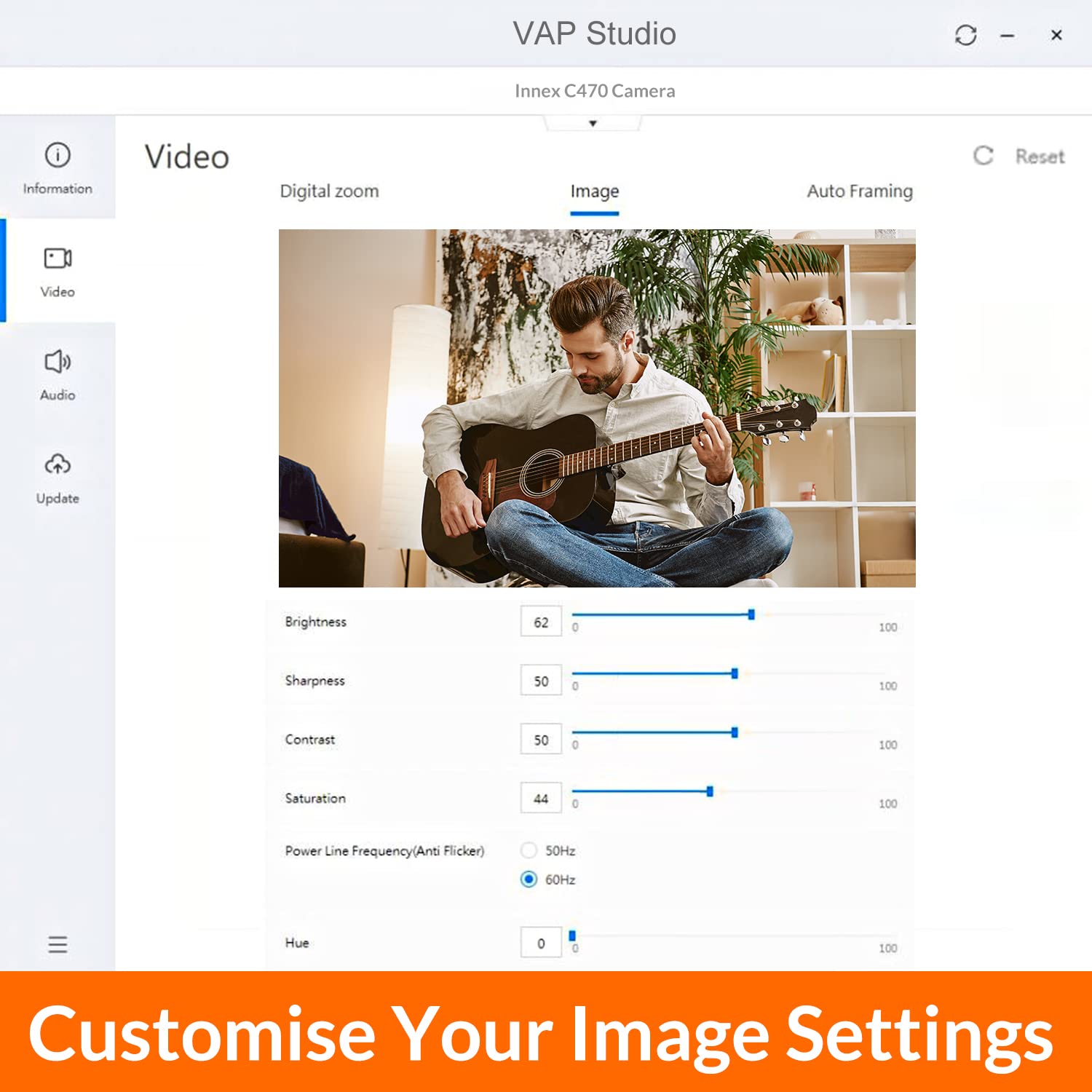
Image 5.5: Screenshot of the VAP Studio interface for adjusting webcam image parameters.
6. Maintenance
To ensure optimal performance and longevity of your Innex C470 webcam, follow these maintenance guidelines:
- Cleaning the Lens: Gently wipe the camera lens with a soft, lint-free cloth. Avoid using harsh chemicals or abrasive materials that could scratch the lens.
- Cleaning the Body: Use a dry or slightly damp soft cloth to clean the webcam's exterior.
- Storage: When not in use for extended periods, store the webcam in a clean, dry place away from extreme temperatures.
- Cable Care: Avoid bending or twisting the USB cable excessively to prevent damage.
7. Troubleshooting
If you encounter issues with your Innex C470 webcam, refer to the following common troubleshooting steps:
- No Video/Audio:
- Ensure the USB cable is securely connected to both the webcam and your computer.
- Try connecting the webcam to a different USB port on your computer.
- Verify that the webcam is selected as the primary video and audio device within your video conferencing or streaming application settings.
- Restart your computer.
- Poor Video Quality:
- Ensure adequate lighting in your environment.
- Clean the webcam lens as described in the Maintenance section.
- Check your internet connection speed if streaming or video conferencing online.
- Adjust image settings using VAP Studio or your application's video settings.
- Poor Audio Quality:
- Ensure the webcam's microphone is selected as the input device in your application settings.
- Reduce background noise in your environment.
- If using an external microphone, ensure it is properly connected and selected.
- Auto-Framing/Tracking Not Working:
- Ensure you are within the recommended range and lighting conditions for the AI features to function optimally.
- Check for any software updates for the webcam or your video application.
8. Specifications
| Feature | Specification |
|---|---|
| Brand | Innex |
| Model | C470 |
| Product Dimensions | 11.68 x 5.59 x 5.08 cm |
| Item Weight | 202.7 g (7.15 Ounces) |
| Operating System Compatibility | Windows, macOS, Android, Chrome OS |
| Compatible Devices | Laptop, Personal Computer |
| Mounting Hardware | USB Cable (included) |
| Image Stabilization Technology | Digital |
| Digital Zoom | 3x |
| Minimum Focal Length | 2 Millimeters |
| Effective Video Resolution | 3840 Pixels (4K) |
| Effective Still Resolution | 13.8 MP |
| Recommended Uses | Video conferencing, online teaching, work from home, distance learning, live streaming |
9. Warranty and Support
9.1 Warranty Information
The Innex C470 webcam comes with a 3-year limited warranty. Please retain your proof of purchase for warranty claims. For specific terms and conditions, refer to the warranty documentation provided with your product or contact Innex customer support.
9.2 Customer Support
For technical assistance, troubleshooting beyond this manual, or warranty inquiries, please visit the official Innex website or contact their customer support team through the channels provided on their website.


