Introduction
This manual provides comprehensive instructions for the setup, operation, and maintenance of your BreSii Wireless Keyboard and Mouse Combo. Please read this guide thoroughly to ensure optimal performance and longevity of your device.
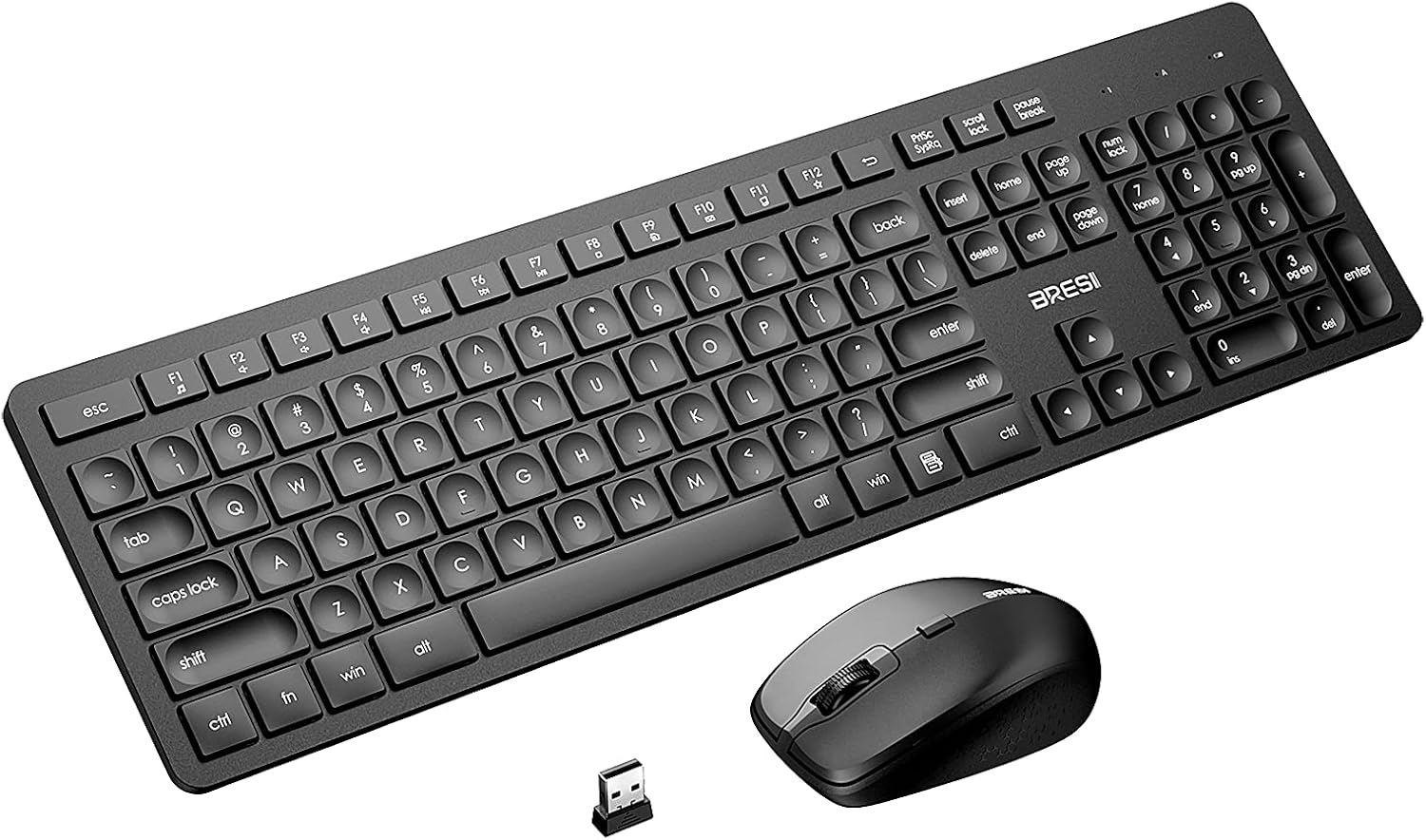
Image: The BreSii Wireless Keyboard and Mouse Combo, featuring a full-size black keyboard, a black ergonomic mouse, and a small USB receiver.
Setup
1. Battery Installation
The keyboard requires one AAA battery, and the mouse requires one AA battery (batteries are not included). Ensure correct polarity when inserting batteries.
- Mouse Battery: Open the battery compartment on the underside of the mouse. Insert one AA battery.
- Keyboard Battery: Open the battery compartment on the underside of the keyboard. Insert one AAA battery.
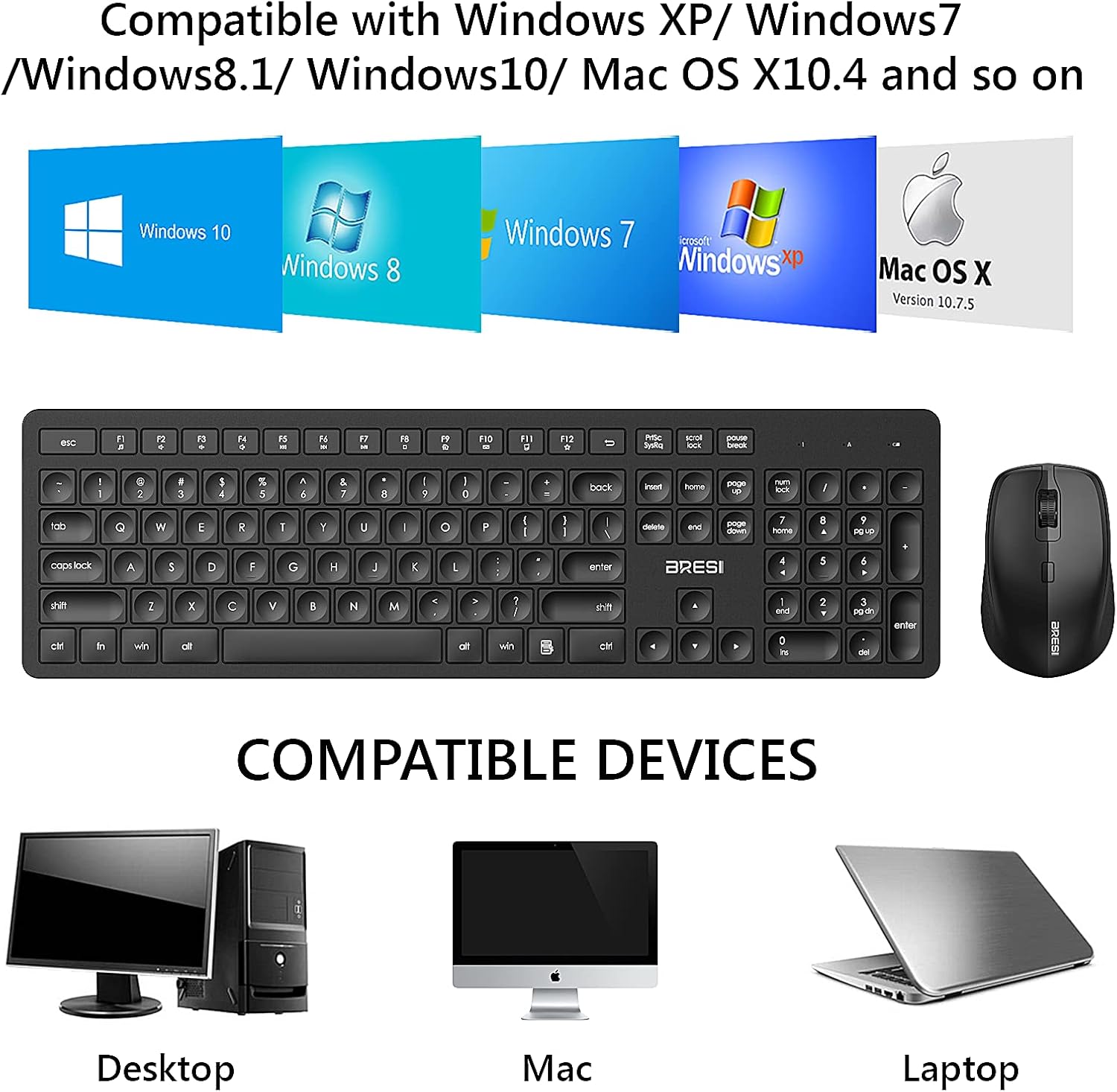
Image: Underside of the mouse with the battery cover removed, showing the compartment for an AA battery.

Image: Underside of the keyboard with the battery cover removed, showing the compartment for an AAA battery.
2. Connecting the USB Receiver
The single USB Nano receiver connects both the keyboard and mouse. It is conveniently stored in the battery compartment of the mouse.
- Remove the USB Nano receiver from its storage slot in the mouse's battery compartment.
- Plug the USB Nano receiver into an available USB port on your computer (desktop, laptop, Mac).
- The devices are plug-and-play; no additional software or drivers are required.

Image: The underside of the mouse showing the storage slot for the USB Nano receiver.

Image: A laptop with the USB Nano receiver plugged into a USB port, indicating wireless connectivity.
3. Power On
Locate the ON/OFF switches on both the keyboard and the mouse. Slide them to the "ON" position. The devices should now be ready for use.
Operating Instructions
General Use
- Typing: The full-size keyboard features a standard QWERTY layout with a numeric keypad for efficient data entry.
- Mouse: The ergonomic mouse provides comfortable grip for extended use. It features left-click, right-click, and a scroll wheel.
DPI Adjustment (Mouse)
The wireless mouse offers 3 adjustable DPI levels (800, 1200, 1600) to suit various tasks and screen resolutions. Press the DPI button located on the top of the mouse to cycle through the sensitivity settings.

Image: Diagram illustrating the three DPI settings (800, 1200, 1600) for the wireless mouse.
Multimedia Hotkeys
The keyboard includes 12 multi-media hotkeys for quick access to functions such as music control, internet browsing, and volume adjustment. Refer to the key legends for specific functions.
Quiet Operation
Both the keyboard and mouse are designed for quiet operation, minimizing noise during typing and clicking. This feature is beneficial in shared workspaces or quiet environments.

Image: Close-up of the ergonomic mouse, highlighting its silent click feature.
Compatibility
The BreSii Wireless Keyboard and Mouse Combo is compatible with a wide range of devices and operating systems, including Windows XP / 7 / 8 / 10, and Mac OS X10.4 or above. It is suitable for desktops, laptops, and Mac computers.
Image: Visual representation of compatibility with Windows XP, 7, 8, 10, and Mac OS X, along with desktop, Mac, and laptop devices.
Maintenance
- Cleaning: Use a soft, dry cloth to clean the surfaces of the keyboard and mouse. Avoid using harsh chemicals or abrasive materials.
- Battery Replacement: Replace batteries when performance degrades. The devices feature an automatic sleep mode and ON/OFF switches to conserve battery life.

Image: Illustration of the auto-sleep feature for both the mouse (after 15 minutes) and keyboard (after 5 seconds) to conserve battery power.
Troubleshooting
- No Connection:
- Ensure the USB Nano receiver is securely plugged into a working USB port.
- Check that both the keyboard and mouse are switched to the "ON" position.
- Verify that batteries are correctly installed and have sufficient charge.
- Lag or Disconnection:
- Ensure the devices are within the 15-meter (50ft) operating range of the USB receiver.
- Minimize interference from other wireless devices.
- Mouse Cursor Not Responding or Moving Erratically:
- Adjust the DPI setting using the DPI button on the mouse.
- Ensure the mouse is used on a suitable surface.
Specifications
| Product Dimensions | 16.54 x 6.69 x 1.42 inches |
| Item Weight | 1.46 pounds |
| ASIN | B098NNM7LG |
| Brand | BreSii |
| Color | Black |
| Connectivity Technology | Radio Frequency, USB (2.4GHz Wireless) |
| Special Feature | Numeric Keypad, Silent Click Mouse, Ergonomic Design, Auto Sleep Mode |
| Compatible Devices | Laptop, PC Computer (Windows XP / 7 / 8 / 10, Mac OS X10.4 or above) |
| Manufacturer | BreSii |
| First Available Date | July 5, 2021 |
Warranty and Support
For warranty information or technical support, please refer to the product packaging or contact BreSii customer service directly. Contact details can typically be found on the manufacturer's official website or through your purchase platform.
Product Overview Video
Video: An official product video from BreSii demonstrating the features and functionality of the wireless keyboard and mouse combo.
