
1. Introduction
This manual provides detailed instructions for the setup, operation, maintenance, and troubleshooting of your A4Tech FSTYLER FG30S Wireless Mouse. Please read this guide thoroughly before using the device to ensure optimal performance and longevity.

Image 1.1: The A4Tech FSTYLER FG30S Wireless Mouse with its accompanying USB receiver.
2. Package Contents
- A4Tech FSTYLER FG30S Wireless Mouse
- USB 2.4GHz Receiver
- User Manual (this document)
Note: Batteries are not included and must be purchased separately. The mouse requires one AA battery.
3. Setup
3.1 Battery Installation
- Locate the battery compartment on the underside of the mouse.
- Open the battery compartment cover.
- Insert one AA battery, ensuring correct polarity (+/-).
- Close the battery compartment cover securely.
3.2 Connecting via 2.4GHz Wireless
- Remove the USB 2.4GHz receiver from its storage slot, usually located within the battery compartment.
- Plug the USB receiver into an available USB port on your computer.
- Turn on the mouse using the On/Off switch located on the underside.
- Your computer should automatically detect and install the necessary drivers. The mouse will be ready for use.
3.3 Connecting via Bluetooth
- Turn on the mouse using the On/Off switch on the underside.
- Press and hold the Bluetooth pairing button (refer to the mouse diagram for location, typically near the On/Off switch) until the indicator light begins to flash, signifying pairing mode.
- On your computer, navigate to Bluetooth settings.
- Search for new devices and select "A4Tech FG30S" or a similar identifier from the list.
- Follow any on-screen prompts to complete the pairing process. The indicator light on the mouse will become solid when successfully connected.
4. Operating Instructions

Image 4.1: Top view of the mouse, highlighting primary buttons and scroll wheel.
4.1 Basic Usage
- Left Click: Primary selection and activation.
- Right Click: Accesses contextual menus.
- Scroll Wheel: Scrolls content vertically. Can also be clicked for middle-click functionality.
- Side Buttons: Typically function as 'Forward' and 'Back' in web browsers and file explorers.
4.2 DPI Adjustment
The A4Tech FG30S mouse features 3 adjustable DPI (Dots Per Inch) levels: 1000, 1600, and 2000 DPI. DPI controls the sensitivity of the mouse cursor. To change the DPI setting:
- Locate the DPI switch button, usually positioned behind the scroll wheel.
- Press the DPI button to cycle through the available sensitivity levels. The mouse may have an indicator light that changes color or flashes to show the current DPI setting.
4.3 Power Management
- On/Off Switch: A physical switch on the underside of the mouse allows you to conserve battery power when the mouse is not in use.
- Auto-Sleep Power Saving: The mouse is designed with an adjustable 4-level power-saving mode. It will automatically enter a sleep state after 0.2 seconds of inactivity to extend battery life. Move the mouse or click a button to wake it up.
5. Advanced Features
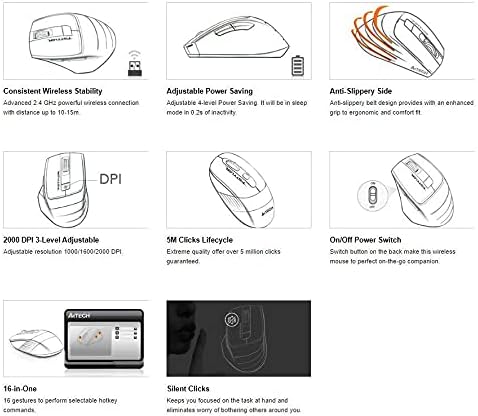
Image 5.1: Feature overview of the A4Tech FSTYLER FG30S mouse.
5.1 Consistent Wireless Stability
The mouse utilizes advanced 2.4 GHz wireless technology, providing a stable and reliable connection with a range of up to 10-15 meters, minimizing interference and lag.
5.2 Silent Clicks
The A4Tech FG30S features silent click technology, reducing click noise by up to 90%. This allows for a quieter working environment, minimizing distractions for both the user and those nearby.
5.3 Anti-Slippery Side Design
The mouse incorporates an anti-slippery side design, enhancing grip and providing a more ergonomic and comfortable experience during extended use.
5.4 16-in-One Gestures
The mouse supports 16 customizable gestures, allowing users to perform various hotkey commands for increased productivity. Specific software may be required for full customization, typically available from the manufacturer's website.
5.5 5 Million Clicks Lifecycle
The mouse buttons are engineered for durability, guaranteeing over 5 million clicks throughout the product's lifespan.
6. Maintenance
6.1 Cleaning
- Ensure the mouse is turned off before cleaning.
- Use a soft, dry, lint-free cloth to wipe the surface of the mouse.
- For stubborn dirt, lightly dampen the cloth with water or a mild cleaning solution. Avoid excessive moisture.
- Do not use harsh chemicals, abrasive cleaners, or solvents.
- Use a cotton swab or compressed air to clean around the scroll wheel and optical sensor.
6.2 Battery Replacement
When the mouse performance degrades or the indicator light signals low battery, replace the AA battery by following the steps outlined in Section 3.1.
7. Troubleshooting
- Mouse not responding:
- Ensure the mouse is turned on.
- Check battery level and replace if necessary.
- For 2.4GHz connection, ensure the USB receiver is securely plugged into a working USB port. Try a different port.
- For Bluetooth connection, ensure Bluetooth is enabled on your computer and the mouse is properly paired. Try re-pairing the device.
- Move the mouse closer to the receiver/computer to rule out range issues.
- Cursor movement is erratic or jumpy:
- Clean the optical sensor on the underside of the mouse.
- Ensure you are using the mouse on a suitable surface. Avoid highly reflective or transparent surfaces.
- DPI setting not changing:
- Ensure you are pressing the correct DPI button.
- Check battery level.
8. Specifications
| Feature | Specification |
|---|---|
| Model Number | FG30S |
| Brand | A4tech |
| Connectivity | Bluetooth & 2.4GHz Wireless |
| DPI Levels | 1000 / 1600 / 2000 (3-level adjustable) |
| Movement Detection | Optical |
| Hand Orientation | Ambidextrous |
| Operating System Compatibility | Linux, Windows XP (and newer OS versions) |
| Battery Type | 1x AA (not included) |
| Item Weight | 150 g |
| Package Dimensions | 17.5 x 12 x 7.3 cm |
| Click Lifecycle | Over 5 million clicks |
9. Warranty and Support
For warranty information and technical support, please refer to the official A4Tech website or contact your local retailer. Keep your purchase receipt as proof of purchase for warranty claims.
Online Resources:
- A4Tech Official Website: www.a4tech.com


