
1. Product Overview
The UGREEN 9-in-1 USB C Hub Dual HDMI Adapter (Model 90119) expands the connectivity of your USB-C enabled device, providing a comprehensive solution for various peripherals. This docking station integrates multiple ports, including dual HDMI outputs, USB 3.0 and USB 2.0 ports, an RJ45 Ethernet port, a USB-C Power Delivery (PD) charging port, and SD/TF card readers.
It is designed to enhance productivity by allowing connection to external displays, high-speed data transfer devices, and a stable wired network connection, all through a single USB-C port on your host device.

Image: UGREEN 9-in-1 USB C Hub showing its various ports and compact design.
2. Setup Instructions
- Connect the Hub to Your Device: Plug the USB-C connector of the UGREEN hub into the USB-C port on your laptop, tablet, or smartphone. Ensure your device's USB-C port supports DisplayPort Alternate Mode (Alt Mode) for video output and Power Delivery for charging.
- Connect External Displays: Use HDMI cables to connect your monitors to the two HDMI ports on the hub.
- Connect Power Adapter (Optional but Recommended): For stable operation and to charge your host device, connect your original USB-C power adapter to the USB-C PD port on the hub.
- Connect USB Peripherals: Plug your USB devices (e.g., keyboard, mouse, external hard drive) into the USB 3.0 or USB 2.0 ports.
- Connect Ethernet Cable: For a wired network connection, plug an Ethernet cable into the RJ45 port on the hub.
- Insert SD/TF Cards: If needed, insert your SD or TF (Micro SD) cards into the corresponding slots.

Image: The UGREEN USB C Hub connected to a laptop, extending the display to two external monitors.
3. Operating Instructions
3.1 Dual HDMI Display Output
The hub supports dual HDMI display output, allowing you to extend or mirror your screen to two external monitors. The maximum resolution and refresh rate depend on your host device's DisplayPort (DP) version and operating system.
- macOS: Supports Mirror Mode (A+A+A) and Extend Mode (A+B+B). macOS does not support Multi-Stream Transport (MST) for independent extended displays.
- Windows OS: Supports Mirror Mode (A+A+A) and Extend Mode (A+B+C or A+B+B).
Note: Dual HDMI output is not supported on devices with Apple M1/M2/M3 chipsets due to hardware limitations. For these chipsets, only one external display is supported.

Image: Visual representation of Mirror Mode and Extend Mode configurations for macOS and Windows operating systems.
Resolution and Refresh Rate Table:
| Operating System | Display Mode | DP 1.4 (Host) | DP 1.2 (Host) |
|---|---|---|---|
| macOS | Single Monitor | 4K@60Hz | 4K@30Hz |
| Dual Monitor | Dual 4K@30Hz | Dual 4K@30Hz | |
| Windows | Single Monitor | 4K@60Hz | 4K@30Hz |
| Dual Monitor | Dual 4K@30Hz | Dual 1080P@60Hz |

Image: Visual comparison illustrating the difference in display quality and refresh rates between DisplayPort 1.4 and DisplayPort 1.2 connections.
3.2 USB Data Transfer
The hub features two USB 3.0 ports and one USB 2.0 port for connecting various USB devices.
- USB 3.0 Ports: Offer data transfer speeds up to 5 Gigabits Per Second (Gbps), suitable for external hard drives, SSDs, and high-speed peripherals.
- USB 2.0 Port: Provides data transfer speeds up to 480 Megabits Per Second (Mbps), ideal for connecting keyboards, mice, and other standard peripherals.

Image: A laptop connected to the UGREEN hub, which is then connected to an external hard drive, illustrating fast data transfer capabilities of USB 3.0 (5 Gbps) and USB 2.0 (480 Mbps).
3.3 Ethernet Connection
The integrated RJ45 Ethernet port provides a stable and fast wired network connection, supporting Gigabit Ethernet speeds. This is beneficial for online conferencing, large file transfers, and streaming where a reliable connection is crucial.

Image: A person participating in a video conference on a laptop, highlighting the stable network connection provided by the UGREEN hub's Ethernet port.
3.4 SD/TF Card Reader
The hub includes dedicated slots for SD and TF (Micro SD) cards, allowing you to read both types of cards simultaneously. This is convenient for photographers, videographers, and anyone needing to transfer data from memory cards.
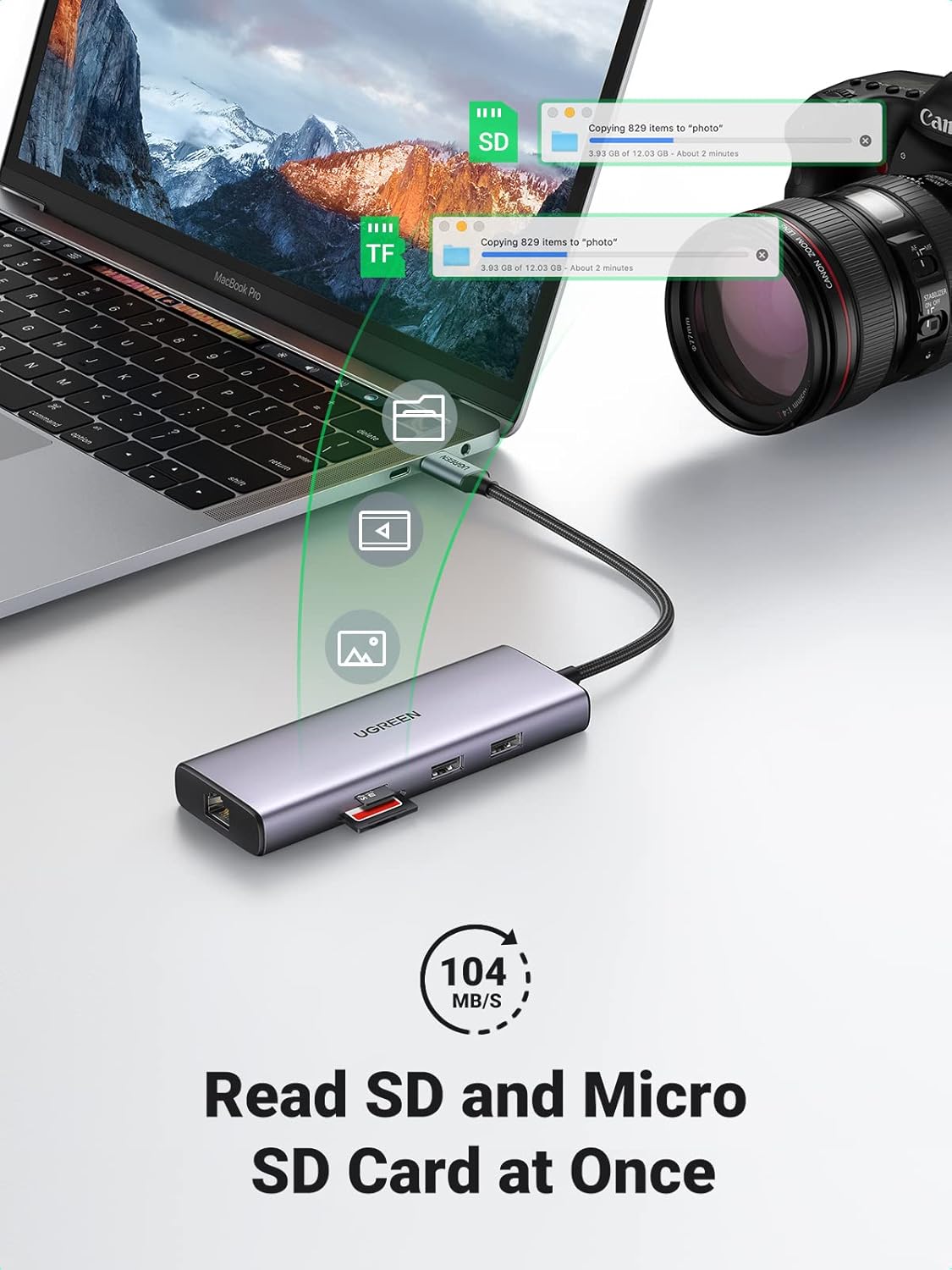
Image: The UGREEN hub with both an SD card and a TF card inserted, demonstrating simultaneous card reading at speeds up to 104 MB/s.
3.5 Power Delivery (PD) Charging
The USB-C PD port supports up to 60W power input, allowing you to charge your host laptop or tablet while using the hub's other functions. This ensures your device remains powered during extended use.

Image: The UGREEN hub connected to a laptop, illustrating the 60W Power Delivery output for charging the host device.
4. Maintenance
- Cleaning: Use a soft, dry cloth to clean the hub. Avoid liquid cleaners or abrasive materials.
- Storage: Store the hub in a cool, dry place away from direct sunlight and extreme temperatures.
- Handling: Avoid dropping the device or subjecting it to strong impacts. Do not attempt to disassemble or repair the hub yourself.
- Heat Management: It is normal for the hub to become warm during extended use, especially when multiple high-power devices or displays are connected. Ensure adequate airflow around the hub to prevent overheating.
5. Troubleshooting
- No Display Output:
- Ensure your host device's USB-C port supports DisplayPort Alt Mode.
- Verify that HDMI cables are securely connected to both the hub and the monitors.
- Check monitor input settings to ensure the correct HDMI input is selected.
- For macOS, remember that M1/M2/M3 chipsets only support one external display.
- Try restarting your host device and reconnecting the hub.
- Intermittent Display or Flickering:
- Ensure the hub is receiving sufficient power, especially if multiple devices are connected. Connect a power adapter to the PD port.
- Reduce the number of connected peripherals if the hub is getting excessively hot.
- Ensure your HDMI cables are of good quality and support the desired resolution/refresh rate.
- Update graphics drivers on your host device.
- USB Devices Not Recognized or Slow Data Transfer:
- Ensure the hub is connected firmly to your host device.
- For optimal speed, use the USB 3.0 ports for high-speed devices.
- If connecting a high-power USB device (e.g., external HDD), ensure the hub is connected to a power adapter via its PD port.
- Try connecting the USB device directly to your host device to rule out device issues.
- No Ethernet Connection:
- Verify the Ethernet cable is securely connected to both the hub and your router/modem.
- Check network settings on your host device.
- Ensure your router/modem is functioning correctly.
- Hub Gets Warm:
- It is normal for the hub to generate heat during operation, especially when driving dual 4K displays or charging your laptop.
- If it feels excessively hot, ensure it is placed in a well-ventilated area and not covered.
6. Specifications
| Feature | Detail |
|---|---|
| Brand | UGREEN |
| Model Number | 90119 |
| Color | Black, Metallic |
| Hardware Interface | Ethernet, HDMI (x2), USB 2.0 (x1), USB 3.0 (x2), USB Type C (PD) |
| Compatible Devices | Laptops, Tablets, Monitors, Card Readers |
| Total USB Ports | 3 (2x USB 3.0, 1x USB 2.0) |
| Data Transfer Rate | 5 Gigabits Per Second (USB 3.0) |
| Number of Ports | 9-in-1 |
| Power Delivery | Up to 60W |
| Minimum Required OS | ChromeOS 137, Mac OS 12 Monterey, Ubuntu 22.04, Windows 10 |
| Operating System Support | Windows, macOS, ChromeOS, Ubuntu |
| Enclosure Material | Aluminum |
| Item Weight | 0.17 Kilograms |
7. Warranty and Support
UGREEN products are designed and manufactured to high-quality standards. For information regarding warranty coverage and terms, please refer to the warranty card included with your product or visit the official UGREEN website.
If you encounter any issues or have questions about your UGREEN USB C Hub, please contact UGREEN customer support through their official website or the contact information provided in your product packaging. When contacting support, please have your product model number (90119) and purchase details ready.
- Official UGREEN Website: www.ugreen.com (Please check for the most current contact information)


