
1. Introduction
This manual provides detailed instructions for the installation, operation, and maintenance of your Sifely Keyless-Entry Fingerprint Smart Door Lock. Please read this manual thoroughly before installation and use to ensure proper function and safety. This smart lock offers multiple access methods, including advanced fingerprint recognition, passcodes, key fobs, smartphone control, and traditional physical keys, providing enhanced security and convenience for your home or rental property.
2. Product Features
- Advanced 3D Fingerprint Recognition: Unlock your door in less than 0.3 seconds with highly secure fingerprint access.
- Multiple Unlocking Methods: Supports Fingerprint, Passcode, Wireless Key Fob, Card, Smartphone App, and Physical Key.
- Easy Installation: Designed for quick installation with a Phillips screwdriver, requiring no extra drilling for standard doors.
- Remote Control & WiFi Access (with Gateway): When paired with the optional Sifely WiFi Gateway (sold separately), you can lock/unlock remotely, set codes, and view real-time access logs from anywhere.
- Comprehensive Locks Management: Manage all your locks seamlessly through the dedicated smartphone app and web portal.
- Long Battery Life: Up to 1-year battery life with 4 AA batteries (not included).
- Reversible Handle: Compatible with both left- and right-handed doors.

Figure 2.1: Overview of Sifely Smart Lock features including fingerprint, app control, passcode, key fob, physical key, and easy installation.

Figure 2.2: The Sifely smartphone application allows for full control and management of your smart lock.

Figure 2.3: Connect your Sifely lock to property management systems for automated passcode generation and sharing.
3. Package Contents
Upon opening your Sifely Smart Door Lock package, please verify that all the following components are included:
- Mounting Plate
- Rubber Gasket
- Face Plate
- Back Plate
- Bolt Assembly
- 2 x Physical Keys
- 2 x Key Cards
- Necessary Screws and Installation Hardware
4. Installation Guide
The Sifely Smart Door Lock is designed for easy installation, typically requiring only a Phillips screwdriver. No additional drilling is needed for most standard doors. Ensure your door meets the following specifications for optimal fit:
- Door Thickness: 1 3/8" ~ 2 1/4" (35mm - 55mm)
- Bore Hole Diameter: 2 1/8" (54mm)
- Bore Hole Backset: 2 3/8" or 2 3/4" (60mm or 70mm)
Important Note: Locks may interfere with existing screen doors or storm doors. Please refer to the detailed installation instructions provided in the package for step-by-step guidance, including adjusting the handle direction if necessary.

Figure 4.1: Door specifications for Sifely Smart Lock compatibility.
5. Operating Instructions
Your Sifely Smart Door Lock offers various convenient ways to access your property:
- Fingerprint Unlock: Place your registered finger on the biometric sensor for quick and secure access. The lock will unlock in under 0.3 seconds.
- Passcode Entry: Tap the keypad to activate it, then enter your programmed passcode followed by the '#' key.
- Key Fob/Card Access: Simply tap the provided key fob or card against the designated area on the lock to unlock.
- Smartphone App Control: Use the Sifely app on your smartphone to remotely lock or unlock the door (requires optional WiFi Gateway for remote access).
- Physical Key: In case of battery depletion or other issues, use the provided physical keys for manual override. The keyhole is discreetly located.
The lock features an auto-lock function, which can be configured via the app to automatically secure the door after a set period, ensuring peace of mind.

Figure 5.1: The Sifely Smart Lock offers multiple convenient access methods.

Figure 5.2: Remotely generate and share temporary passcodes for visitors or service providers.
6. Maintenance
To ensure the longevity and optimal performance of your Sifely Smart Door Lock, follow these maintenance guidelines:
- Battery Replacement: The lock operates on 4 AA batteries and offers up to 1-year of battery life. The app will provide low battery alerts. Replace all four batteries simultaneously when prompted.
- External Backup Power: In case batteries die before replacement, a micro-USB port is available for temporary external power (power bank not included) to gain access.
- Cleaning: Wipe the keypad and fingerprint sensor regularly with a soft, dry cloth to remove dust and smudges. Avoid using abrasive cleaners or solvents.
- Firmware Updates: Periodically check the Sifely app for available firmware updates to ensure your lock has the latest features and security enhancements.
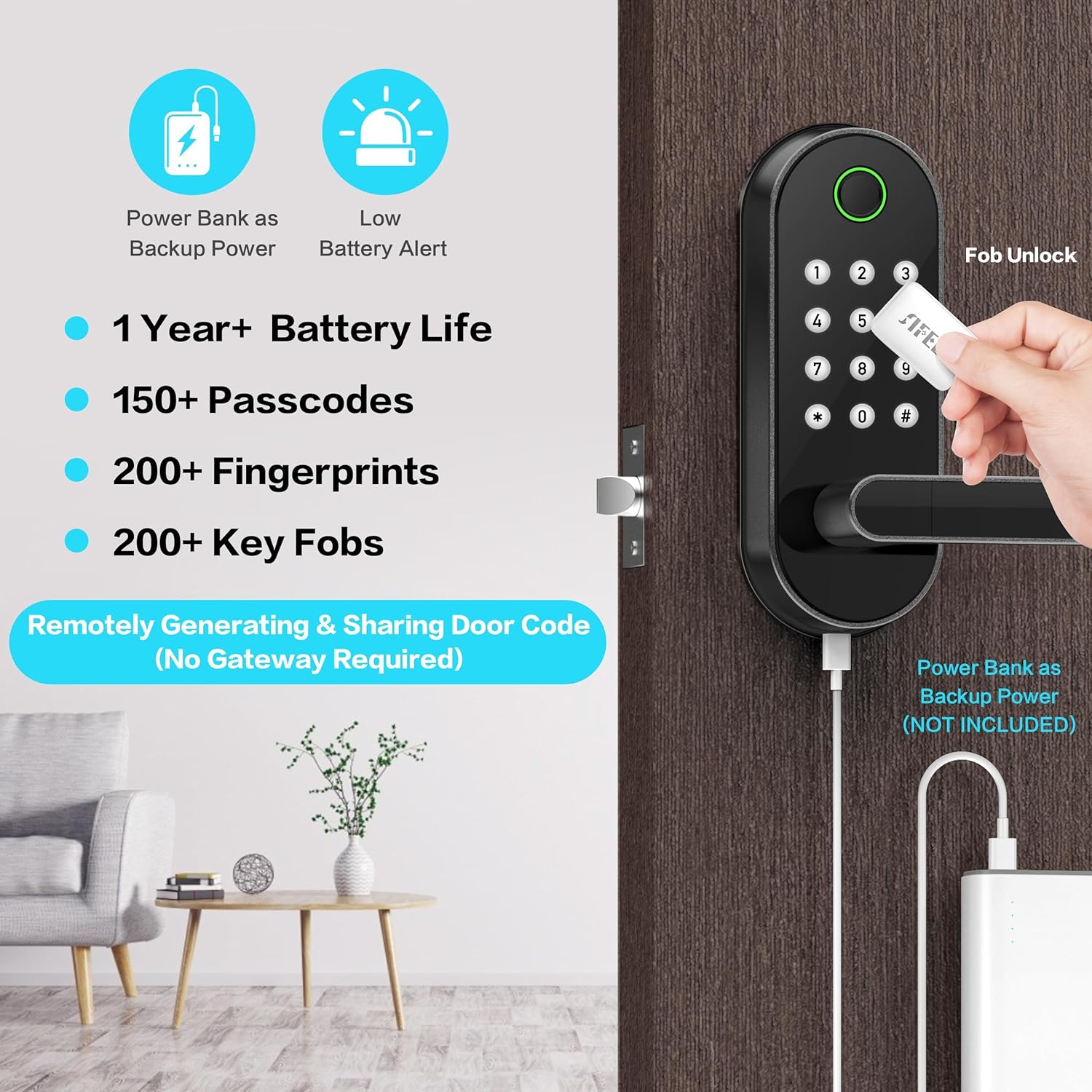
Figure 6.1: Information on battery life and external backup power for the Sifely Smart Lock.
7. Troubleshooting
If you encounter issues with your Sifely Smart Door Lock, consider the following common solutions:
- Fingerprint Not Recognized: Ensure your finger is clean and dry. Try re-registering your fingerprint in the app.
- Keypad Unresponsive: Check battery levels. If low, replace batteries or use external backup power. Ensure the keypad is clean.
- Lock Not Responding: Check battery levels. Perform a soft reset if available (refer to the app or full manual for reset procedures).
- App Connectivity Issues: Ensure Bluetooth is enabled on your phone. If using WiFi Gateway, check its connection and power.
- Physical Key Not Working: Ensure the key is fully inserted and turned correctly.
For persistent issues, consult the comprehensive troubleshooting section within the Sifely app or contact Sifely customer support.
8. Specifications
| Feature | Detail |
|---|---|
| Brand | Sifely |
| Model Name | Sifely S Model |
| Lock Type | Biometric, Deadbolt, Combination Lock, Keypad |
| Special Features | Fingerprint, Keyless Entry, Passcode, Wireless Key Fob, Card, Smartphone, Remote Control, WiFi Access |
| Material | Zinc |
| Color | Black |
| Item Dimensions (L x W x H) | 1.2 x 3 x 7 inches |
| Item Weight | 3.6 Pounds |
| Power Source | 4 AA batteries (not included) |
| Connectivity Protocol | Bluetooth, Wi-Fi (with optional Gateway) |
| Included Components | Mounting Plate, Rubber Gasket, Face Plate, Back Plate, Bolt Assembly, 2X Keys, 2X Key Cards |
9. Warranty and Support
Sifely is a small business committed to providing advanced and reliable smart access technology. While specific warranty details are not provided in this manual, please refer to the product packaging or the Sifely official website for comprehensive warranty information.
For technical support, troubleshooting assistance, or any inquiries regarding your Sifely Smart Door Lock, please utilize the support features within the Sifely smartphone application or visit the official Sifely website for contact information.


