
Introduction
The Samsung S Pen Pro (Model: EJ-P5450SBEGEU) is an advanced stylus designed to enhance your interaction with compatible Samsung Galaxy devices. It offers precise writing and drawing capabilities, along with Air Actions for intuitive control. This manual provides essential information for setting up, operating, maintaining, and troubleshooting your S Pen Pro.

Image: The Samsung S Pen Pro, a sleek black stylus designed for precision and control.
Setup
What's in the Box
- S Pen Pro
- (Additional accessories such as charging cable or replacement nibs may be included depending on package contents.)

Image: The Samsung S Pen Pro shown within its retail packaging, alongside its protective case.
Initial Charging
Before first use, ensure your S Pen Pro is fully charged. Connect the S Pen Pro to a compatible USB-C charger. The S Pen Pro contains a Lithium Polymer battery and is designed for rechargeable use.
Pairing with a Device
The S Pen Pro uses Bluetooth for Air Actions and advanced features. To pair:
- Ensure your compatible Samsung Galaxy device has Bluetooth enabled.
- Turn on the S Pen Pro (if it has a power button, otherwise it may automatically activate).
- Follow the on-screen prompts on your device to complete the pairing process.
Compatible Devices for Air Action (OneUI 3.1 or later required):
- Galaxy Z Fold 3 5G
- S21 Ultra 5G
- Note20/Ultra 5G
- Note10/+
- Note10/+ 5G
- Note10 Lite
- Tab S7+
- Tab S7
- Tab S7 FE
- Tab S6
Compatible Devices for Writing:
- Galaxy Z Fold3 5G
- S21 Ultra 5G
- Note Series (various models)
- Tab S7 FE, Tab S7/7+, Tab S6 Lite, Tab S6, Tab S4, Tab S3
- TabActive Pro, Tab Active3, Tab Active2, Tab Active
- Tab A 8.0 2019 with S Pen, Tab A 10.1 2016 with S Pen, Tab A 9.with S Pen, Tab A 8.0 2015 with S Pen
- NotePro - 12.2, Note 8.0, Note 10.1 2012/2014
- GalaxyBook Pro 360, Galaxy Book Flex 2, Galaxy Book Flex with S Pen
- Galaxy Book 10.6, 12.0
- Chromebook Plus V2, Chromebook Pro
- Notebook 7spin, Notebook S51 Pen
Operating the S Pen Pro
Basic Writing and Drawing
Simply touch the S Pen Pro to the screen of your compatible device to begin writing, drawing, or navigating. The pressure sensitivity allows for varied line thickness and shading, mimicking a real pen or pencil.
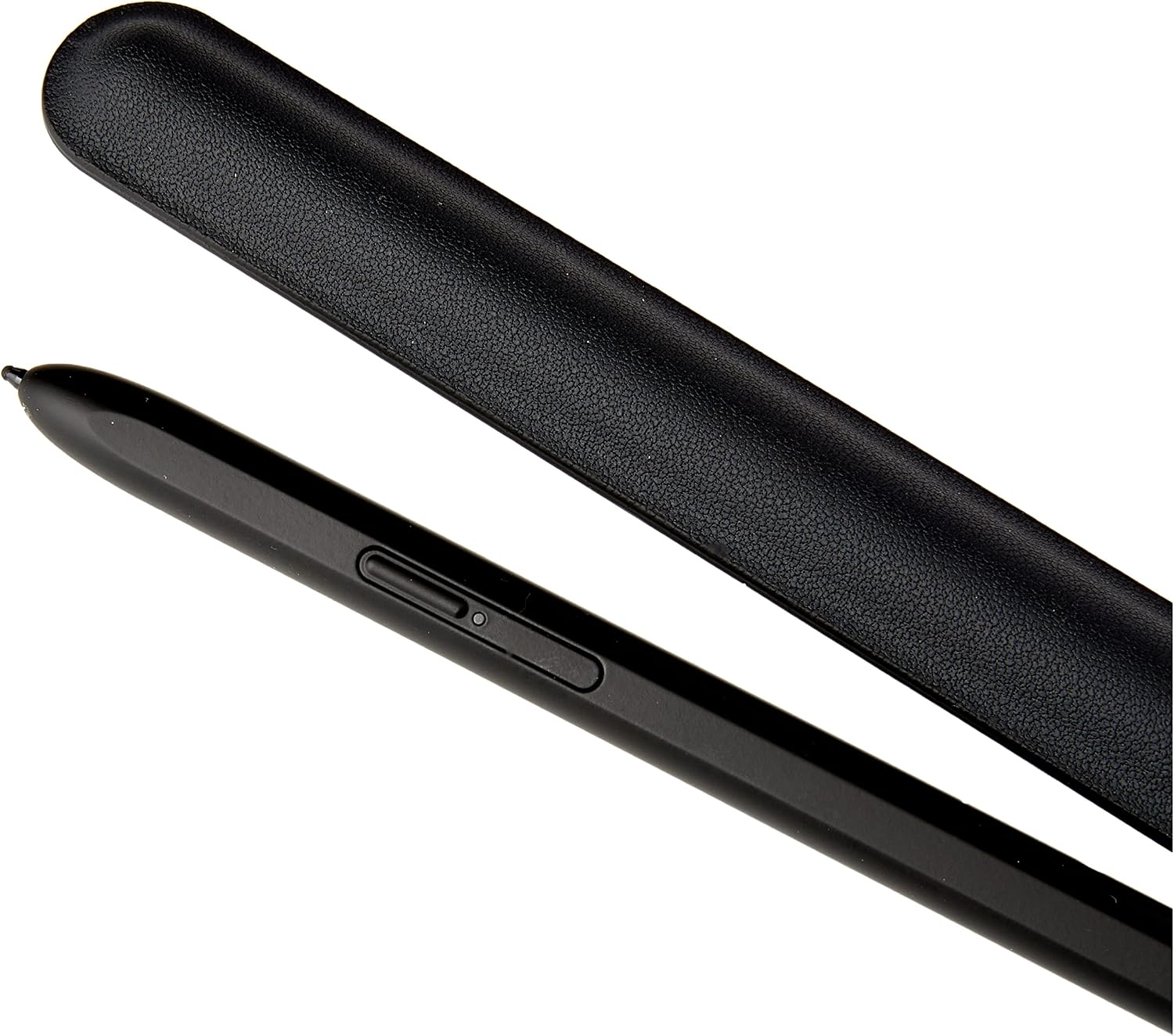
Image: The Samsung S Pen Pro resting next to its dedicated protective case, highlighting its design.
Air Actions
For devices supporting Air Actions, you can control your device with gestures while holding the S Pen Pro. These actions can include navigating presentations, controlling media playback, or taking photos remotely. Refer to your device's settings for customizable Air Action options.
Switching Between Devices
The S Pen Pro is designed to seamlessly switch between multiple compatible Samsung Galaxy devices. Use the switch on the S Pen Pro to select the desired device for connection. This allows for a fluid workflow across your tablet, phone, and other compatible devices.

Image: A close-up view of the Samsung S Pen Pro, showcasing its button and the S Pen branding, next to its case.
Maintenance
Cleaning
To clean your S Pen Pro, gently wipe it with a soft, dry, lint-free cloth. Avoid using harsh chemicals, abrasive materials, or excessive moisture, as these can damage the stylus.
Battery Care
To maximize battery life, avoid fully discharging the S Pen Pro frequently. Charge it regularly, especially if it will be stored for an extended period. Store the S Pen Pro in a cool, dry place away from extreme temperatures.
Troubleshooting
S Pen Pro Not Charging or Disconnecting
- Check Charging Connection: Ensure the USB-C cable is securely connected to both the S Pen Pro and the power adapter.
- Use a Compatible Charger: Verify that you are using a functional and compatible charger.
- Restart Device: Sometimes, restarting your paired Samsung Galaxy device can resolve connectivity issues.
- Update Firmware: Ensure both your S Pen Pro and your Samsung Galaxy device have the latest firmware updates installed. Check your device's settings for S Pen Pro updates.
- Reset S Pen Pro: If available, perform a factory reset on the S Pen Pro (refer to Samsung support for specific instructions).
- Contact Support: If the issue persists, contact Samsung customer support for further assistance.
S Pen Pro Not Pairing or Connecting
- Bluetooth On: Confirm Bluetooth is enabled on your Samsung Galaxy device.
- Device Compatibility: Double-check that your device is listed as compatible for Air Actions or writing (refer to the "Setup" section).
- Re-pair: Go to your device's Bluetooth settings, forget the S Pen Pro, and attempt to pair it again.
- Proximity: Ensure the S Pen Pro is close to your device during the pairing process.
Specifications
| Brand | Samsung |
| Model Number | EJ-P5450SBEGEU |
| Color | Black |
| Material | Aluminum |
| Item Weight | 1 Grams |
| Item Dimensions (L x W x H) | 0.04 x 0.04 x 0.04 inches |
| Compatible Devices | Smartphone (and other listed Galaxy devices) |
| Battery Type | 1 Lithium Polymer battery (included) |
| Minimum Required Operating System | Android 11.0 |
Warranty and Support
Manufacturer's Warranty
The Samsung S Pen Pro is covered by a limited manufacturer's warranty. Please refer to the warranty card included with your product or visit the official Samsung website for detailed warranty terms and conditions specific to your region.
Customer Support
For technical assistance, troubleshooting, or service inquiries, please visit the official Samsung support website or contact their customer service directly. You can find contact information and support resources at www.samsung.com/support.


