
1. Introduction
The TP-Link UB500 is a compact Bluetooth 5.4 USB adapter designed to provide Bluetooth connectivity to your desktop or laptop computer. It enables wireless communication with various Bluetooth-enabled devices such as headphones, speakers, keyboards, mice, game controllers, and more. This adapter is backward compatible with Bluetooth V5.3, V5.2, V5.1, V5.0, V4.0, V3.0, V2.1, V2.0, and V1.1.

Image: The TP-Link UB500 Bluetooth 5.4 USB Adapter providing wireless connectivity to a desktop computer.
2. Package Contents
- TP-Link UB500 Bluetooth 5.4 USB Adapter
3. Setup
3.1. Hardware Installation
- Locate an available USB port on your computer.
- Insert the TP-Link UB500 Bluetooth 5.4 USB Adapter firmly into the USB port.

Image: The UB500 adapter discreetly plugged into the side USB port of a laptop, indicating its compact size.
3.2. Driver Installation
The UB500 adapter supports a wide range of Windows operating systems:
- Windows 11 / 10 / 8.1: The adapter is typically plug-and-play. Your operating system should automatically detect and install the necessary drivers.
- Windows 7: Driver installation is required. Please download the latest driver from the official TP-Link support website: https://www.tp-link.com/en/support/download/ub500
After successful driver installation (if required), the Bluetooth icon should appear in your system tray.

Image: Visual representation of Windows operating system compatibility (7, 8.1, 10, 11) for the UB500, with a note about driver installation for Windows 7.
4. Operating Instructions
4.1. Enabling Bluetooth on Your Computer
- For Windows 10/11: Go to Settings > Devices (or Bluetooth & devices) > Bluetooth & other devices. Ensure Bluetooth is toggled On.
- For Windows 7/8.1: Go to Control Panel > Hardware and Sound > Devices and Printers. Right-click on your computer and select Bluetooth settings, then ensure Bluetooth is enabled.
4.2. Pairing Bluetooth Devices
Once Bluetooth is enabled, you can pair your devices:
- Put your Bluetooth device (e.g., headphones, speaker, mouse) into pairing mode. Refer to your device's manual for specific instructions.
- On your computer, go to the Bluetooth settings (as described above).
- Click Add Bluetooth or other device (Windows 10/11) or Add a device (Windows 7/8.1).
- Select Bluetooth from the options.
- Your computer will scan for available devices. Select your device from the list when it appears.
- Follow any on-screen prompts to complete the pairing process (e.g., entering a PIN if required).
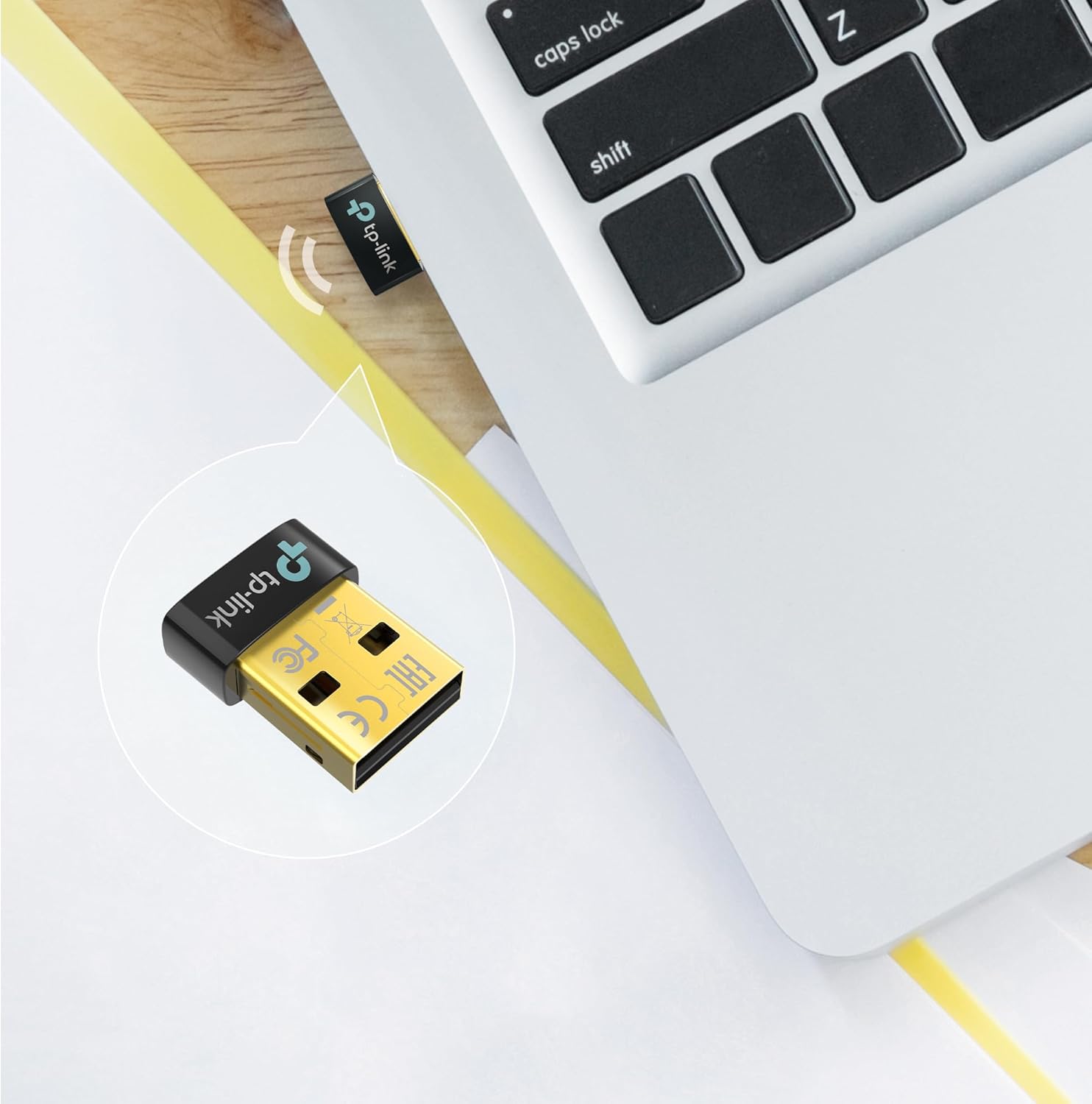
Image: An illustration showing various Bluetooth devices such as smartphones, headsets, controllers, mice, keyboards, printers, and speakers that can be connected to a PC using the UB500 adapter.

Image: A visual depicting seamless file transfer capabilities between a smartphone and a laptop via the Bluetooth connection provided by the UB500 adapter.
5. Maintenance
- Keep the adapter clean and free from dust. Use a soft, dry cloth for cleaning.
- Avoid exposing the adapter to extreme temperatures, humidity, or direct sunlight.
- Do not attempt to disassemble or modify the adapter, as this will void the warranty.
6. Troubleshooting
6.1. Adapter Not Detected
- Ensure the adapter is fully inserted into the USB port.
- Try plugging the adapter into a different USB port on your computer.
- Restart your computer.
- If using Windows 7, ensure the correct drivers have been installed.
6.2. Cannot Pair Bluetooth Device
- Ensure your Bluetooth device is in pairing mode and discoverable.
- Make sure Bluetooth is enabled on your computer.
- Move the Bluetooth device closer to your computer.
- Turn off and then turn on Bluetooth on your computer.
- Remove any previously paired instances of the device from your computer's Bluetooth settings and try pairing again.
- Bluetooth can typically support a maximum of 7 active connections. If you have many devices connected, try disconnecting some.
6.3. Connection is Unstable or Drops
- Ensure there are no physical obstructions between the adapter and your Bluetooth device.
- Move the device closer to the adapter.
- Avoid placing the adapter near sources of strong interference, such as Wi-Fi routers, microwave ovens, or other 2.4 GHz wireless devices.
- Ensure your computer's USB ports are functioning correctly.
7. Specifications
| Brand | TP-Link |
| Model | UB500 |
| Bluetooth Version | 5.4 |
| Interface | USB 2.0 |
| Dimensions (W x D x H) | 14.8 × 6.8 × 18.9 mm (0.58 × 0.27 × 0.74 in) |
| Operating System Support | Windows 11/10/8.1/7 |
| Data Transfer Rate | Up to 2 Mbps |
| Weight | Approximately 30g |

Image: Detailed dimensions of the TP-Link UB500 adapter, showing its compact size of 18.9 mm length, 14.8 mm width, and 6.8 mm thickness.
8. Warranty and Support
8.1. Warranty Information
The TP-Link UB500 Bluetooth 5.4 USB Adapter comes with a 3-year manufacturer's warranty from the date of purchase. Please retain your proof of purchase for warranty claims. The warranty covers defects in materials and workmanship under normal use.
8.2. Technical Support
For technical assistance, driver downloads, or further information, please visit the official TP-Link support website:


