1. Introduction
This manual provides detailed instructions for the setup, operation, and maintenance of your Eseesmart Fingerprint Smart Padlock, Model 673143715034. This device offers keyless entry through fingerprint recognition and Bluetooth connectivity via a mobile application, enhancing security and convenience for various applications.

Image 1.1: Eseesmart Fingerprint Smart Padlock with mobile app and smartwatch interface.
2. Product Features
- Biometric Fingerprint Recognition: Unlock in approximately 0.2 seconds. Supports storage of up to 15 unique fingerprints.
- Bluetooth Connectivity: Connects to a mobile application for remote unlocking, user management, and access history tracking.
- Durable Construction: Main body crafted from zinc alloy, with a stainless steel shackle for enhanced cut resistance.
- Water Resistant: Designed to withstand exposure to water, suitable for various environments.
- Long Battery Life: Equipped with a 110mAh rechargeable lithium battery, providing over 6 months of standby time or more than 2000 unlocks on a single charge.
- USB Rechargeable: Convenient charging via a standard USB cable or power bank.
- Versatile Application: Suitable for gym lockers, school lockers, luggage, toolboxes, gates, and other storage solutions.
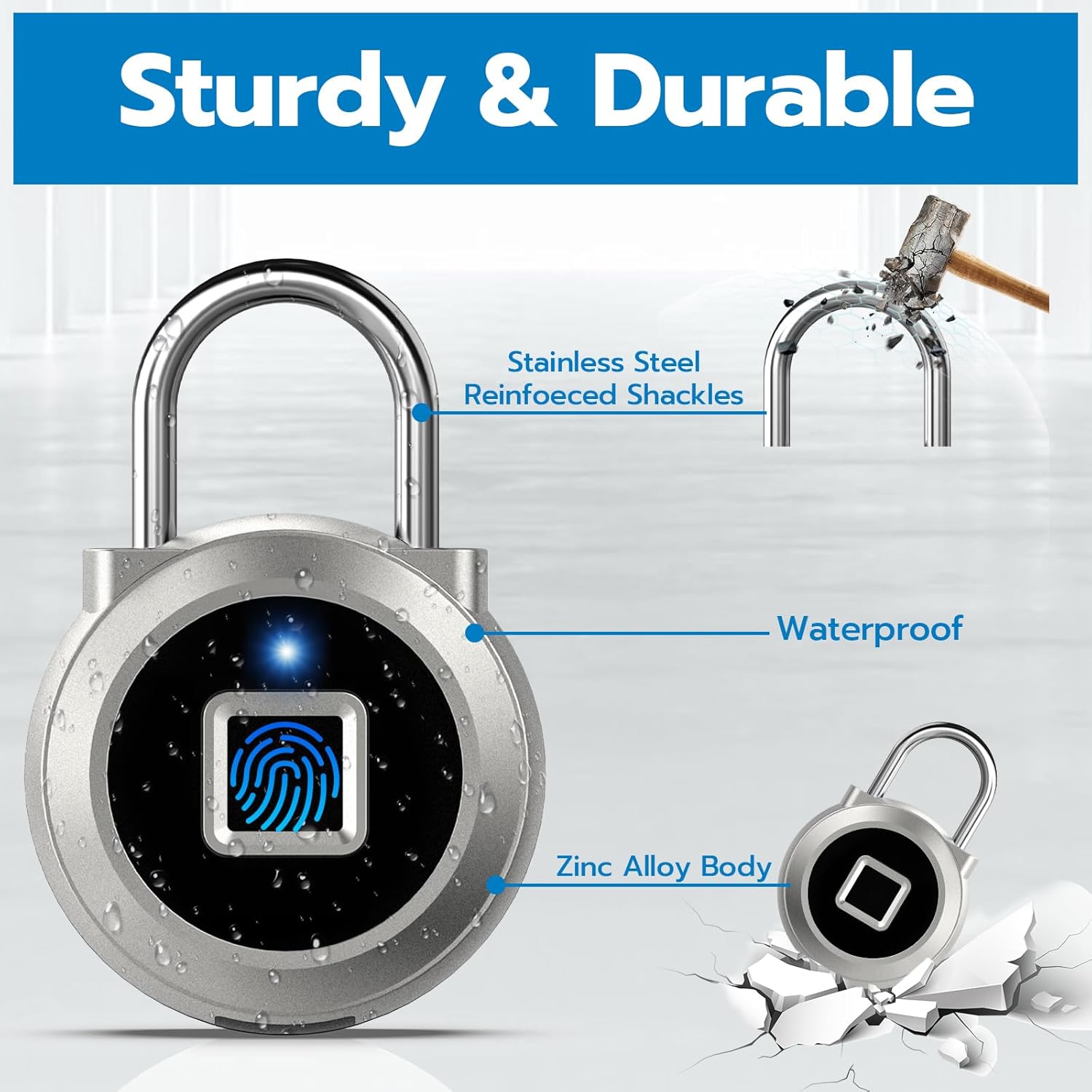
Image 2.1: Illustration of the padlock's durable and water-resistant design.
3. Setup Guide
3.1 Initial Charging
Before first use, fully charge the padlock. Connect the provided USB cable to the charging port on the padlock and to a USB power source. The indicator light will show charging status.
3.2 App Download and Installation
Search for the "Eseesmart" app in your device's app store (iOS or Android) and install it.
3.3 Device Pairing
- Ensure Bluetooth is enabled on your smartphone.
- Open the Eseesmart app and create an account or log in.
- Tap the "Add Device" or "+" icon within the app.
- Wake up the padlock by touching the fingerprint sensor. The padlock's indicator light should be active.
- Select your padlock from the list of available devices in the app to pair.
3.4 Fingerprint Registration
After successful pairing, you can register fingerprints. The first registered fingerprint will be the administrator fingerprint.
- In the app, navigate to "Fingerprint Management".
- Tap "Add Fingerprint".
- Follow the on-screen prompts to place your finger on the padlock's sensor multiple times until registration is complete.
- Repeat for additional fingerprints (up to 15 total).

Image 3.1: Padlock ready for Bluetooth pairing with the mobile application.
4. Operating Instructions
4.1 Locking the Padlock
To lock the padlock, simply push the shackle down into the lock body until it clicks into place. The padlock will automatically lock.
4.2 Unlocking with Fingerprint
- Place a registered finger firmly on the fingerprint sensor.
- The indicator light will briefly turn blue, then green if the fingerprint is recognized.
- The padlock will unlock.
4.3 Unlocking with Mobile App
- Ensure your smartphone's Bluetooth is on and the padlock is within range.
- Open the Eseesmart app.
- Select your padlock from the device list.
- Tap the "Unlock" button in the app. The padlock will unlock.

Image 4.1: Demonstrating fingerprint and app unlocking methods.
5. App Usage
The Eseesmart mobile application provides comprehensive control and monitoring features for your padlock:
- Unlock: Directly unlock the padlock from your phone.
- Authorization Management: Grant temporary or permanent access to other users.
- Fingerprint Management: Add, edit, or delete registered fingerprints.
- History Record: View a log of all unlock events, including time, user, and method.
- Battery Status: Monitor the current battery level of the padlock.

Image 5.1: Overview of the Eseesmart mobile application interface and its functions.
6. Charging and Battery
The padlock is powered by a built-in 110mAh lithium battery. A full charge typically takes 30 minutes and can provide power for over 6 months of standby time or 2000 unlocks.
6.1 Charging Procedure
- Locate the USB charging port on the side of the padlock.
- Connect the padlock to a 5V USB power source (e.g., computer, wall adapter, power bank) using the provided USB cable.
- The indicator light will illuminate during charging and turn off when fully charged.
6.2 Low Battery Indication
When the battery level is low, the padlock's indicator light may flash red or the app will display a low battery warning. Charge the padlock promptly to ensure continuous operation.
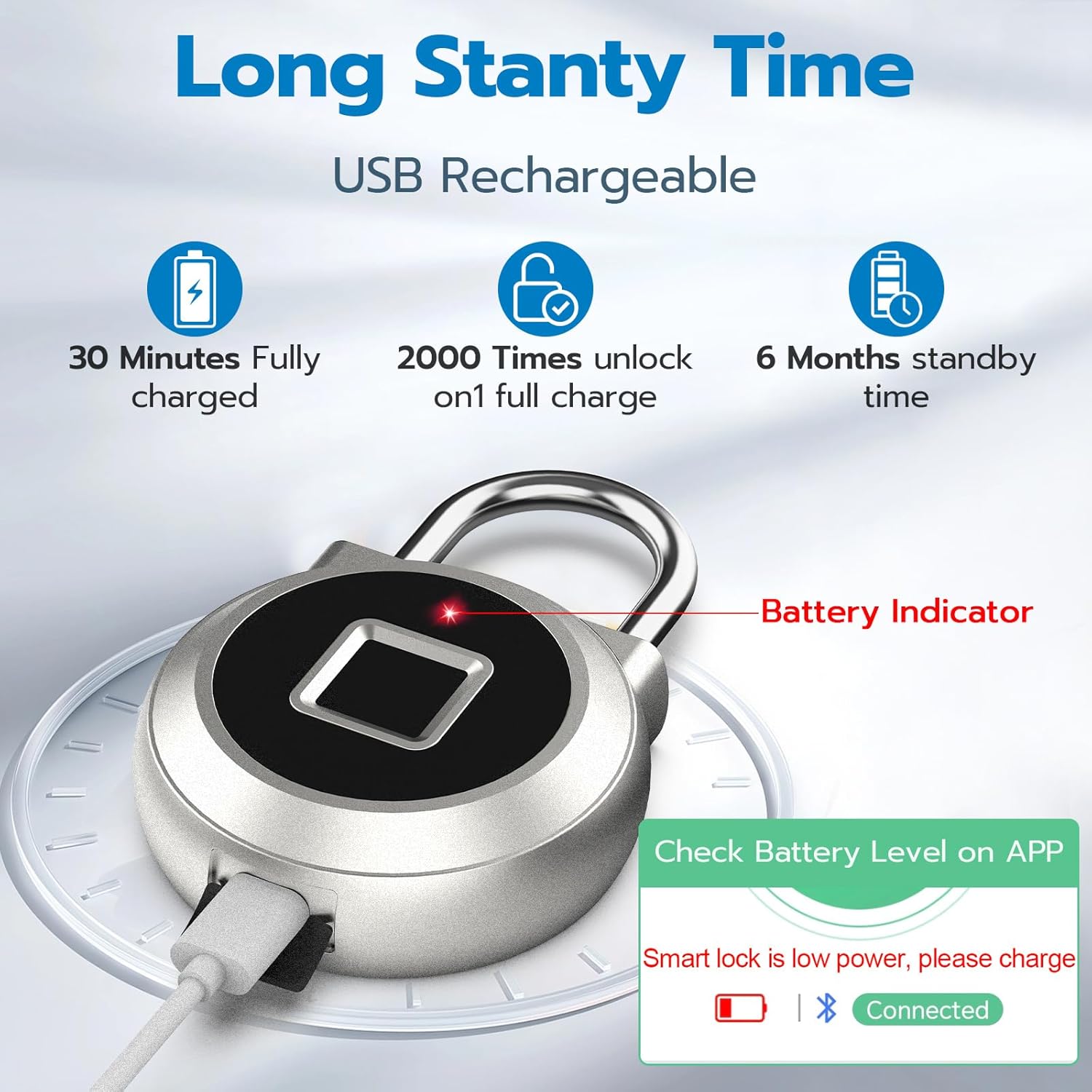
Image 6.1: Padlock charging via USB, illustrating battery performance metrics.
7. Maintenance
- Cleaning: Wipe the padlock with a soft, dry cloth. Avoid using abrasive cleaners or solvents.
- Fingerprint Sensor: Keep the fingerprint sensor clean and dry for optimal performance.
- Water Exposure: While water-resistant, avoid prolonged submersion or exposure to extreme weather conditions to prolong the product's lifespan.
- Charging Port: Ensure the USB charging port is free from dust and debris.

Image 7.1: Padlock demonstrating water resistance.
8. Troubleshooting
- Padlock not unlocking with fingerprint:
- Ensure your finger is clean and dry.
- Place your entire registered finger firmly on the sensor.
- Verify the fingerprint is registered in the app.
- Try a different registered finger.
- Padlock not connecting to app:
- Ensure Bluetooth is enabled on your phone.
- Make sure the padlock is within Bluetooth range.
- Wake up the padlock by touching the fingerprint sensor.
- Restart the app or your phone.
- Padlock not charging:
- Check if the USB cable is properly connected to both the padlock and the power source.
- Try a different USB cable or power adapter.
- Ensure the charging port is clean.
- Factory Reset: If experiencing persistent issues, a factory reset may be necessary. Refer to the app's settings or contact customer support for specific instructions on performing a factory reset, as this will erase all registered fingerprints and pairing information.
9. Specifications
| Feature | Detail |
|---|---|
| Brand | Eseesmart |
| Model Number | 673143715034 |
| Lock Type | Biometric |
| Special Features | Rechargeable, Fingerprint, Water Resistant |
| Material | Stainless Steel, Zinc Alloy |
| Item Dimensions (L x W x H) | 1.6 x 0.6 x 2.5 inches |
| Item Weight | 2.4 ounces (68.04 Grams) |
| Connectivity Protocol | Bluetooth |
| Control Method | App, Fingerprint |
| Battery Type | 1 Lithium Ion (included) |
| Included Components | Padlock, USB Cable, User Manual |
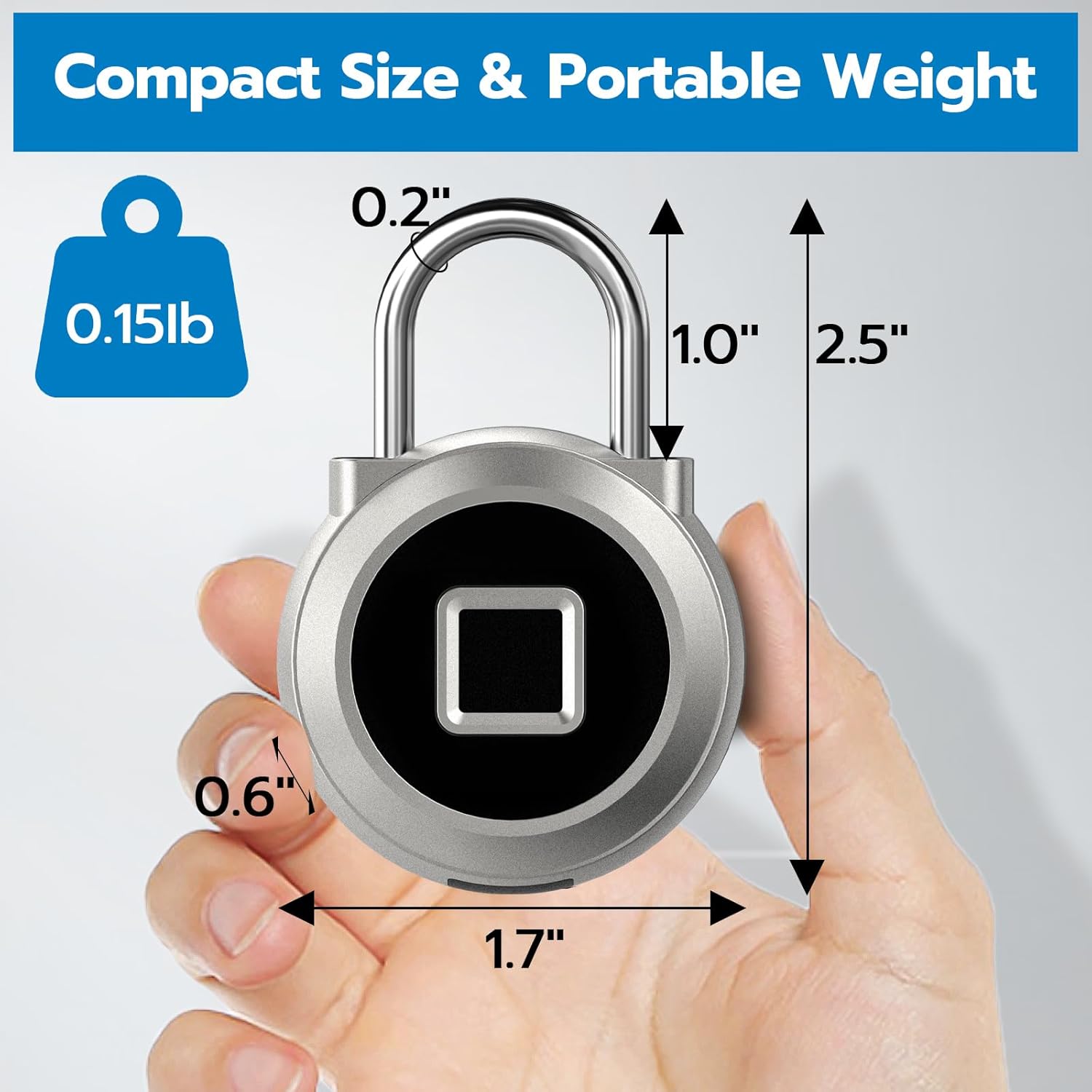
Image 9.1: Physical dimensions of the Eseesmart Smart Padlock.
10. Warranty and Support
10.1 Warranty Information
Eseesmart offers a 6-month limited warranty for this product. This warranty covers manufacturing defects and ensures the product functions as intended under normal use.
10.2 Customer Service
For any questions, technical assistance, or warranty claims, please contact Eseesmart customer service. Lifetime customer service is provided. You can typically find contact information through your order details page or the official Eseesmart website.
