
1. Product Overview
The Portkeys BM5 IV is a 5.5-inch camera control field monitor designed for professional videography and filmmaking. It features a 2000nit high-brightness touchscreen, 100% Rec.709 wide color gamut, and a durable CNC aluminum alloy housing. This monitor supports wired control for a wide range of cameras, including Sony, Canon, RED, ARRI, ZCAM, Nikon, and BMPCC, offering comprehensive control functionalities.

Figure 1.1: Front and back view of the Portkeys BM5 IV monitor, showcasing its compact design and various ports.
Key Features:
- Wired Camera Control: Supports control for cameras such as Sony FX3/FX30/FX6/FX9/A7S III/A7R IV, Canon C70/C200/C300, Panasonic GH5 II/GH6/S5, and ZCAM E2.
- High-Brightness Display: 5.5-inch, 1920x1080 resolution, 2000 nit brightness, 100% Rec.709 color standard for clear visibility in various lighting conditions.
- Split Screen Monitoring: Offers Picture-in-Picture (PIP) mode, side-by-side monitoring, and adjustable image direction for versatile viewing.
- Advanced Monitoring Tools: Includes 3D LUT support, False Color, Zebra, Vectorscope, RGB Waveform, Luma Histogram, Audio Meters, and Freeze Frame.
- Robust Construction: CNC Aluminum Alloy all-metal shell with integrated fan for efficient heat dissipation, ensuring durability and lightweight design (380g).
- Flexible Power: Integrates with an NPF plate, compatible with Sony F970, F960, F750, F550 batteries.

Figure 1.2: The monitor's display interface, highlighting various professional monitoring tools.

Figure 1.3: Display characteristics including color gamut, 10-bit color depth, and 2000 nits brightness.
2. Setup Guide
2.1 Unpacking and Initial Inspection
Carefully remove the monitor and all accessories from the packaging. Inspect for any signs of damage. Retain the packaging for future storage or transport.
2.2 Powering On
The BM5 IV can be powered using an NP-F series battery (Sony F970, F960, F750, F550) attached to the integrated battery plate, or via the 7-24V DC input port. Ensure the power source is securely connected before attempting to power on the device.
2.3 Connecting Devices
The monitor features various input and output ports for connecting cameras and other video equipment.

Figure 2.1: Overview of the monitor's interfaces, including HDMI In/Out, SDI In/Out, USB-A, and power input.
- HDMI In/Out: Connect your camera's HDMI output to the monitor's HDMI IN port. Use the HDMI OUT for looping the signal to another display.
- SDI In/Out: For professional SDI connections, use the SDI IN port for camera input and SDI OUT for looping.
- USB-A: Used for firmware updates and importing/exporting user configurations.
- Camera Control Interface (REMOTE): Connect the appropriate control cable for wired camera control.
- 5-Pin Serial Port (UART): For TILTA Nucleus control.
3. Operating Instructions
3.1 Basic Navigation
The BM5 IV features a dynamic touchscreen for intuitive navigation. Tap icons to select functions, swipe to access menus, and pinch-to-zoom where applicable.
3.2 Wired Camera Control
The monitor supports wired control for various camera models. Connect the appropriate control cable from your camera to the monitor's REMOTE port.

Figure 3.1: Supported Sony and RED camera models and their control functions.

Figure 3.2: Supported Canon and Panasonic camera models and their control functions.

Figure 3.3: Supported Blackmagic, ZCAM, and TILTA models and their control functions.
3.3 Monitoring Features
The BM5 IV offers a suite of professional monitoring tools to assist with exposure, focus, and color accuracy.
- Split Screen Monitoring: Access various split-screen modes (Picture-by-Picture, Picture-in-Picture, H2V Crop) to compare different signals or views simultaneously.

Figure 3.4: Examples of split-screen monitoring modes.
- False Color & Log Mode: Utilize False Color to evaluate exposure levels. The monitor supports manual selection of Log modes for various camera brands, ensuring accurate monitoring of log footage.
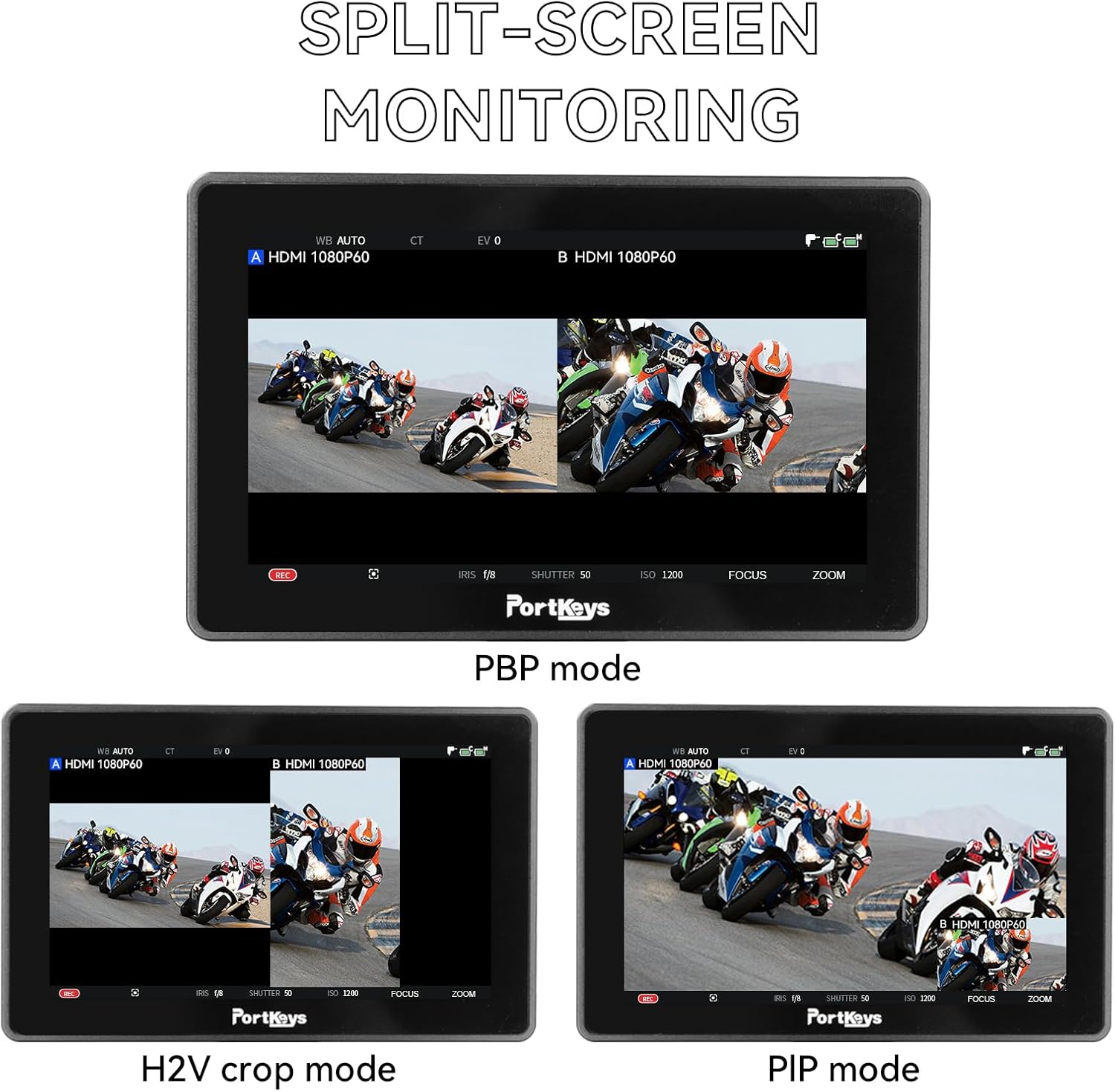
Figure 3.5: False Color-Log display for exposure analysis.

Figure 3.6: Manual selection of Log mode for various camera systems.
- 3D LUTs & Freeze Frame: Apply 3D LUTs for accurate color representation. The SDI OUT port can output an image with applied 3D LUTs. The Freeze Frame function allows overlaying a captured JPG image with real-time video for comparison.
3.4 User Configuration
The monitor allows for saving and loading user settings and custom calibrations.
- Saving and Loading Settings: Monitor settings can be saved to a USB drive and imported into the same model monitor, facilitating quick setup across multiple units.

Figure 3.7: User configuration menu for saving and loading settings.
- User Calibration: Import up to two sets of custom color calibration files to ensure precise color accuracy tailored to your workflow.

Figure 3.8: User calibration process for importing custom color files.
4. Maintenance
4.1 Cleaning
To clean the monitor screen, use a soft, lint-free cloth specifically designed for electronics. For stubborn smudges, a small amount of screen cleaning solution can be applied to the cloth (never directly to the screen). For the monitor body, wipe with a dry or slightly damp cloth. Avoid abrasive cleaners or solvents.
4.2 Storage
When not in use, store the monitor in a dry, dust-free environment, preferably in its original packaging or a padded case. Avoid extreme temperatures and high humidity. Remove batteries if storing for extended periods to prevent leakage.
5. Troubleshooting
This section provides solutions to common issues you might encounter with your Portkeys BM5 IV monitor.
5.1 No Power
- Ensure the battery is fully charged and correctly inserted, or the DC power adapter is securely connected.
- Check the power cable for any damage.
- If using a battery, try a different, fully charged battery.
5.2 No Signal Displayed
- Verify that the HDMI or SDI cable is securely connected to both the camera and the monitor.
- Ensure the camera is powered on and outputting a video signal.
- Check the input source selection on the monitor to ensure it matches the connected cable (HDMI or SDI).
- Try a different cable to rule out cable issues.
5.3 Image Flickering or Distortion
- Check cable connections for looseness or damage.
- Ensure the camera's output resolution and frame rate are supported by the monitor.
- Minimize electromagnetic interference from other electronic devices.
5.4 Touchscreen Unresponsive
- Restart the monitor.
- Ensure the screen is clean and free of debris or moisture.
- If the issue persists, contact customer support.
6. Technical Specifications
| Feature | Specification |
|---|---|
| Product Dimensions | 6.3 x 1.57 x 3.54 inches |
| Item Weight | 1.1 pounds (approx. 380g) |
| Item Model Number | BM5 IV |
| Standing Screen Display Size | 5.5 Inches |
| Resolution | 1920 x 1080 Pixels (FHD 1080p) |
| Aspect Ratio | 16:9 |
| Brightness | 2000 nits |
| Color Gamut | 100% Rec.709 |
| Material | CNC Aluminum Alloy |
| Power Consumption | 17W |
| Date First Available | July 1, 2021 |
7. Warranty and Support
Portkeys products are manufactured with high standards of quality and durability. For specific warranty information, please refer to the warranty card included with your product or visit the official Portkeys website.
7.1 Contact Information
- Manufacturer: Portkeys
- Official Website: www.portkeys.com
- Email Support: info@portkeys.com
- Global Support: Portkeys.global
- Social Media: Portkeys_Monitor

Figure 7.1: Manufacturer and support information from product packaging.
7.2 Additional Resources
- WeChat Official Account: http://weixin.qq.com/r/jUzexqfEePoHreOl9xmf
- Bilibili Space: https://space.bilibili.com/348383515