
Introduction
Thank you for choosing the JBL Cinema SB190 Soundbar. This manual provides essential information for setting up, operating, and maintaining your soundbar system. Please read it thoroughly to ensure proper use and optimal performance.
Important Safety Information
Always follow these basic safety precautions when using your soundbar system:
- Read these instructions carefully.
- Keep these instructions for future reference.
- Heed all warnings.
- Follow all instructions.
- Do not use this apparatus near water.
- Clean only with a dry cloth.
- Do not block any ventilation openings. Install in accordance with the manufacturer's instructions.
- Do not install near any heat sources such as radiators, heat registers, stoves, or other apparatus (including amplifiers) that produce heat.
- Protect the power cord from being walked on or pinched, particularly at plugs, convenience receptacles, and the point where they exit from the apparatus.
- Only use attachments/accessories specified by the manufacturer.
- Unplug this apparatus during lightning storms or when unused for long periods of time.
- Refer all servicing to qualified service personnel. Servicing is required when the apparatus has been damaged in any way, such as power-supply cord or plug is damaged, liquid has been spilled or objects have fallen into the apparatus, the apparatus has been exposed to rain or moisture, does not operate normally, or has been dropped.
What's in the Box
Your JBL Cinema SB190 package includes the following components:
- Soundbar
- Wireless Subwoofer
- Remote control with batteries
- Power cords (region specific)
- HDMI cable
- Wall-mount bracket kit with screws
- Quick start guide
- Warranty card
- Safety sheet

Image: Included accessories for the JBL Cinema SB190, featuring the remote control, HDMI cable, power cords, and wall-mount hardware.
Product Overview
Soundbar Front and Top Panel

Image: Front view of the JBL Cinema SB190 Soundbar, showcasing its sleek design.
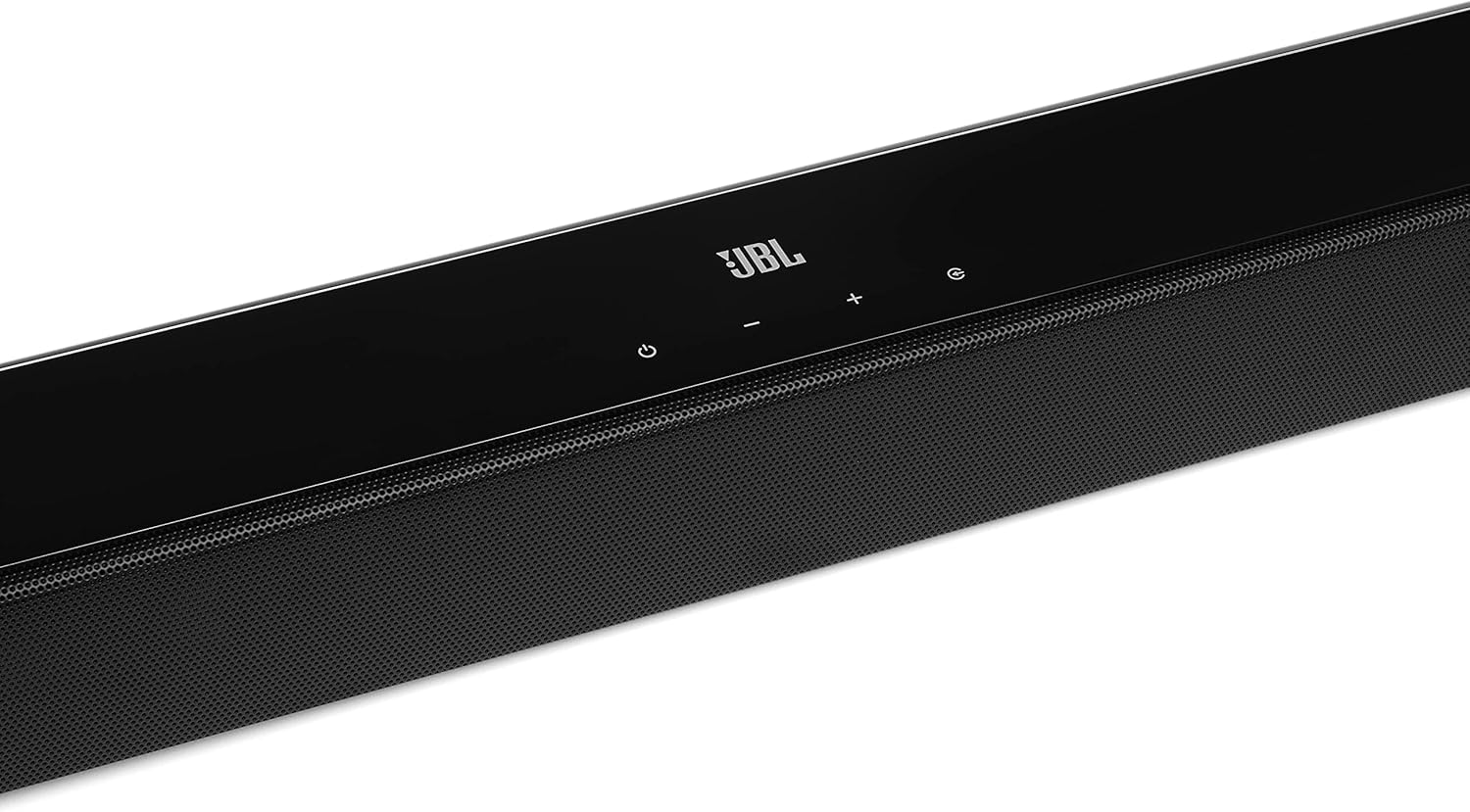
Image: Close-up of the top panel controls on the JBL Cinema SB190 Soundbar, including power, volume, and source selection buttons.
The soundbar features a minimalist design with essential controls located on the top panel for easy access. These include power, volume up/down, and input selection.
Soundbar Rear Panel Connections

Image: Rear panel of the JBL Cinema SB190 Soundbar, showing the power input, HDMI eARC, HDMI In, and Optical In ports.
The rear panel provides various connection options for your audio sources and TV, including HDMI eARC, HDMI In, and Optical In. A power input is also located here.
Wireless Subwoofer

Image: Front view of the JBL Cinema SB190 Wireless Subwoofer, featuring the JBL logo at the bottom.

Image: Rear view of the JBL Cinema SB190 Wireless Subwoofer, showing the power input and pairing button.
The wireless subwoofer provides deep bass and connects automatically to the soundbar. Its rear panel includes the power input and a pairing button if manual pairing is required.
Remote Control
The included remote control allows full command over your soundbar system, including power, volume, input selection, sound modes (Music, Movie, News), Voice enhancement, and Bass level adjustment.
Setup
1. Placement
Soundbar: Place the soundbar on a flat surface directly in front of your TV, centered. Ensure no objects obstruct the front of the soundbar. Alternatively, you can wall-mount the soundbar using the provided bracket kit.
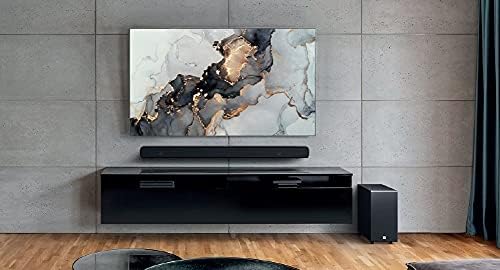
Image: The JBL Cinema SB190 Soundbar positioned below a television, with the wireless subwoofer to the side.
Subwoofer: The wireless subwoofer can be placed anywhere in the room, ideally within 50 feet (15 meters) of the soundbar, for optimal bass distribution. Avoid placing it in a corner directly, as this can sometimes lead to boomy bass.
2. Connections
Choose one of the following connection methods to connect your soundbar to your TV:
- HDMI eARC (Recommended): For the highest quality audio, connect an HDMI cable (included) from the HDMI eARC port on your soundbar to the HDMI eARC port on your TV. This connection supports Virtual Dolby Atmos and allows for TV remote control of the soundbar volume.

Image: HDMI icon, representing the HDMI eARC connection.
- Optical In: If your TV does not have an HDMI eARC port, connect an optical cable (not included) from the OPTICAL IN port on your soundbar to the optical output on your TV.

Image: TV icon, indicating connection to a television.
- HDMI In: You can also connect an external device (e.g., Blu-ray player, game console) directly to the HDMI IN port on the soundbar. The video signal will pass through to your TV via the HDMI eARC/ARC connection.
3. Power Connection
- Connect the power cords to the soundbar and subwoofer.
- Plug the power cords into an AC outlet.
- The soundbar and subwoofer will automatically power on and attempt to pair. The subwoofer's LED indicator will turn solid white once successfully paired.
Operating Your Soundbar
Power On/Off
Press the Power button on the soundbar or remote control to turn the system on or off.
Volume Control
Use the Volume + or Volume - buttons on the soundbar or remote control to adjust the volume level.
Input Selection
Press the Source button on the soundbar or the dedicated input buttons (HDMI IN, HDMI ARC, OPT, BT) on the remote control to switch between audio sources.
Sound Modes
The remote control features dedicated buttons for optimizing audio for different content types:
- MUSIC: Enhances audio for music playback.
- MOVIE: Optimizes sound for cinematic experiences, including Virtual Dolby Atmos effects.
- NEWS: Enhances vocal clarity for news and dialogue-heavy content.
Voice and Bass Adjustment
The remote control allows for fine-tuning of voice clarity and bass levels:
- VOICE: Press the VOICE button repeatedly to cycle through different levels of voice enhancement. This helps make dialogue clearer.
- BASS: Press the BASS button repeatedly to adjust the subwoofer's bass output level.
Bluetooth Pairing
To stream audio wirelessly from your mobile device:
- Press the BT button on the remote control or soundbar. The soundbar's indicator will flash, indicating pairing mode.
- On your mobile device, enable Bluetooth and select "JBL Cinema SB190" from the list of available devices.
- Once connected, the indicator on the soundbar will turn solid. You can now stream audio from your device.

Image: Bluetooth icon, representing wireless audio streaming.
Maintenance
To ensure the longevity and optimal performance of your JBL Cinema SB190 Soundbar:
- Cleaning: Use a soft, dry cloth to clean the surfaces of the soundbar and subwoofer. Do not use liquid cleaners or abrasive materials, as they may damage the finish.
- Ventilation: Ensure that the ventilation openings on the soundbar and subwoofer are not blocked to prevent overheating.
- Storage: If storing the unit for an extended period, unplug it from the power outlet and store it in a cool, dry place.
Troubleshooting
If you encounter issues with your soundbar, refer to the following common problems and solutions:
No Sound from Soundbar
- Ensure the soundbar is powered on and the volume is not muted or set too low.
- Verify that the correct input source is selected on the soundbar (e.g., HDMI ARC, Optical, Bluetooth).
- Check all cable connections (HDMI, Optical) between the soundbar and your TV/source device. Ensure they are securely plugged in.
- If using HDMI ARC/eARC, ensure your TV's HDMI ARC/eARC feature is enabled in its settings.
- Try restarting both the soundbar and your TV.
No Sound from Subwoofer
- Ensure the subwoofer is plugged into a power outlet and powered on.
- Check the LED indicator on the subwoofer. If it's not solid white, it may not be paired with the soundbar.
- To manually pair the subwoofer:
- Press and hold the pairing button on the back of the subwoofer until the LED flashes rapidly.
- On the soundbar, press and hold the Power button for 5 seconds. The soundbar will enter pairing mode.
- Once paired, the LED on the subwoofer will turn solid white.
Audio/Video Sync Issues
- If using HDMI eARC, this feature is designed to minimize sync issues. Ensure your TV's firmware is up to date.
- Some TVs have an audio delay setting (lip-sync) that can be adjusted. Consult your TV's manual.
- If connecting via Optical, audio lag can sometimes occur. Try connecting via HDMI eARC if available.
Bluetooth Connection Problems
- Ensure Bluetooth is enabled on your mobile device and the soundbar is in pairing mode.
- Move your device closer to the soundbar.
- Clear the Bluetooth pairing list on your device and try pairing again.
- Ensure no other Bluetooth devices are interfering.
Specifications
| Feature | Detail |
|---|---|
| Model Name | Cinema SB190 |
| Speaker Type | Soundbar |
| Surround Sound Channel Configuration | 2.1 |
| Total Speaker Power Output | 380 Watts |
| Subwoofer Diameter | 6.5 Inches |
| Special Features | Bluetooth 5.1 streaming, Dedicated sound mode to enhance voice clarity, HDMI In and Optical In connection, HDMI eARC capable, Virtual Dolby Atmos technology |
| Connectivity Technology | Bluetooth, Wired (HDMI, Optical) |
| Control Method | Remote |
| Product Dimensions (Soundbar) | 89.9W x 6.2D x 6.6H Centimetres |
| Item Weight | 7.5 Kilograms (Total system) |
| Material | Plastic |
| Color | Black |
| Included Components | Soundbar, Wireless subwoofer, Remote control with batteries, Power cords, HDMI cable, Wall-mount bracket kit with screws, Quick start guide, Warranty card, Safety sheet |
Warranty and Support
For detailed warranty information, please refer to the warranty card included in your product package. For technical support, product registration, or further assistance, please visit the official JBL support website or contact their customer service.
You can find more information and support resources on the JBL Store on Amazon.


