
Swann SRNVR-168580T
Swann NVR16-8580T 16 Channel 4K Ultra HD Network Video Recorder User Manual
Model: SRNVR-168580T
1. Introduction
This manual provides detailed instructions for the installation, operation, and maintenance of your Swann NVR16-8580T 16 Channel 4K Ultra HD Network Video Recorder. Please read this manual thoroughly before using the product to ensure proper setup and functionality.
2. Safety Information
- Ensure the NVR is placed on a stable, level surface.
- Do not expose the NVR to water, moisture, or extreme temperatures.
- Use only the power adapter supplied with the unit.
- Do not open the NVR casing; refer all servicing to qualified personnel.
- Keep ventilation openings clear to prevent overheating.
3. Package Contents
Verify that all items listed below are present in your package:
- Swann NVR16-8580T 16 Channel NVR with 3TB Hard Drive
- Cat5e Ethernet Cable x 5 (3ft/1m x 1)
- HDMI Cable
- Power Adapter
- Mouse
- Quick Start Guide
- Theft Deterrent Stickers
4. Product Overview
The Swann NVR16-8580T is a 16-channel Network Video Recorder designed for advanced surveillance. It supports 4K Ultra HD video recording and features a 3TB hard drive for extensive storage.
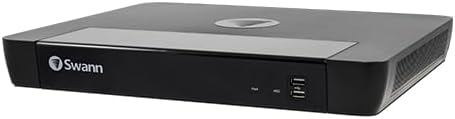
Figure 1: Front view of the Swann NVR16-8580T Network Video Recorder. The front panel features the Swann logo on the left, status indicators, and two USB ports on the right.
4.1 Front Panel
- Swann Logo: Indicates the brand.
- Status Indicators: LEDs for power and HDD activity.
- USB Ports: For connecting a mouse, USB flash drive for backup, or other peripherals.
4.2 Rear Panel (Typical Connections)
The rear panel typically includes ports for power input, HDMI output, Ethernet (LAN), and multiple PoE (Power over Ethernet) ports for connecting cameras.
- Power Input: Connects to the supplied power adapter.
- HDMI Output: Connects to a monitor or TV for video display.
- Ethernet (LAN) Port: Connects to your network router for internet access and remote viewing.
- PoE Camera Ports: 16 ports for connecting compatible Swann PoE cameras, providing both power and data over a single Ethernet cable.
5. Setup
5.1 Physical Connection
- Connect a Monitor: Connect the supplied HDMI cable from the NVR's HDMI output to an HDMI input on your monitor or TV.
- Connect the Mouse: Plug the USB mouse into one of the USB ports on the NVR's front panel.
- Connect to Network: Connect an Ethernet cable from the NVR's LAN port to your router or network switch.
- Connect Cameras: Connect compatible Swann PoE cameras to the NVR's PoE ports using Ethernet cables. Ensure cameras are compatible (refer to Section 10: Compatibility).
- Connect Power: Connect the power adapter to the NVR's power input and then plug it into a power outlet. The NVR will power on automatically.
5.2 Initial Configuration
Upon first power-on, the NVR will guide you through an initial setup wizard on the connected monitor. Follow the on-screen prompts to:
- Set up a secure password.
- Configure date and time settings.
- Adjust network settings (usually DHCP by default).
- Format the hard drive (if prompted).
5.3 Remote Access Setup (HomeSafe View App)
To view your cameras remotely on a smartphone or tablet:
- Download the free HomeSafe View app from your device's app store (iOS or Android).
- Open the app and follow the instructions to add your NVR by scanning the QR code displayed on your NVR's monitor (found in the network settings) or by manually entering the device ID.
- Enter the NVR's username and password when prompted.
6. Operating the NVR
6.1 Live View
After setup, the NVR will display a live view of all connected cameras on the monitor. You can switch between single-camera view and multi-camera grid view using the on-screen controls or mouse.
6.2 Recording
The NVR supports various recording modes:
- Continuous Recording: Records 24/7. Configure schedules in the NVR settings.
- Motion Detection Recording: Records only when motion is detected by the cameras. The NVR features True Detect thermal motion sensing for accurate detection of warm moving objects.
- Scheduled Recording: Records during specific times of the day or week.
6.3 Playback
To review recorded footage:
- Access the "Playback" menu from the NVR's main interface.
- Select the desired camera(s) and date/time range.
- Use the playback controls (play, pause, fast forward, rewind) to navigate through the footage.
6.4 Advanced Features
- 4K Video Analytics: The NVR supports advanced analytics such as Face Detection (with compatible cameras) to trigger recording and alerts.
- Dropbox Integration: Link your NVR to your Dropbox account to upload still images to the cloud, providing off-site evidence storage.
- Push Notifications: Receive instant alerts on your smartphone when motion or other events are detected.
7. Maintenance
7.1 Hard Drive Management
The NVR's 3TB hard drive will automatically overwrite the oldest footage when full. You can configure recording settings to optimize storage usage. Regularly back up important footage to a USB drive or Dropbox.
7.2 Firmware Updates
Periodically check the Swann support website for firmware updates. Keeping your NVR's firmware up-to-date ensures optimal performance and access to new features.
7.3 Cleaning
Clean the exterior of the NVR with a soft, dry cloth. Do not use liquid cleaners or aerosols. Ensure ventilation openings are free from dust and debris.
8. Troubleshooting
| Problem | Possible Cause | Solution |
|---|---|---|
| No video output on monitor. | Loose HDMI cable, incorrect monitor input, NVR not powered on. | Check HDMI connection, select correct input on monitor, ensure NVR power adapter is connected. |
| Cameras not displaying. | Loose Ethernet cable, camera not powered, incompatible camera, network issue. | Verify camera connections to PoE ports, ensure cameras are compatible, check network status. |
| Cannot access NVR remotely. | NVR not connected to internet, incorrect app settings, firewall issues. | Check NVR's network connection, verify app settings and NVR device ID, consult your router's manual for port forwarding if necessary. |
| Hard drive full, no new recordings. | Hard drive has reached capacity. | The NVR is configured to overwrite oldest footage. If not, check recording settings. Back up important footage. |
9. Specifications
| Feature | Detail |
|---|---|
| Model Number | SRNVR-168580T |
| Channels | 16 |
| Video Resolution | 4K Ultra HD (8 Megapixels) |
| Hard Drive Capacity | 3 TB (Terabytes) |
| Connectivity | Ethernet, HDMI |
| Compatible Devices | Swann PoE Cameras, Smartphones, Tablets |
| Operating System (App) | Windows, Mac OS (for desktop client), iOS, Android (for mobile app) |
| Dimensions (L x W x H) | 12.2" x 9.25" x 2" (310mm x 235mm x 53mm) |
| Weight | 7.98 pounds |
10. Compatibility
The Swann NVR16-8580T is designed to work exclusively with certain Swann PoE cameras. It will not work with analog BNC cameras. Please verify camera compatibility before purchasing or connecting.
Known compatible camera models include:
- SWNHD-865MSB
- SWNHD-885MSFB
- SWNHD-886MSD
- SWNHD-885MSB
- SWNHD-886MSD
- SWNHD-865MSB
Note: This list may not be exhaustive. For the most up-to-date compatibility information, please consult the Swann official website or contact Swann support.
11. Warranty and Support
For warranty information, technical support, and further assistance, please visit the official Swann website or contact their customer service department. Keep your purchase receipt as proof of purchase.
Related documentsSRNVR-168580T


Ask a question about this manual
Ask about setup, troubleshooting, compatibility, parts, safety, or missing instructions. Manuals+ will review the question and use this page’s manual context to help answer it.