
1. Introduction
This manual provides detailed instructions for the setup, operation, and maintenance of your SteelSeries Prime Wireless FPS Gaming Mouse. Designed for competitive FPS gameplay, this mouse features advanced magnetic optical switches, a high-precision optical sensor, and robust wireless connectivity.
Key Features
- Designed specifically for the most demanding levels of FPS gameplay with unreal 100 million crispy clicks.
- Prestige Optical Magnetic Switches harness the power of light for response times and last 5x longer than the competition.
- TrueMove Air precision optical gaming sensor with advanced true 1-to-1 tracking.
- Quantum 2.0 Wireless transmits wireless data at unreal speeds more reliably than ever before.
- Long-lasting high-performance battery with fast-charging for over 100 hours of gameplay on a single charge.
2. Package Contents
Please verify that all items are present in your package:
- SteelSeries Prime Wireless FPS Gaming Mouse
- USB-C to USB-A Super Mesh Cable
- Wireless USB-C Dongle
- Extension Adapter
- Product Information Guide
3. Product Overview
Familiarize yourself with the components of your SteelSeries Prime Wireless Gaming Mouse:

Front view of the SteelSeries Prime Wireless Gaming Mouse, highlighting the scroll wheel with RGB lighting.

Angled view of the mouse, showing the two programmable side buttons on the left.
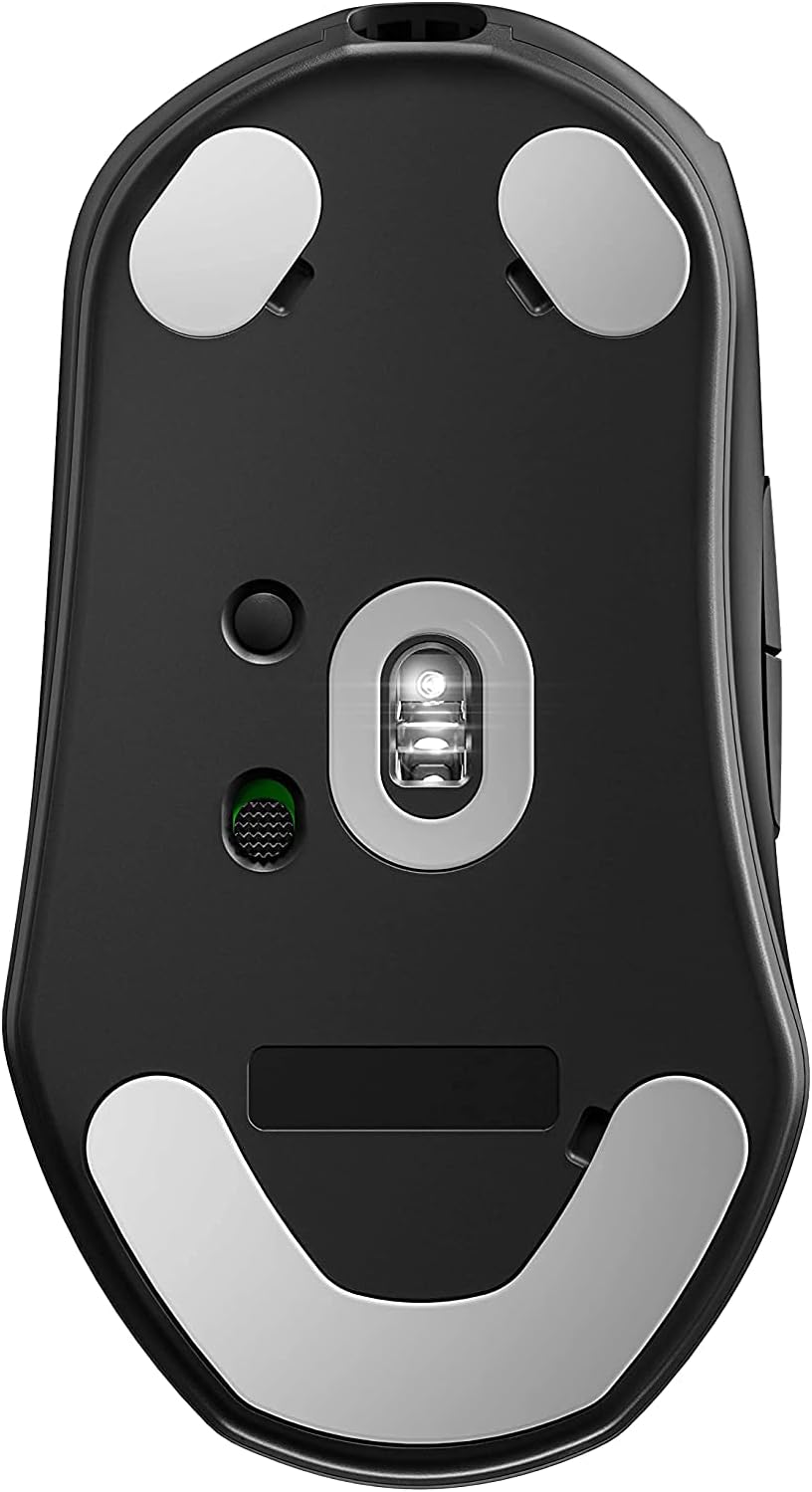
Bottom view of the mouse, displaying the TrueMove Air optical sensor, power switch, and PTFE glide feet.
4. Setup
Initial Connection
- Charge the Mouse: Connect the USB-C end of the Super Mesh Cable to the mouse and the USB-A end to an available USB port on your computer. Allow the mouse to charge fully before first use.
- Connect the Wireless Dongle: Insert the USB-C Wireless Dongle into an available USB port on your computer. For optimal performance, use the included extension adapter to position the dongle closer to the mouse.
- Power On: Locate the power switch on the bottom of the mouse and slide it to the 'ON' position. The mouse should automatically connect to the dongle.
Software Installation (SteelSeries Engine)
To unlock the full potential of your Prime Wireless mouse, including custom button assignments, CPI adjustments, and RGB lighting effects, download and install the SteelSeries Engine software from the official SteelSeries website (steelseries.com/engine). Follow the on-screen instructions for installation.
5. Operating Instructions
Basic Usage
- Left Click (Button 1): Primary action, selection.
- Right Click (Button 2): Context menu, secondary action.
- Scroll Wheel (Button 3): Scroll up/down, middle click.
Programmable Buttons
The SteelSeries Prime Wireless mouse features 5 programmable buttons. These can be customized using the SteelSeries Engine software to perform various functions, macros, or keybinds specific to your gaming or productivity needs.
CPI Adjustment
The mouse's CPI (Counts Per Inch) can be adjusted through the SteelSeries Engine software. This allows you to fine-tune the mouse sensitivity to your preference, with multiple customizable CPI profiles available.
Prism RGB Lighting
Customize the Prism RGB lighting on your mouse's scroll wheel using the SteelSeries Engine software. Choose from a wide range of colors and effects to personalize your gaming setup.
6. Maintenance
Cleaning
- Gently wipe the mouse surface with a soft, lint-free cloth.
- For stubborn dirt, slightly dampen the cloth with water or a mild, non-abrasive cleaner.
- Avoid using harsh chemicals, solvents, or abrasive materials, as these can damage the mouse's finish.
- Ensure no liquid enters the mouse's internal components.
Battery Care
- To maximize battery lifespan, avoid fully discharging the mouse frequently.
- Charge the mouse when the battery indicator suggests low power.
- If storing the mouse for an extended period, charge it to approximately 50% before storage.
7. Troubleshooting
| Problem | Possible Cause | Solution |
|---|---|---|
| Mouse not responding | Low battery; Dongle not connected; Power switch off; Driver issue. | Charge the mouse; Ensure dongle is securely plugged in; Turn on the mouse; Reinstall SteelSeries Engine software. |
| Lag or stuttering movement | Interference; Dongle too far; Dirty sensor. | Move dongle closer using extension adapter; Clear wireless interference sources; Clean optical sensor. |
| Buttons not working correctly | Software configuration; Physical damage. | Check button assignments in SteelSeries Engine; Contact support if physical damage is suspected. |
| RGB lighting not working | Software settings; Low battery. | Verify lighting settings in SteelSeries Engine; Ensure mouse is sufficiently charged. |
8. Specifications
| Feature | Detail |
|---|---|
| Product Dimensions | 2.67 x 4.93 x 1.67 inches |
| Item Weight | 2.72 ounces |
| ASIN | B09887BBY6 |
| Batteries | 1 Lithium Ion battery required |
| Date First Available | June 29, 2021 |
| Manufacturer | SteelSeries |
| Brand | SteelSeries |
| Color | Black |
| Connectivity Technology | USB, Wireless |
| Special Feature | Wireless |
| Movement Detection Technology | Optical |
9. Warranty and Support
SteelSeries products are covered by a limited warranty. For detailed warranty information specific to your region and product, please visit the official SteelSeries website or refer to the warranty card included with your original purchase.
For technical assistance, troubleshooting, or general inquiries, please contact SteelSeries Customer Support through their official website: steelseries.com/support.


