1. Introduction
Thank you for purchasing the Nextep NE-412N Wireless Rechargeable RGB Mouse. This manual provides essential information for setting up, operating, and maintaining your new mouse. Please read it carefully before use and retain it for future reference.
2. Product Overview
The Nextep NE-412N is a slim, silent, and rechargeable wireless mouse featuring RGB lighting and adjustable DPI settings for precise control. It offers a comfortable user experience with its ergonomic design.
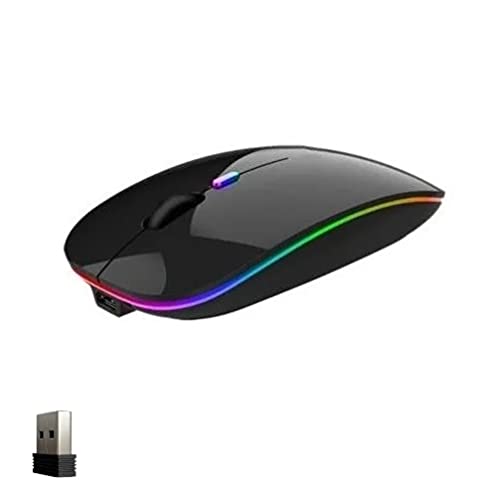
Figure 1: Top view of the Nextep NE-412N Wireless RGB Mouse. Shows the sleek black design with the scroll wheel and RGB lighting strip.

Figure 2: Side view of the Nextep NE-412N Wireless RGB Mouse. Highlights the slim profile and ergonomic curve.
Package Contents:
- Nextep NE-412N Wireless Rechargeable RGB Mouse
- USB Receiver
- USB Charging Cable
- User Manual (this document)
3. Setup
3.1 Charging the Mouse
- Connect the small end of the included USB charging cable to the charging port on the front of the mouse.
- Connect the standard USB end of the cable to a USB port on your computer or a USB wall adapter (not included).
- The RGB lighting may indicate charging status. Allow approximately 2-3 hours for a full charge.
3.2 Connecting the Mouse
- Locate the USB receiver, usually stored in a compartment on the underside of the mouse.
- Insert the USB receiver into an available USB port on your computer.
- Turn on the mouse using the power switch located on the underside.
- Your computer should automatically detect and install the necessary drivers. The mouse will be ready for use within a few seconds.
4. Operating Instructions
4.1 Basic Functions
- Left Click: Primary selection and activation.
- Right Click: Opens contextual menus.
- Scroll Wheel: Scrolls documents and web pages vertically. Can also be pressed for middle-click functionality.
4.2 DPI Adjustment
The mouse features adjustable DPI (Dots Per Inch) settings, allowing you to change cursor sensitivity. This model supports up to 1600 dpi.
- Locate the DPI button, typically found near the scroll wheel on the top of the mouse.
- Press the DPI button to cycle through available sensitivity settings. Each press will change the DPI level, often indicated by a brief change in the RGB lighting color or pattern.
- Select the DPI setting that best suits your preference and task.
4.3 RGB Lighting Control
The mouse features dynamic RGB lighting. Specific controls for lighting modes may vary. Some models allow cycling through modes or turning off the lighting via a dedicated button or a combination of buttons (e.g., DPI button + scroll wheel click). Refer to the product packaging or manufacturer's website for advanced lighting customization if available.
5. Maintenance
5.1 Cleaning
- Ensure the mouse is turned off before cleaning.
- Use a soft, dry, lint-free cloth to wipe the surface of the mouse.
- For stubborn dirt, lightly dampen the cloth with water or a mild, non-abrasive cleaner. Avoid excessive moisture.
- Do not use harsh chemicals, solvents, or abrasive materials, as these can damage the mouse's finish.
5.2 Storage
When not in use for extended periods, turn off the mouse to conserve battery life. Store the USB receiver in its designated compartment on the mouse to prevent loss.
6. Troubleshooting
| Problem | Solution |
|---|---|
| Mouse not responding. |
|
| Cursor movement is erratic or slow. |
|
| RGB lighting is not working. |
|
| Wireless connection issues. |
|
7. Specifications
| Model | NE-412N |
| Brand | Ewbob (Manufactured by Nextep) |
| Connectivity | Wireless (USB Receiver) |
| Sensor Technology | Optical |
| DPI Resolution | Up to 1600 dpi (Adjustable) |
| Special Features | Rechargeable, Silent Clicks, RGB Lighting, Slim Design |
| Operating Range | Up to 10 meters |
| Power Source | Built-in Rechargeable Battery |
| Compatible Operating Systems | Windows, Linux |
| Dimensions (L x W x H) | 21 x 13 x 3.5 cm |
| Weight | 1 kg |
8. Warranty and Support
For warranty information and technical support, please refer to the documentation included with your purchase or visit the official Nextep or Ewbob website. Keep your proof of purchase for warranty claims.
Manufacturer: Nextep
Brand: Ewbob


