
Easyfone Prime-A1 Pro
Easyfone Prime-A1 Pro GSM Flip Phone User Manual
Model: Prime-A1 Pro
1. Introduction
This manual provides detailed instructions for the Easyfone Prime-A1 Pro GSM flip phone. It covers essential information for setting up, operating, maintaining, and troubleshooting your device. Please read this manual thoroughly to ensure proper use and to maximize the phone's features.

Image: The Easyfone Prime-A1 Pro flip phone shown in both open and closed configurations, highlighting its design.
2. Package Contents
Verify that all items are present in the package:
- Handset (Easyfone Prime-A1 Pro)
- Battery (1 Lithium-ion)
- User Manual
- Lanyard
- Charging Dock
- Charger (Power Adapter)
- USB Cable

Image: An illustration of the Easyfone Prime-A1 Pro package contents, showing the phone, battery, user manual, lanyard, charging dock, charger, and USB cable.
3. Phone Overview
The Easyfone Prime-A1 Pro features a classic flip design with large, easy-to-read buttons and dual screens for convenience.
3.1. Physical Features
- Flip Design: Open to answer calls, close to end them.
- Large Buttons: Clearly labeled, silicone keypad with large numbers for easy dialing.
- Dual Screens:
- Main HD IPS Screen: 2.4 inches, located inside the flip.
- External HD IPS Screen: 1.44 inches, displays time, date, battery, and incoming call information when closed.
- SOS Button: Dedicated button for emergency calls and GPS location sharing.
- Blacklist Button: Dedicated button to block unwanted numbers.
- Photo Speed Dial Buttons: 8 programmable buttons for quick dialing with associated photos.
- Camera: Integrated for basic photo capture.
- Loud Speaker & Receiver: Designed for clear audio, compatible with M4/T4 hearing aids.

Image: The Easyfone Prime-A1 Pro in its open position, displaying the internal screen and the large, clearly marked keypad.

Image: A detailed view of the phone's dual screens, illustrating the main 2.4-inch HD IPS display and the 1.44-inch external HD IPS display.
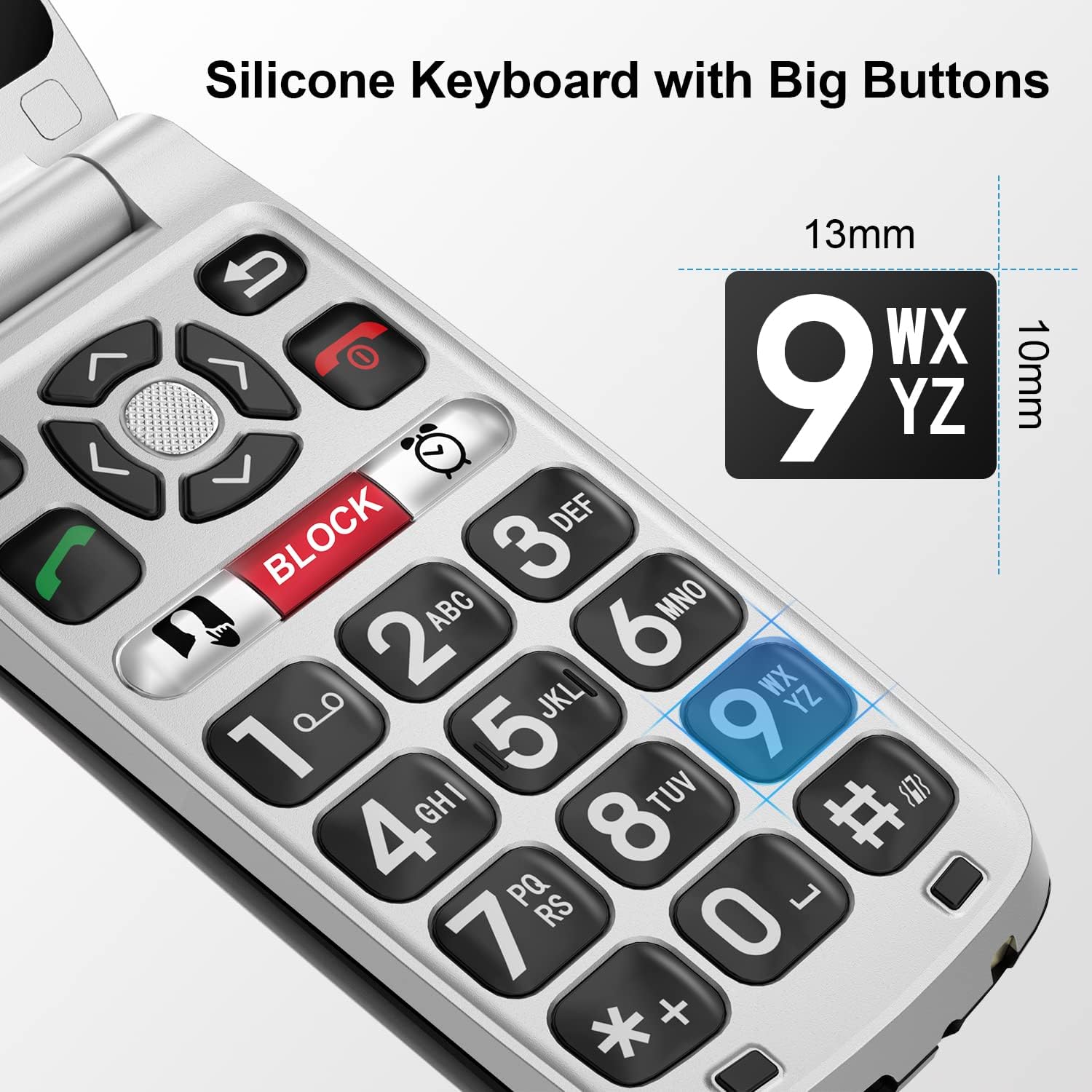
Image: A close-up of the phone's silicone keypad, emphasizing the large, tactile buttons designed for ease of use.

Image: A visual representation of the phone's enhanced audio features, including a loud receiver and powerful loudspeaker, designed for users with hearing difficulties and hearing aid compatibility.
4. Setup
4.1. Battery Installation
- Remove the back cover of the phone.
- Insert the Lithium-ion battery into the battery compartment, ensuring the gold contacts align.
- Replace the back cover until it clicks securely.
4.2. SIM Card Insertion
The Easyfone Prime-A1 Pro supports GSM 2G networks (850/900/1800/1900 MHz). Ensure your SIM card is compatible with these frequencies.
- With the battery removed, locate the SIM card slot.
- Insert your SIM card into the designated slot, following the orientation indicated on the phone.
- Reinstall the battery and back cover.

Image: A three-step diagram showing how to select the device, activate a phone plan, and insert the SIM card to prepare the phone for use.
4.3. Charging the Phone
Before first use, fully charge the phone battery.
- Connect the USB cable to the charger (power adapter).
- Plug the charger into a wall outlet.
- Place the phone into the charging dock, ensuring it sits correctly. The phone will begin charging automatically. Alternatively, connect the USB cable directly to the phone's charging port.
- The battery icon on the screen will indicate charging status.

Image: The Easyfone Prime-A1 Pro resting in its dedicated charging dock, with the external screen showing the battery charging indicator.

Image: The Easyfone Prime-A1 Pro being charged in its dock, accompanied by text highlighting its 1500mAh battery and over 96 hours of standby time.
5. Operating Instructions
5.1. Power On/Off
- To Power On: Press and hold the red End Call/Power button until the screen lights up.
- To Power Off: Press and hold the red End Call/Power button. Select "Power Off" from the options.
5.2. Making and Receiving Calls
- Making a Call: Open the flip, dial the number using the keypad, and press the green Call button.
- Receiving a Call: Open the flip to answer. Alternatively, press the green Call button when the phone is open.
- Ending a Call: Close the flip or press the red End Call button.
5.3. Sending and Receiving SMS Messages
- Navigate to the "Messages" menu.
- Select "New Message" to compose.
- Enter the recipient's number and your message.
- Press "Send".
5.4. SOS Emergency Button
The dedicated SOS button is located on the back of the phone. When activated, it will:
- Send an emergency SMS with your GPS location to pre-set emergency contacts.
- Automatically dial the emergency contacts in sequence until one answers.
To set up SOS contacts: Refer to the phone's settings menu under "SOS Settings".
5.5. Photo Speed Dial
The phone features 8 programmable photo speed dial buttons (1-8) for quick access to important contacts.
- Navigate to the "Contacts" or "Speed Dial" settings.
- Assign a contact and an associated photo to each speed dial number.
- To use, press and hold the assigned number button.

Image: An illustration demonstrating the photo speed dial function, where users can assign photos to 8 direct dial buttons for easy contact recognition and calling.
5.6. Blacklist Feature
The dedicated blacklist button allows you to block unwanted calls directly.
- During an incoming call from an unwanted number, press the "BLOCK" button.
- The number will be added to your blacklist, preventing future calls from that number.

Image: The Easyfone Prime-A1 Pro's keypad with the "BLOCK" button highlighted, illustrating its function to prevent unwanted calls.
5.7. Additional Features
The Easyfone Prime-A1 Pro includes several practical tools:
- FM Radio: Listen to local radio stations.
- Flashlight: A built-in light for convenience.
- MP3 Player: Play audio files stored on the phone or an inserted memory card.
- Memo: Create and save short notes.
- Voice Recorder: Record audio.
- Calculator: Perform basic arithmetic.
- Alarm Clock: Set alarms.
- Calendar: View dates and schedule events.
- Bluetooth: Connect to compatible wireless accessories.

Image: A collection of icons illustrating the various additional features available on the Easyfone Prime-A1 Pro, such as FM Radio, Flashlight, MP3 player, and more.
6. Maintenance
- Cleaning: Use a soft, dry cloth to clean the phone's surface. Avoid liquid cleaners.
- Battery Care:
- Avoid extreme temperatures.
- Do not expose the battery to water.
- Charge the battery regularly, but avoid overcharging for extended periods.
- Storage: Store the phone in a cool, dry place when not in use for extended periods.
7. Troubleshooting
| Problem | Possible Solution |
|---|---|
| Phone does not power on. | Ensure the battery is correctly installed and charged. Connect to the charger and try again. |
| Cannot make or receive calls. | Check if the SIM card is properly inserted. Verify that your SIM card is active and compatible with 2G GSM networks (850/900/1800/1900 MHz). Check network signal strength. |
| Poor call quality or low volume. | Adjust the call volume. Ensure the speaker/receiver is not obstructed. If using a hearing aid, ensure it is properly configured with the phone's M4/T4 compatibility. |
| Battery drains quickly. | Reduce screen brightness. Close unused applications. Ensure the phone is not in an area with very weak signal, which can cause increased battery usage. |
| Phone is unresponsive. | Remove the battery, wait a few seconds, then reinsert it and power on the phone. |
8. Specifications
| Feature | Detail |
|---|---|
| Brand | Easyfone |
| Model Name | Prime-A1 Pro |
| Color | Black |
| Form Factor | Flip |
| Operating System | Easyfone OS |
| Main Screen Size | 2.4 Inches HD IPS |
| External Screen Size | 1.44 Inches HD IPS |
| Cellular Technology | 2G GSM (850/900/1800/1900 MHz) |
| Wireless Carrier | Unlocked (MVNO compatible) |
| Battery | 1500 mAh Lithium-ion (included) |
| Internal Storage Capacity | 16 GB |
| Memory Card Slot | 1 slot (for MicroSD expansion) |
| Special Features | SOS Emergency Button with GPS, Dedicated Blacklist Button, Photo Speed Dial, Hearing Aid Compatible (M4/T4), Dual Screen, Charging Dock, Camera, FM Radio, Flashlight, MP3 Player, Memo, Voice Recorder, Calculator, Alarm Clock, Calendar, Bluetooth. |
| Total USB Ports | 1 |
| Manufacturer | Dongsen |
9. Warranty and Support
For warranty information and customer support, please refer to the documentation included with your purchase or contact Easyfone customer service directly. Keep your proof of purchase for warranty claims.
Related documentsPrime-A1 Pro


Ask a question about this manual
Ask about setup, troubleshooting, compatibility, parts, safety, or missing instructions. Manuals+ will review the question and use this page’s manual context to help answer it.