
Easyfone Prime-A1 Pro
Easyfone Prime-A1 Pro GSM Mobile Phone User Manual
Model: Prime-A1 Pro
Introduction
The Easyfone Prime-A1 Pro is a user-friendly GSM mobile phone designed with seniors in mind. It features a classic flip design, large backlit buttons, and a simple operating system for ease of use. Key functionalities include an SOS emergency button with GPS positioning, photo speed dial, and compatibility with hearing aids. This manual provides detailed instructions for setting up, operating, maintaining, and troubleshooting your device.
What's in the Box
Upon unboxing your Easyfone Prime-A1 Pro, please ensure all the following items are present:
- 1 x Easyfone Prime-A1 Pro Mobile Phone
- 1 x Charging Base
- 1 x European Standard Charger
- 1 x USB Charging/Data Cable
- 1 x User Manual

Image: All components included in the Easyfone Prime-A1 Pro package.
Setup
1. Battery Installation
- Remove the back cover of the phone by gently prying it open from the notch.
- Insert the provided Lithium-Ion battery into the battery compartment, ensuring the gold contacts align with the phone's terminals.
- Replace the back cover, pressing firmly until it clicks into place.
2. SIM Card Installation
- With the battery removed, locate the SIM card slot. This phone uses a Mini SIM card.
- Carefully insert your Mini SIM card into the designated slot, ensuring the cut corner aligns correctly.
- If desired, you can also insert a MicroSD card (up to 1GB supported) into the memory card slot for additional storage.
3. Initial Charging
- Connect the USB cable to the European standard charger and plug it into a wall outlet.
- Place the phone into the charging base, ensuring it sits securely. The phone will begin charging automatically.
- Alternatively, you can connect the USB cable directly to the phone's charging port.
- Allow the phone to charge completely before first use. A full charge typically takes a few hours.

Image: The Easyfone Prime-A1 Pro phone charging on its dedicated base, illustrating the 1500mAh battery capacity and 96+ hours standby time.
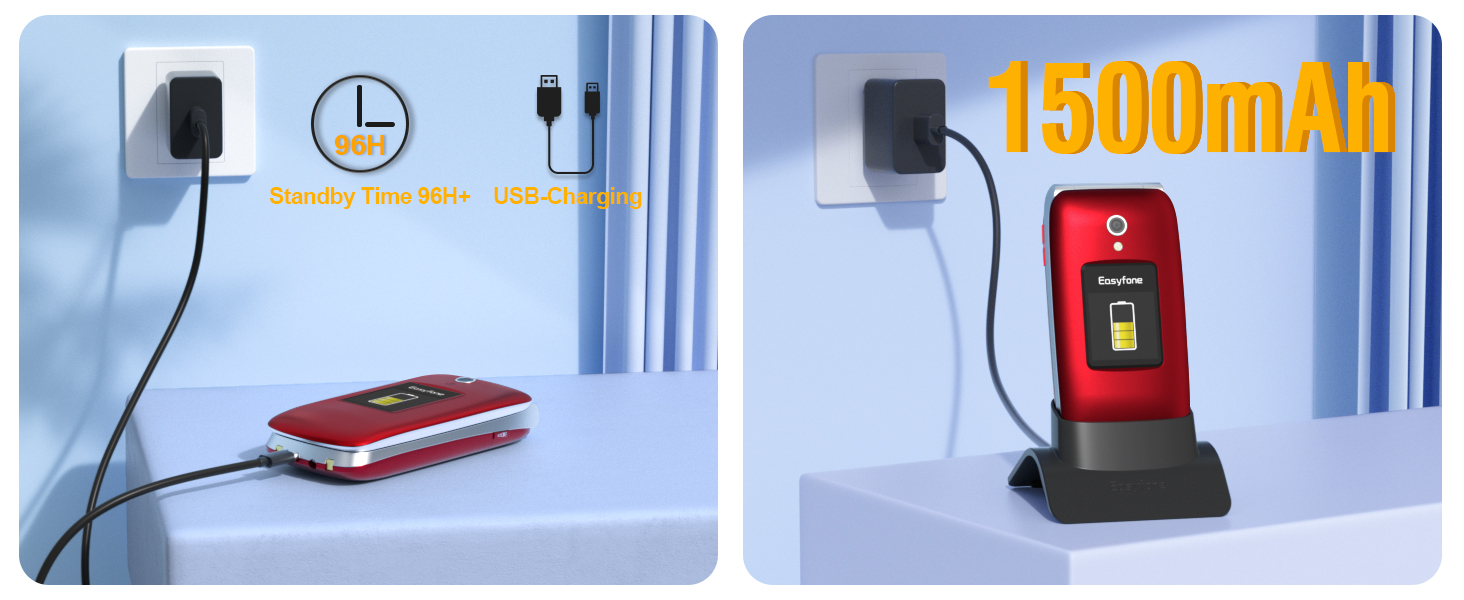
Image: The Easyfone Prime-A1 Pro being charged via its convenient charging base, highlighting the ease of use.
4. Powering On/Off
- To power on, press and hold the red End Call/Power button (usually marked with a power symbol) until the screen lights up.
- To power off, press and hold the red End Call/Power button, then select 'Power off' from the options.
Operating Instructions
1. Making and Receiving Calls
- Making a Call: Dial the number using the large keypad and press the green Call button.
- Receiving a Call: Simply open the flip cover to answer an incoming call. Close the flip cover to end the call.

Image: The Easyfone Prime-A1 Pro in its charging base (left) and open, displaying a speed dial contact (right).
2. Using the Keypad and Displays
- The phone features a silicone keyboard with large, backlit buttons for easy dialing.
- The main internal display is a 2.4-inch HD IPS screen, and there is an external 1.44-inch HD IPS screen for quick information like time and caller ID.

Image: The Easyfone Prime-A1 Pro showcasing its dual HD IPS screens, with the main 2.4-inch display and the external 1.44-inch display.

Image: Close-up of the Easyfone Prime-A1 Pro's silicone keyboard, highlighting the large, clearly labeled buttons for easy use.

Image: The Easyfone Prime-A1 Pro displaying its dual HD screens, showing the internal and external displays with clear icons and text.
3. Photo Speed Dial
- The phone supports 8 photo speed dial contacts (keys 2-9).
- To set up, navigate to the speed dial settings in the menu. Assign a contact with a photo to each number.
- To call a speed dial contact, simply long-press the assigned number key.
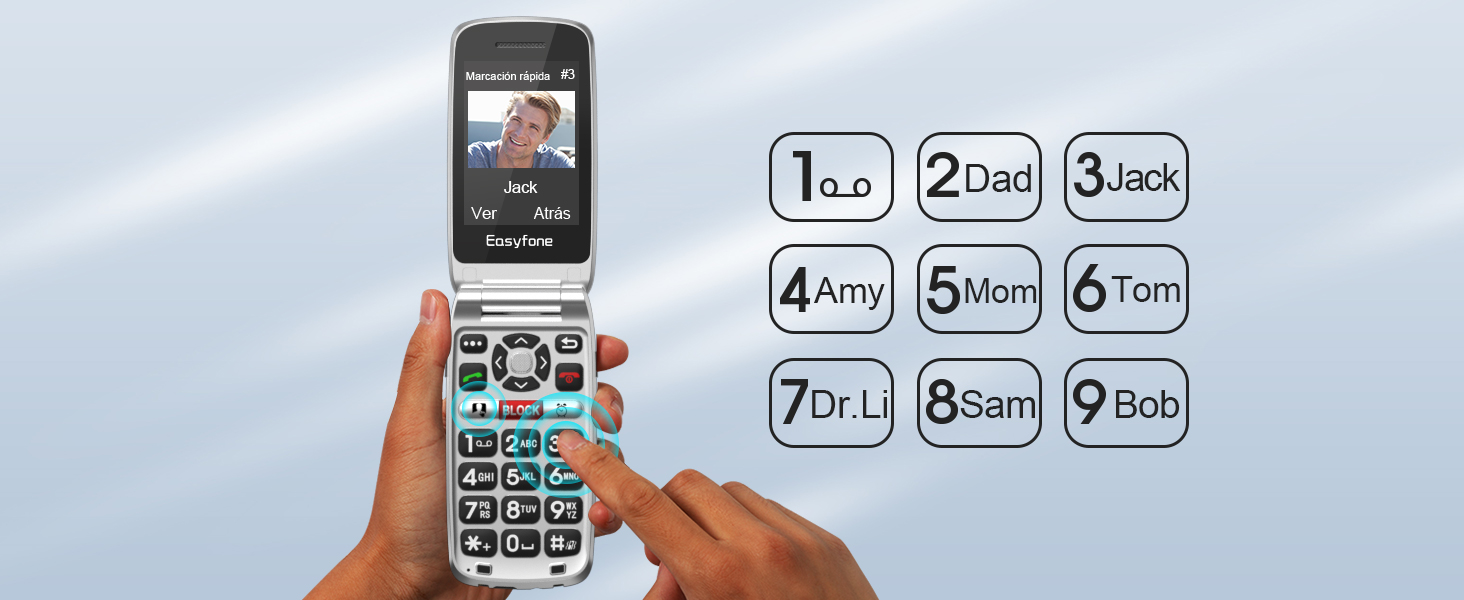
Image: Illustration of the Easyfone Prime-A1 Pro's photo speed dial feature, showing how to assign and use photo contacts for quick dialing.
4. SOS Emergency Button with GPS
- The SOS button is located on the back of the phone.
- In an emergency, press and hold the SOS button. The phone will automatically call and send an SMS with your GPS location to pre-set emergency contacts.
- Ensure emergency contacts are set up in the phone's settings.

Image: The Easyfone Prime-A1 Pro highlighting its SOS one-touch emergency button, which calls and texts for help and supports location information delivery.
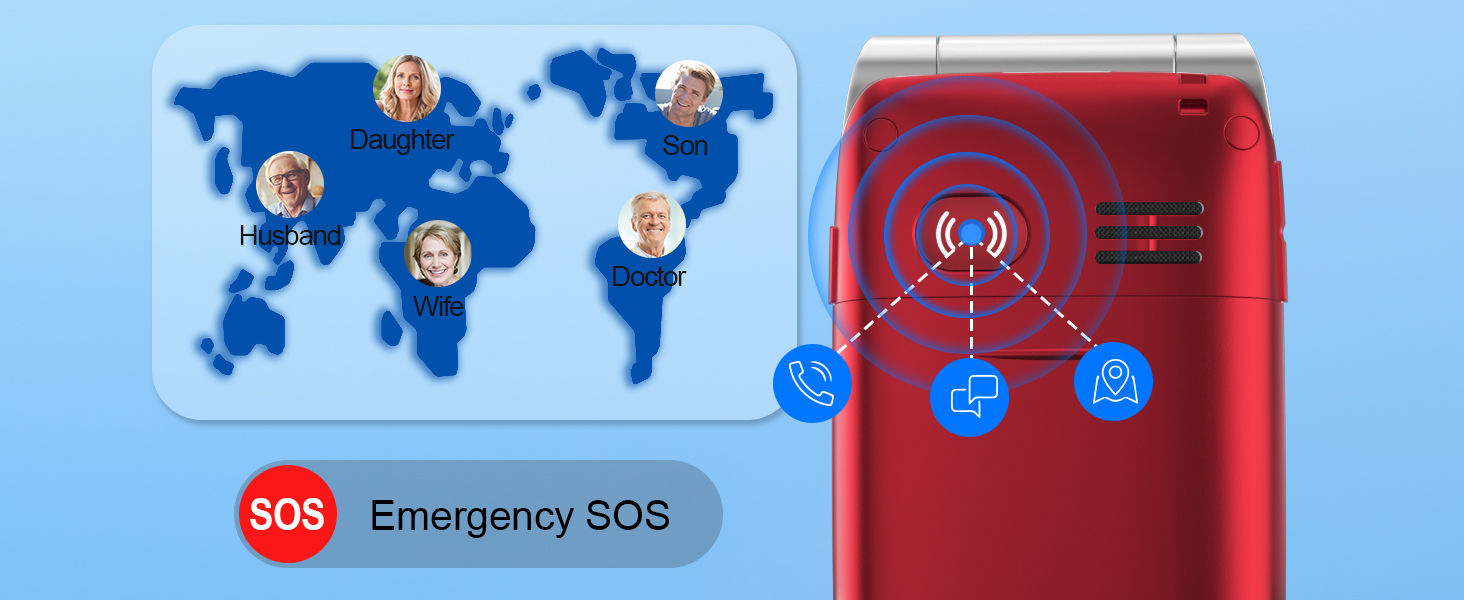
Image: The Easyfone Prime-A1 Pro's SOS button, demonstrating its functionality to call, send messages, and provide GPS location to emergency contacts.
5. Volume Adjustment and Hearing Aid Compatibility (HAC)
- The phone features a powerful loudspeaker and a loud and clear receiver for easy listening.
- Adjust call volume using the side buttons during a call.
- The device is compatible with hearing aids, providing a clearer audio experience for users with hearing difficulties.

Image: The Easyfone Prime-A1 Pro, illustrating its loud and clear receiver and powerful loudspeaker, designed for elderly and hard-of-hearing users.

Image: The Easyfone Prime-A1 Pro highlighting its high volume capabilities and Hearing Aid Compatibility (HAC) for enhanced audio clarity.
Maintenance
- Cleaning: Use a soft, dry cloth to clean the phone's exterior. Avoid using liquid cleaners or abrasive materials.
- Battery Care: To prolong battery life, avoid extreme temperatures. Charge the phone regularly, but do not leave it continuously charging for extended periods after it's full.
- Storage: Store the phone in a cool, dry place when not in use.
- Water Resistance: This phone is NOT water-resistant. Avoid exposure to water or high humidity.
Troubleshooting
Common Issues and Solutions:
- Phone not powering on: Ensure the battery is correctly installed and charged. Connect to the charger and try again.
- Cannot make/receive calls: Check if the SIM card is properly inserted and activated. Ensure you have network coverage.
- Poor call quality: Check network signal strength. Ensure the speaker/receiver is not obstructed.
- Battery drains quickly: Reduce screen brightness. Close unused applications. Ensure the phone is not in an area with very weak signal, which can cause it to consume more power searching for a network.
- GPS location not accurate: GPS functionality can be affected by environmental factors (e.g., indoors, dense urban areas). For best results, use in open outdoor spaces.
- External screen not turning off: If the external screen remains on after closing the flip, try restarting the device. If the issue persists, contact support.
Specifications
| Brand | Easyfone |
| Model Name | Prime-A1 Pro |
| Operating System | Nucleus OS |
| RAM Memory Size | 64 MB |
| Storage Capacity | 1 GB |
| Screen Size | 2.4 Inches (Main), 1.44 Inches (External) |
| Resolution | 240 x 320 (Main), 128 x 160 (External) |
| Wireless Carrier | Unlocked |
| Cellular Technology | 2G (GSM 850/900/1800/1900 Mhz) |
| Connectivity Technology | Bluetooth |
| SIM Card Count | Single SIM |
| SIM Card Size | Mini |
| Audio Jack | 3.5 mm |
| Form Factor | Flip |
| Battery Capacity | 1500 mAh |
| Average Battery Life | 36 Months (standby) |
| Talk Time | 6 Hours |
| GPS Functionality | Location capture |
| Water Resistance Level | Not water resistant |
| Product Dimensions | 10.4 x 5.2 x 2.3 cm; 320 g |
Warranty and Support
Easyfone products are designed for reliability and ease of use. For specific warranty information, please refer to the documentation included with your purchase or visit the official Easyfone website. If you encounter any issues not covered in this manual, or require further assistance, please contact Easyfone customer support through their official channels. Keep your purchase receipt as proof of purchase for warranty claims.
For support, you may visit the Easyfone store on Amazon: Easyfone Store
Related documentsPrime-A1 Pro


Ask a question about this manual
Ask about setup, troubleshooting, compatibility, parts, safety, or missing instructions. Manuals+ will review the question and use this page’s manual context to help answer it.