
1. Introduction
Thank you for purchasing the EARISE D61 Plus Bluetooth Speaker. This manual provides important information regarding the safe operation, setup, and maintenance of your device. Please read it thoroughly before use and retain it for future reference.

Image 1.1: The EARISE D61 Plus Bluetooth Speaker, showcasing its portable design and integrated RGB lighting.
2. Important Safety Information
- Do not expose the speaker to water or excessive moisture, as it is not waterproof.
- Avoid extreme temperatures, direct sunlight, or heat sources.
- Do not disassemble, repair, or modify the device. Refer all servicing to qualified personnel.
- Use only the specified charging cable and power adapter.
- Keep the speaker away from children and pets.
- Do not operate the speaker at excessively high volumes for prolonged periods to prevent hearing damage.
3. Package Contents
Please check the package for the following items:
- EARISE D61 Plus Bluetooth Speaker
- USB Charging Cable
- User Manual (this document)
If any items are missing or damaged, please contact customer support.
4. Product Overview
Familiarize yourself with the speaker's components and controls.
Image 4.1: Front view of the EARISE D61 Plus speaker, highlighting the control panel and speaker grille.
4.1 Control Panel and Ports

Image 4.2: Diagram illustrating the various input options and features of the speaker, including USB, TF card, AUX, Microphone, Bluetooth, and FM radio.
- MODE/LIGHT Button: Short press to switch between input modes (Bluetooth, AUX, USB, TF, FM). Long press to change light effects.
- M-/V- Button: Short press for previous track (in music modes) or previous station (in FM mode). Long press to decrease volume.
- MSCAN/TWS Button: Short press to Play/Pause (in music modes) or auto-scan FM stations (in FM mode). Long press to activate TWS pairing.
- M+/V+ Button: Short press for next track (in music modes) or next station (in FM mode). Long press to increase volume.
- USB Port: For USB flash drive playback.
- TF Card Slot: For TF (MicroSD) card playback.
- AUX Input: For connecting external audio devices via a 3.5mm audio cable.
- MIC Input: For connecting a microphone.
- Charging Port: For charging the speaker's internal battery.
5. Setup
5.1 Charging the Speaker
Before first use, fully charge the speaker. Connect the provided USB charging cable to the speaker's charging port and the other end to a USB power adapter (not included) or a computer's USB port. The charging indicator will illuminate during charging and turn off when fully charged.

Image 5.1: Visual representation of the speaker being charged, indicating battery status.
5.2 Powering On/Off
Press and hold the Power button (often integrated with the MODE button or a separate switch, refer to physical device for exact location) to turn the speaker ON or OFF. A sound prompt will indicate the power status.
5.3 Bluetooth Pairing
- Ensure the speaker is powered on and in Bluetooth mode (indicated by a voice prompt or flashing LED). If not, short press the MODE/LIGHT button to switch to Bluetooth mode.
- Enable Bluetooth on your mobile device (smartphone, tablet, etc.).
- Search for available Bluetooth devices. You should see "EARISE D61 Plus" in the list.
- Select "EARISE D61 Plus" to connect. Once paired, a confirmation sound will be heard.
- The speaker will automatically reconnect to the last paired device when in Bluetooth mode, if the device is within range and Bluetooth is enabled.
5.4 TWS (True Wireless Stereo) Pairing
To achieve stereo sound, you can pair two EARISE D61 Plus speakers together.

Image 5.2: Illustration of two EARISE D61 Plus speakers connected via TWS for a stereo audio experience, controlled by a single smartphone.
- Ensure both EARISE D61 Plus speakers are powered on and in Bluetooth mode, but not yet connected to any device.
- On one of the speakers (this will be the primary speaker), long press the MSCAN/TWS button. You will hear a prompt indicating TWS pairing mode.
- The two speakers will automatically search for and connect to each other. A confirmation sound will indicate successful TWS pairing.
- Once paired, the primary speaker will be ready for Bluetooth connection to your mobile device. Follow the steps in "5.3 Bluetooth Pairing" to connect your device to the primary speaker.
- Audio will now play in stereo through both speakers.
- To disconnect TWS, long press the MSCAN/TWS button on either speaker.
6. Operating Instructions
6.1 Mode Selection
Short press the MODE/LIGHT button to cycle through available input modes: Bluetooth, AUX, USB, TF Card, FM Radio.
6.2 Audio Playback (Bluetooth, USB, TF Card, AUX)
- Play/Pause: Short press the MSCAN/TWS button.
- Next Track: Short press the M+/V+ button.
- Previous Track: Short press the M-/V- button.
- Volume Up: Long press the M+/V+ button.
- Volume Down: Long press the M-/V- button.
6.3 FM Radio Operation
- Switch to FM mode using the MODE/LIGHT button.
- Short press the MSCAN/TWS button to automatically scan and save available FM stations. The speaker will play the first saved station.
- Short press M+/V+ or M-/V- to navigate between saved stations.
6.4 RGB Light Effects
The speaker features dynamic RGB lighting. Long press the MODE/LIGHT button to cycle through different light modes or turn the lights off.
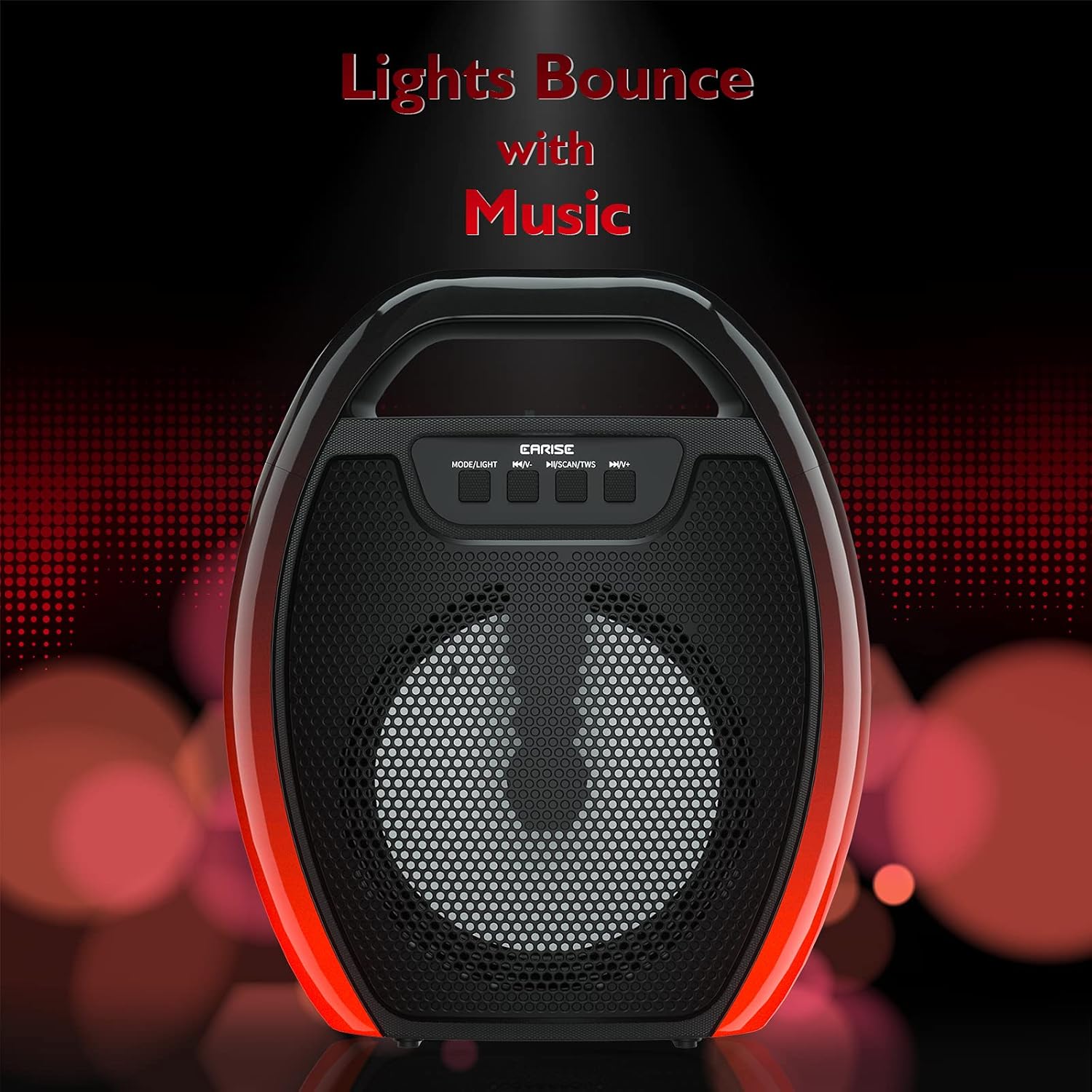
Image 6.1: The speaker displaying its light effects, which can synchronize with music playback.
6.5 Microphone Input
Connect a wired microphone (not included) to the MIC input port for karaoke or public address functions. Adjust the microphone volume using the connected microphone's controls or the speaker's main volume controls.
7. Maintenance
- Cleaning: Use a soft, dry cloth to clean the speaker. Do not use liquid cleaners or aerosols.
- Storage: Store the speaker in a cool, dry place away from direct sunlight and extreme temperatures.
- Battery Care: To prolong battery life, fully charge the speaker before long periods of inactivity and recharge it at least once every three months. Avoid completely draining the battery frequently.
8. Troubleshooting
| Problem | Possible Cause | Solution |
|---|---|---|
| Speaker does not power on. | Low battery; Power button not pressed correctly. | Charge the speaker; Press and hold the Power button for a few seconds. |
| Cannot pair via Bluetooth. | Speaker not in pairing mode; Device Bluetooth off; Speaker too far from device; Already connected to another device. | Ensure speaker is in Bluetooth pairing mode; Turn on Bluetooth on your device; Move device closer to speaker; Disconnect from other devices. |
| No sound. | Volume too low; Incorrect input mode; Device not playing audio. | Increase speaker and device volume; Switch to correct input mode (Bluetooth, AUX, etc.); Ensure audio is playing on your device. |
| TWS pairing fails. | Speakers too far apart; One speaker already paired to a device; Not in TWS pairing mode. | Ensure speakers are close; Disconnect both speakers from any devices; Long press MSCAN/TWS on one speaker to initiate TWS pairing. |
| RGB lights not working. | Lights turned off; Malfunction. | Long press MODE/LIGHT button to cycle through light modes; If issue persists, contact support. |
9. Specifications
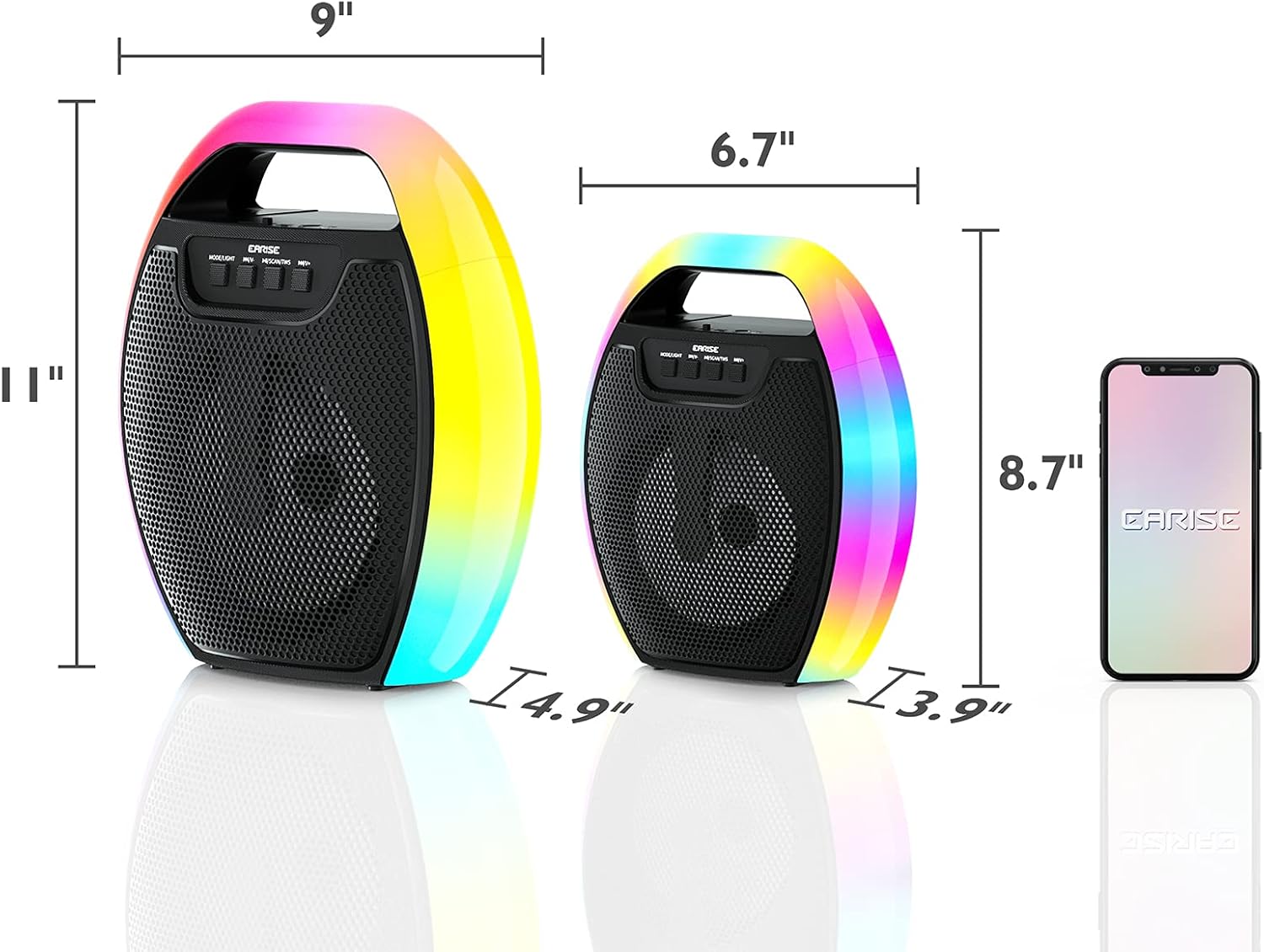
Image 9.1: Product dimensions of the EARISE D61 Plus speaker.
| Feature | Detail |
|---|---|
| Model Name | D61 Plus |
| Brand | EARISE |
| Connectivity Technology | Bluetooth, Auxiliary (3.5mm), USB, TF Card, FM Radio |
| Audio Output Mode | Stereo (with TWS) |
| Speaker Type | Portable Outdoor Speaker |
| Speaker Size | 4 Inches |
| Power Source | Battery Powered |
| Battery Life | Up to 12 Hours (actual playtime varies with volume and light usage) |
| Waterproof | No |
| Product Dimensions | 9 x 5 x 11 inches (L x W x H) |
| Item Weight | 2.28 pounds |
| Special Features | RGB Lights, TWS Pairing, Portable |
10. Warranty and Support
EARISE products are designed and manufactured to the highest quality standards. For information regarding warranty coverage, technical support, or service inquiries, please refer to the warranty card included with your purchase or visit the official EARISE website.
Please retain your proof of purchase for warranty claims.