1. Introduction
This manual provides detailed instructions for the installation, operation, and maintenance of your JouSecu Home Security Camera System. This system includes a Power over Ethernet (PoE) Network Video Recorder (NVR) and 3MP HD IP cameras, designed for reliable 24/7 surveillance.

The system offers easy installation with PoE connectivity, high-definition video capture, motion detection with smart notifications, and remote viewing capabilities via mobile and PC clients. Its IP66 weatherproof cameras ensure reliable performance in various outdoor conditions.

2. What's in the Box
Before beginning installation, please verify that all components listed below are included in your package:
- 1 x 8CH NVR (Network Video Recorder)
- 4 x HD PoE Cameras
- 4 x Network Cables (60ft)
- 1 x 48V/2A Power Supply
- 1 x Mouse
- 1 x Remote Control
- 1 x HDMI Cable (5ft)
- 1 x Network Cable (3ft)
- 4 x Mounting Hole Templates
- 4 x Screw Packs
- 1 x Quick Start Guide
- 1 x Instruction Manual (PDF available online)

For a visual guide on the package contents, please watch the video below:
3. Setup and Installation
The JouSecu PoE system is designed for easy plug-and-play setup, simplifying the installation process. Follow these steps to get your system operational:
3.1 System Connections
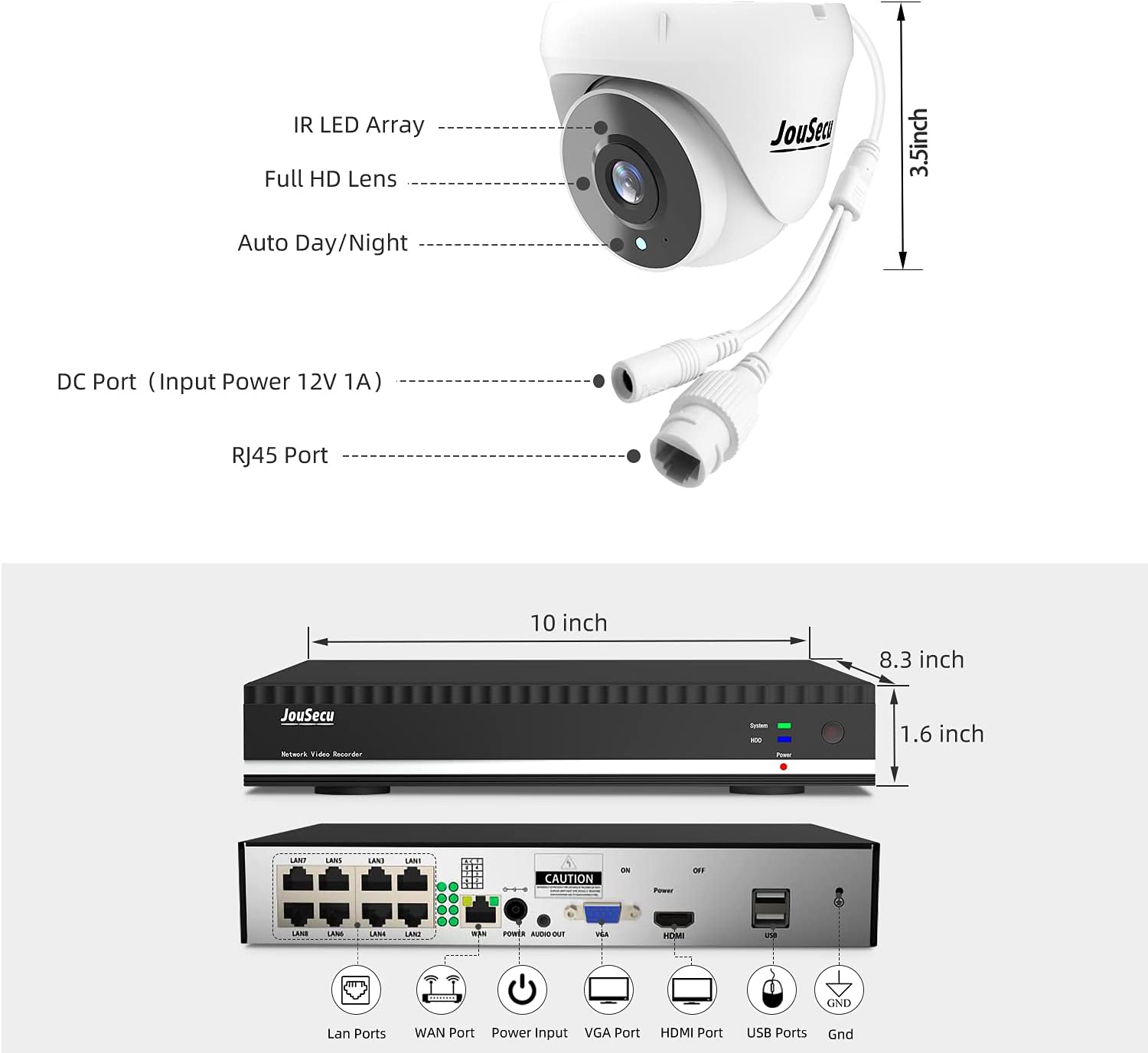
- Connect Cameras to NVR: Connect each PoE IP camera to an available PoE port on the NVR using the provided network cables. The PoE technology supplies both power and video signal through a single cable.
- Connect NVR to Router: Connect the NVR's WAN port to your internet router using a network cable for remote access capabilities.
- Connect NVR to Monitor: Connect the NVR to a monitor or TV using the HDMI cable for local viewing and system configuration.
- Connect USB Mouse: Plug the USB mouse into an available USB port on the NVR for navigation and control.
- Connect Power Adapter: Connect the NVR's power adapter to the NVR and then to a power outlet. The system will power on automatically.

Watch this video for a step-by-step guide on connecting your system:
3.2 Mobile App Setup (Esee Cloud APP)
To enable remote viewing and receive smart notifications, download and configure the Esee Cloud APP on your smartphone:
- Download the App: Scan the QR codes in Figure 3.1 or use the links below to download the Esee Cloud APP for your device:
Android Client Link
iOS Client Link - Add Device: Open the app, register an account if necessary, and select 'Add Smart Device'.
- Scan QR Code: On your NVR's monitor, right-click the mouse, select 'Fast Network', and scan the displayed QR code using the Esee Cloud APP.
- Confirm Device: Once the scanning is successful, confirm the device and give it a name (e.g., 'Office', 'Home').
For a visual demonstration of connecting the NVR to your phone, refer to this video:
4. Operating Features
4.1 Motion Detection and Email Alerts
The POE NVR security camera system allows you to customize surveillance areas and detection plans to minimize false alarms. When motion is detected, smart notifications, including email or snapshot alerts, are pushed to your smartphone through the Esee Cloud APP.

4.2 24/7 Recording
The system supports continuous 24/7 recording, ensuring constant monitoring of your property. The included 1TB HDD provides ample storage for recorded footage.

4.3 Remote View
With the Esee Cloud APP, you can remotely monitor all security cameras on your mobile phone or PC client anytime, anywhere. Features include real-time video preview, recording, synchronized playback, and backup.

4.4 3MP HD Resolution and Night Vision
The cameras utilize a CMOS progressive image sensor and chipset, providing an amazing 3MP (2048P×1536P) HD resolution. Images are clear and delicate, without loss or delay, allowing for real-time observation of details. Automatic infrared cut filter enables night vision up to 60 feet.


5. Maintenance
Regular maintenance ensures the longevity and optimal performance of your security system:
- Clean Cameras: Periodically clean the camera lenses with a soft, damp cloth to remove dust, dirt, or water spots that may obstruct the view.
- Check Cables: Inspect all cable connections (Ethernet, power) for any signs of wear, damage, or loose connections. Secure or replace as needed.
- Firmware Updates: Check the manufacturer's website or the Esee Cloud APP for any available firmware updates for your NVR and cameras. Keeping firmware updated can improve performance and security.
- Hard Drive Health: Monitor the NVR's hard drive health through the system settings to ensure continuous recording.
- Power Supply: Ensure the power supply is in a well-ventilated area and not covered, to prevent overheating.
6. Troubleshooting
If you encounter issues with your JouSecu security camera system, refer to the following common troubleshooting tips:
- No Video Display:
- Ensure the NVR is powered on and connected to the monitor via HDMI.
- Check that all cameras are properly connected to the NVR's PoE ports.
- Verify the power adapter is securely plugged into the NVR and a working outlet.
- No Remote Access:
- Confirm the NVR is connected to your internet router and has an active internet connection.
- Check your router's internet connectivity.
- Ensure the Esee Cloud APP is updated to the latest version and the device is correctly added.
- Motion Detection Not Working / Too Many False Alarms:
- Adjust the motion detection sensitivity settings in the NVR's menu or Esee Cloud APP.
- Define specific detection zones to exclude areas with frequent irrelevant motion (e.g., trees swaying).
- Ensure cameras are clean and free from obstructions.
- Poor Image Quality:
- Clean the camera lens.
- Ensure there are no physical obstructions in the camera's field of view.
- Check the video resolution settings on the NVR.
If these steps do not resolve the issue, please contact JouSecu customer support for further assistance.
7. Specifications
| Feature | Specification |
|---|---|
| Brand | JouSecu |
| Model Number | N1241 |
| Connectivity Technology | Wired (PoE) |
| Video Capture Resolution | 3MP (2048P×1536P), also supports 1080p, 720p, 1944p, 1920p, 960p |
| Special Features | Waterproof (IP66), Night Vision, Motion Sensor |
| Number of Channels | 8 |
| Memory Storage Capacity | 1 TB HDD |
| Power Source | Corded Electric |
| Operating System | Linux |
| Compatible Devices | Smartphones, Cameras |
| Night Vision Range | Up to 60 feet |
| Operating Temperature | 14°F to 122°F (-10°C to 50°C) |
| Recording Mode | 24/7 Recording, Motion detection |
| Optical Sensor Technology | CMOS |
| Hardware Interface | Ethernet |
| NVR Dimensions | Approx. 10 x 8.3 x 1.6 inches |
| Camera Dimensions | Approx. 3.5 inches (length/height for bullet/dome) |
8. Warranty and Support
JouSecu provides a one-year quality warranty for this product. Additionally, lifetime technical support is available to assist you with any questions or issues you may encounter during the use of your security camera system.
For detailed installation instructions and further information, please refer to the official Installation Manual (PDF) available online.
For technical assistance, please contact JouSecu customer support through the contact information provided with your purchase or on the official JouSecu website.