
HEWLETT PACKARD P39122-B21
HPE ProLiant DL385 Gen10 Plus Server User Manual
Model: P39122-B21 | Brand: HEWLETT PACKARD
Introduction
This manual provides essential information for the proper setup, operation, maintenance, and troubleshooting of your HPE ProLiant DL385 Gen10 Plus Server. Please read this manual thoroughly before operating the server to ensure optimal performance and longevity.
Product Overview
The HPE ProLiant DL385 Gen10 Plus Server is a high-performance 2U rack server designed for demanding workloads such as virtualization, High Performance Compute (HPC), and memory-centric applications. It features AMD EPYC processors, DDR4 memory, and PCIe Gen4 capabilities for enhanced processing power and data transfer rates.
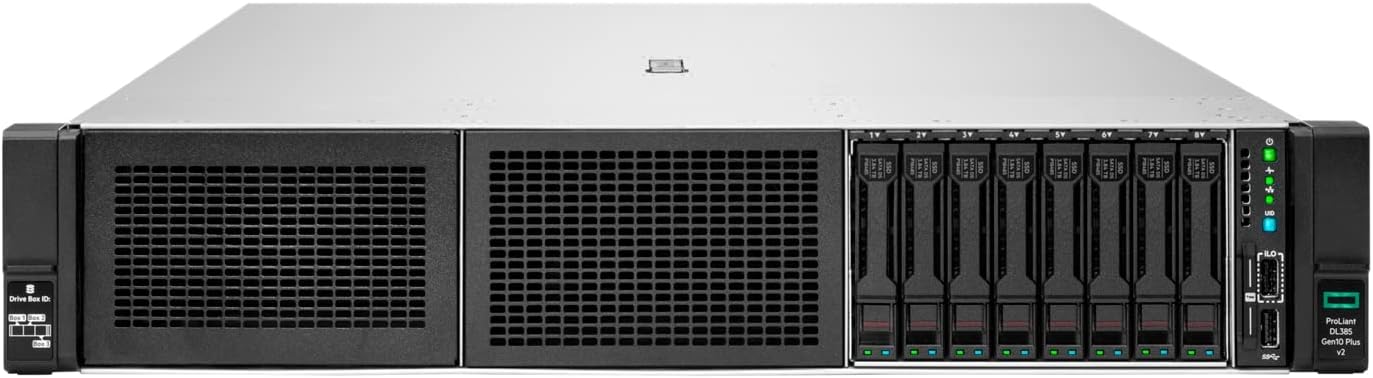
Figure 1: Front view of the HPE ProLiant DL385 Gen10 Plus Server, showing the drive bays and control panel.
Setup
1. Unpacking and Inspection
- Carefully remove the server from its packaging.
- Inspect the server for any visible damage that may have occurred during shipping. Report any damage to your supplier immediately.
- Verify that all components listed in the packing slip are present.
2. Rack Installation
The HPE ProLiant DL385 Gen10 Plus Server is designed for standard 19-inch rack mounting. Ensure the rack has adequate ventilation and power supply capacity.
- Install the rail kit into the rack according to the rail kit instructions.
- Slide the server onto the installed rails until it clicks into place.
- Secure the server to the rack using the provided screws.
3. Connecting Peripherals
- Connect a monitor, keyboard, and mouse to the appropriate ports on the server.
- Connect network cables to the Ethernet ports.
- Connect the power cords from the server's power supplies to a grounded power outlet or PDU.
Operating Instructions
1. Powering On the Server
Press the power button on the front panel of the server. The system will initiate the boot sequence.
2. Initial Configuration
Upon first boot, you may need to access the server's BIOS/UEFI settings or the iLO (Integrated Lights-Out) management interface for initial configuration, including setting up RAID, network settings, and installing an operating system.
- Refer to the HPE iLO documentation for remote management setup.
- Consult your operating system's installation guide for specific installation steps.
3. Drive Bay Operation
The server features 8 Small Form Factor (SFF) drive bays. Drives are hot-swappable, allowing for replacement without powering down the server, provided the RAID configuration supports it.
Figure 2: Detail of the 8 SFF drive bays on the front panel.
To install a drive:
- Ensure the drive carrier is empty or contains the correct drive type.
- Slide the drive carrier into an empty bay until it locks into place.
- Observe the drive status LEDs for proper initialization.
Maintenance
1. Regular Cleaning
- Periodically clean the exterior of the server with a soft, dry cloth.
- Ensure ventilation grilles are free from dust and obstructions to maintain proper airflow.
2. Firmware and Software Updates
Regularly check the HPE support website for the latest firmware updates for the server, iLO, and storage controllers, as well as driver updates for your operating system. Keeping software and firmware up-to-date ensures optimal performance, security, and compatibility.
3. Component Replacement
For component replacement (e.g., memory, processors, power supplies), refer to the detailed service manual available on the HPE support website. Always ensure the server is powered off and disconnected from power sources before performing internal maintenance, unless the component is hot-swappable.
Troubleshooting
| Problem | Possible Cause | Solution |
|---|---|---|
| Server does not power on. | No power, faulty power supply, or power button issue. | Verify power cord connections. Check power supply status LEDs. Test with a known good power supply if available. |
| System hangs during boot. | Incorrect BIOS settings, faulty memory, or storage issue. | Reset BIOS to default settings. Reseat memory modules. Check drive connections and RAID status. |
| Network connectivity issues. | Loose cable, incorrect network settings, or faulty NIC. | Ensure network cables are securely connected. Verify IP configuration. Check network adapter status in OS. |
For more detailed troubleshooting, refer to the HPE ProLiant DL385 Gen10 Plus Server troubleshooting guide available on the official HPE support website.
Specifications
| Component | Detail |
|---|---|
| Model | HPE ProLiant DL385 Gen10 Plus Server (P39122-B21) |
| Processor | AMD EPYC 7313 (16 Core, 2.90 GHz, 128 MB Cache) |
| Memory | 32 GB DDR4 SDRAM (3.20 GHz), expandable up to 4 TB |
| Storage Controller | Smart Array P408i-a (12Gb/s SAS, RAID Supported) |
| Drive Bays | 8 Small Form Factor (SFF) Hot-Swappable Bays |
| Power Supply | 800W Power Supply |
| Expansion Slots | 3 PCI-Express 4.0 slots (x8, x16, x8) |
| Network | 10 Gigabit Ethernet |
| USB Ports | 5 Total USB Ports (USB 3.1 T) |
| Dimensions (LxWxH) | 29.49 x 17.54 x 3.44 inches |
| Weight | 3.87 ounces |
Warranty and Support
This HPE ProLiant DL385 Gen10 Plus Server comes with a standard manufacturer's warranty. For specific warranty terms and conditions, please refer to the documentation included with your server or visit the official HPE support website.
Technical Support
For technical assistance, driver downloads, firmware updates, and additional documentation, please visit the official Hewlett Packard Enterprise (HPE) support portal:
Web: www.hpe.com/support
When contacting support, please have your server's model number (P39122-B21) and serial number readily available.
Related documentsP39122-B21


Ask a question about this manual
Ask about setup, troubleshooting, compatibility, parts, safety, or missing instructions. Manuals+ will review the question and use this page’s manual context to help answer it.