
1. Introduction
The Vanquisher SV-86 is an 8-inch rugged field tablet designed for demanding mobile work environments. This device combines the functionality of Windows 10 Pro with robust construction, making it suitable for outdoor and industrial applications. It is built to withstand challenging conditions, offering IP67 water and dust resistance and MIL-STD-810G compliance for drop survival.
This manual provides essential information for setting up, operating, maintaining, and troubleshooting your Vanquisher SV-86 tablet. Please read it thoroughly to ensure proper use and longevity of your device.
2. Product Features
- Operating System: Windows 10 Pro (32-Bit OS) for full desktop application compatibility.
- Display: 8-inch screen with Corning Gorilla glass for enhanced durability and scratch resistance.
- Rugged Design: IP67 rated for water and dust protection, and MIL-STD-810G compliant for drops up to 1.2 meters.
- Battery Life: Integrated 8500mAH Lithium battery providing up to 10 hours of operation.
- Storage: 64GB Flash Memory, expandable via Micro SD card.
- Connectivity: Bluetooth 4.0, Wi-Fi 802.11a/b/g/n, and support for US 3G & 4G LTE (AT&T, T-Mobile compatible).
- GPS: Built-in U-blox GPS module supporting GPS/GLONASS for positioning without network access.
- Ports: Includes USB, Micro-HDMI, and Micro SD slots.

Image: The Vanquisher SV-86 tablet operating in a wet outdoor setting, highlighting its IP67 waterproof and rugged design for enterprise use.
3. Setup Guide
3.1 Package Contents
Before starting, ensure all items are present in the package:
- Vanquisher SV-86 Rugged Tablet
- Screen Protector
- Hand Strap
- US Standard Wall Charger
- USB Cable
- OTG Cable
3.2 Initial Charging
Before first use, fully charge the tablet. Connect the USB cable to the tablet's charging port and the wall charger, then plug the charger into a power outlet. The charging indicator will illuminate.
3.3 Powering On/Off
- To Power On: Press and hold the power button located on the top edge of the tablet until the screen illuminates.
- To Power Off: Access the Windows Start Menu, select "Power," and then "Shut down." Alternatively, press and hold the power button, then slide down to shut down.

Image: Top edge of the tablet displaying the power button, volume controls, and a function button.
3.4 Inserting SIM Card and Micro SD Card
The tablet supports 4G LTE connectivity and expandable storage via Micro SD. Locate the sealed port covers on the side of the tablet. Carefully open the appropriate cover to insert your SIM card or Micro SD card. Ensure the covers are securely closed after insertion to maintain IP67 rating.
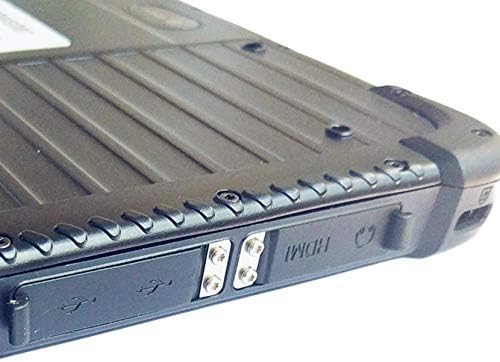
Image: Side view of the tablet with protective covers over the USB and HDMI ports. Similar covers protect the SIM and Micro SD card slots.
4. Operating Instructions
4.1 Windows 10 Pro Interface
The tablet runs Windows 10 Pro, offering a familiar desktop experience. Navigate using the touchscreen, or connect a USB mouse/keyboard for traditional input. The Start Menu provides access to applications, settings, and power options.
4.2 Connectivity (Wi-Fi, 4G LTE, Bluetooth)
- Wi-Fi: To connect to a Wi-Fi network, open the Action Center (swipe in from the right edge or click the icon in the taskbar), select "Network," and choose your desired network.
- 4G LTE: If a valid SIM card is inserted and activated, cellular data will automatically connect. Manage cellular settings via Windows Settings > Network & Internet > Cellular.
- Bluetooth: Enable Bluetooth in Windows Settings > Devices > Bluetooth & other devices to pair with compatible accessories.
4.3 GPS Functionality
The integrated U-blox GPS module allows for accurate positioning even without an internet connection. Ensure location services are enabled in Windows Settings > Privacy > Location. Compatible mapping or GIS applications can utilize this feature for navigation and data collection.
4.4 Using the Hand Strap
Attach the included hand strap to the designated points on the back of the tablet for secure, comfortable one-handed operation, especially useful in field environments.
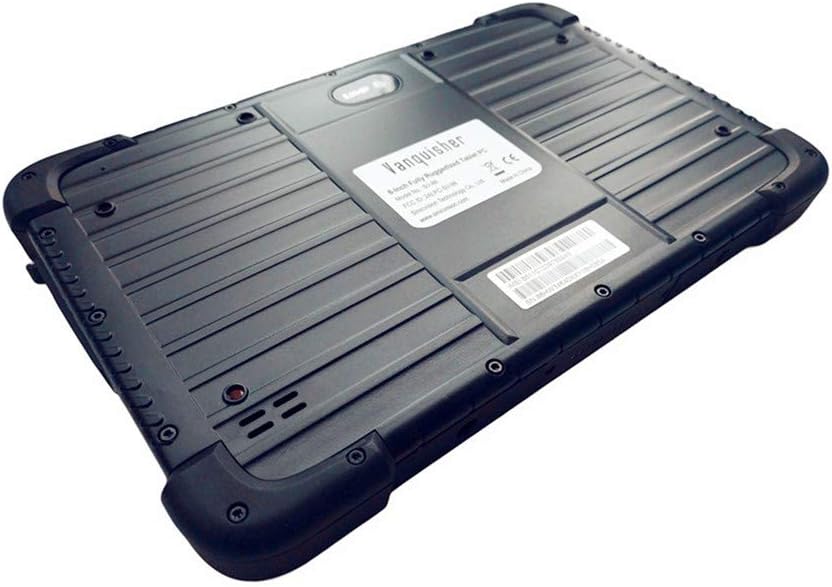
Image: Rear view of the tablet, illustrating the robust casing and areas for hand strap attachment.
5. Maintenance
5.1 Cleaning the Tablet
To clean the screen and body, use a soft, damp cloth. For stubborn dirt, a mild, non-abrasive cleaning solution can be applied to the cloth (not directly to the tablet). Ensure all port covers are securely closed before cleaning with moisture.
5.2 Protecting the Device
- Always ensure port covers are sealed when not in use to maintain IP67 water and dust resistance.
- Avoid exposing the tablet to extreme temperatures or direct sunlight for prolonged periods.
- While rugged, avoid unnecessary drops or impacts to prolong the device's lifespan.
5.3 Battery Care
For optimal battery life, avoid fully discharging the battery frequently. Charge the tablet regularly, and if storing for an extended period, ensure it has at least a 50% charge.
6. Troubleshooting
6.1 Tablet Does Not Power On
- Ensure the tablet is sufficiently charged. Connect it to the charger and wait a few minutes before attempting to power on again.
- Press and hold the power button for 10-15 seconds to perform a hard reset.
6.2 Slow Performance
- Close unnecessary applications running in the background.
- Check for available Windows updates and install them.
- Ensure sufficient free storage space. Uninstall unused programs or move large files to external storage.
- Restart the tablet.
6.3 Connectivity Issues (Wi-Fi/4G LTE)
- Wi-Fi: Restart your Wi-Fi router. Forget and reconnect to the network on the tablet.
- 4G LTE: Ensure your SIM card is correctly inserted and activated with your carrier. Check cellular data settings in Windows.
- Toggle Airplane Mode on and off to reset network connections.
7. Specifications
| Feature | Detail |
|---|---|
| Brand | Vanquisher |
| Model Number | SV-86 |
| Operating System | Windows 10 Professional |
| Screen Size | 8 Inches |
| Native Resolution | 1280x800 |
| Memory Storage Capacity | 64 GB |
| RAM Memory Installed | 2 GB |
| Processor | Intel Atom, 1.8 GHz |
| Graphics Coprocessor | Intel® HD Graphics |
| Battery Capacity | 8500 mAh (31.45 Watt Hours) |
| Average Battery Life | 8-10 Hours |
| Connectivity | Bluetooth 4.0, Wi-Fi (802.11a/b/g/n), 4G LTE, HDMI, USB |
| Waterproof Rating | IP67 |
| Drop Resistance | MIL-STD-810G compliant (1.2 meters) |
| Item Weight | 630 Grams |
| Dimensions (L x W x Thickness) | 8.98"L x 5.79"W x 0.65"Th |

Image: Bottom edge of the tablet featuring a multi-pin connector, typically used for docking or specialized charging accessories.

Image: The tablet shown with an optional docking station. Please note that the docking station is not included with the standard package.
8. Warranty and Support
The Vanquisher SV-86 tablet comes with a one-year warranty from the date of purchase. This warranty covers manufacturing defects under normal use. It does not cover damage caused by misuse, accidents, unauthorized modifications, or natural disasters.
For technical support, warranty claims, or service inquiries, please contact Vanquisher customer service through their official website or the retailer where the product was purchased. Please have your model number (SV-86) and proof of purchase ready when contacting support.