
1. Introduction and Overview
The Autel Maxisys MS919 is a state-of-the-art intelligent diagnostic scan tool, offering advanced functionalities comparable to the MS Ultra. Designed for professional automotive workshops, it integrates a 5-in-1 VCMI (Vehicle Communication and Measurement Interface) for comprehensive diagnostics, ECU programming and coding, and over 40 special reset functions. This manual provides detailed instructions for setup, operation, maintenance, and troubleshooting to ensure optimal performance of your MS919 scanner.
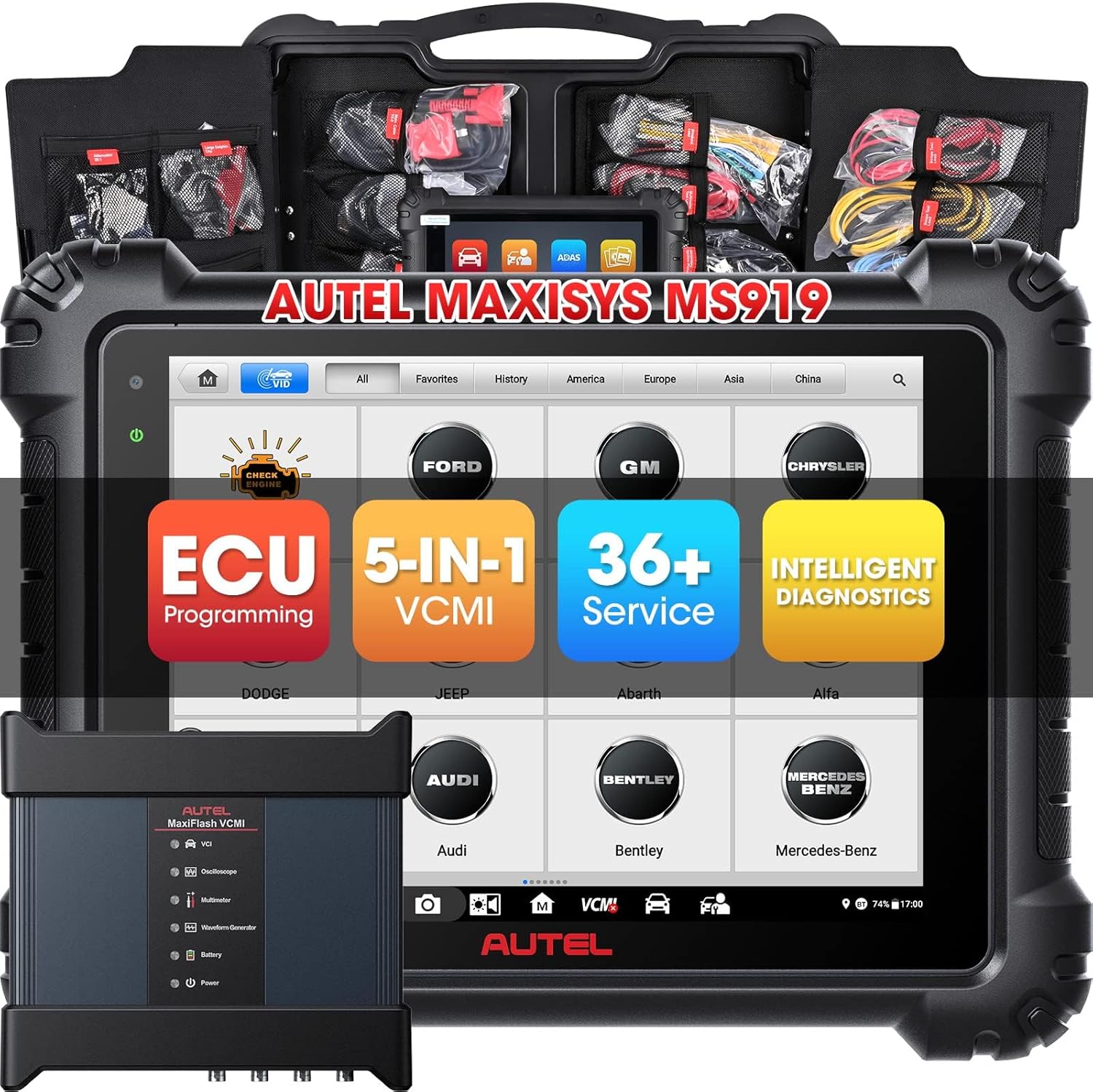
Figure 1: Autel Maxisys MS919 Scanner and included components.
2. Setup and Initial Connection
Before using your Autel Maxisys MS919, ensure all components are properly connected and the device is charged. The VCMI unit is central to communication and measurement functions.
2.1 VCMI Connection
Connect the VCMI unit to the vehicle's OBDII port. For optimal speed and functionality, especially when utilizing oscilloscope features, ensure the MS919 tablet is connected to the VCMI via Wi-Fi. The device includes specialized pin-out connectors for in-line testing of circuits without damaging wiring.

Figure 2: The 5-in-1 MaxiFlash VCMI unit.
3. Operating the Maxisys MS919
The MS919 offers a wide array of diagnostic and service functions. Below are key operational aspects:
3.1 Intelligent Diagnostics & Topology Mapping 2.0
The Intelligent Diagnostics feature streamlines the diagnostic process by consolidating fault codes, providing repair assistance, and offering related tips and videos. The Topology Module 2.0 visually displays the communication structure between vehicle modules, allowing for quick identification of fault codes and system access.

Figure 3: Intelligent Diagnostic workflow.
3.2 ECU Programming and Coding
The MS919 supports advanced ECU coding and programming for a wide range of vehicles, including Mercedes-Benz, BMW, VW, Audi, Porsche, Renault, Toyota, Nissan, Peugeot, and Citroën. This includes program rewriting, ECU upgrading/downgrading, and module matching/replacement. It supports D-PDU, J2534, and RP1210 interface standards, along with DOIP CANFD for newer models.

Figure 4: ECU Programming & Coding capabilities.
3.3 5-in-1 VCMI Functions
The MaxiFlash VCMI unit integrates multiple diagnostic tools:
- Oscilloscope: For detailed waveform analysis of electrical signals.
- Waveform Generator: To simulate signals for testing components.
- Multimeter: For measuring voltage, current, and resistance.
- CAN BUS Tester: To check CAN BUS communication.
- VCI (Vehicle Communication Interface): For vehicle communication via OBDII.
3.4 Special Functions
The MS919 provides over 40 special functions for various maintenance and repair tasks, including but not limited to:
- Oil Reset
- EPB (Electronic Parking Brake) Reset
- TPMS (Tire Pressure Monitoring System) Reset
- BMS (Battery Management System) Service
- ABS (Anti-lock Braking System) Bleeding
- Injector Coding
- SAS (Steering Angle Sensor) Calibration
- Throttle Adaptation
- Gearbox Matching
- SRS (Supplemental Restraint System)

Figure 5: Advanced features for professionals.
3.5 Additional Advanced Features
- Active Test: Bi-directional control to test vehicle components.
- Auto Scan 2.0: Faster full module scanning.
- Guided Function for VAG: Streamlined diagnostics for Volkswagen and Audi vehicles.
- Remote Expert: One-click remote diagnosis for professional support.
- Live Data Fusion: Combines data from different systems for comprehensive analysis.
- Battery Test: (with BT506 accessory) Performs starter cranking, generator, and battery health tests.
- Demonstration APP: Simulates repair processes for learning.
- DTCs Priority Ranking: Prioritizes fault codes based on severity.
- McLaren & Tesla Diagnose: Supports diagnostics for new energy vehicles.
- Autel Cloud Diagnostic Report: Upload and share diagnostic reports via QR code, SMS, or email.
- MV108s/MV105s Compatibility: (with endoscope accessories) Provides clear views of internal vehicle conditions.
- WIFI Print: Print pre & post scan diagnostic reports wirelessly.
Video 1: Demonstration of using bi-directional controls and oscilloscope functions on the Autel Maxisys MS919.
4. Maintenance
To ensure the longevity and optimal performance of your Autel Maxisys MS919, regular maintenance is recommended:
- Software Updates: Keep your device's software updated to access the latest vehicle coverage and functions. Autel provides 1-year of free updates.
- Physical Care: Keep the tablet and VCMI unit clean and free from dust and debris. Store in a safe, dry place when not in use.
- Battery Care: Follow recommended charging practices to maintain battery health.
5. Troubleshooting
If you encounter issues with your MS919, consider the following general troubleshooting steps:
- Communication Issues: Verify all cables are securely connected. Ensure the VCMI is properly connected to the vehicle's OBDII port and the tablet is connected to the VCMI via Wi-Fi.
- Software Glitches: Perform a software update. If the issue persists, consider a factory reset (back up data first).
- Component Testing: Utilize the integrated oscilloscope and multimeter functions of the VCMI to diagnose electrical issues in vehicle components. Refer to the video demonstration in Section 3.5 for guidance on using these tools.
- Refer to DTCs: Use the Intelligent Diagnostics feature to analyze Diagnostic Trouble Codes (DTCs) and follow the recommended repair assistance information.
For persistent issues, refer to the detailed troubleshooting section in the full product manual or contact Autel customer support.
6. Specifications
| Feature | Detail |
|---|---|
| Manufacturer | Autel |
| Item Weight | 12.19 pounds |
| Package Dimensions | 26.25 x 17.75 x 7.75 inches |
| Item Model Number | Autel-MS919-US |
| Batteries | 1 Lithium Polymer batteries required |
| Operating System | Android 7.0 |
7. Warranty and Support
Your Autel Maxisys MS919 comes with a 1-year quality assurance. Enjoy 1-year of no-fee software updates and 30 days of no-fee refund. Lifetime technical support is provided by Autel. For any inquiries or assistance, please contact Autel customer support.