1. Product Overview
The CHESONA Wireless Keyboard and Mouse Combo offers a versatile and efficient solution for your computing needs. Featuring multi-device connectivity via Bluetooth (5.0 + 3.0) and 2.4G wireless, this full-size combo is designed for seamless switching between up to three devices, including Mac OS, iOS, Windows, and Android systems. Its ultra-thin design, low-profile scissor-switch keys, and rechargeable battery ensure a comfortable and productive user experience.

Image: The CHESONA wireless keyboard and mouse combo, showcasing the integrated slot for holding a smartphone or tablet.
2. What's in the Box
- 1 x Wireless Keyboard
- 1 x Wireless Mouse
- 1 x Type-C Charging Cable
- 1 x Keyboard Cover
- 1 x 2.4G USB Receiver (stored on the bottom of the keyboard)
- 1 x User Manual

Image: A visual representation of all items included in the product package: keyboard, mouse, 2.4G receiver, charging cable, keyboard cover, and user manual.
3. Setup Guide
3.1 Charging the Devices
The keyboard and mouse are equipped with built-in rechargeable 280mAh lithium batteries. Before first use, or when the battery indicator is low, connect the included Type-C charging cable to the respective charging ports on the keyboard and mouse, and then to a USB power source. A full charge provides approximately 50 hours of continuous work and 200 hours of standby time.

Image: The keyboard and mouse connected to a Type-C charging cable, illustrating the recharging process.
3.2 Connecting via 2.4G Wireless
For 2.4G wireless connection, locate the USB receiver stored on the bottom of the keyboard. Plug this receiver into an available USB port on your computer or device. The keyboard and mouse will automatically connect. No additional software or drivers are required.

Image: The keyboard and mouse with a visual representation of the 2.4G wireless connection, highlighting the USB receiver.
3.3 Connecting via Bluetooth (BT 5.0 + 3.0)
The combo supports connection to up to two Bluetooth devices simultaneously. To connect:
- Turn on the keyboard and mouse.
- Press the BT 1 or BT 2 button on the keyboard to select a Bluetooth channel. The indicator light will flash.
- On your device (Mac, iPad, iPhone, Android, Windows PC), go to Bluetooth settings and search for "CHESONA Keyboard" or "CHESONA Mouse".
- Select the device to pair. Once paired, the indicator light will stop flashing.
- Repeat for a second Bluetooth device using the other BT channel.

Image: Close-up of the keyboard and mouse, illustrating the 2.4G, BT1, and BT2 connection buttons for multi-device pairing.
Compatibility: Compatible with Mac OS/iOS 10.12 or above, Windows 8/10 or above, Android 4.3 or above.
4. Operating Instructions
4.1 Switching Between Devices
To switch between connected devices, simply press the corresponding button on the keyboard:
- Press 2.4G button for the device connected via USB receiver.
- Press BT 1 button for the first Bluetooth device.
- Press BT 2 button for the second Bluetooth device.

Image: The keyboard displaying its multi-device compatibility with icons for Windows, Mac, Android, and iOS operating systems.
4.2 Power Saving Mode
To conserve battery life, the keyboard and mouse will automatically enter sleep mode if not used for more than 30 minutes. To wake them up, simply press any key on the keyboard or move the mouse.
4.3 Keyboard Features
The keyboard features low-profile keys with a scissor mechanism, providing increased stability, silent operation, and quick rebound for comfortable and precise typing. It includes a full-size layout with a numeric keypad for enhanced productivity.

Image: A close-up view of the keyboard's low-profile keys, highlighting their design for quiet and responsive typing.
4.4 Integrated Device Slot
The keyboard includes an integrated slot designed to hold your smartphone or tablet, providing a convenient viewing angle while you work or type.

Image: A smartphone securely placed in the integrated slot of the keyboard, demonstrating its utility.
5. Maintenance
To ensure the longevity and optimal performance of your CHESONA Wireless Keyboard and Mouse Combo, follow these maintenance guidelines:
- Cleaning: Use a soft, dry cloth to wipe down the surfaces of the keyboard and mouse. For stubborn dirt, a slightly damp cloth can be used, ensuring no moisture enters the device.
- Keyboard Cover: The included keyboard cover is waterproof and stain-resistant, providing protection against spills and dust. Regularly clean the cover with mild soap and water, and ensure it is completely dry before placing it back on the keyboard.
- Storage: When not in use for extended periods, store the devices in a cool, dry place away from direct sunlight and extreme temperatures.

Image: The CHESONA keyboard with its transparent, waterproof, and stain-resistant cover being applied, demonstrating protection against spills.
6. Troubleshooting
If you encounter any issues with your CHESONA Wireless Keyboard and Mouse Combo, please refer to the following common solutions:
- Connection Issues:
- Ensure both the keyboard and mouse are fully charged.
- For 2.4G connection, verify the USB receiver is securely plugged into a working USB port. Try a different USB port.
- For Bluetooth connection, ensure Bluetooth is enabled on your device and the keyboard/mouse are in pairing mode (indicator light flashing). Try unpairing and re-pairing the devices.
- Ensure the devices are within the 33-foot operating range.
- Input Delay or Unresponsiveness:
- Check battery levels and recharge if necessary.
- Move closer to your device to reduce potential interference.
- If using 2.4G, try plugging the USB receiver into a different USB port.
- If using Bluetooth, try disconnecting and reconnecting the Bluetooth pairing.
- Keyboard/Mouse Not Turning On:
- Ensure the power switch on both devices is in the "ON" position.
- Connect the charging cable to confirm if the battery is completely depleted.
If problems persist, please contact CHESONA customer support for further assistance.
7. Specifications
| Feature | Detail |
|---|---|
| Product Dimensions | 16.93 x 5.31 x 0.31 inches |
| Item Weight | 1.31 pounds |
| Batteries | 1 Lithium Ion batteries required (included) |
| Brand | CHESONA |
| Color | Black |
| Connectivity Technology | Wireless (BT 5.0+3.0+2.4G) |
| Special Feature | Rechargeable |
| Compatible Devices | Laptop, Personal Computer, Smartphone, iPad |
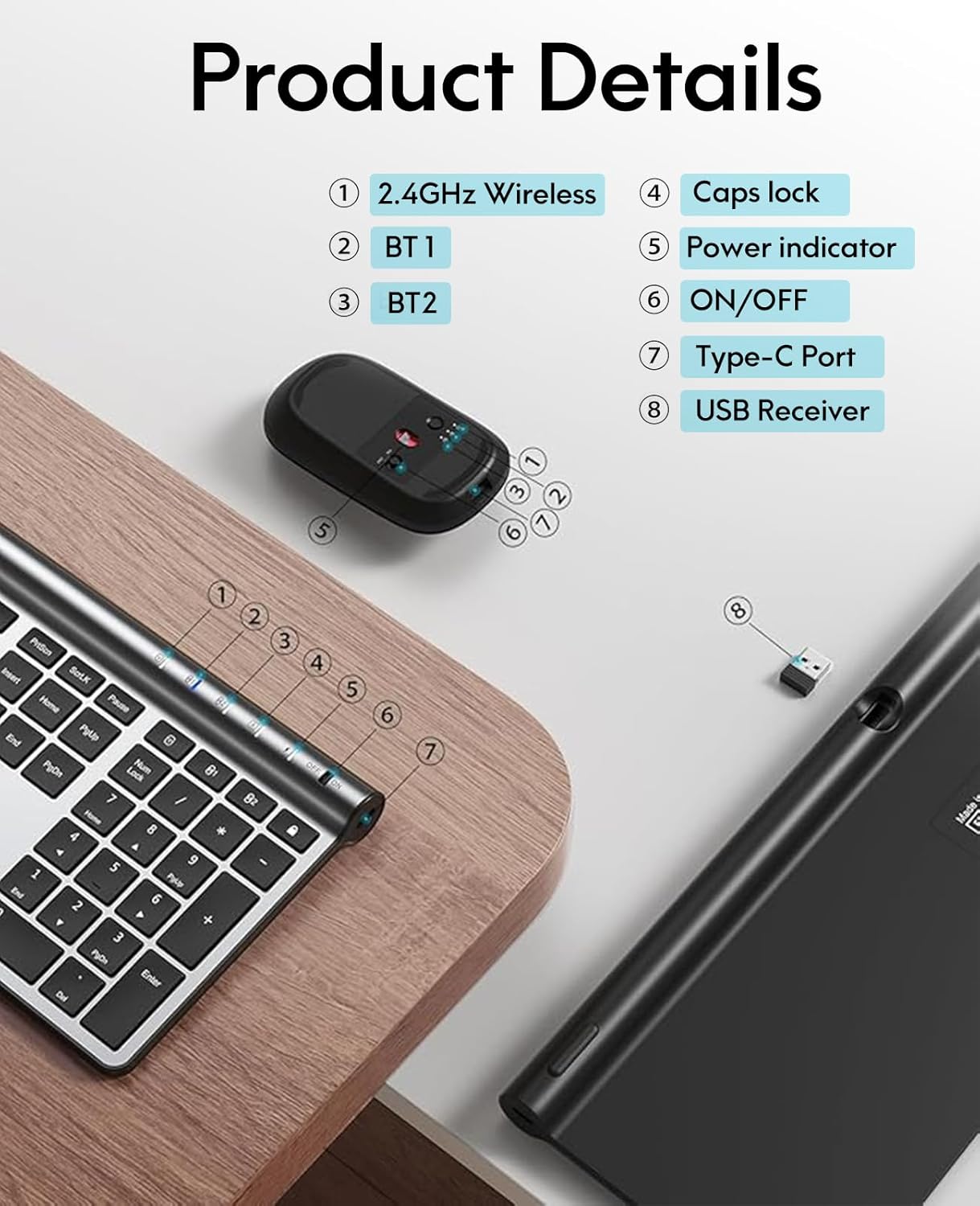
Image: Detailed diagram illustrating the various components and features of the CHESONA keyboard and mouse.
8. Warranty and Support
CHESONA products are designed for reliability and performance. For any warranty claims, technical support, or product inquiries, please contact CHESONA customer service through the retailer where you purchased the product or visit the official CHESONA store online.


