
Introduction
Welcome to the instruction manual for your MOKiN 18-in-1 USB C Docking Station. This manual provides detailed information on setting up, operating, maintaining, and troubleshooting your device. Please read this manual thoroughly before using the docking station to ensure optimal performance and safety.
Important Safety Information
- Do not expose the device to water, moisture, or extreme temperatures.
- Ensure proper ventilation around the docking station to prevent overheating.
- Use only the specified power adapter and cables provided or recommended by MOKiN.
- Avoid dropping or subjecting the device to strong impacts.
- Keep out of reach of children.
Package Contents
Please check the package for the following items:
- MOKiN 18-in-1 USB C Docking Station
- USB-C to USB-C Cables (quantity may vary, typically two are included for full functionality)
- User Manual (this document)
Product Overview
The MOKiN 18-in-1 USB C Docking Station expands your laptop's connectivity with a wide array of ports and an integrated SSD enclosure.

Image: MOKiN 18-in-1 USB C Docking Station from a front-side view, highlighting its compact design and the two included USB-C to USB-C cables. The docking station is dark gray with a black top panel.

Image: This diagram illustrates the various ports on the MOKiN 18-in-1 USB C Docking Station. On the left side, it shows the 3.5mm Audio/Mic port, USB-C (5Gbps), SD/Micro SD Slot, and 3x USB 3.0 ports. The right side details HOST 2, HOST 1, HDMI 1, HDMI 2, HDMI 3, VGA, Ethernet, and Power (100W) ports. The top panel indicates the SSD Enclosure.
Setup
Follow these steps to set up your MOKiN docking station:
- Connect Power: Connect a compatible USB-C power adapter (not included, but required for full functionality and charging) to the 'Power' port on the docking station.
- Connect to Host Device: Use the provided USB-C cables to connect the 'HOST 1' and 'HOST 2' ports on the docking station to your laptop's USB-C ports. For optimal performance and multi-display support, especially on macOS or for quadruple display on Windows, it is recommended to connect both host cables. If your laptop has only one USB-C port, connect it to the 'HOST 2' port for broader port functionality.
- Connect Peripherals: Plug your monitors, USB devices, Ethernet cable, and audio devices into the corresponding ports on the docking station.
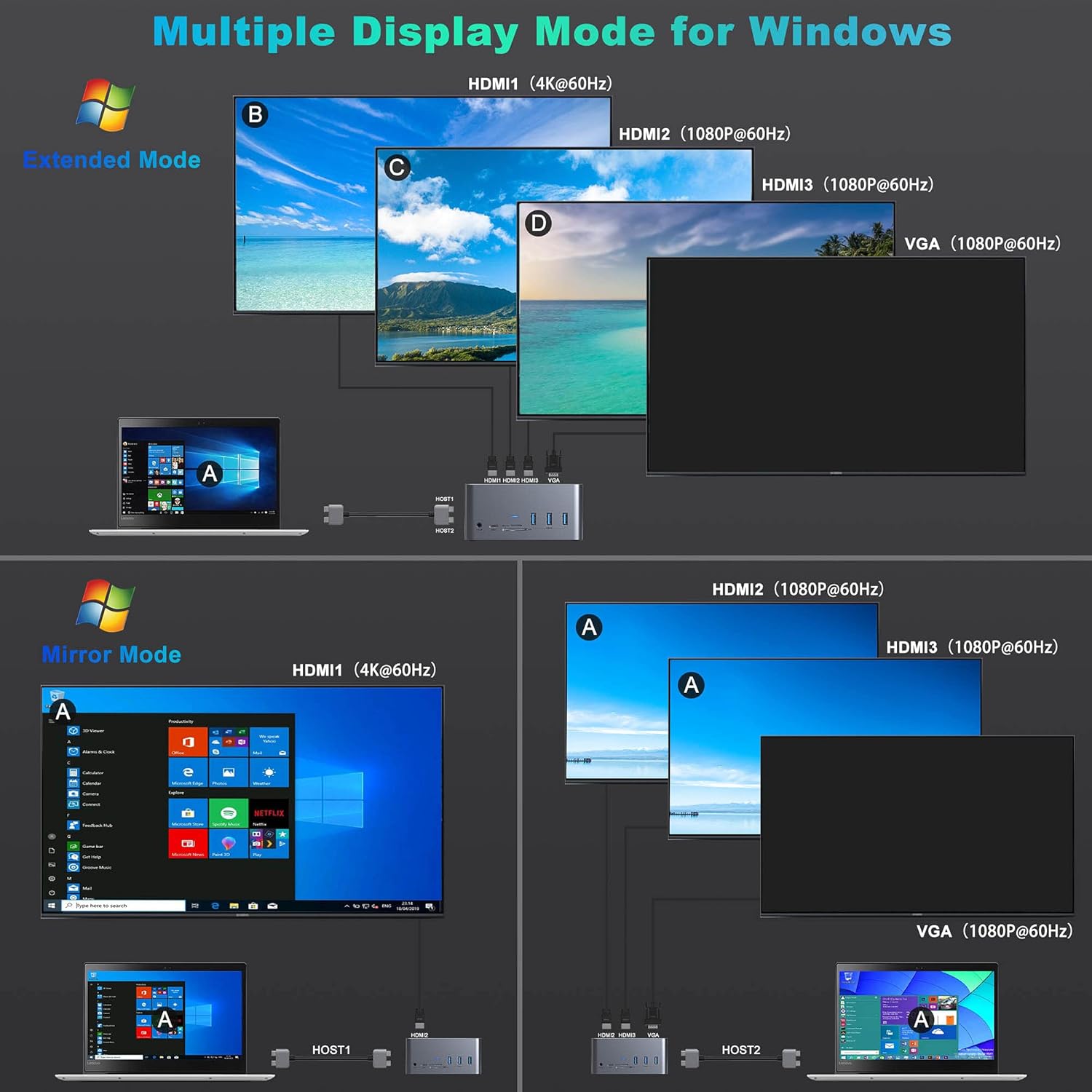
Image: The MOKiN docking station in use, connected to a laptop. Multiple external monitors are displayed, demonstrating the multi-display capability. Various peripherals like a mouse and keyboard are also connected, illustrating the expanded connectivity options.
Operating Instructions
Display Configuration
The docking station supports multiple display outputs via its HDMI and VGA ports. Ensure your host device's USB-C port supports DisplayPort Alternate Mode (DP Alt Mode).
Windows Systems
For Windows, the docking station supports up to quadruple display in extended mode. You can configure your displays through your operating system's display settings.

Image: This diagram shows how to configure multiple displays on a Windows system using the MOKiN docking station. It illustrates both Extended Mode, where the laptop screen (A) and three external monitors (B, C, D) show different content, and Mirror Mode, where the laptop screen (A) is duplicated on external monitors.
macOS Systems
For macOS, the docking station supports up to triple display in extended mode. Display settings can be adjusted in System Preferences.
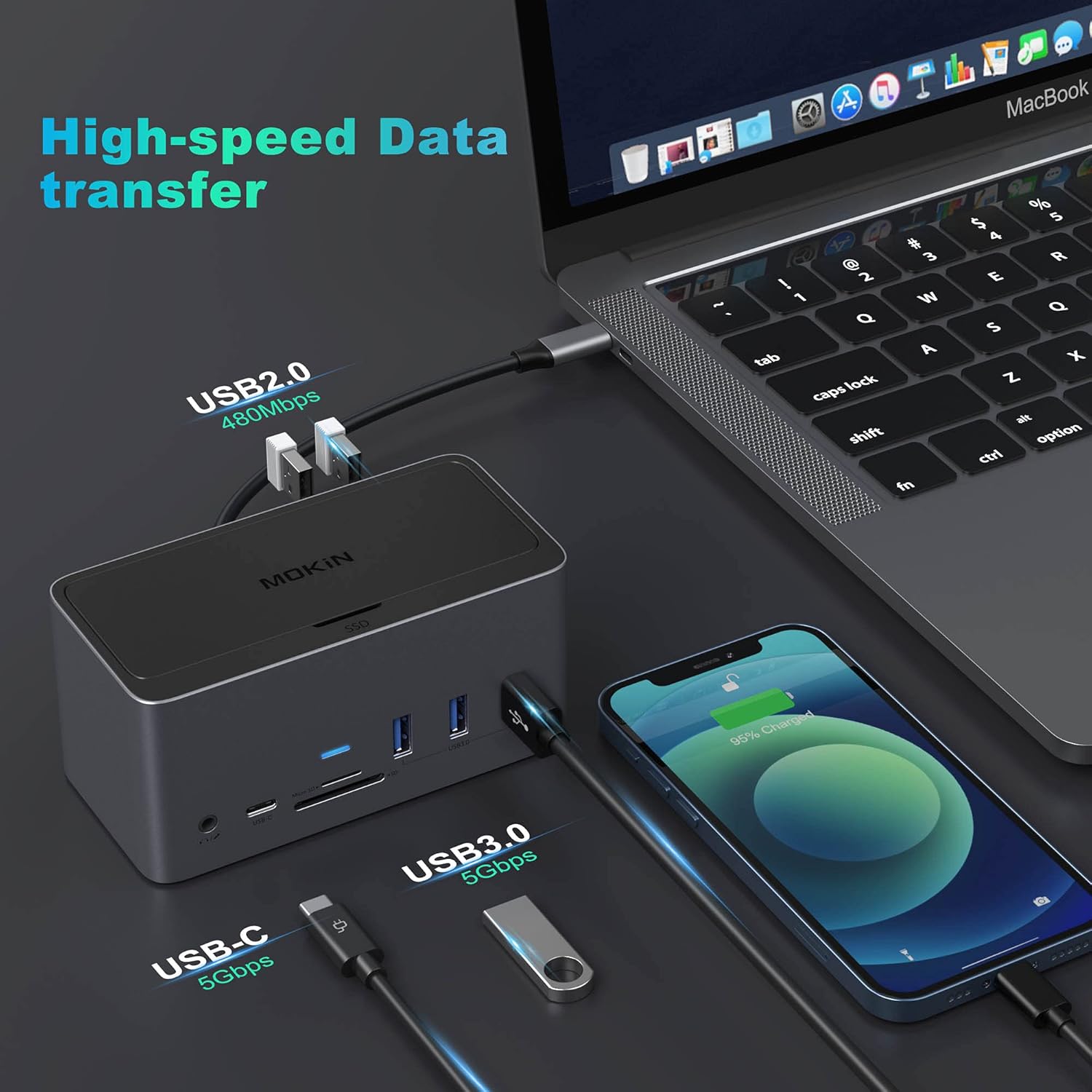
Image: This diagram shows how to configure multiple displays on a macOS system using the MOKiN docking station. It illustrates both Extended Mode, where the laptop screen (A) and three external monitors (B, C, D) show different content, and Mirror Mode, where the laptop screen (A) is duplicated on external monitors.
Resolution Notes: HDMI1 and HDMI2 support resolutions up to 4K@60Hz. HDMI3 supports up to 4K@30Hz. The VGA port supports up to 1080p@60Hz. DP 1.4 supports 4K@60Hz, while DP 1.2 supports 4K@30Hz.
SSD Enclosure Installation
The docking station features an M.2 SSD enclosure for additional storage (SSD not included).
- Gently slide open the SSD enclosure cover on the top of the docking station.
- Insert a compatible M.2 SATA 3.0 NGFF SSD (B key or B&M key only) into the slot. Ensure the SSD is properly seated.
- Secure the SSD with the provided screw (if applicable).
- Close the enclosure cover.
Note: Only M.2 SATA 3.0 NGFF SSDs with B key or B&M key are supported, up to 2TB capacity. M key NVMe SSDs are not compatible.

Image: This image details the M.2 SATA SSD enclosure within the MOKiN docking station. It specifies compatibility with B key and B&M key NGFF SSDs, not M key, and supports capacities up to 2TB. Various SSD lengths (22*30, 22*42, 22*60, 22*80) are also indicated.
Power Delivery (PD)
The POWER port supports up to 100W Power Delivery, allowing you to charge your laptop while using the docking station. Ensure your power adapter is capable of delivering sufficient wattage.

Image: The MOKiN docking station connected to a laptop via a USB-C cable, illustrating its 100W Power Delivery capability. The laptop screen displays a charging indicator, confirming power input from the docking station.
Data Transfer
The docking station offers various USB ports for data transfer:
- USB 3.0 Ports (3x): Up to 5Gbps transfer speed.
- USB 2.0 Ports (2x): Up to 480Mbps transfer speed, suitable for wireless device receivers to avoid signal interference.
- USB-C Port (1x): Up to 5Gbps transfer speed.
- SD/TF Card Slots: Up to 104Mbps transfer speed for easy access to files from SD and Micro SD cards.
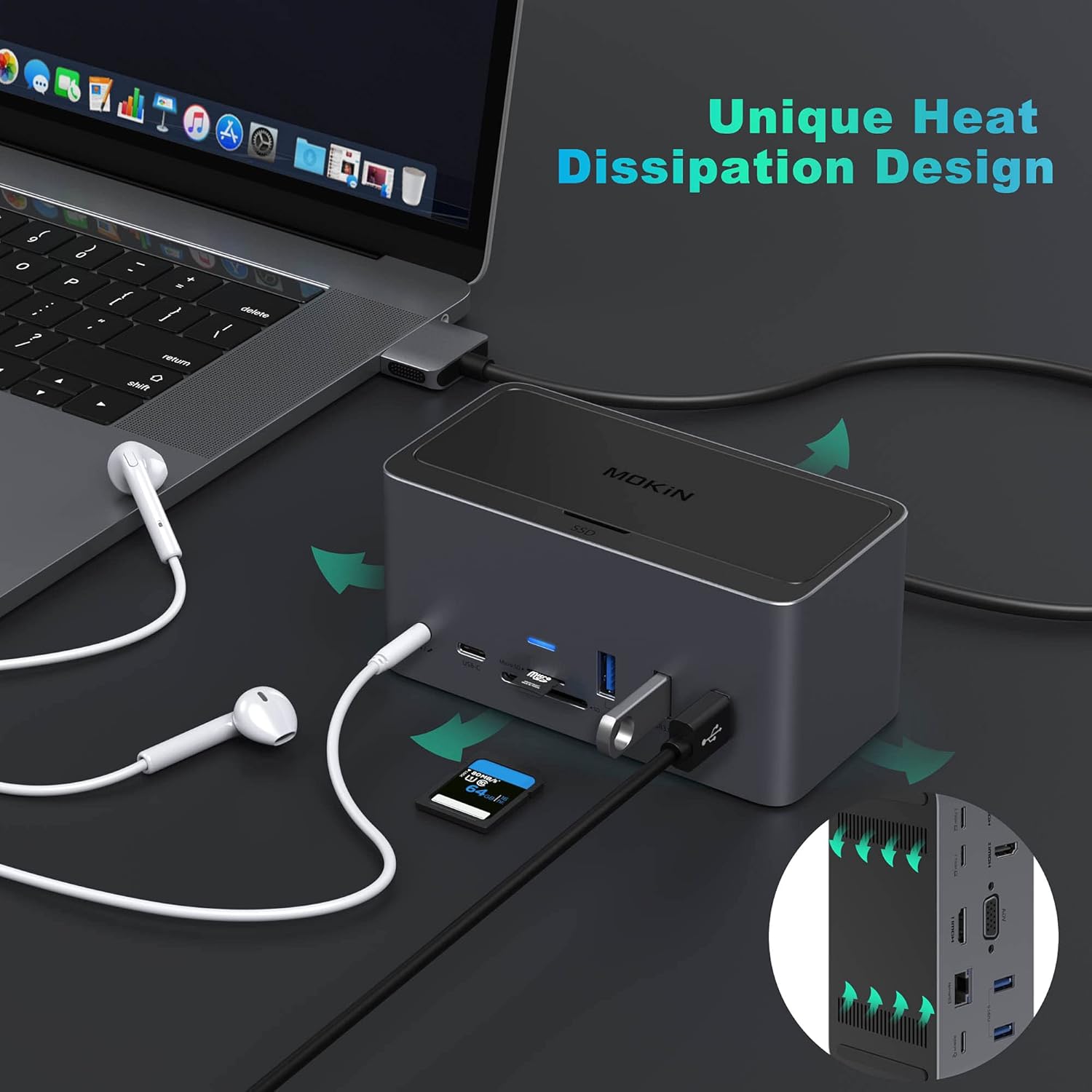
Image: This image highlights the data transfer capabilities of the MOKiN docking station. It shows a USB-C cable, a USB 3.0 flash drive, and a USB 2.0 device connected, with labels indicating transfer speeds of 5Gbps for USB-C and USB 3.0, and 480Mbps for USB 2.0.
Audio Connectivity
Connect your headphones or speakers to the 3.5mm Audio/Mic port for audio output and microphone input.

Image: This image shows a pair of wired headphones connected to the 3.5mm audio/mic port on the MOKiN docking station, indicating its audio input/output functionality.
Ethernet Connection
The RJ45 Ethernet port provides a stable and fast wired network connection, supporting 10/100/1000Mbps speeds.
Compatibility
The MOKiN 18-in-1 docking station is compatible with laptops and smart devices featuring a USB-C port that supports DisplayPort Alternate Mode (DP Alt Mode). No specific drivers are typically needed for basic functionality.
Examples of compatible devices include:
- Dell XPS 13/15
- Lenovo ThinkPad X1
- Dell Latitude/Precision
- HP EliteBook 745 G5
- Surface Pro 7, Surface Book 2
- MSI GS65 / GS75
- 2019 MacBook Pro (16-inch)
- 2018/2019 MacBook Pro (15-inch)
- 2017/2018 MacBook Pro (13-inch)
Important Note: Compatibility may vary depending on your device's USB-C port capabilities. Ensure your laptop's USB-C port supports video output (DP Alt Mode) for display functionality.
Troubleshooting
If you encounter issues, please refer to the following common problems and solutions:
- No Display Output:
- Ensure all HDMI/VGA cables are securely connected.
- Verify your laptop's USB-C port supports DP Alt Mode.
- Confirm the docking station is receiving power.
- For Windows 11, update your graphics card drivers.
- If using a single USB-C cable to your laptop, ensure it is connected to the 'HOST 2' port on the docking station for full display functionality.
- For macOS triple display, ensure both 'HOST 1' and 'HOST 2' ports are connected to your MacBook.
- USB Ports Not Working:
- Check that the docking station is properly connected to your laptop, especially the 'HOST 2' port if using a single cable.
- Ensure the docking station is powered.
- Try connecting the USB device directly to your laptop to rule out device issues.
- SSD Not Recognized:
- Verify that the installed SSD is an M.2 SATA 3.0 NGFF SSD (B key or B&M key). NVMe SSDs are not supported.
- Ensure the SSD is correctly inserted and secured in the enclosure.
- Check Disk Management (Windows) or Disk Utility (macOS) to see if the drive is detected but unformatted.
- Laptop Not Charging:
- Confirm that a power adapter is connected to the docking station's 'Power' port.
- Ensure your power adapter provides sufficient wattage (up to 100W).
- Verify your laptop supports charging via its USB-C port.
- Ethernet Connection Issues:
- Check the Ethernet cable connection to both the docking station and your router/modem.
- Ensure network drivers are up to date on your laptop.
Technical Specifications
| Feature | Specification |
|---|---|
| Model | B097M37WJN |
| Ports | 3x HDMI, 1x VGA, 3x USB 3.0, 2x USB 2.0, 1x USB-C (Data), 1x USB-C (PD In), 1x RJ45 Ethernet, 1x SD Card Slot, 1x TF Card Slot, 1x 3.5mm Audio/Mic |
| Display Output | HDMI1 & HDMI2: Up to 4K@60Hz; HDMI3: Up to 4K@30Hz; VGA: Up to 1080p@60Hz |
| Power Delivery | Up to 100W via USB-C PD port |
| USB Data Transfer | USB 3.0 & USB-C: 5Gbps; USB 2.0: 480Mbps |
| Ethernet | 10/100/1000Mbps Gigabit Ethernet |
| Card Reader | SD/TF (Micro SD) up to 104Mbps |
| SSD Enclosure | M.2 SATA 3.0 NGFF (B key / B&M key), up to 2TB |
| Dimensions | 5.98 x 5.94 x 2.72 inches |
| Weight | 1.26 pounds (0.57 Kilograms) |
| Color | Space Gray |
Care and Maintenance
- Clean the docking station with a soft, dry cloth. Do not use liquid cleaners or aerosols.
- Avoid blocking ventilation openings to ensure proper heat dissipation.
- Store the device in a cool, dry place away from direct sunlight and extreme temperatures.
- Disconnect all cables when the device is not in use for extended periods.
Warranty and Support
MOKiN products are designed for reliability and performance. This product is covered by a manufacturer's warranty. For specific warranty terms, technical support, or customer service inquiries, please refer to the warranty card included with your product or visit the official MOKiN website. Please have your model number (B097M37WJN) and purchase information ready when contacting support.


