
1. Introduction
Thank you for choosing the Volkano VX Gaming Artemis Series 3-in-1 Combo. This set includes a high-performance gaming keyboard, a precision gaming mouse, and a non-slip mousepad, designed to enhance your gaming experience. This manual provides essential information for setting up, operating, maintaining, and troubleshooting your new gaming peripherals.
Key Features:
- Includes a keyboard, mouse, and non-slip mouse pad for a complete gaming setup.
- Artemis keyboard features 12 Keyboard Shortcut Keys and multi-coloured lighting.
- High-definition 3200 DPI mouse with rainbow color illumination, DPI switch, scroll wheel, and 6 buttons for precision and speed.
- Multicolor Lighting and 12 multimedia keys enhance the gaming experience.
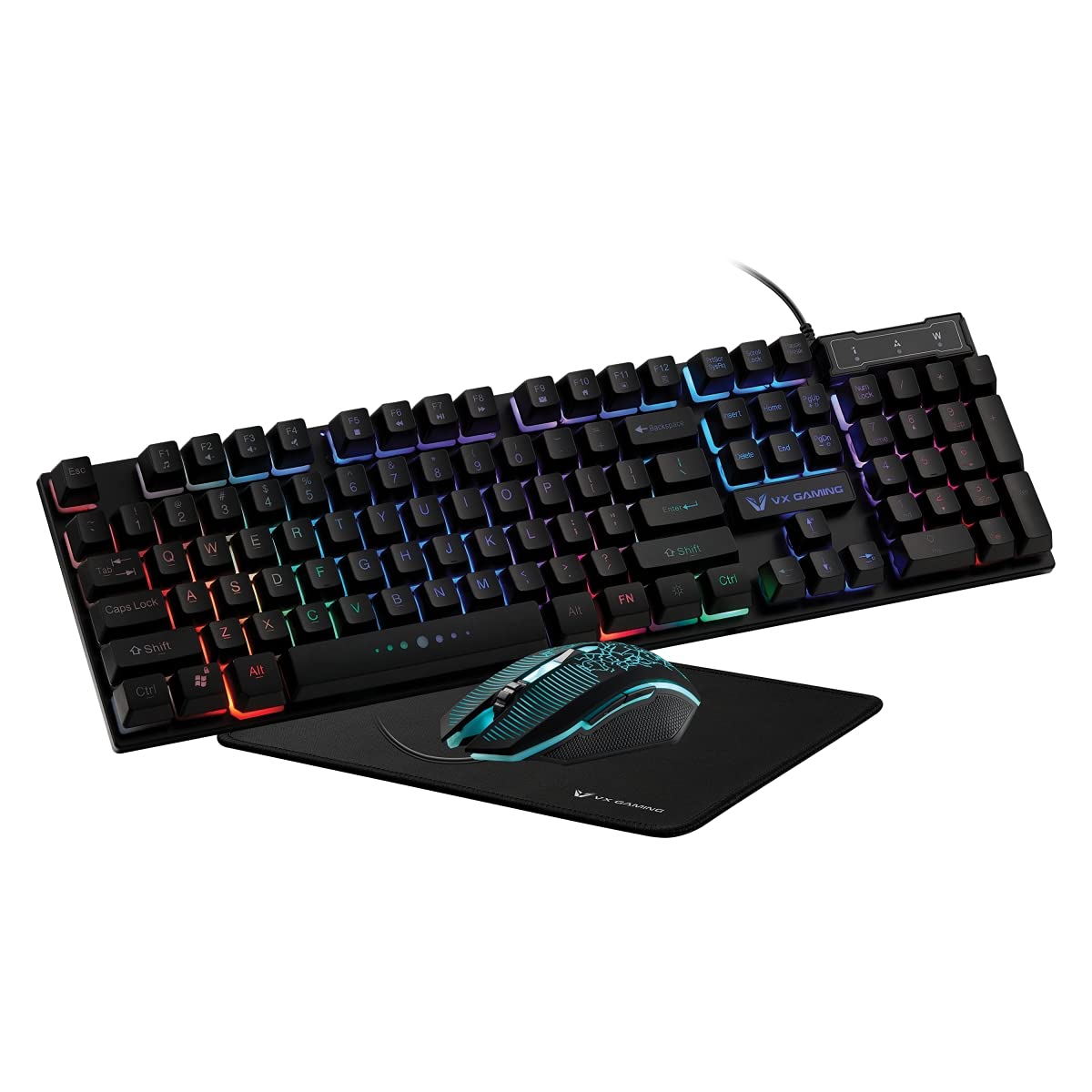
Image 1.1: Volkano VX Gaming Artemis Series 3-in-1 Combo Set packaging.
2. Setup Guide
Follow these steps to connect your Volkano VX Gaming Artemis Series 3-in-1 Combo to your computer.
2.1 System Requirements
- Operating System: Windows 10 or later.
- Compatible Devices: PC (Acer, Dell, HP, Mac, Samsung).
- Available USB port.
2.2 Connecting the Keyboard and Mouse
- Unpack the keyboard, mouse, and mousepad from the packaging.
- Place the non-slip mousepad on your desired surface.
- Connect the USB cable from the keyboard to an available USB port on your computer.
- Connect the USB cable from the mouse to another available USB port on your computer.
- Your computer should automatically detect and install the necessary drivers. No additional software installation is typically required.

Image 2.1: The Artemis Combo set connected and ready for use.
3. Operating Instructions
3.1 Keyboard Functions
The Artemis keyboard features a standard QWERTY layout with additional gaming-specific functionalities.
- Multimedia Keys: The keyboard includes 12 dedicated multimedia keys for quick access to media controls (e.g., play, pause, volume). These are typically accessed via the Fn key in combination with the F1-F12 keys.
- Shortcut Keys: 12 Keyboard Shortcut Keys provide quick access to various functions. Refer to the keycap legends for specific functions.
- Multi-colored Lighting: The keyboard features multi-colored rainbow illumination. The lighting mode can often be adjusted using specific key combinations (e.g., Fn + Scroll Lock or similar, refer to keyboard markings).

Image 3.1: Artemis Keyboard with multi-colored lighting.
3.2 Mouse Functions
The Artemis mouse is designed for precision and responsiveness in gaming.
- DPI Switch: Cycle through different DPI settings (1200, 1600, 2000, 3200) using the dedicated DPI button, usually located below the scroll wheel. This allows for on-the-fly sensitivity adjustments.
- 6 Buttons: The mouse features left-click, right-click, scroll wheel click, DPI switch, and two side buttons (typically for forward/backward navigation or custom assignments in games).
- Rainbow Color Illumination: The mouse features dynamic rainbow lighting.
- Polling Rate: The mouse operates at a 125 Hz polling rate for consistent input.

Image 3.2: Artemis Gaming Mouse.
3.3 Mousepad Usage
The non-slip mousepad provides a stable and consistent surface for optimal mouse tracking.
- Ensure the mousepad is placed on a flat, clean surface.
- The non-slip base prevents unwanted movement during intense gaming sessions.

Image 3.3: Artemis Non-Slip Mousepad.
4. Maintenance
Proper care will extend the lifespan and performance of your gaming combo.
- Cleaning the Keyboard: Use a soft, dry cloth to wipe down the keyboard. For deeper cleaning, use compressed air to remove debris from between keys. Avoid using harsh chemicals or abrasive materials.
- Cleaning the Mouse: Wipe the mouse surface with a soft, slightly damp cloth. Ensure the optical sensor on the bottom is clean and free of dust for accurate tracking.
- Cleaning the Mousepad: The mousepad can be gently wiped with a damp cloth and mild soap if necessary. Allow it to air dry completely before use.
- Storage: When not in use, store the peripherals in a clean, dry environment away from direct sunlight and extreme temperatures.
5. Troubleshooting
If you encounter issues with your Volkano VX Gaming Artemis Series 3-in-1 Combo, refer to the following common solutions:
5.1 Keyboard or Mouse Not Responding
- Check USB Connection: Ensure both the keyboard and mouse USB cables are securely plugged into your computer's USB ports. Try different USB ports.
- Restart Computer: Sometimes a simple system restart can resolve connectivity issues.
- Test on Another Computer: If possible, test the keyboard and mouse on another computer to determine if the issue is with the peripherals or your system.
5.2 Lighting Not Working
- Check Connections: Ensure the USB connections are firm.
- Keyboard Lighting: Verify if any lighting control keys (e.g., Fn + Scroll Lock) have been pressed to turn off or change the lighting mode.
- Power Supply: Ensure your computer's USB ports are providing sufficient power.
5.3 Mouse Tracking Issues
- Clean Sensor: Ensure the optical sensor on the bottom of the mouse is clean and free of dust or debris.
- Mousepad Surface: Use the provided mousepad or a clean, uniform surface. Avoid highly reflective or uneven surfaces.
- DPI Setting: Adjust the DPI setting using the DPI button to see if a different sensitivity resolves the issue.
6. Specifications
Technical details for the Volkano VX Gaming Artemis Series 3-in-1 Combo:
| Feature | Detail |
|---|---|
| Brand | Volkano |
| Model Number | VX-144-BK[V2] |
| Color | Black |
| Connectivity Technology | USB (Wired) |
| Keyboard Type | Membrane, QWERTY Layout |
| Keyboard Features | 12 Multimedia Keys, 12 Shortcut Keys, Multi-colored Lighting |
| Mouse DPI Settings | 1200, 1600, 2000, 3200 |
| Mouse Buttons | 6 Buttons (Left, Right, Scroll Wheel, DPI, 2 Side Buttons) |
| Mouse Polling Rate | 125 Hz |
| Movement Detection | Optical |
| Power Source | Corded Electric (USB) |
| Batteries Required | No |
| Compatible Operating System | Windows 10 and above |
| Manufacturer | SMD Technologies LLC |
| Country of Origin | China |
7. Warranty and Support
7.1 Warranty Information
This Volkano VX Gaming Artemis Series 3-in-1 Combo is covered by a 1 Year Limited Warranty from the date of purchase. This warranty covers manufacturing defects and workmanship under normal use. It does not cover damage caused by misuse, accidents, unauthorized modifications, or normal wear and tear.
Please retain your proof of purchase for warranty claims.
7.2 Customer Support
For technical assistance, warranty claims, or further inquiries, please contact Volkano customer support. You can find contact information on the official Volkano website or through your retailer.
Visit the official Volkano Store for more information: Volkano Store on Amazon


