
Introduction
This manual provides detailed instructions for the installation, operation, and maintenance of your Eaula Videns J1 Wireless Video Doorbell Camera. Please read this manual thoroughly before using the product to ensure correct usage and optimal performance. This device offers HD video quality, motion detection, two-way audio, night vision, and is IP65 outdoor waterproof.
Package Contents
Verify that all items are present in your package:
- Eaula Videns J1 Video Doorbell Camera
- Wireless Indoor Chime
- Mounting Bracket
- Mounting Screws and Wall Anchors
- USB Charging Cable
- User Manual
- 32GB Micro SD Card (pre-installed or included separately)

Image: The Eaula Videns J1 Video Doorbell Camera, its wireless indoor chime, a 32GB Micro SD card, and a smartphone showing the live feed from the doorbell.
Setup Guide
1. Download the Mobile Application
The Eaula Videns J1 doorbell camera operates with a dedicated mobile application. Search for the app on your smartphone's app store.

Image: Icons for Google Play Store and Apple App Store, indicating where to download the companion application for the doorbell camera.
2. Initial Device Pairing
- Ensure your doorbell camera is fully charged before initial setup.
- Open the downloaded application and create an account or log in.
- Follow the in-app instructions to add a new device. This typically involves scanning a QR code on the doorbell or entering a device ID.
- Connect the doorbell to your 2.4GHz Wi-Fi network. Note: This device only supports 2.4GHz Wi-Fi.
- Pair the wireless chime with the doorbell according to the app's instructions.

Image: The Eaula Videns J1 doorbell camera indicating its compatibility with 2.4GHz Wi-Fi networks.
3. Installation
The doorbell camera can be installed using either adhesive backing or screws.
- Choose a Location: Select a suitable outdoor location near your door, ensuring good Wi-Fi signal strength and a clear view of the entrance.
- Mounting with Adhesive:
- Clean the wall surface thoroughly.
- Apply the adhesive backing to the doorbell's back cover bracket.
- Press the bracket firmly onto the desired wall location.
- Attach the doorbell camera to the mounted bracket.
- Mounting with Screws:
- Position the back cover bracket on the wall and mark the screw holes.
- Drill pilot holes if necessary and insert wall anchors.
- Secure the back cover bracket to the wall using the provided screws.
- Attach the doorbell camera to the mounted bracket.

Image: Step-by-step diagrams illustrating how to mount the doorbell camera using either adhesive or screws onto a wall.

Image: A visual guide detailing the four easy steps for installing the doorbell camera, including app download, connection, setup, and final placement.
Operating Instructions
1. Live View and Recording
Access the live video feed from your doorbell camera anytime through the mobile application. You can initiate manual recordings or capture screenshots directly from the live view interface.
2. Two-Way Audio Communication
When a visitor presses the doorbell or motion is detected, you will receive a notification on your smartphone. Open the app to see and speak with your visitor in real-time using the built-in microphone and speaker.

Image: A user on a bed interacting with the doorbell camera through a smartphone app, demonstrating the two-way audio feature.

Image: A hand pressing the doorbell button, accompanied by speech bubbles illustrating the two-way audio communication feature.
3. Motion Detection and Alerts
The doorbell camera features advanced motion detection. When motion is detected, you will receive instant push notifications on your smartphone. You can adjust the sensitivity settings within the app to minimize false alerts.
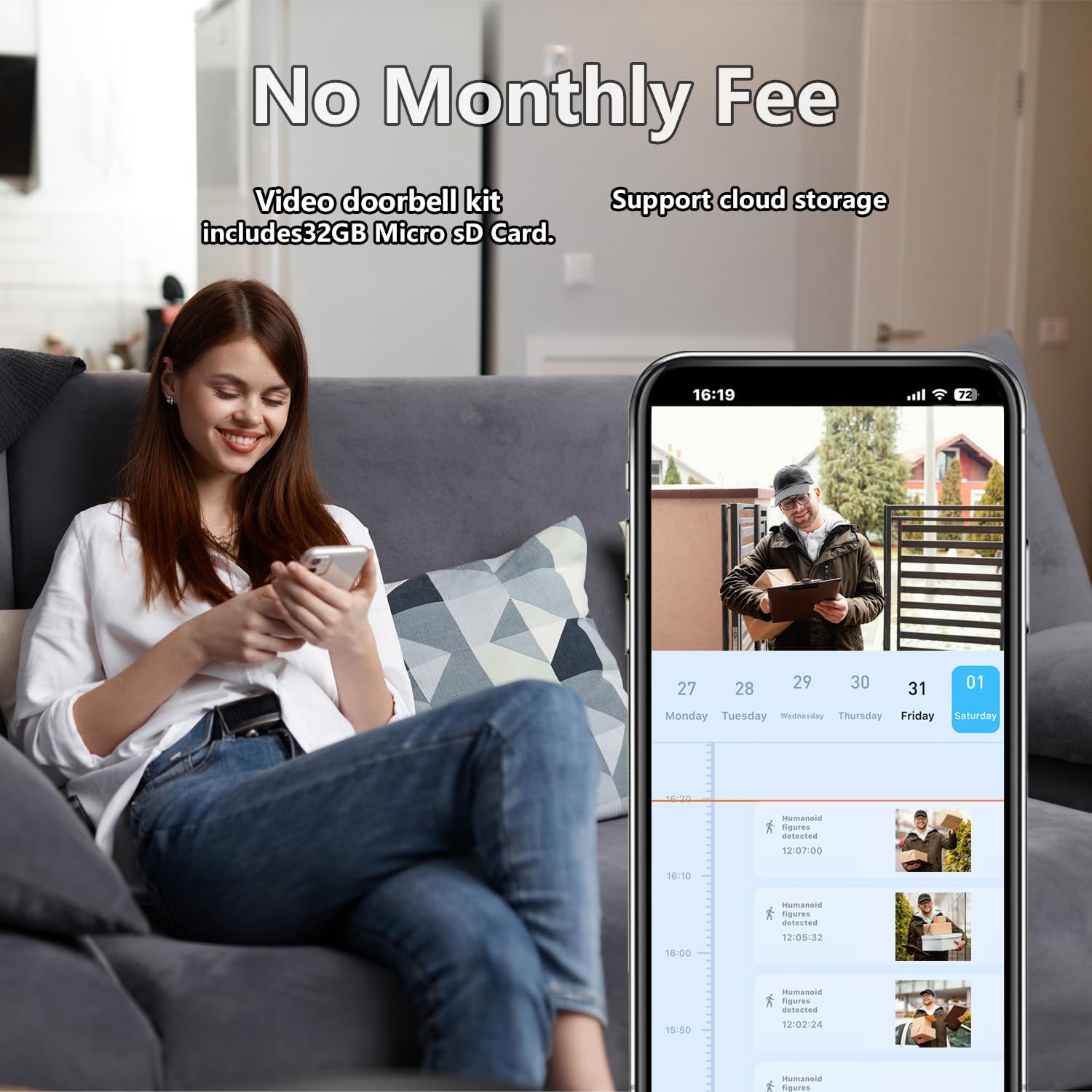
Image: A smartphone screen showing an "Alert Message" notification for detected motion, with a small preview image.

Image: A close-up of a wrist wearing a watch, with a smartphone in hand displaying a "Notice: You have a new visitor" notification from the doorbell camera.

Image: An outdoor scene showing a doorbell camera detecting both a person and a dog, with blue and red boxes indicating different detection zones or types of motion.
4. Night Vision
The doorbell camera is equipped with night vision capabilities, providing clear video footage even in low-light conditions or complete darkness.

Image: A split image showing the difference between daytime video footage and infrared night vision footage from the doorbell camera, both displaying a person at the door.

Image: A visual comparison of a house exterior captured by the doorbell camera in both bright daylight (1080P FHD) and low-light conditions (FHD Night Vision).
5. Storage Options
The doorbell camera supports both local storage via a Micro SD card (32GB included) and cloud storage for recorded events. Review recorded footage through the mobile application.

Image: The doorbell camera displayed alongside icons representing Micro SD card storage and free cloud storage options.
6. Multiple User Access
Share access to your doorbell camera with family members or trusted individuals through the app, allowing multiple users to monitor the entrance simultaneously.

Image: A central smartphone displaying the doorbell camera's live feed, surrounded by smaller circular images of other individuals also viewing the feed on their devices, illustrating multi-user access.
Maintenance
1. Battery Charging
The Eaula Videns J1 is battery-powered. When the battery level is low, you will receive a notification via the app. Remove the doorbell camera from its mounting bracket and charge it using the provided USB cable. A full charge typically takes several hours. Battery life may vary depending on usage, placement, and settings.

Image: A smartphone displaying a motion alert notification, with a note stating that battery life may vary depending on usage, placement, and settings.
2. Cleaning
Periodically clean the camera lens and the doorbell's exterior with a soft, damp cloth to ensure clear video quality and proper operation. Avoid using harsh chemicals or abrasive materials.
3. Firmware Updates
Ensure your doorbell camera's firmware is up to date. The mobile application will notify you of available updates. Follow the in-app instructions to perform firmware updates, which can improve performance and add new features.
Troubleshooting
| Issue | Possible Cause | Solution |
|---|---|---|
| Doorbell not connecting to Wi-Fi | Incorrect Wi-Fi password; 5GHz Wi-Fi network; weak signal. | Ensure correct 2.4GHz Wi-Fi password. Move doorbell closer to router. Confirm router is broadcasting 2.4GHz. |
| No motion detection alerts | Motion detection disabled; sensitivity too low; app notifications off. | Enable motion detection in app settings. Increase sensitivity. Check phone notification settings for the app. |
| Poor video quality | Dirty lens; weak Wi-Fi signal; low light conditions. | Clean the camera lens. Improve Wi-Fi signal strength. Ensure night vision is active in low light. |
| Chime not ringing | Chime not paired; chime unplugged; volume too low. | Re-pair the chime with the doorbell. Ensure chime is plugged into a power outlet. Adjust chime volume. |
| Battery drains quickly | Frequent motion alerts; high live view usage; extreme temperatures. | Adjust motion detection sensitivity. Reduce frequency of live view. Ensure doorbell is not in direct sunlight or extreme cold. |
Specifications
| Feature | Detail |
|---|---|
| Model Name | Eaula Videns-V5 (J1) |
| Video Resolution | 720p (HD) |
| Connectivity | 2.4GHz Wi-Fi (IEEE 802.11b/g/n) |
| Power Source | Battery Powered (internal rechargeable) |
| Weather Resistance | IP65 Outdoor Waterproof |
| Motion Detection | Yes (Alert Type: Motion Only) |
| Night Vision | Yes (Low light technology: Night Color) |
| Two-Way Audio | Yes |
| Field of View | 150 Degrees |
| Storage | Micro SD Card (up to 32GB, included), Cloud Storage |
| Compatible Devices | iOS & Android Smartphones |
| Dimensions (L x W x H) | 1.89 x 1.18 x 5.43 inches |
| Item Weight | 5.1 ounces (146 Grams) |
| Material | Plastic |
| Installation Type | Wall Mount (Screw In) |
Warranty and Support
Eaula Videns products are designed for reliability and performance. For warranty information, please refer to the product packaging or contact Eaula Videns customer support directly. For technical assistance or further inquiries, please visit the official Eaula Videns website or contact their customer service team.

Image: A customer support representative wearing a headset, symbolizing available assistance.
Eaula Videns is committed to providing high-quality home security solutions and customer satisfaction.