Introduction
This manual provides comprehensive instructions for the setup, operation, and maintenance of your MOFII Sweet 2.4G Wireless Keyboard and Mouse Set. Please read this manual thoroughly before using the product to ensure proper functionality and longevity.
Package Contents
- MOFII Sweet Wireless Keyboard
- MOFII Sweet Wireless Mouse
- USB 2.4G Receiver
- 2 x AA Batteries (pre-installed or included separately)
- User Manual (this document)
Setup
1. Battery Installation
The MOFII Sweet set requires AA batteries for both the keyboard and the mouse. Ensure correct polarity when inserting batteries.
- For the Keyboard: Locate the battery compartment on the underside of the keyboard. Open the cover, insert the AA batteries according to the polarity markings, and close the cover.
- For the Mouse: Locate the battery compartment on the underside of the mouse. Open the cover, insert the AA battery according to the polarity markings, and close the cover.

Image: The MOFII Sweet wireless keyboard and mouse, showcasing their design and color. This image represents the complete set.
2. USB Receiver Connection
- Locate the USB 2.4G receiver, typically stored in the mouse's battery compartment or included separately.
- Plug the USB receiver into an available USB port on your computer, laptop, or tablet.
- Your operating system should automatically detect and install the necessary drivers. This process may take a few moments.
3. Powering On
Ensure the power switch on both the keyboard and mouse is in the "ON" position. The power switch for the mouse is usually on its underside. The keyboard may not have a dedicated power switch and will activate upon key press after battery installation.
Operating Instructions
Keyboard Usage
The MOFII Sweet keyboard features a standard QWERTY layout with additional function keys. It is designed for comfortable typing.
- Standard Keys: All alphanumeric and symbol keys function as expected.
- Function Keys (F1-F12): These keys may have secondary functions (e.g., media control, volume adjustment) when pressed in combination with the Fn key. Refer to the keycap legends for specific functions.
- Numeric Keypad: The dedicated numeric keypad on the right provides efficient data entry. Ensure Num Lock is active if numbers are not registering.
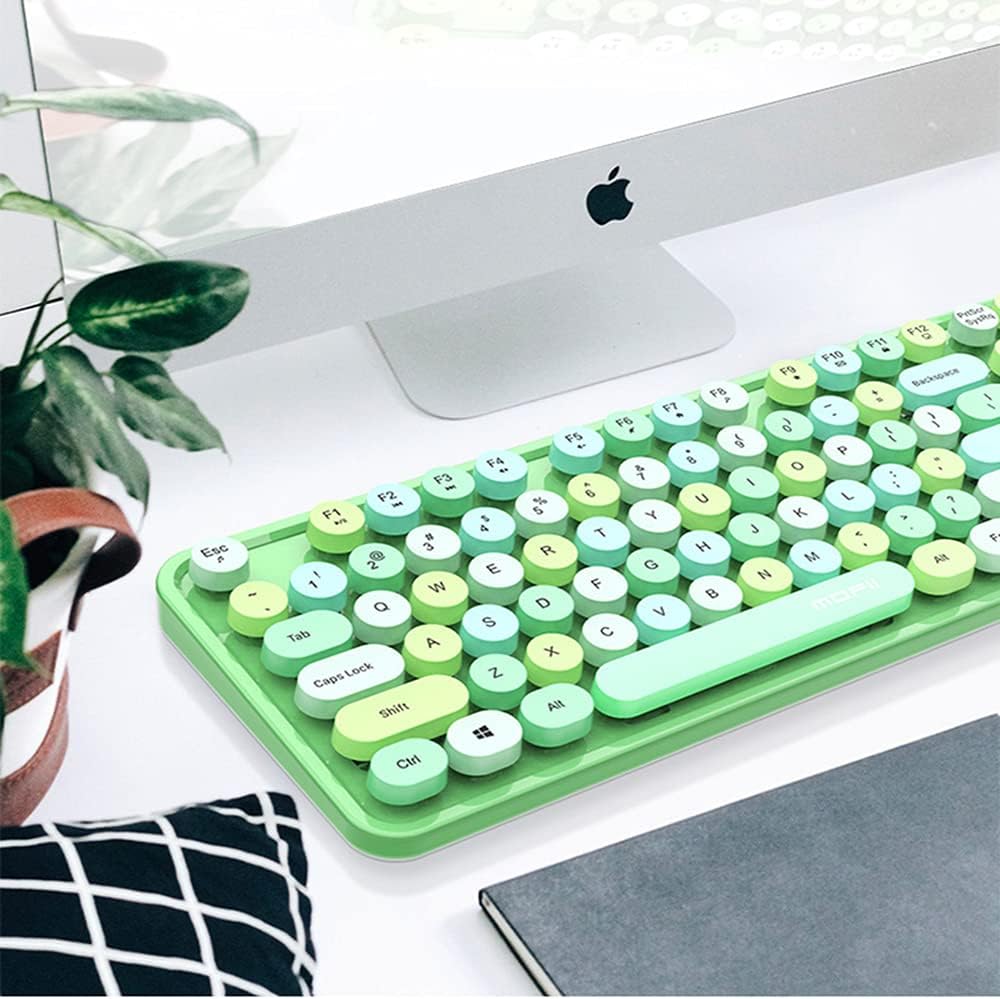
Image: The MOFII Sweet wireless keyboard positioned on a desk next to a computer monitor, demonstrating a typical usage scenario.
Mouse Usage
The MOFII Sweet mouse provides precise cursor control and comfortable navigation.
- Left Button: Primary click function.
- Right Button: Secondary click function (context menu).
- Scroll Wheel: Scroll up or down through documents and web pages. Can also function as a middle click button.
Maintenance
Cleaning
To maintain the appearance and functionality of your MOFII Sweet set:
- Use a soft, dry, lint-free cloth to wipe down the surfaces.
- For stubborn dirt, slightly dampen the cloth with water or a mild, non-abrasive cleaner. Avoid excessive moisture.
- Do not use harsh chemicals, solvents, or abrasive materials, as these can damage the finish.
- For the keyboard, use compressed air to remove debris from between the keys.
Battery Replacement
When the keyboard or mouse performance degrades (e.g., delayed response, intermittent connection), it may be time to replace the batteries. Follow the battery installation steps outlined in the "Setup" section.
Storage
If storing the device for an extended period, remove the batteries to prevent leakage and potential damage.
Troubleshooting
| Problem | Possible Cause | Solution |
|---|---|---|
| Keyboard/Mouse not responding |
|
|
| Delayed response or intermittent connection |
|
|
| Specific keys not working |
|
|
Specifications
- Brand: MOFII
- Model: Sweet
- Connectivity Technology: 2.4G Wireless (Radio Frequency)
- Compatible Devices: Personal Computer, Laptop, Tablet
- Operating System Compatibility: Windows (and generally compatible with other OS that support standard USB HID devices)
- Power Source: Battery Powered
- Battery Type: AA (2 included)
- Keyboard Layout: QWERTY
Safety Information
- Do not expose the device to extreme temperatures, humidity, or direct sunlight.
- Avoid dropping or subjecting the device to strong impacts.
- Keep out of reach of children.
- Dispose of batteries according to local regulations. Do not dispose of batteries in fire.
- Do not attempt to disassemble or repair the device yourself. This will void any potential warranty.
Warranty and Support
MOFII products are designed for reliability and performance. For warranty information or technical support, please refer to the documentation provided at the point of purchase or contact your retailer. Keep your proof of purchase for warranty claims.


