
1. Introduction
This manual provides essential information for the installation, operation, and maintenance of your GIGABYTE GeForce RTX 3070 Ti Gaming OC 8G Graphics Card. Please read this manual thoroughly before installation to ensure proper usage and optimal performance.
2. Product Overview
The GIGABYTE GeForce RTX 3070 Ti Gaming OC 8G Graphics Card is engineered for high-performance gaming and demanding creative applications. It features NVIDIA's Ampere architecture, offering advanced graphics capabilities.
Key Features:
- NVIDIA Ampere Streaming Multiprocessors: Provides the building blocks for the world's fastest, most efficient GPUs.
- 2nd Generation RT Cores: Delivers up to 2X the throughput of 1st Gen RT Cores for realistic ray tracing.
- 3rd Generation Tensor Cores: Offers up to 2X the throughput with structural sparsity and advanced AI algorithms like DLSS.
- Integrated 8GB GDDR6X 256-bit Memory Interface: High-speed memory for demanding games and applications.
- WINDFORCE 3X Cooling System: Features alternate spinning fans for efficient heat dissipation.
- RGB Fusion 2.0: Customizable lighting effects to personalize your system.
- Protection Metal Back Plate: Enhances structural integrity and provides additional protection.
- Core Clock: 1830 MHz.

Figure 1: GIGABYTE GeForce RTX 3070 Ti Gaming OC 8G Graphics Card with its packaging.

Figure 2: Angled view of the GIGABYTE GeForce RTX 3070 Ti Graphics Card showcasing its RGB lighting.
3. Package Contents
Verify that all items are present in the package:
- GIGABYTE GeForce RTX 3070 Ti Gaming OC 8G Graphics Card
- Quick Guide / Instruction Manual
Video 1: Official GIGABYTE GeForce RTX 30 Series Trailer. This video showcases the features and capabilities of the RTX 30 series graphics cards, including the RTX 3070 Ti.
4. Setup and Installation
Before installing the graphics card, ensure your system meets the minimum requirements, especially the power supply unit (PSU) wattage.
Minimum System Requirements:
- PCI Express graphics slot required.
- Microsoft Windows 10/11 64-bit or Linux 64-bit operating system.
- One PCIe 16-pin or three PCIe 8-pin power connectors required.
- Recommended PSU: 750W.
Installation Steps:
- Power Off System: Turn off your computer and disconnect the power cable.
- Open Case: Remove the side panel of your computer case.
- Locate PCIe Slot: Identify an available PCI Express x16 slot on your motherboard.
- Remove Slot Covers: Remove the necessary expansion slot covers from the back of your case.
- Insert Graphics Card: Carefully align the graphics card with the PCIe slot and press down firmly until it is securely seated. Ensure the retention clip on the PCIe slot locks into place.
- Secure Card: Fasten the graphics card to the case with screws.
- Connect Power: Connect the required PCIe power cables from your power supply to the graphics card. The RTX 3070 Ti requires one 16-pin or three 8-pin power connectors. Ensure all connections are secure.
- Close Case: Replace the side panel of your computer case.
- Connect Display: Connect your monitor(s) to the graphics card's display outputs (HDMI or DisplayPort).
- Power On: Reconnect the power cable and turn on your computer.
- Install Drivers: Once Windows loads, install the latest NVIDIA drivers from the official NVIDIA website (www.nvidia.com/drivers) or GIGABYTE's support page.

Figure 3: Angled view of the GIGABYTE GeForce RTX 3070 Ti Graphics Card, highlighting its triple-fan design.

Figure 4: The display output panel of the graphics card, featuring HDMI and DisplayPort connections.
5. Operating the Graphics Card
After successful installation and driver setup, your graphics card is ready for use. The NVIDIA control panel and GIGABYTE's software allow for customization.
NVIDIA Control Panel:
Access the NVIDIA Control Panel to adjust display settings, manage 3D settings for games, and configure features like G-SYNC (if supported by your monitor).
GIGABYTE RGB Fusion 2.0:
Utilize GIGABYTE's RGB Fusion 2.0 software to customize the RGB lighting effects on your graphics card. You can synchronize lighting with other compatible GIGABYTE devices for a unified aesthetic.
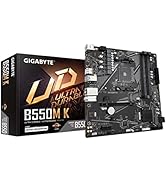
Figure 5: Diagram illustrating the customizable RGB Fusion 2.0 lighting on the graphics card.
6. Maintenance
Proper maintenance ensures the longevity and optimal performance of your graphics card.
- Dust Removal: Regularly clean dust from the fans and heatsink using compressed air. Ensure the system is powered off and unplugged before cleaning.
- Driver Updates: Keep your graphics drivers updated to the latest version from NVIDIA's official website to benefit from performance improvements and bug fixes.
- Temperature Monitoring: Use monitoring software to keep an eye on GPU temperatures, especially during heavy loads, to ensure the WINDFORCE 3X cooling system is functioning effectively.

Figure 6: Diagram of the WINDFORCE 3X Cooling System, showing the alternate spinning fan design for enhanced heat dissipation.
7. Troubleshooting
If you encounter issues with your graphics card, refer to the following common troubleshooting steps:
- No Display: Ensure the monitor cables are securely connected to the graphics card and the monitor. Verify the graphics card is properly seated in the PCIe slot and all power connectors are attached.
- Performance Issues: Update your graphics drivers. Check for adequate system cooling and ensure no components are overheating. Verify your power supply meets the recommended wattage.
- Software Crashes: Ensure all drivers are up-to-date. Check for game or application updates.
- RGB Not Working: Ensure GIGABYTE RGB Fusion 2.0 software is installed and running. Check for software updates.
For further assistance, contact GIGABYTE customer support or visit their official website.
8. Specifications
| Feature | Specification |
|---|---|
| Graphics Processing | NVIDIA GeForce RTX 3070 Ti |
| Core Clock | 1830 MHz |
| Memory Clock | 19000 MHz |
| Memory Size | 8 GB |
| Memory Type | GDDR6X |
| Memory Bus | 256-bit |
| Digital Max Resolution | 7680x4320 |
| Video Output Interface | 2x HDMI 2.1, 2x DisplayPort 1.4 |
| Recommended PSU | 750W |
| Dimensions (LxWxH) | 12.6 x 5.08 x 2.17 inches |
| Item Weight | 3.74 pounds |

Figure 7: Physical dimensions of the GIGABYTE GeForce RTX 3070 Ti Graphics Card.
9. Warranty and Support
GIGABYTE offers a 4-year warranty for this product. Online registration is required to activate the full warranty period. Please visit the official GIGABYTE website for warranty registration and detailed terms and conditions.
For technical support, driver downloads, and FAQs, please visit the GIGABYTE support website:


