Introduction
Thank you for choosing the seenda MMO Gaming Mouse Vanguard S. This high-performance gaming mouse is designed to enhance your gaming experience with its customizable features and ergonomic design. It offers a smooth and precise gaming experience with up to 10000 DPI, programmable macros, and interchangeable side plates to suit various gaming styles.
Please read this manual carefully to ensure proper setup, operation, and maintenance of your new gaming mouse.
Package Contents
- RGB Gaming Mouse x 1
- Side Plates Packet x 1 (includes various side plates)
- User Manual x 1
- Packing Box x 1

Figure 1: Package Contents of the seenda Vanguard S Gaming Mouse.
Setup
1. Connecting the Mouse
- Unpack the seenda MMO Gaming Mouse Vanguard S from its packaging.
- Connect the USB cable of the mouse to an available USB port on your computer.
- The mouse should be automatically recognized by your operating system (Windows 7, XP, Vista, or newer).
2. Software Installation
To unlock the full customization potential of your Vanguard S mouse, including programmable macros, DPI settings, and RGB lighting, you need to install the official seenda software.
- Visit the official seenda website to download the latest software for the Vanguard S gaming mouse.
- Follow the on-screen instructions to complete the installation.
- Once installed, launch the software to configure your mouse settings.
Operating Instructions
1. Basic Mouse Functions
- Left Click: Primary action.
- Right Click: Secondary action/context menu.
- Scroll Wheel: Scroll up/down, Middle click.
- DPI +/- Buttons: Adjust DPI sensitivity on the fly.
2. Interchangeable Side Plates
The Vanguard S mouse comes with multiple interchangeable side plates, allowing you to customize the mouse's grip and button layout for different game types (MMO, MOBA, FPS) or personal preference. The side plates attach magnetically for easy swapping.
- Gently pull the currently attached side plate away from the mouse body to detach it.
- Select your desired side plate from the packet.
- Align the new side plate with the magnetic connectors on the mouse body and gently push until it snaps into place.

Figure 2: Swapping Interchangeable Side Plates.
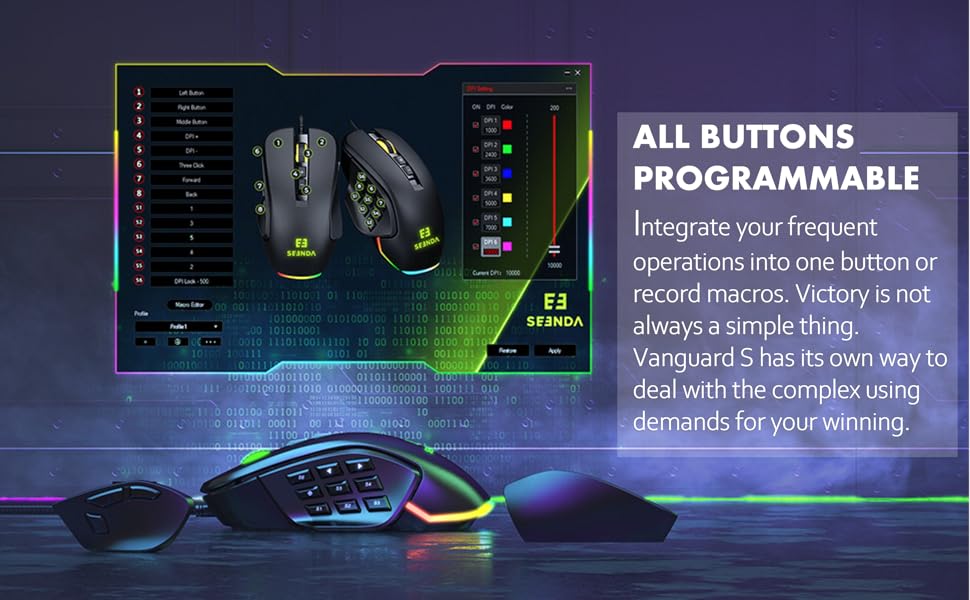
Figure 3: Different Side Plate Configurations.
3. DPI Adjustment
The mouse features a high-precision optical sensor with up to 10000 DPI. You can adjust the DPI sensitivity using the dedicated DPI +/- buttons located on the top of the mouse. Each DPI level can be associated with a specific RGB lighting color for quick visual identification.
- Press the DPI+ button to increase sensitivity.
- Press the DPI- button to decrease sensitivity.
- Default DPI steps and their corresponding colors are typically: 1000 (Red), 2400 (Green), 3600 (Blue), 5000 (Yellow), 7000 (Cyan), 10000 (Pink). These can be customized via software.
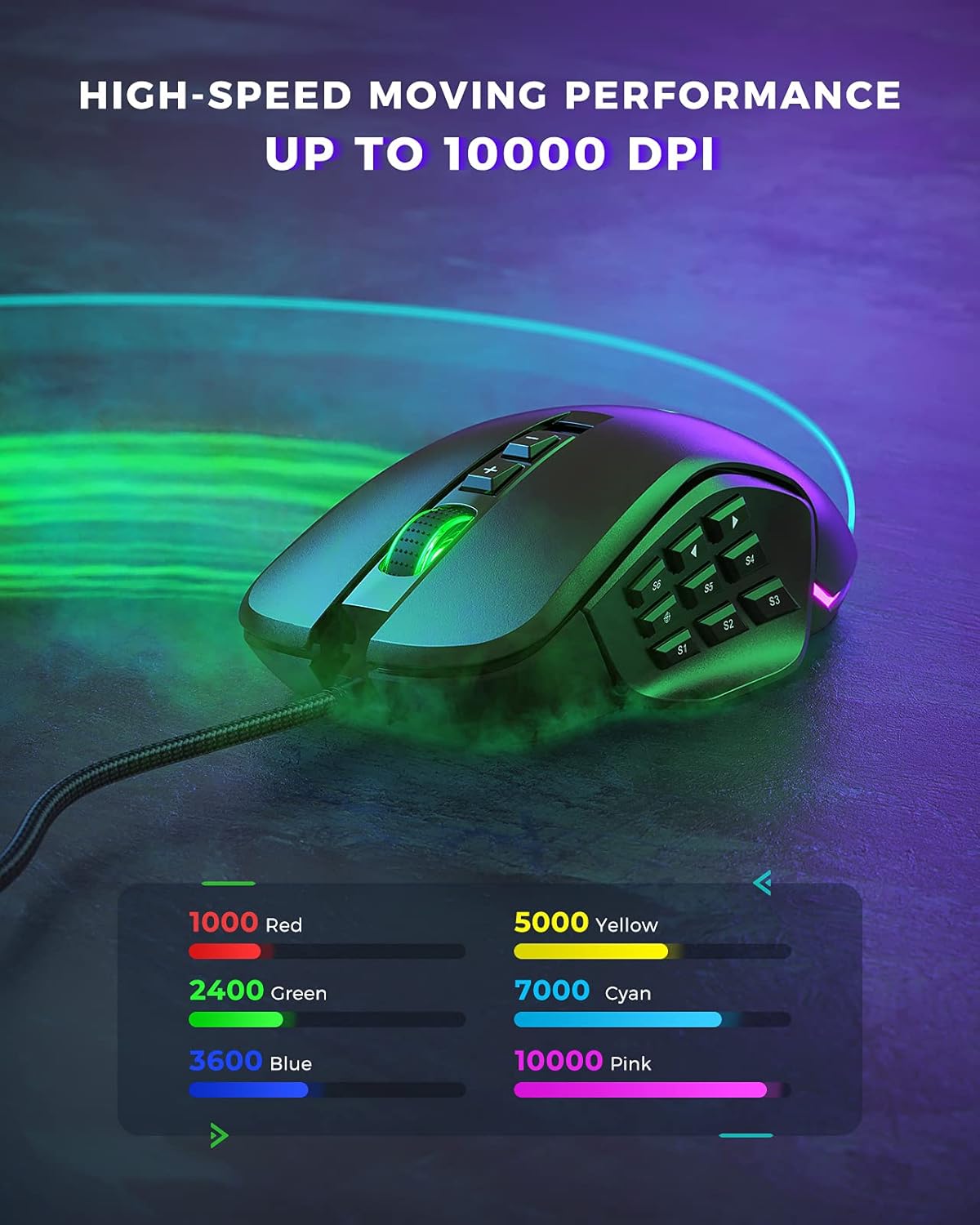
Figure 4: DPI Levels and Corresponding RGB Colors.
Customization
The seenda Vanguard S offers extensive customization options through its dedicated software. This allows you to tailor the mouse to your specific gaming and productivity needs.
1. Programmable Buttons and Macros
The mouse features multiple programmable buttons, including side buttons, which can be assigned to various functions, key presses, or complex macros. This is particularly useful for MMO and MOBA games.
- Launch the seenda gaming software.
- Navigate to the "Button Settings" or "Macro Editor" section.
- Select the button you wish to program.
- Choose from predefined functions, assign a single key, or record a macro sequence.
- Save your changes to the mouse profile.

Figure 5: Software Interface for Button Programming.
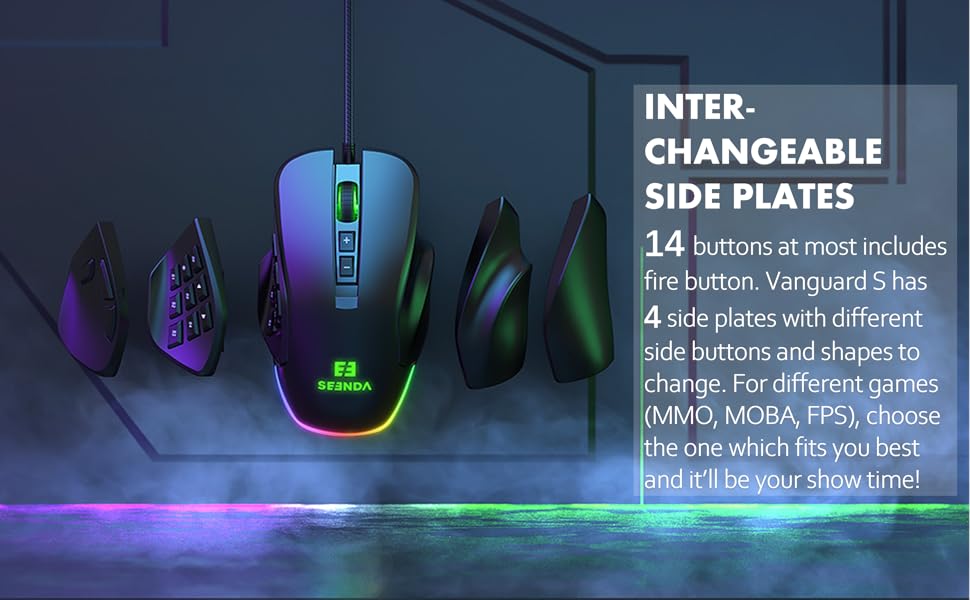
Figure 6: Macro and Button Assignment in Software.
2. RGB Backlight Customization
Personalize your gaming setup with customizable RGB backlighting. The software allows you to choose from various lighting effects, colors, and brightness levels for different DPI steps.
- In the seenda gaming software, navigate to the "RGB Settings" or "Lighting" section.
- Select your preferred lighting mode (e.g., Colorful Streaming, Steady, Breathing, Neon).
- Adjust colors for each DPI level or choose a dynamic effect.
- Apply the settings to your mouse.

Figure 7: RGB Lighting Customization Options.

Figure 8: Various RGB Backlight Styles.
Maintenance
1. Cleaning Your Mouse
- Disconnect the mouse from your computer before cleaning.
- Use a soft, lint-free cloth slightly dampened with water or a mild cleaning solution to wipe the surface of the mouse.
- Avoid using harsh chemicals, abrasive cleaners, or solvents.
- Use a soft brush or compressed air to clean dust and debris from around the buttons and scroll wheel.
- Ensure the mouse is completely dry before reconnecting it to your computer.
2. General Care
- Avoid dropping the mouse, especially when side plates are attached, as they may detach.
- Do not expose the mouse to extreme temperatures or humidity.
- Keep the mouse away from liquids.
Troubleshooting
| Problem | Possible Cause | Solution |
|---|---|---|
| Mouse not responding | Loose USB connection, faulty USB port, driver issue. |
|
| Buttons not working/incorrectly mapped | Software configuration error, software not installed. |
|
| DPI not changing | Software conflict, button malfunction. |
|
| RGB lighting not working | Software setting, power issue. |
|
Specifications
| Feature | Detail |
|---|---|
| Model Number | YC-YJ101 |
| DPI | Up to 10000 DPI |
| Programmable Buttons | Up to 5 programmable buttons (customizable via software) |
| Side Plates | Interchangeable (3 included) |
| Design | Ergonomic, Ambidextrous (with appropriate side plates) |
| Connectivity | USB Wired |
| Movement Detection | Optical |
| Compatible OS | Windows 7, Windows XP, Windows Vista, and newer USB-compatible systems |
| Item Weight | 3.97 ounces |
| Package Dimensions | 5.59 x 4.57 x 2.13 inches |
Warranty and Support
Warranty Information
seenda products undergo rigorous testing. If you encounter any issues with your Vanguard S gaming mouse, please do not hesitate to contact seenda customer support. We are committed to ensuring a positive experience with our products.
Customer Support
For technical assistance, troubleshooting, or warranty claims, please visit the official seenda website for contact information or support resources. You can also find the latest software and firmware updates there.


