1. Introduction
Thank you for choosing the Muvit Wireless Candy Keyboard and Mouse Combo. This manual provides essential information for setting up, operating, maintaining, and troubleshooting your new wireless peripheral set. Please read this manual thoroughly before use to ensure optimal performance and longevity of your product.
2. Safety Information
- Keep the device away from water, moisture, and extreme temperatures.
- Do not attempt to disassemble or repair the device yourself. Refer to qualified service personnel.
- Use only specified battery types (AAA for keyboard, AA for mouse) and ensure correct polarity during installation.
- Dispose of batteries according to local regulations. Do not dispose of batteries in fire.
- Avoid prolonged use without breaks to prevent discomfort.
3. Package Contents
Please check the package for the following items:
- Muvit Wireless Candy Keyboard
- Muvit Wireless Candy Mouse
- USB Receiver (stored inside the mouse)
- User Manual (this document)
4. Product Overview
Familiarize yourself with the components of your Muvit Wireless Candy Keyboard and Mouse Combo.
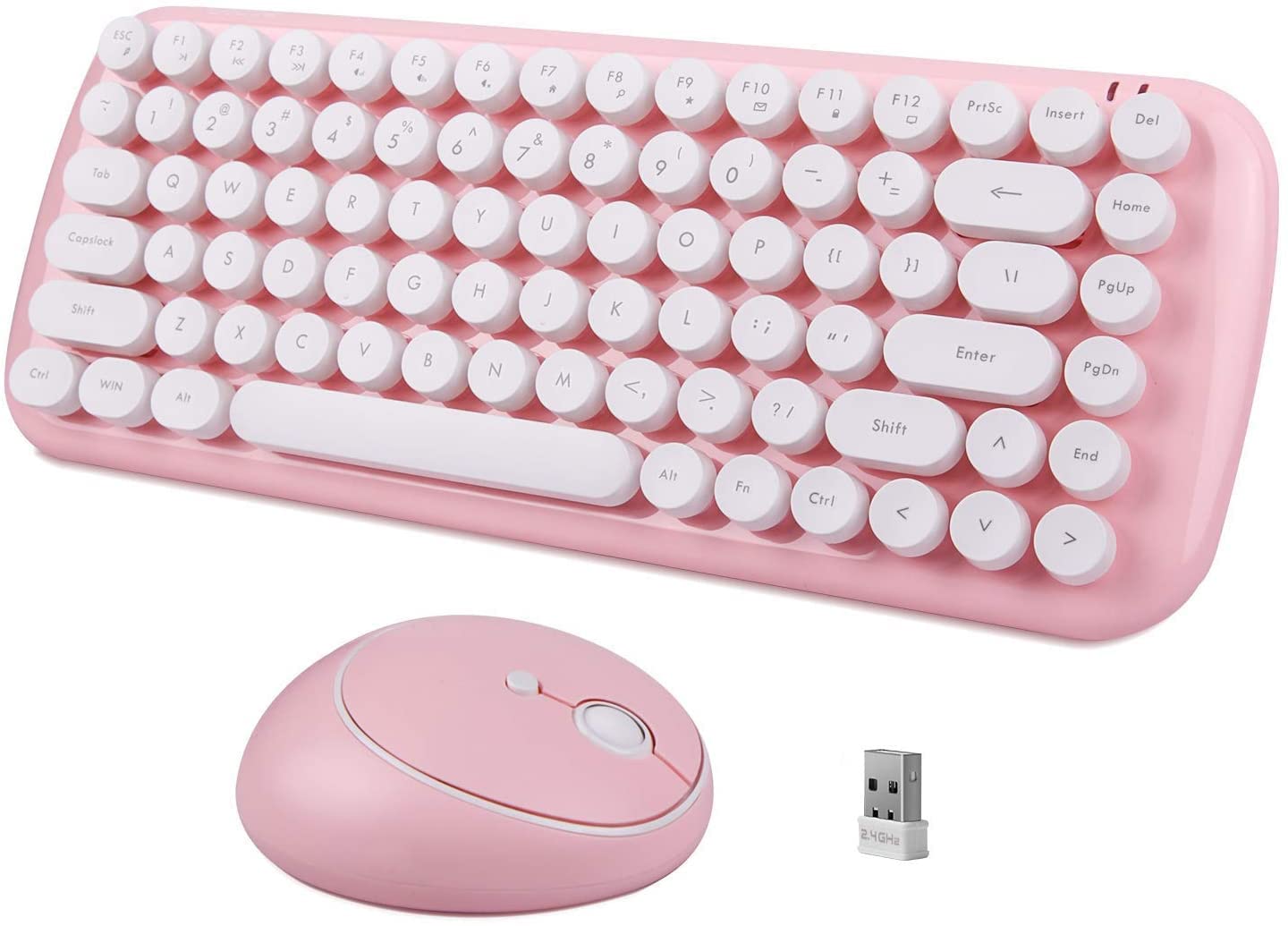
Figure 4.1: Muvit Wireless Candy Keyboard and Mouse Combo with USB receiver. This image displays the full keyboard and mouse set, along with the compact USB receiver.

Figure 4.2: Top-down view of the Muvit Wireless Candy Keyboard and Mouse Combo. This perspective clearly shows the layout of the keyboard keys and the ergonomic shape of the mouse.

Figure 4.3: Muvit Wireless Candy Keyboard showing function key shortcuts (F1-F12) and indicator lights. This image details the multimedia functions assigned to the F-keys and the location of the low battery/2.4G connection and Caps Lock indicator LEDs.
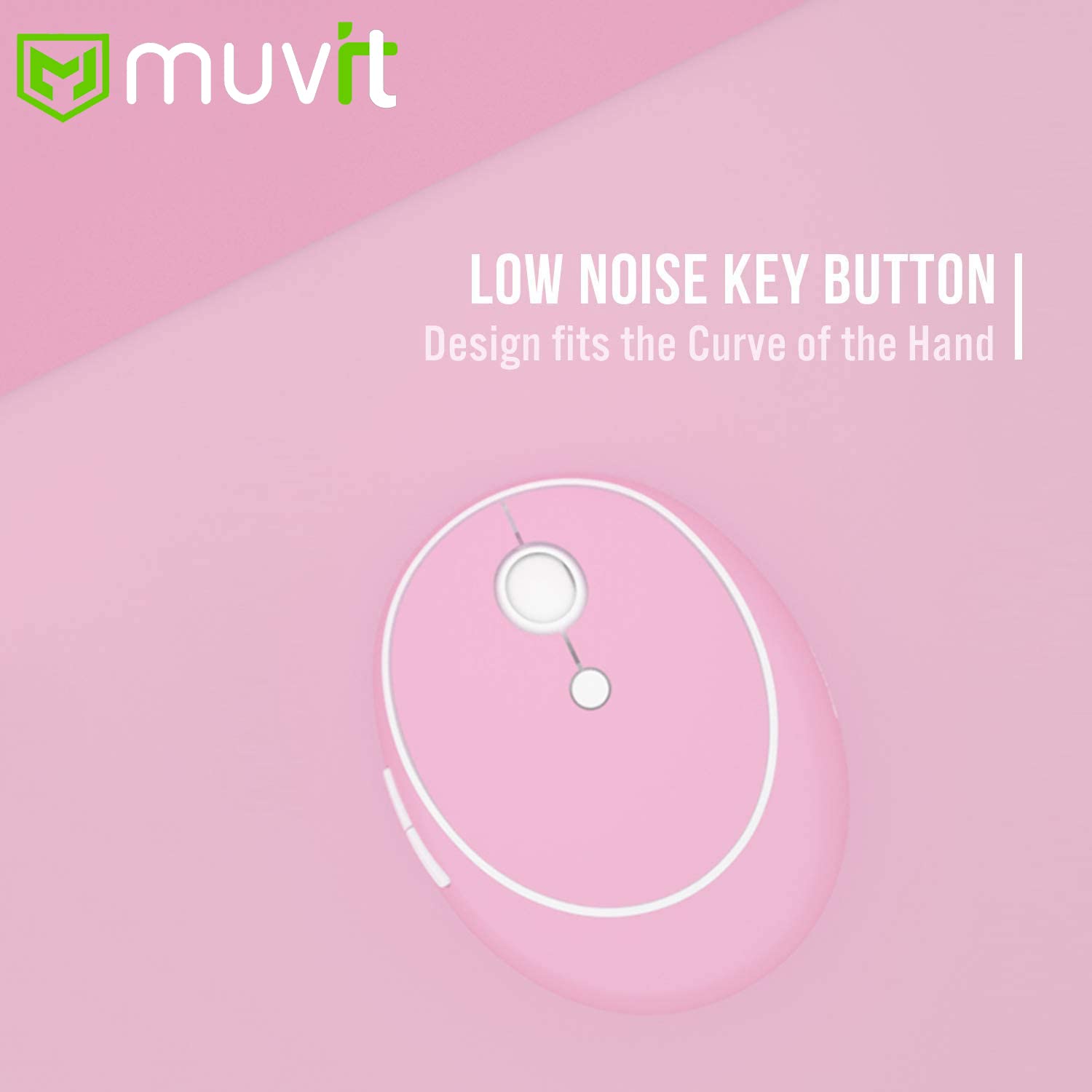
Figure 4.4: Close-up of the Muvit Wireless Candy Mouse, emphasizing low noise key button and ergonomic design. This view highlights the smooth contours and quiet click feature of the mouse.

Figure 4.5: Underside view of the Muvit Wireless Candy Keyboard and Mouse, showing battery compartments (AAA for keyboard, AA for mouse) and USB receiver storage. This image illustrates where to insert batteries and locate the USB receiver.
5. Setup Guide
5.1. Installing Batteries
- For the Keyboard: Locate the battery compartment on the underside of the keyboard. Open the cover and insert two (2) AAA batteries, ensuring correct polarity (+/-). Close the battery cover.
- For the Mouse: Locate the battery compartment on the underside of the mouse. Open the cover and insert one (1) AA battery, ensuring correct polarity (+/-). Close the battery cover.
Note: Batteries are not included in the package.
5.2. Connecting the USB Receiver
- The USB receiver is typically stored in a slot within the mouse's battery compartment for safekeeping. Gently remove it.
- Plug the USB receiver into an available USB port on your computer, laptop, or compatible device.
- The system will automatically detect and install the necessary drivers. This process may take a few moments. No additional driver installation is required.
5.3. Powering On
- Keyboard: There is no separate power switch for the keyboard. It will activate once batteries are inserted and the USB receiver is connected.
- Mouse: Locate the ON/OFF switch on the underside of the mouse. Slide it to the 'ON' position.
Your Muvit Wireless Candy Keyboard and Mouse Combo is now ready for use.
6. Operation
6.1. Keyboard Functions
The keyboard features 104 keys, including a numeric keypad and directional keys. It also includes multimedia function keys accessible via the 'Fn' key.
| Key Combination | Function |
|---|---|
| Fn + F1 | Play/Pause |
| Fn + F2 | Previous Track |
| Fn + F3 | Next Track |
| Fn + F4 | Volume Up |
| Fn + F5 | Volume Down |
| Fn + F6 | Mute |
| Fn + F7 | Homepage |
| Fn + F8 | Search |
| Fn + F9 | My Favorites |
| Fn + F10 | |
| Fn + F11 | Lock the keyboard |
| Fn + F12 | My Computer |
6.2. Mouse Usage
The optical mouse provides precise tracking. It features standard left-click, right-click, and scroll wheel functions. The ergonomic design ensures comfortable use for extended periods.
6.3. Wireless Connection
The combo utilizes 2.4GHz wireless technology, offering a stable and reliable connection with a range of up to 10 meters (33 feet). Ensure the USB receiver is within this range for optimal performance.
7. Maintenance
7.1. Cleaning
- Before cleaning, ensure the mouse is switched off and the USB receiver is disconnected from your device.
- Use a soft, dry, lint-free cloth to wipe down the surfaces of the keyboard and mouse.
- For stubborn dirt, slightly dampen the cloth with water or a mild, non-abrasive cleaning solution. Avoid excessive moisture.
- Do not spray cleaners directly onto the devices.
- Use compressed air to remove dust and debris from between keyboard keys.
7.2. Battery Replacement
When the low battery indicator LED on the keyboard (if present) or mouse illuminates, or if performance degrades, it's time to replace the batteries.
- Follow the battery installation steps outlined in Section 5.1.
- Ensure you use fresh batteries of the correct type (AAA for keyboard, AA for mouse).
8. Troubleshooting
If you encounter issues with your Muvit Wireless Candy Keyboard and Mouse Combo, please refer to the following common solutions:
| Problem | Possible Cause | Solution |
|---|---|---|
| Keyboard/Mouse not responding | Low or dead batteries | Replace batteries in both keyboard and mouse. |
| USB receiver not properly connected | Ensure the USB receiver is firmly plugged into a working USB port. Try a different USB port. | |
| Mouse power switch is OFF | Slide the mouse power switch to the 'ON' position. | |
| Lag or intermittent connection | Too far from receiver or interference | Move the keyboard and mouse closer to the USB receiver. Avoid placing the receiver near other wireless devices (e.g., Wi-Fi routers, cordless phones) that might cause interference. |
| Obstructions between devices and receiver | Ensure there are no large metal objects or other obstructions blocking the line of sight between the devices and the receiver. | |
| Mouse cursor erratic or not moving smoothly | Dirty optical sensor | Clean the optical sensor on the underside of the mouse with a soft, dry cloth. |
| Using on an unsuitable surface | Use the mouse on a clean, non-reflective, opaque surface or a mouse pad. |
9. Specifications
Technical specifications for the Muvit Wireless Candy Keyboard and Mouse Combo:
- Model: CANDY
- Connectivity: 2.4 GHz Wireless
- Wireless Range: Up to 10 meters (33 feet)
- Keyboard Layout: Full-size 104 keys with numeric keypad and multimedia function keys
- Keyboard Battery: 2 x AAA batteries (not included)
- Mouse Type: Optical Mouse
- Mouse Battery: 1 x AA battery (not included)
- USB Receiver: Single USB receiver for both keyboard and mouse
- Compatible Operating Systems: Android, Windows 10, Windows XP, Windows 7, Windows 8
- Product Dimensions (Keyboard): Approximately 34.5 cm x 13.5 cm (13.58 in x 5.31 in)
- Product Dimensions (Mouse): Approximately 7.6 cm x 9.6 cm (2.99 in x 3.78 in)
- Item Weight: Approximately 1.08 kg (2.38 lbs) for the combo

Figure 9.1: Dimensions of the Muvit Wireless Candy Keyboard and Mouse. This image provides precise measurements for both the keyboard and mouse, along with key technical details.
10. Warranty and Support
10.1. Warranty Information
Muvit products are designed and manufactured to the highest quality standards. For specific warranty terms and conditions, please refer to the warranty card included with your purchase or contact Muvit customer support. The warranty typically covers manufacturing defects and material flaws under normal use.
10.2. Customer Support
If you have any questions, require technical assistance, or need to report an issue that is not covered in the troubleshooting section, please contact Muvit customer support. Contact details can usually be found on the product packaging, the official Muvit website, or your purchase receipt.


