
EVGA 08G-P5-3767-KL
EVGA GeForce RTX 3070 FTW3 Ultra Gaming
User Instruction Manual
Model: 08G-P5-3767-KL
Introduction
This manual provides essential information for the installation, operation, maintenance, and troubleshooting of your EVGA GeForce RTX 3070 FTW3 Ultra Gaming graphics card. Please read this guide thoroughly before proceeding with installation or use to ensure optimal performance and longevity of your product.
The EVGA GeForce RTX 3070 FTW3 Ultra Gaming is a high-performance graphics card designed for advanced gaming and demanding graphical applications. It features 8GB GDDR6 memory, iCX3 Technology for advanced cooling, ARGB LED lighting, and a durable metal backplate.
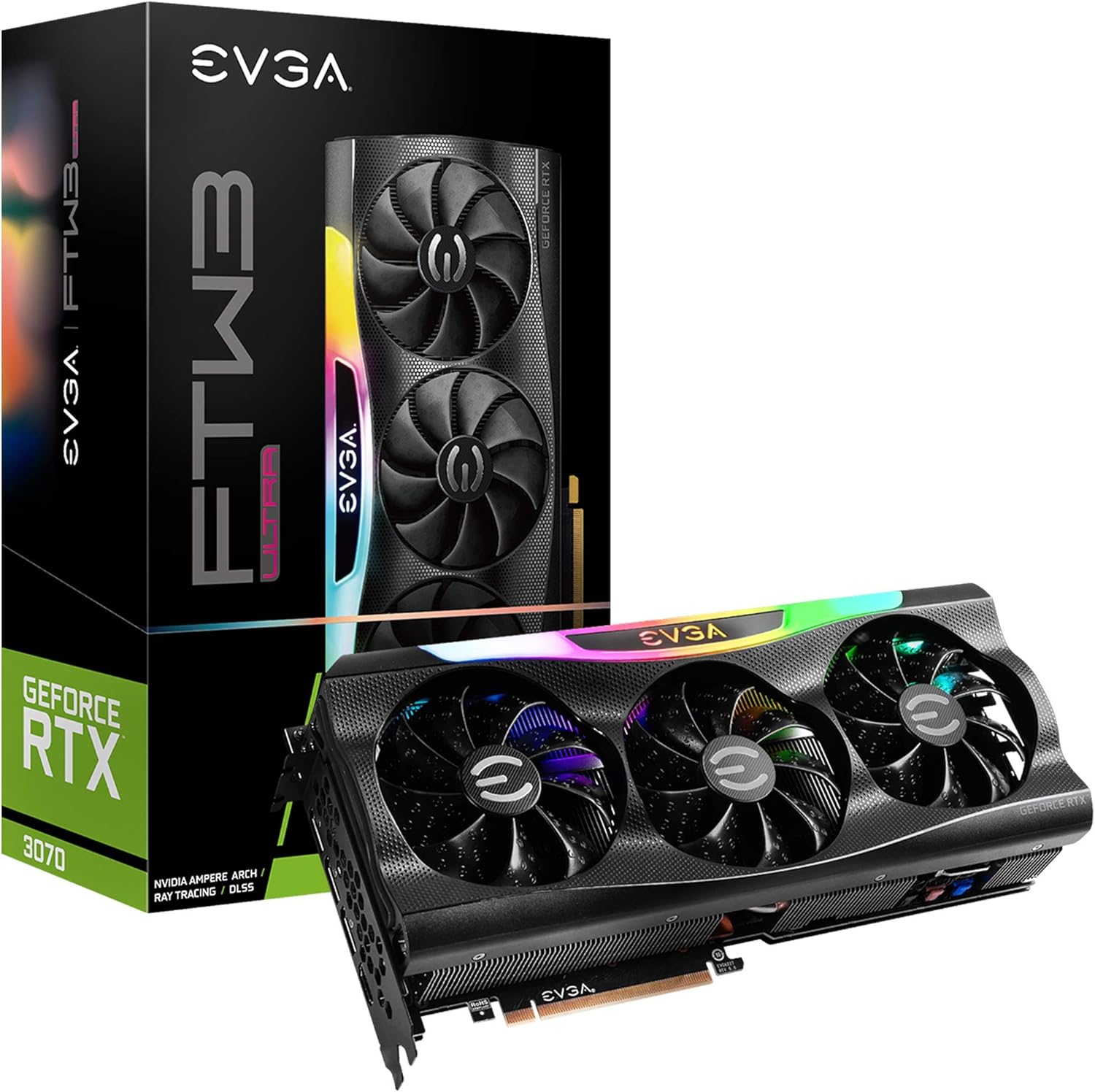
Figure 1: EVGA GeForce RTX 3070 FTW3 Ultra Gaming graphics card and packaging.
Setup and Installation
Proper installation is crucial for the functionality and stability of your graphics card. Follow these steps carefully.
1. Pre-Installation Checklist
- Power Supply: Ensure your power supply unit (PSU) meets the minimum wattage requirements for the RTX 3070 (typically 650W or higher, consult your PSU manufacturer for specific compatibility).
- PCIe Slots: Verify your motherboard has an available PCI Express x16 slot.
- Case Clearance: Confirm your computer case has sufficient physical space for the graphics card (Product Dimensions: 11.81 x 2.32 x 5.38 inches).
- Drivers: Download the latest NVIDIA drivers for the RTX 3070 from the official NVIDIA website before installation.
- Static Protection: Use an anti-static wrist strap or periodically touch a grounded metal object to discharge static electricity.
2. Physical Installation
- Power Off: Shut down your computer and disconnect the power cable from the wall outlet.
- Open Case: Open your computer case to access the motherboard.
- Remove Old Card (if applicable): If replacing an existing graphics card, carefully remove it by unscrewing the retention bracket and releasing the PCIe slot latch.
- Insert New Card: Align the EVGA GeForce RTX 3070 FTW3 Ultra Gaming card with an available PCIe x16 slot. Press down firmly and evenly until the card is fully seated and the slot latch clicks into place.
- Secure Card: Secure the graphics card to the case with screws using the retention bracket.
- Connect Power: Connect the required PCIe power cables from your power supply to the graphics card. The EVGA RTX 3070 FTW3 Ultra Gaming typically requires two 8-pin PCIe power connectors. Ensure all connections are secure.

Figure 2: Power connector locations on the graphics card.
3. Driver Installation
- Reconnect Power: Close your computer case, reconnect the power cable, and connect your monitor to one of the graphics card's display outputs (HDMI or DisplayPort).
- Boot System: Power on your computer.
- Install Drivers: Once the operating system loads, run the NVIDIA driver installer downloaded earlier. Follow the on-screen prompts to complete the installation.
- Restart: Restart your computer after the driver installation is complete.

Figure 3: Reference for installation guidance.
Operating Your Graphics Card
After successful installation, you can optimize your graphics card's performance and customize its features.
1. Software and Features
- EVGA Precision X1: This software allows for monitoring, overclocking, and customizing the ARGB LED lighting of your EVGA graphics card. It also provides control over fan speeds and other performance parameters.
- NVIDIA GeForce Experience: This application optimizes game settings, updates drivers, and enables features like NVIDIA ShadowPlay for recording gameplay.
- Real-Time RAY TRACING: The RTX 3070 supports real-time ray tracing for enhanced visual fidelity in compatible games.
- NVIDIA DLSS: Deep Learning Super Sampling (DLSS) uses AI to boost frame rates while maintaining image quality.

Figure 4: Graphics card with adjustable ARGB LED lighting.
2. iCX3 Technology
The iCX3 Technology integrates sensors and micro-control processors to provide intelligent cooling. It uses asynchronous fans that spin at different rates to cool components only as needed, optimizing cooling accuracy and reducing noise.

Figure 5: Explanation of iCX3 Technology features.
Maintenance
Regular maintenance helps ensure the longevity and optimal performance of your graphics card.
- Cleaning: Periodically clean dust from the fans and heatsink using compressed air. Ensure the computer is powered off and unplugged before cleaning. Hold the fan blades gently to prevent them from spinning rapidly during cleaning.
- Driver Updates: Keep your graphics drivers updated to the latest version from the official NVIDIA website. Driver updates often include performance improvements, bug fixes, and support for new games.
- Software Updates: Keep EVGA Precision X1 and NVIDIA GeForce Experience software updated.
- Temperature Monitoring: Use EVGA Precision X1 or other monitoring tools to keep an eye on your GPU temperatures, especially during heavy loads. Ensure adequate airflow within your computer case.
Troubleshooting
If you encounter issues with your graphics card, refer to the following common troubleshooting steps.
- No Display Output:
- Ensure the monitor cable is securely connected to the graphics card's output and the monitor.
- Verify the graphics card is fully seated in the PCIe slot and all power cables are connected.
- Test with a different display cable or monitor if possible.
- Driver Issues/Crashes:
- Perform a clean installation of the latest NVIDIA drivers. Use Display Driver Uninstaller (DDU) in Safe Mode to remove old drivers before installing new ones.
- Ensure you are using official software and drivers. Avoid using unofficial software as it can lead to instability or security risks.
- Overheating:
- Check for proper airflow in your computer case. Ensure case fans are functioning correctly.
- Clean dust from the graphics card's fans and heatsink.
- Monitor temperatures with EVGA Precision X1. If temperatures are consistently high, consider adjusting fan curves or improving case ventilation.
- Performance Issues:
- Ensure your system meets the recommended specifications for the games or applications you are running.
- Verify that the graphics card is running at its expected clock speeds using monitoring software.
- Check for background applications consuming system resources.
Specifications
Detailed technical specifications for the EVGA GeForce RTX 3070 FTW3 Ultra Gaming graphics card.
| Feature | Specification |
|---|---|
| Model Number | 08G-P5-3767-KL |
| Graphics Coprocessor | NVIDIA GeForce RTX 3070 |
| Memory Detail | 8192 MB GDDR6X |
| Memory Speed | 14000 MHz |
| Boost Clock | 1815 MHz |
| Max Screen Resolution | 4K (3840x2160) at 60Hz |
| Video Output Interface | HDMI, DisplayPort |
| Product Dimensions (LxWxH) | 11.81 x 2.32 x 5.38 inches |
| Item Weight | 4.29 pounds |
| iCX3 Technology | Yes |
| ARGB LED | Yes, Adjustable |
| Backplate | All-Metal |
| LHR (Lite Hash Rate) | Yes |
Warranty and Support
EVGA products are typically covered by a manufacturer's warranty. For specific warranty terms, registration, and technical support, please visit the official EVGA website or contact their customer service.
It is recommended to register your product upon purchase to facilitate any future warranty claims or support requests.
For the latest drivers, software, and support resources, please visit: EVGA Support Website
Related documents08G-P5-3767-KL


Ask a question about this manual
Ask about setup, troubleshooting, compatibility, parts, safety, or missing instructions. Manuals+ will review the question and use this page’s manual context to help answer it.