
1. Introduction
The HUAWEI MateStation B515 is a compact and powerful desktop PC designed for various computing tasks, from office work to multimedia consumption. It features an AMD Ryzen 5 4600G processor with integrated Radeon Graphics, 8GB of RAM, and a fast 256GB NVMe SSD, providing efficient performance and quick responsiveness. This manual provides essential information for setting up, operating, maintaining, and troubleshooting your MateStation B515.
2. Safety Information
- Read all instructions carefully before using the device.
- Do not expose the device to extreme temperatures, humidity, or direct sunlight.
- Ensure proper ventilation to prevent overheating. Do not block ventilation openings.
- Use only the power adapter and cables provided or approved by HUAWEI.
- Avoid placing heavy objects on the device.
- Do not attempt to disassemble or repair the device yourself. Contact authorized service personnel for assistance.
- Keep the device away from liquids and corrosive substances.
3. Package Contents
Verify that all items are present in the package:
- HUAWEI MateStation B515 Desktop PC
- Power Adapter and Cable
- Wired Keyboard (may vary by region)
- Wired Mouse (may vary by region)
- Quick Start Guide / Warranty Card
4. Product Overview
4.1 Front Panel

Figure 1: Front Panel of MateStation B515
The front panel provides convenient access to essential ports and controls:
- Power Button: Press to turn the PC on or off.
- USB-A Port: For connecting USB devices.
- USB-C Port: For connecting USB-C devices.
- Headphone/Microphone Jack: For audio input/output.
4.2 Rear Panel

Figure 2: Rear Panel Connectivity
The rear panel houses the main connectivity options:
- HDMI Port: For connecting to a monitor or display.
- VGA Port: For connecting to older monitors or displays.
- USB-A Ports (Multiple): For connecting various USB peripherals.
- Ethernet (RJ45) Port: For wired network connection.
- Audio Jacks: Line-in, Line-out, Microphone.
- Serial (COM) Port: For legacy device connectivity.
- Power Input: For connecting the power cable.
4.3 Side View and Ventilation

Figure 3: Side Ventilation
The side panel features ventilation grilles designed to ensure optimal airflow and heat dissipation, maintaining stable performance even under heavy loads.
4.4 Complete Setup Example
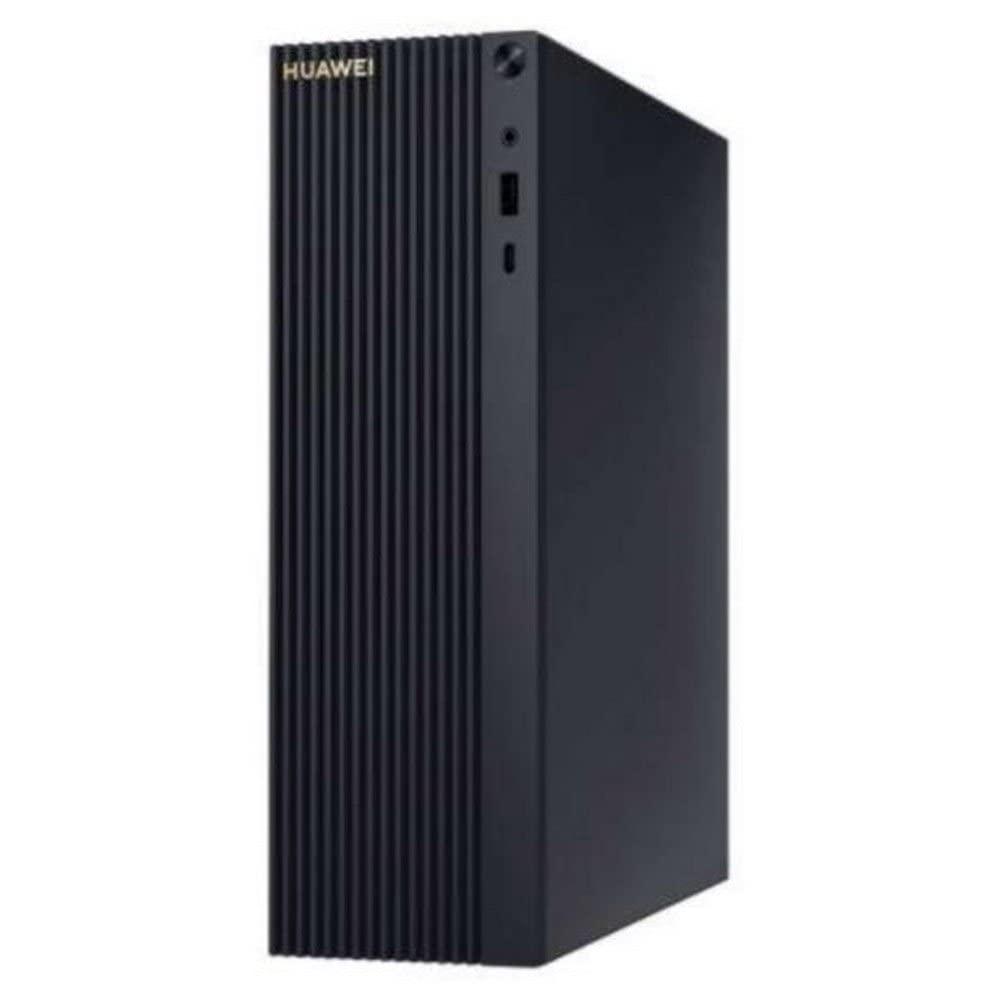
Figure 4: MateStation B515 in a typical desktop environment
This image illustrates a typical setup of the MateStation B515, connected to a monitor and peripherals, ready for use.
5. Setup Instructions
5.1 Connecting Peripherals
- Connect Monitor: Use an HDMI or VGA cable to connect your monitor to the corresponding port on the rear panel of the MateStation B515.
- Connect Keyboard and Mouse: Plug the USB cables of your keyboard and mouse into any available USB-A ports on the front or rear panel.
- Connect Network (Optional): For a wired internet connection, connect an Ethernet cable from your router or modem to the RJ45 port on the rear panel. Alternatively, the device supports Wi-Fi.
- Connect Audio (Optional): If using external speakers or a headset, connect them to the appropriate audio jacks on the front or rear panel.
5.2 Powering On
- Connect Power: Plug the power cable into the power input on the rear panel of the MateStation B515, then plug the other end into a power outlet.
- Power On: Press the power button located on the front panel of the PC. The power indicator light will illuminate.
5.3 Initial Windows Setup
Upon first boot, the system will guide you through the Windows 10 Pro setup process. Follow the on-screen instructions to configure language, region, network settings, user accounts, and other preferences. Ensure you have an active internet connection for updates and account synchronization.
6. Operating Instructions
6.1 Basic Operation
- Starting the PC: Press the power button.
- Shutting Down: Click the Start button in Windows, then select Power > Shut down.
- Restarting: Click the Start button in Windows, then select Power > Restart.
- Sleep Mode: Click the Start button in Windows, then select Power > Sleep.
6.2 HUAWEI Share
The HUAWEI MateStation B515 supports HUAWEI Share, allowing seamless interaction with compatible HUAWEI smartphones. This feature enables you to:
- Multi-screen Collaboration: Project your phone screen onto the PC for easier file transfer, editing, and app usage.
- File Transfer: Quickly transfer photos, videos, and documents between your phone and PC.
- Cross-device Editing: Edit files from your phone directly on the MateStation B515, with changes automatically saved to your phone.
To use HUAWEI Share, ensure your HUAWEI smartphone supports the feature and follow the on-screen instructions provided by the HUAWEI PC Manager software on your MateStation B515.
7. Maintenance
7.1 Cooling System
The MateStation B515 features a specially designed cooling system with custom air circulation channels to efficiently dissipate heat from the processor and other components. This ensures stable performance and quiet operation.
- Ensure that the ventilation openings on the device are not obstructed.
- Place the PC on a flat, stable surface with adequate space around it for airflow.
7.2 Cleaning
- Before cleaning, power off the PC and disconnect it from the power outlet.
- Use a soft, dry, lint-free cloth to wipe the exterior surfaces of the PC.
- For stubborn stains, slightly dampen the cloth with water or a mild, non-abrasive cleaner.
- Do not spray liquids directly onto the PC.
- Use compressed air to gently clear dust from ventilation grilles, holding the can upright to prevent liquid discharge.
8. Troubleshooting
If you encounter issues with your MateStation B515, try the following basic troubleshooting steps:
- No Power: Ensure the power cable is securely connected to both the PC and the power outlet. Try a different power outlet.
- No Display: Check that the monitor cable (HDMI/VGA) is securely connected to both the PC and the monitor. Ensure the monitor is powered on and set to the correct input source.
- Peripherals Not Working: Try connecting the keyboard or mouse to a different USB port. Ensure drivers are up to date (check Windows Device Manager).
- Slow Performance: Close unnecessary applications. Check for background processes using Task Manager. Ensure Windows and drivers are updated. Consider running a disk cleanup.
- Network Connectivity Issues: For wired connections, check the Ethernet cable and router. For Wi-Fi, ensure the Wi-Fi adapter is enabled and you are connected to the correct network. Restart your router/modem.
If problems persist, consult the HUAWEI support website or contact customer service.
9. Specifications
| Feature | Specification |
|---|---|
| Brand | HUAWEI |
| Model Number | 53012CPF |
| Operating System | Windows 10 Pro |
| CPU Model | AMD Ryzen 5 4600G |
| CPU Speed | 4.2 GHz |
| Graphics Coprocessor | Radeon Graphics (Integrated) |
| RAM | 8 GB |
| Storage | 256 GB NVMe SSD |
| Total USB Ports | 6 |
| Connections | Bluetooth, Wi-Fi |
| Special Features | Access Point Mode |
| Product Type | Mini PC |
| Color | Multicolour (Chassis is typically black/dark grey) |
| Manufacturer | Huawei |
| Country of Origin | China |
10. Warranty and Support
10.1 Warranty Information
The HUAWEI MateStation B515 typically comes with a manufacturer's warranty. Availability of spare parts is guaranteed for 2 years from the date of purchase. Please refer to your specific purchase documentation for detailed warranty terms and conditions.
10.2 Software Updates
Software updates for the device are guaranteed until April 13, 2030, ensuring continued security and feature enhancements for your Windows 10 Pro operating system.
10.3 Customer Support
For technical assistance, warranty claims, or further inquiries, please visit the official HUAWEI support website or contact your local HUAWEI customer service center. Keep your product model number (B515 or 53012CPF) and proof of purchase handy when contacting support.


